
No, 'incomplete' applications cannot be imported. Only applicants with the 'Completed' status will show up in the Admissions+ SIMS APP ready to be imported.
You can temporarily change the status of applications to "complete" in order to transfer them to your MIS. See how by following the steps in this guide.
Do I need the timetable set up in SIMS before I import options?
Yes. When you import students' subject options into SIMS using the Admissions+ SIMS App, each student is placed into their teaching group (class) in SIMS. Those classes have to already exist in your SIMS timetable, because the app matches the class codes in Admissions+ to the class codes in SIMS. If the timetable and its classes are not yet in SIMS there is nothing for the app to match the options to, so build your timetable in SIMS first.
Before you run the import, open your application form and go to the "Options" area to check the class codes you are about to send.
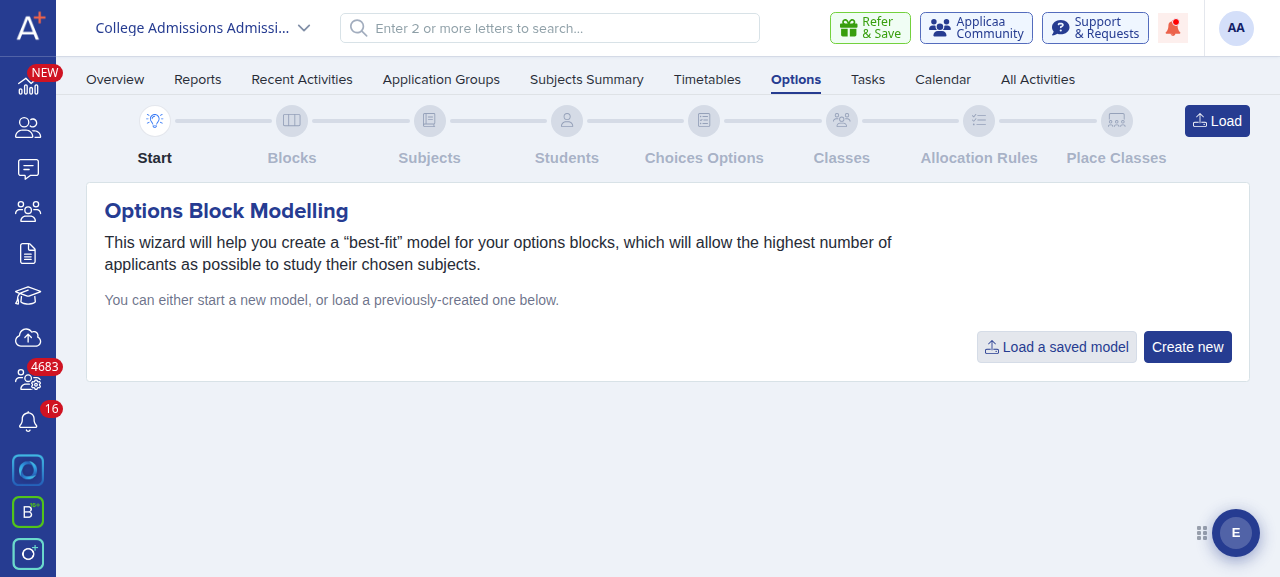
Open the "Classes" step to see each class and its class code. Make sure these codes match the class codes in your SIMS timetable so they map cleanly during the import.
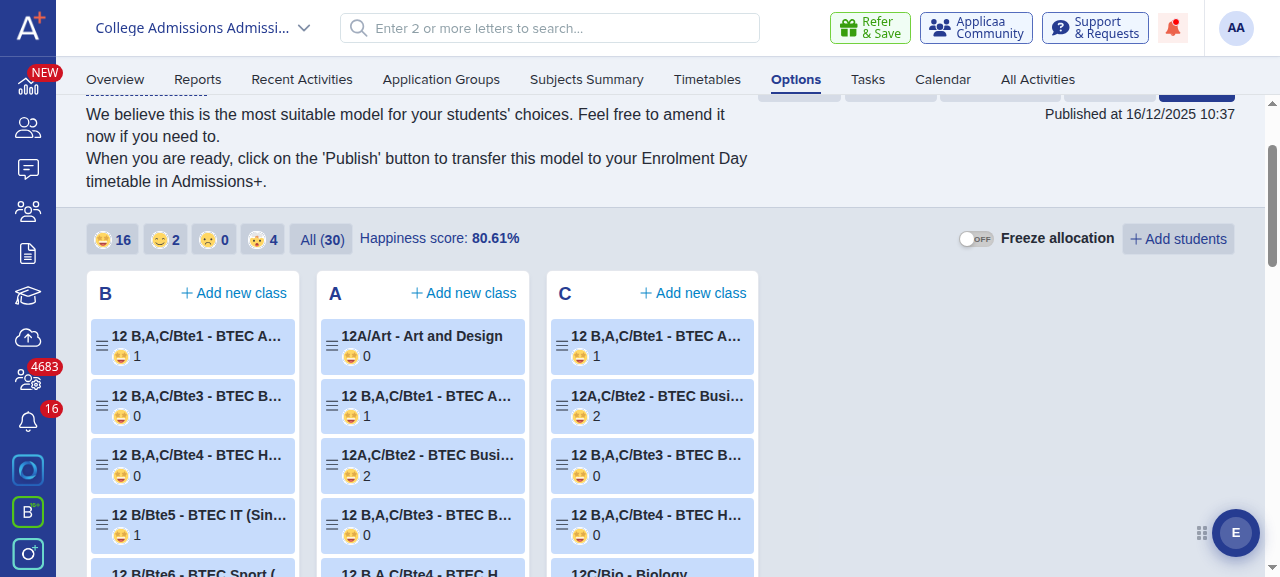
Once your SIMS timetable is in place and the class codes match, import into SIMS in this order using the Admissions+ SIMS App:
- Import the classes first and use "automatically match classes" (or "automatically match groups" for Year 9 options) to map the SIMS classes to your Admissions+ classes.
- Then import the class options, which places each student into their matched class.
The import does not add students to their base bands in SIMS, so you will still need to set those directly in SIMS once the class import has finished.
Related articles
- How to import classes into your MIS
- Year 9 Integration - importing and exporting
- How to import incomplete applications to your MIS
If you get stuck, ask Emma in Admissions+ or open a request from the "Support & Requests" button at the top of your dashboard.