
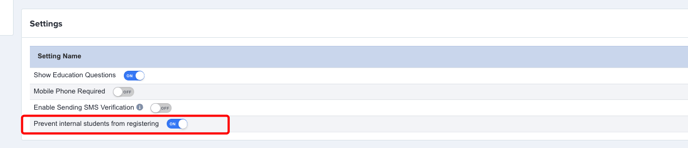
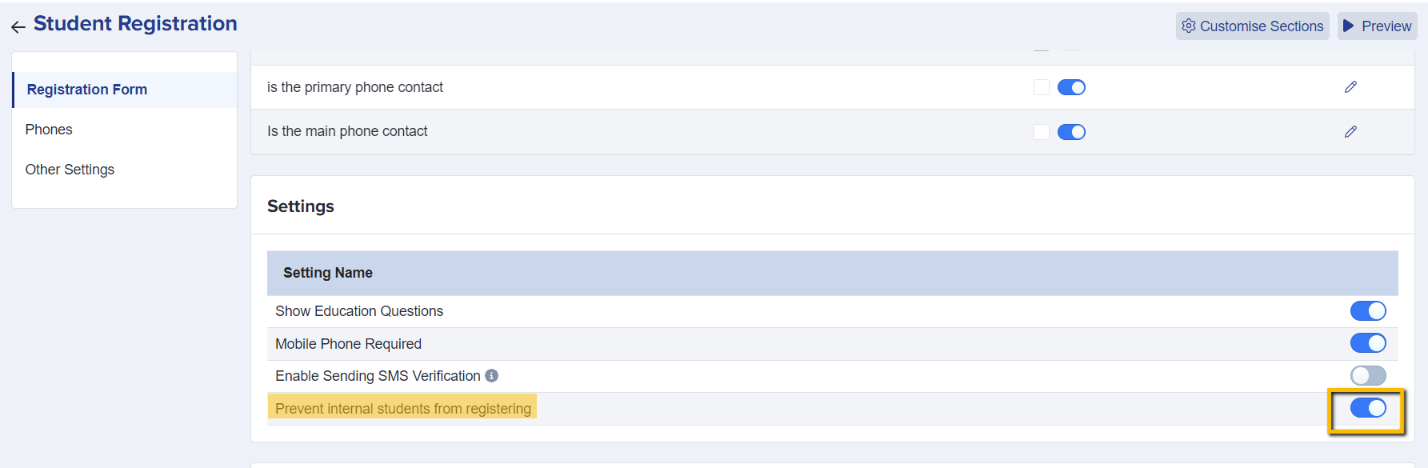
It is mandatory for the school to import all internal students into the system. Internal Students are no longer allowed to self-register, and the setting below in the Student Registration phase will be enforced (set to ‘ON’ and grayed out).
When importing internal students, schools must provide at least one of:
- ULN (Unique Learner Number), or
- UPN (Unique Pupil Number)
Moving internal students into Admissions+ from SIMS
- Load the Admissions+ SIMS App and select “Export Applications”.

- Select the correct application form (your Year 12 application form, for example) to ensure this is where the students are exported to.
*Note: if the form is not showing in the list, you will need to log into your Admissions+ system and ensure the toggle switch is turned on for that form in your forms area.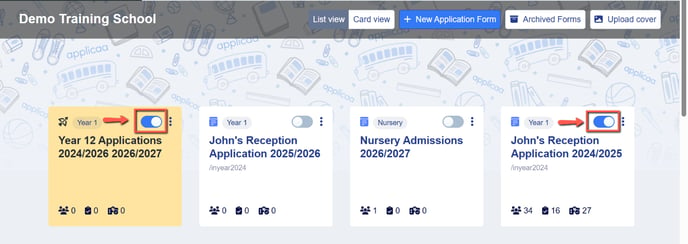
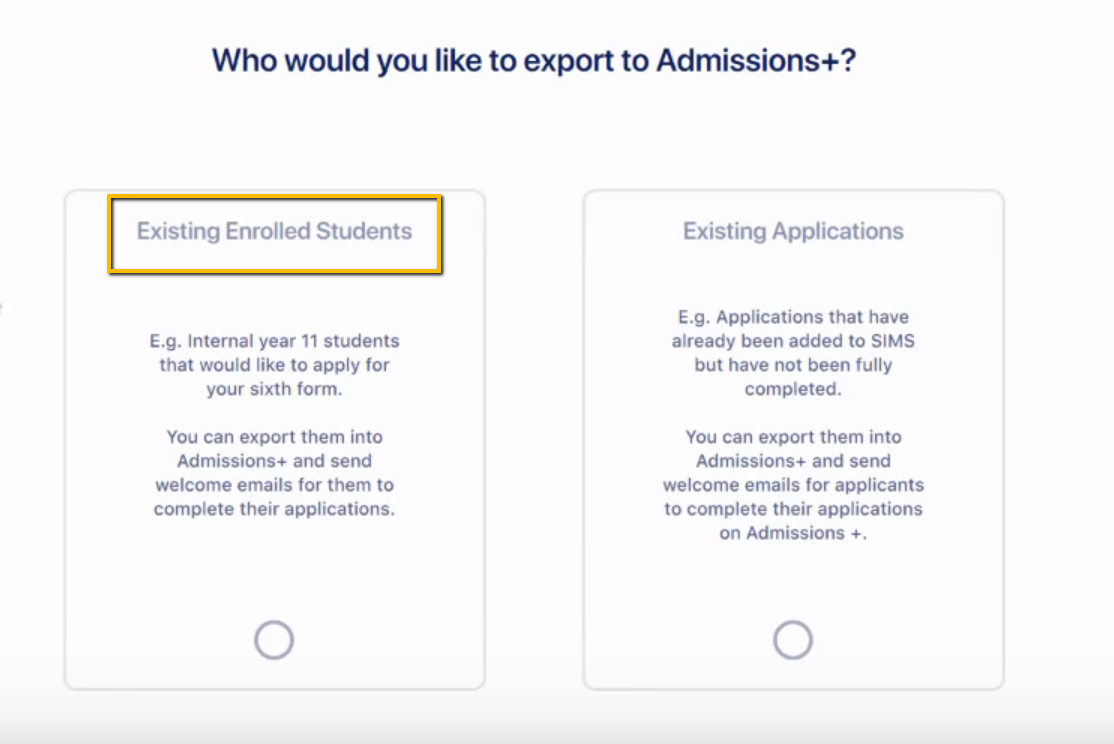
- Choose “existing enrolled students” when prompted, and then filter to select the correct year group from the list of all on-roll students.
- Click “select all” to choose all of the students who appear in your filtered list.
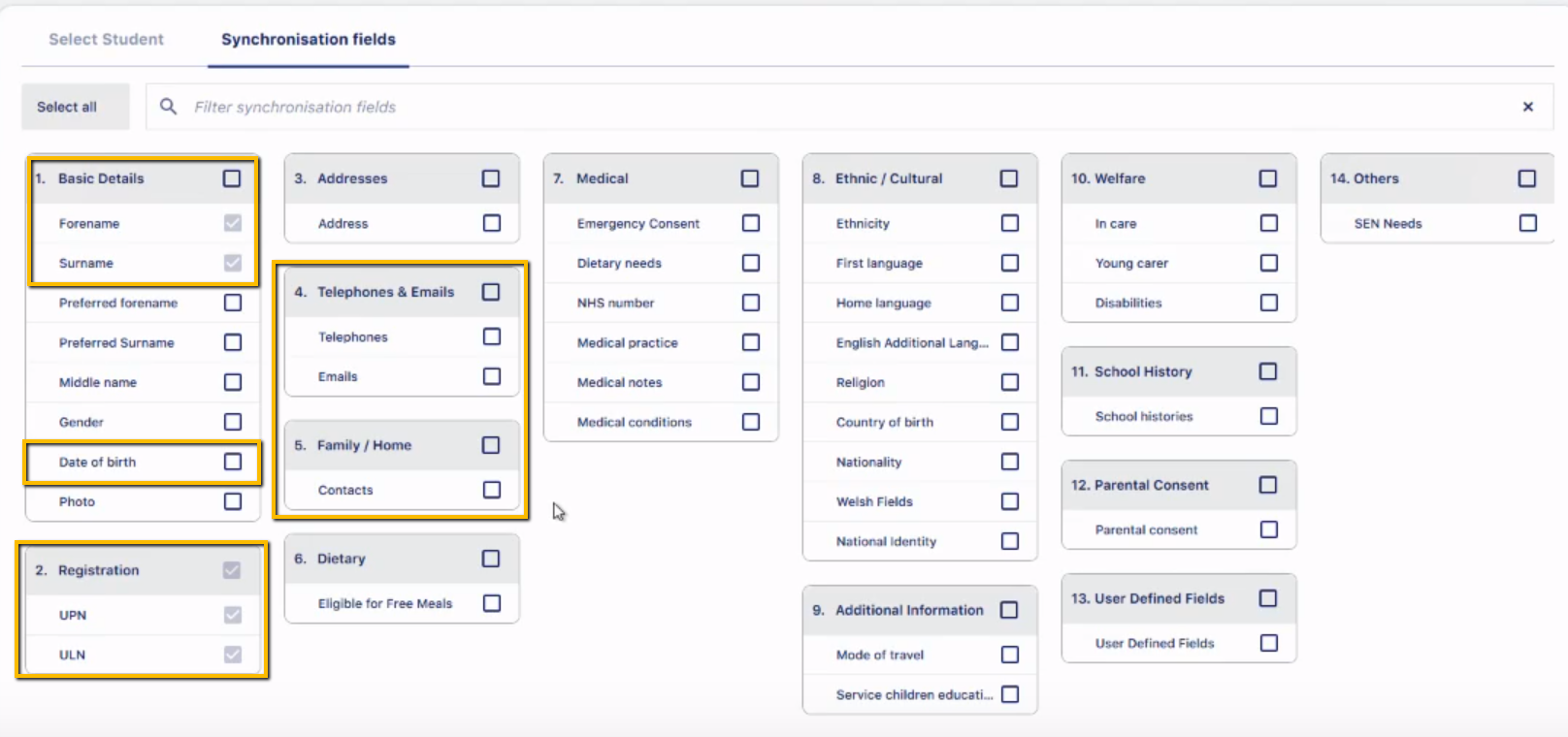
- Choose which fields of data to export from SIMS; you can "select all", or choose which fields of data to export, as shown here:
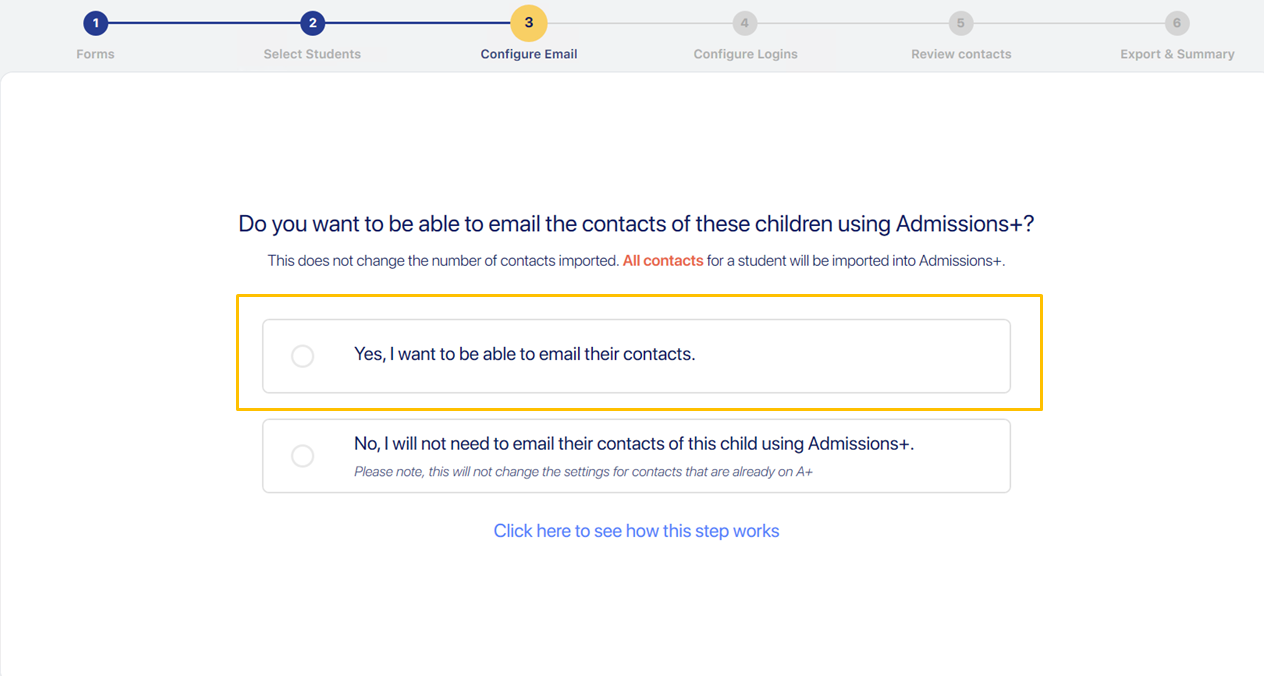
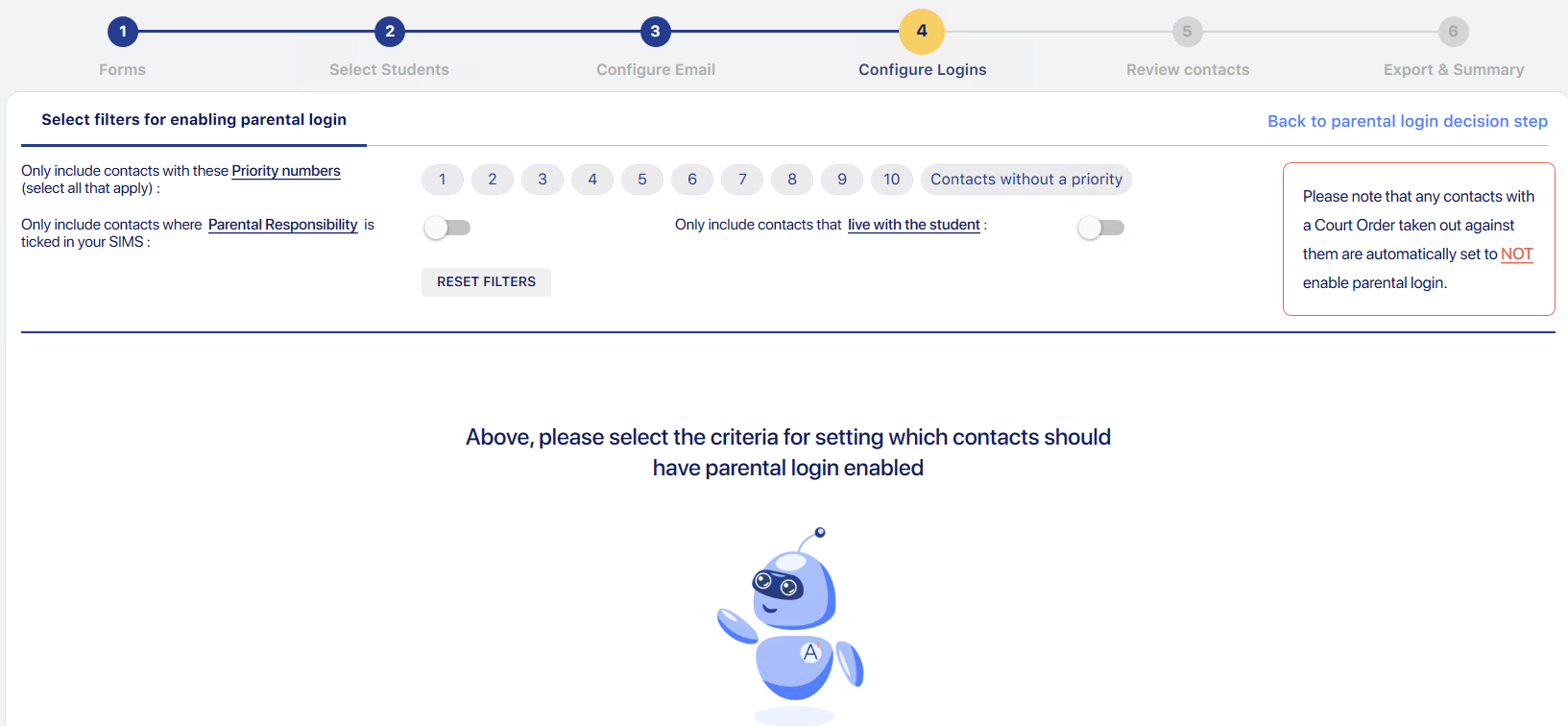
- You will then be asked whether you would like to be able to email the parents/contacts of each student - we suggest choosing “yes” and then selecting to import the data for Priority 1 and/or contacts with Parental Responsibility. This will enable you to CC parents into emails you send to the students from your A+ system.
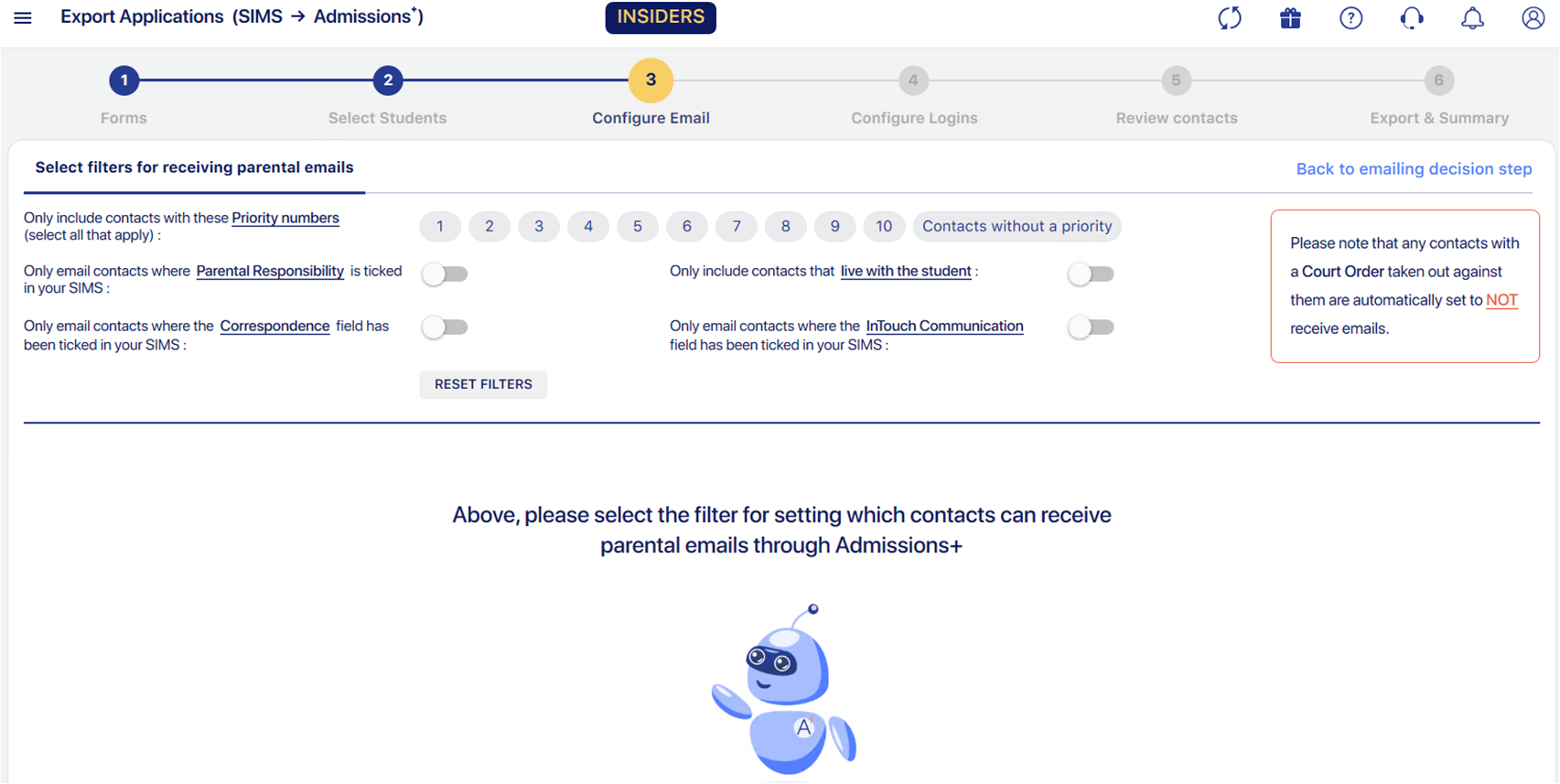
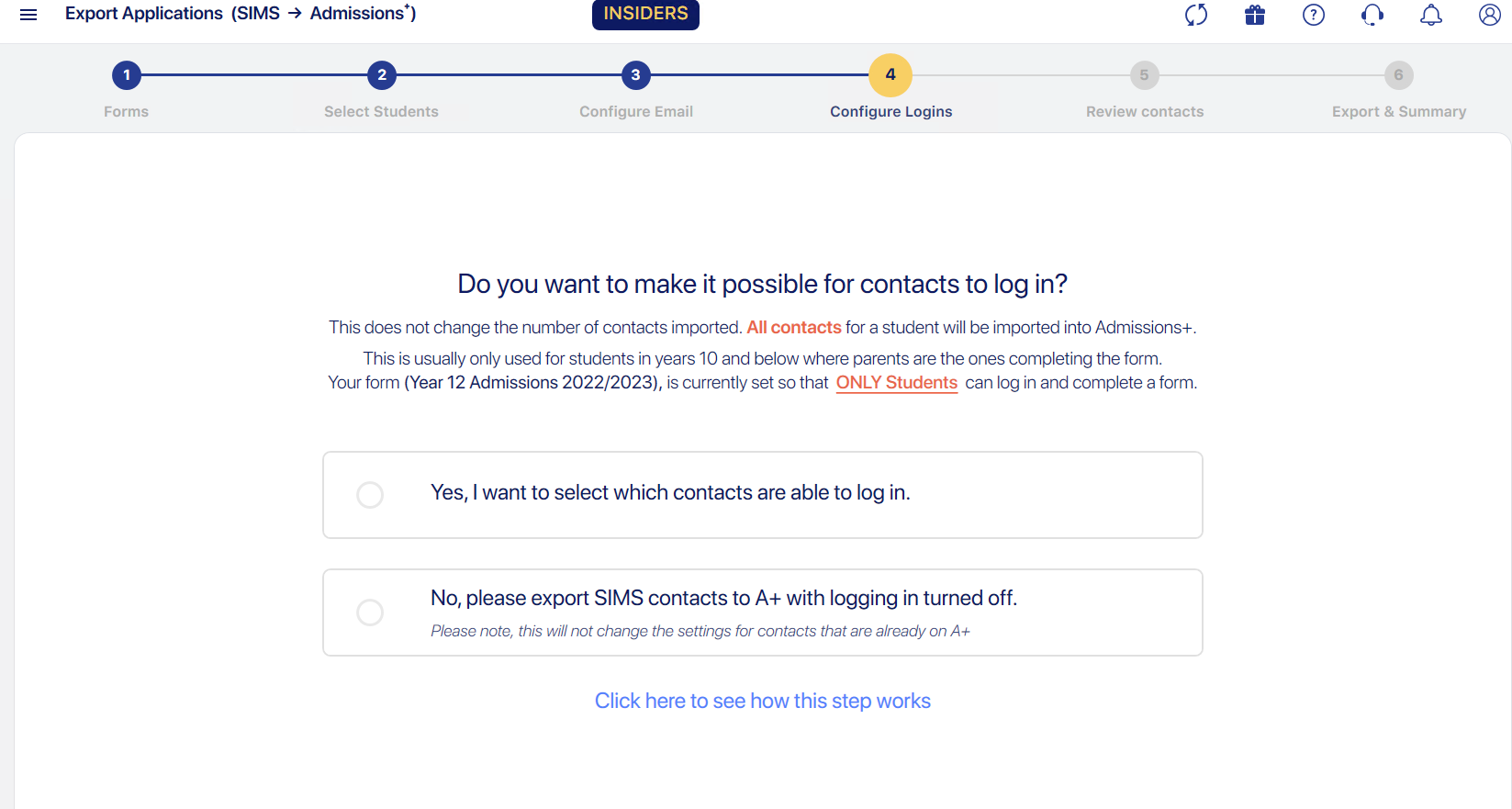
- You will then be asked whether you want the contacts to have login credentials so that they can login to the system, as well as choosing which contacts to enable this for.
- For Year 12, select \"no\" when your school contacts students instead of parents.
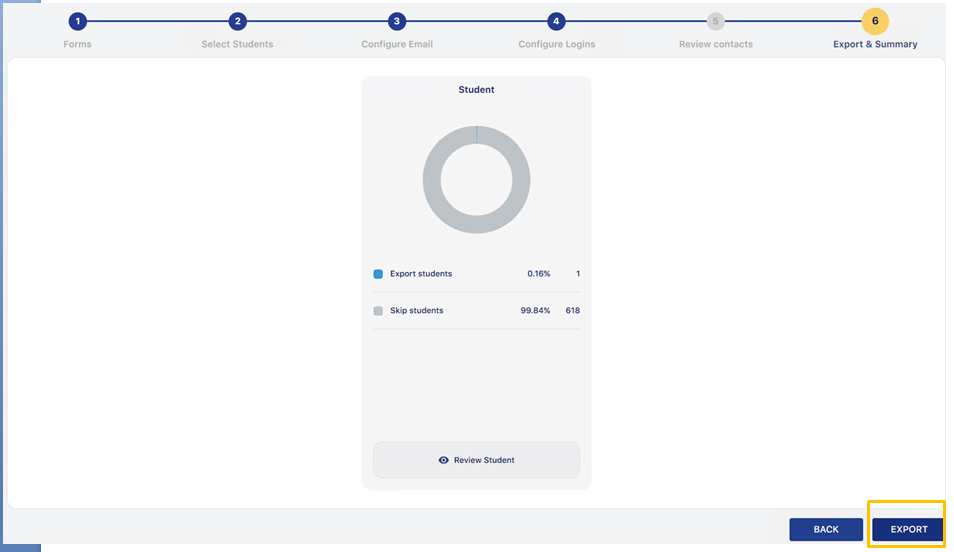
- Finally, you will be prompted to complete the export and the data for your students will show in the Data > Import area of your Admissions+ system.

Moving internal students into Admissions+ from ALL OTHER MIS
- Navigate to Data > Import > Start an Import.
- Give your import a name and select “users”, then “next”.
-
Select “New Users” and “next”, then “Students” and “next”.
-
Select the name of your MIS and then click “next”.
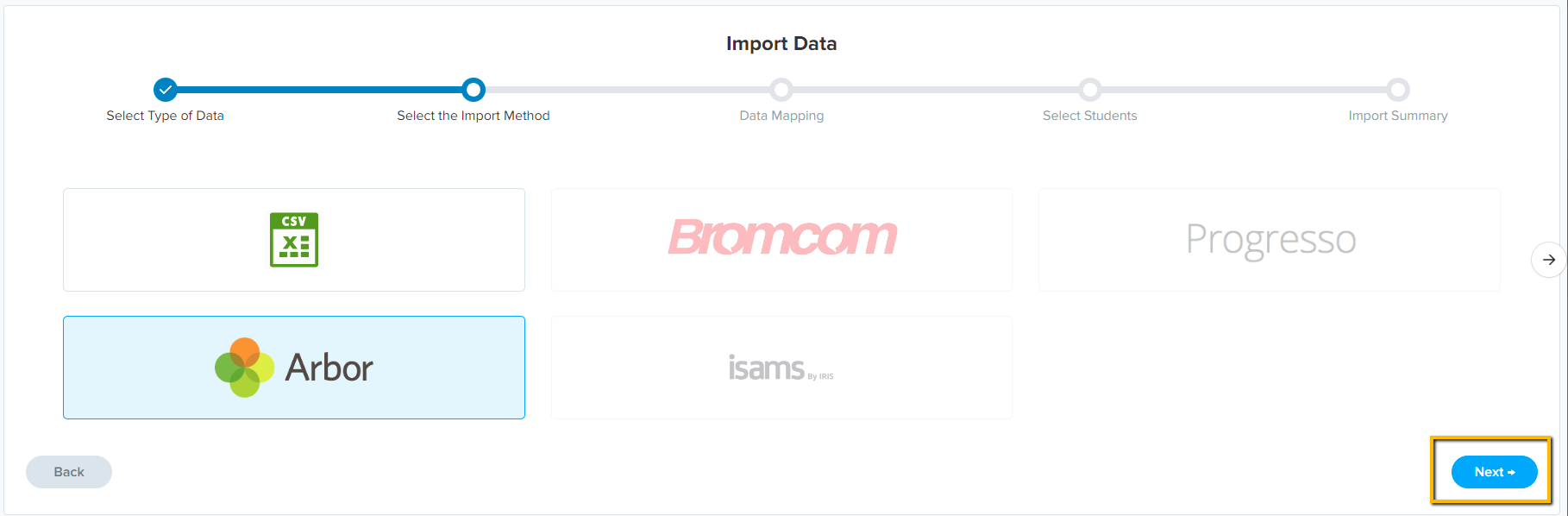
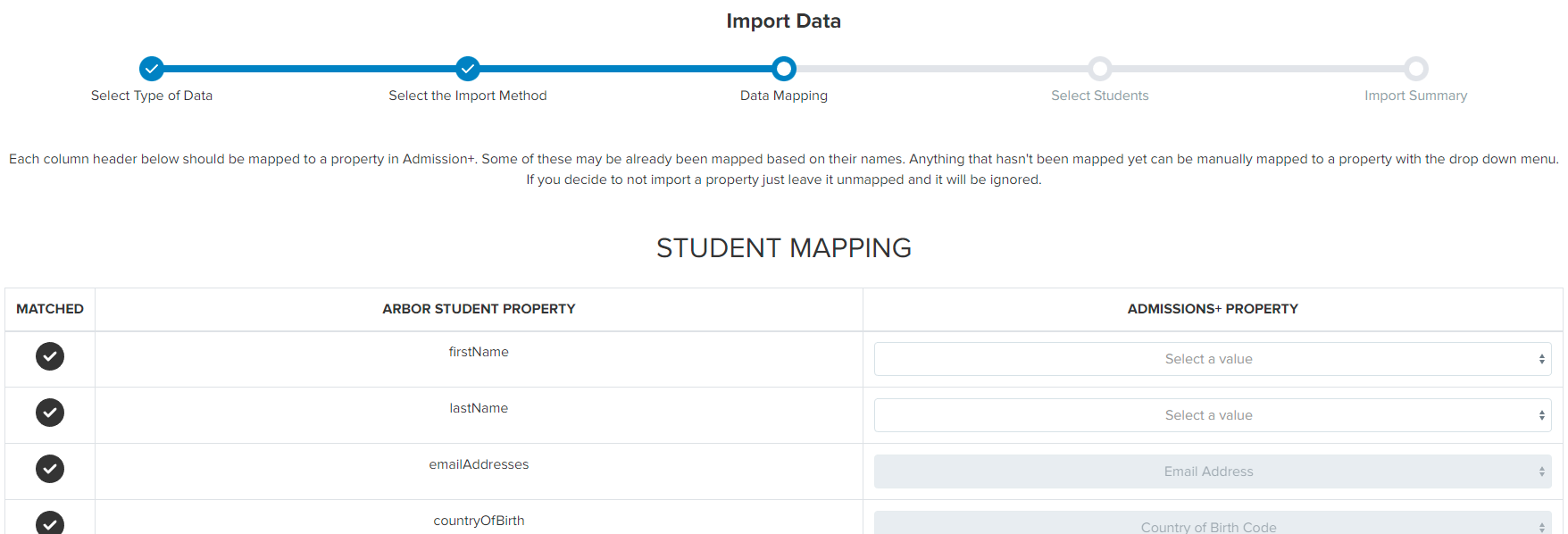
- You will see a Mapping step which shows you which data will be imported; scroll to the bottom and click "next".
-
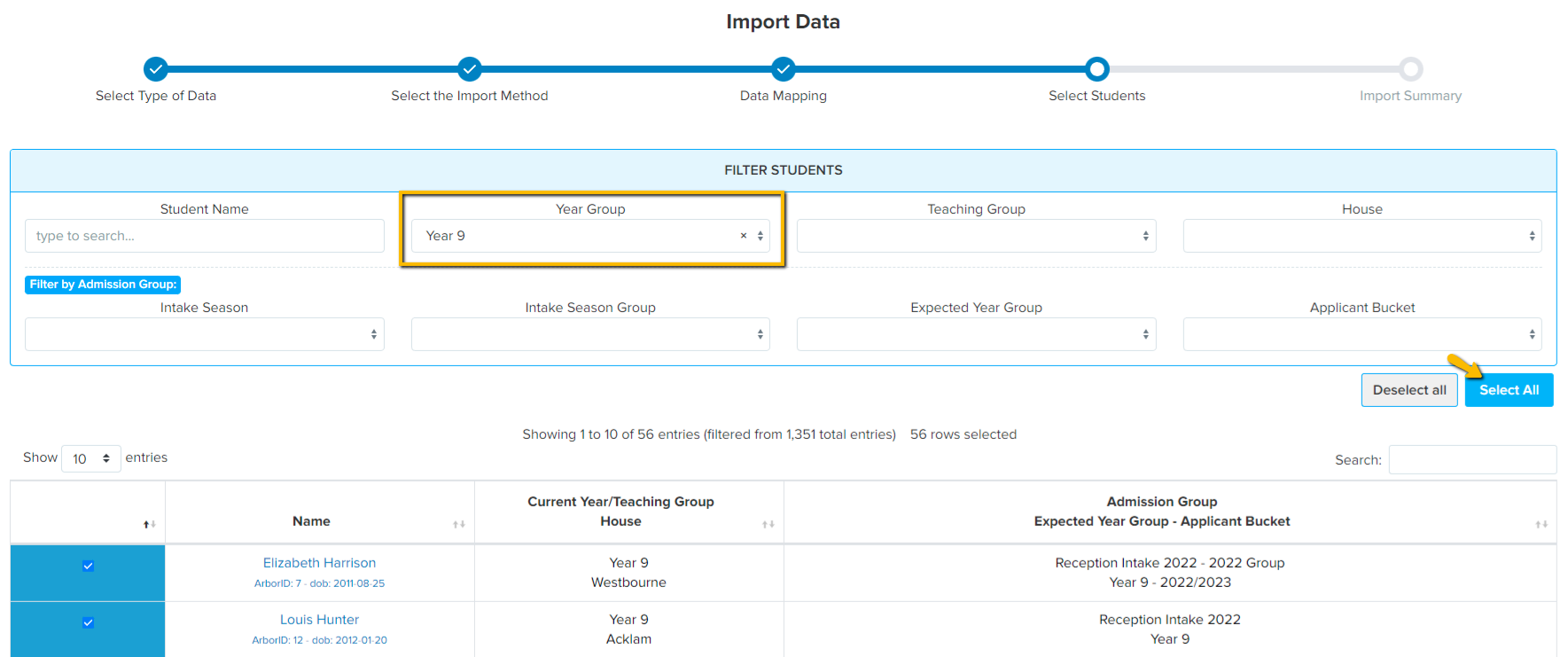
Filter by Year and select the correct year group from the dropdown menu, then click “select all” to choose all of the students within that year group.
-
Click “next” to complete the import, and the students will then be visible in your Imports area.

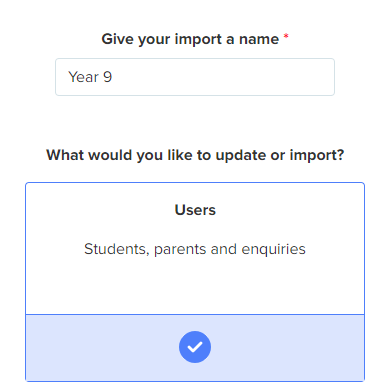
What to do once the internal students are imported
Once your internal students have been imported into Admissions+, you can send them their welcome emails so they are able to log in and complete the application form.
In your Imports area, open the import you ran and select the report icon in the Report column to view the list of imported students.

Tick the students to notify, then choose Preview Email to check the template, Edit Email Template to change its wording, or Send Welcome Email to deliver it. Each welcome email carries the student's own Admissions+ login details.

Sending from here uses the same welcome email as the "Send Student Welcome Email" action on the Registered Students page, so a student who already received it there does not need a second one. For the full walkthrough of the email template, previewing and sending to parents, see "How to Send a Welcome Email to Students and Parents" under Related Articles.
Internal students should therefore not self-register on your system - they should log in as registered users, with the credentials sent to them by you in their welcome email.
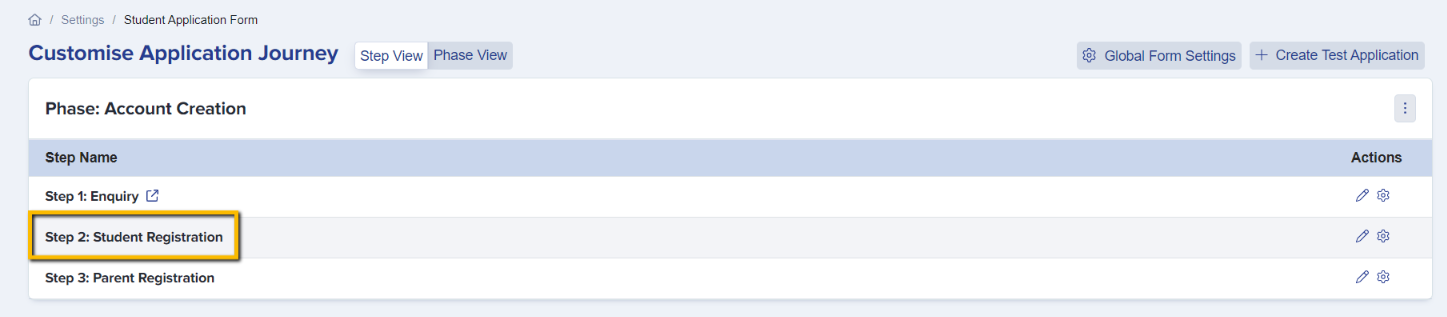
You can prevent internal students from self-registering by navigating to settings > application form > student registration.
Turn on the setting "prevent internal students from registering" and this will display an error to them if they try and create a new account, which will prompt them to log in as a registered user instead.
Choose the correct user type for a CSV import
Go to Data > Import and select Start an Import.
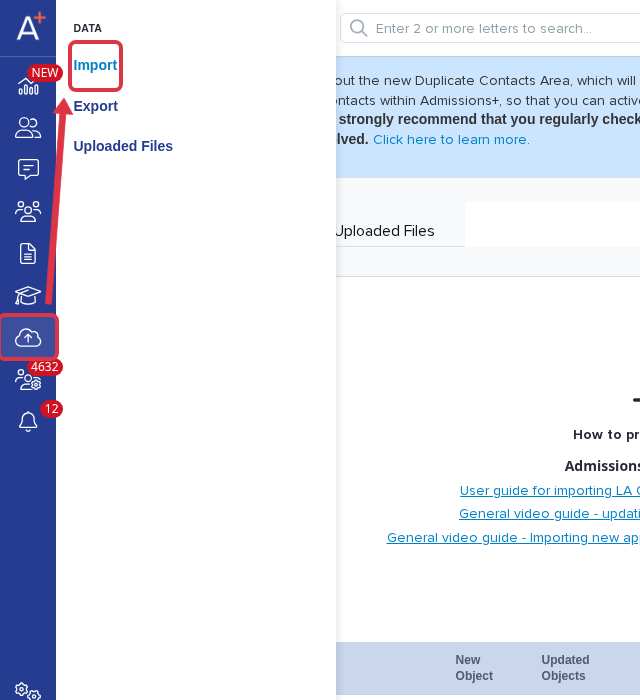
Select Users. Select New Users for students who do not yet exist in Admissions+. Select Existing Users only when the students already exist in Admissions+.
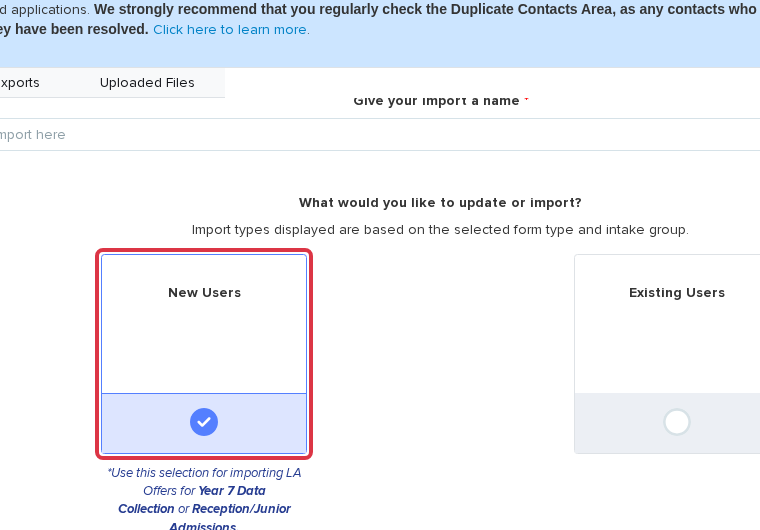
Application ID and Application Group are not required for this MIS import. Applied Year Group must match a valid year group when you use a CSV import.
For internal students, provide a UPN or ULN through your MIS import. For external applicants, the application form can collect a UPN or ULN when that field is visible to external applicants. Admissions+ does not add an identifier when it is not supplied.
An intake or pre-admissions group is a choice in your MIS export route. It is not a field you can skip in the internal-student import route.
When Admissions+ reports significant record changes
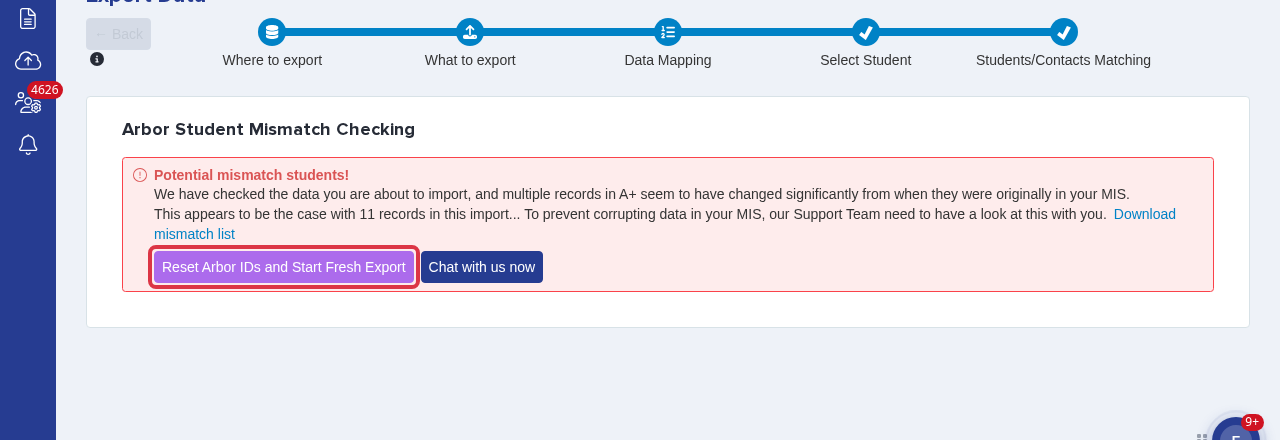
This warning appears when you export data from Admissions+ to Arbor. Select Reset Arbor IDs and Start Fresh Export to clear the Arbor ID mappings in Admissions+ and start a new export.
Review the confirmation and select Reset and Start Fresh. Admissions+ returns you to a new export, where you can map the students again.
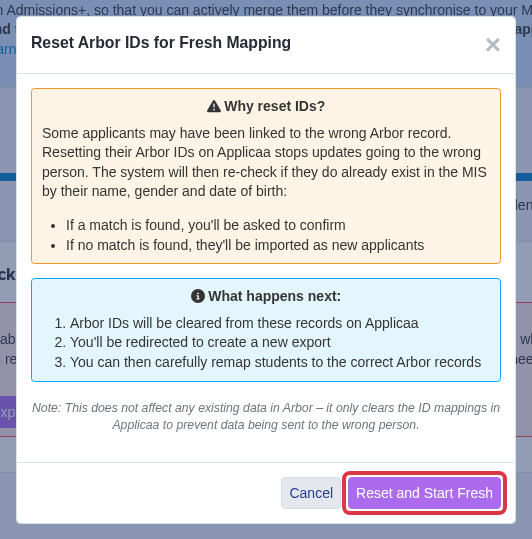
- The reset does not change data in Arbor. It clears Arbor ID mappings in Admissions+.
- If a form is missing from the SIMS export list, turn the form on in the forms area before you export.
- After an internal-student import, use the Imports report to review and send welcome emails. This import does not document an automated Student Welcome trigger at registration.