

Some statuses within the platform will be assigned automatically:
Not Started means the student has registered an account, but has not begun completing their application yet
In Progress means the student has begun completing their application, but it is not yet finished or submitted
Submitted means the application form has been completed and the student has clicked to submit this to you
The remaining statuses are manually-applied, and allow you to assign them to applicants based on the progress they have made and the decisions you have made:
Not Started & Reset Steps enables you to unlock and reopen a submitted application to the student, so they can access it again in the event that they need to make changes, or you require them to submit more evidence. It retains the answers previously provided, but unlocks the form to allow the applicant to make changes after submission
Withdrawn means the applicant has clicked to withdraw their application from consideration
Closed can be used to mark an application as declined, for example if the student does not meet the criteria to be awarded the bursary
Calculated can be used to signify that you have completed initial checks of their application - this is useful if your process involves several layers of checking - the initial checks could result in the status "calculated"
Provisional can be used to indicate that a student has passed your initial checks, or to move awarded students into a temporary state that prevents them from making bursary requests - for example, if they have not met agreement requirements such as maintaining grades or attendance according to your bursary policy.
Validated could be used as the final pre-approval before marking the student as "awarded"
Awarded is the status you give to applicants whose bursary applications have been successful, and you are going to award funding to. Only students whose status is "awarded" can submit requests for purchases and reimbursements
Changing Statuses:
To change the status for a single student, go into the student's profile then hover on the "Bursary Status" blue box and you will see different statuses (If you click the 'More' button it will give you other options as well).


To change applicants status in bulk, first you'll need to go through the list or dashboard card of students that you wish to change the status of.

For example, if you would like to mark a number of students as "closed".
Once you're on the list, you can select all the students by clicking the box beside the ID column then select 'change bursary status' in the above buttons.

What changing a bursary status does not do
Changing a student's bursary status, for example from "Withdrawn" back to "Awarded", does not change whether that student's parent or guardian can log in to the application. Login access is a separate permission that is set per guardian, not tied to the bursary status.
To check whether a guardian can currently log in and edit the application, open the student's profile and look at the Key Contact Details card. Each guardian shows one of two permission messages.
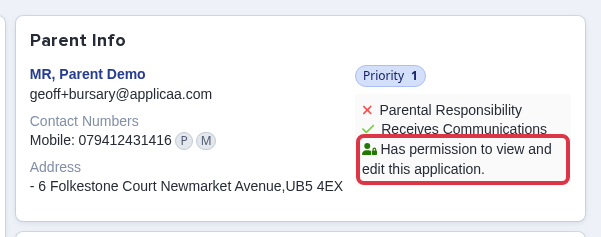
"Has permission to view and edit this application" means that guardian can already log in. "Linked but lacks view and edit permission" means that guardian cannot log in, regardless of the student's current bursary status.
Reinstating a withdrawn application to "Awarded" does restore the "Scholarship & Bursary" section on the parent's dashboard if it was hidden, but it does not grant or remove a guardian's ability to log in. Login access for a guardian is a separate setting and must be checked and changed independently of the bursary status.
Can you add your own bursary status?
No. The bursary statuses listed at the top of this article are a fixed list built into the platform. You cannot rename them, remove them, or add a new one such as "Awarded Free School Meals".
If you want to tag or group awarded students for a reason the standard statuses do not cover, use Application Groups instead. Application Groups let you create your own named group and add any students to it, independently of their bursary status.
To find Application Groups, click the Settings (gear) icon in the sidebar, then open "Form Settings".
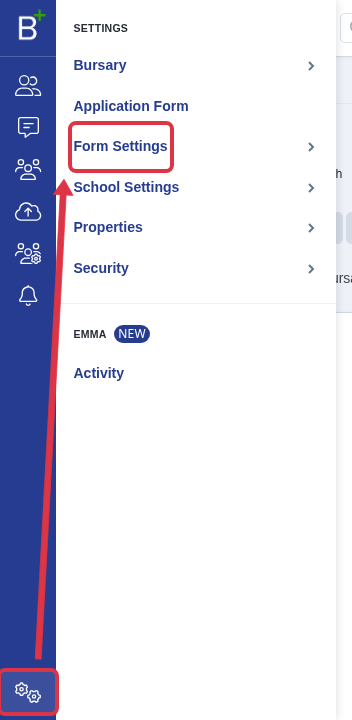
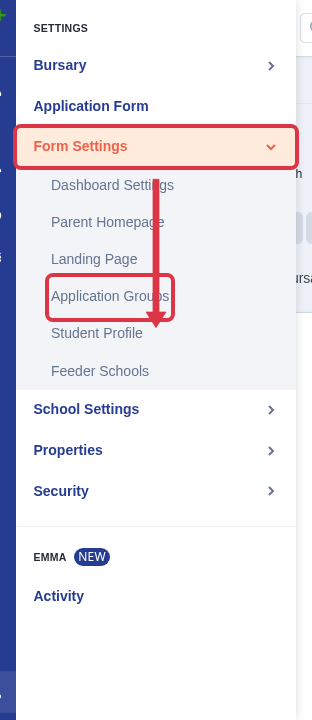
In the Form Settings submenu, click "Application Groups".
This opens the Application Groups page, where you can create a new group with your own name.
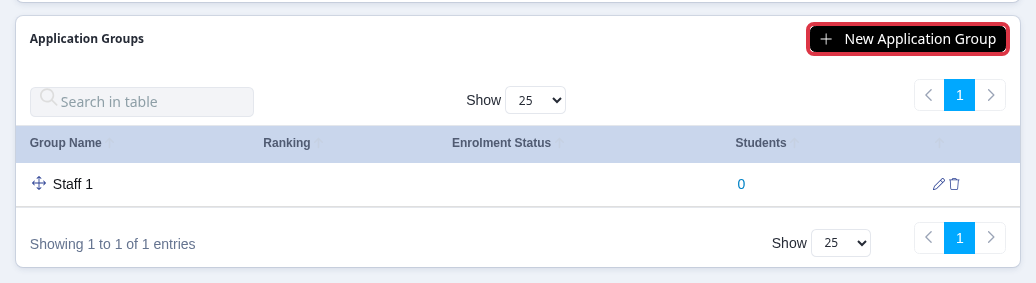
Once a group exists, go back to the student list, select the students you want to tag, for example your newly awarded students, and use the "Add to group" bulk action to add them to it. This works regardless of the students' current bursary status.