Arbor Integration Guide
2025 Updates to Arbor Data Integration (newly supported fields)
New Fields Now Transferring to Arbor
With this update, the following fields will now be transferred back to your Arbor records:
- Medical Notes
- Pastoral Notes
- Young Carer Status
- Parent National Insurance Number
- Consents - Date Stamp and Responder
- Additionally, we have streamlined the Medical Surgeries selection process, reducing duplicate entries and enhancing efficiency.
Medical Notes
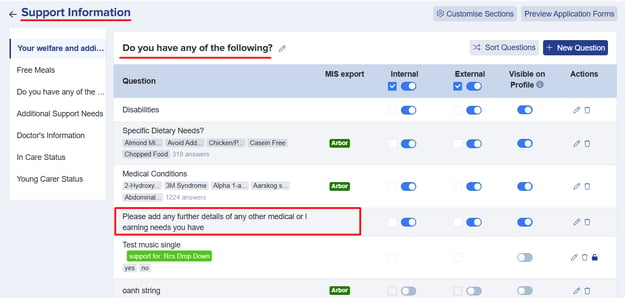
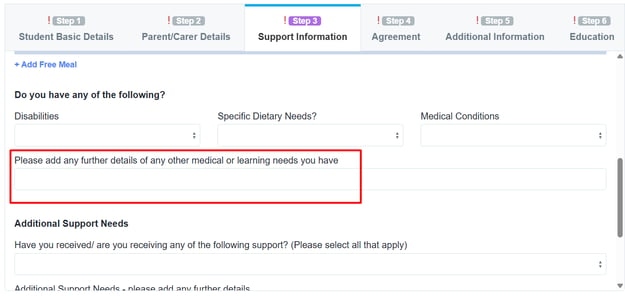
Parents and students can now add more details to their medical records using the new 'Medical Notes' field. To enable this field:
- Navigate to Support Information step.
- Locate 'Do you have any of the following?' section.
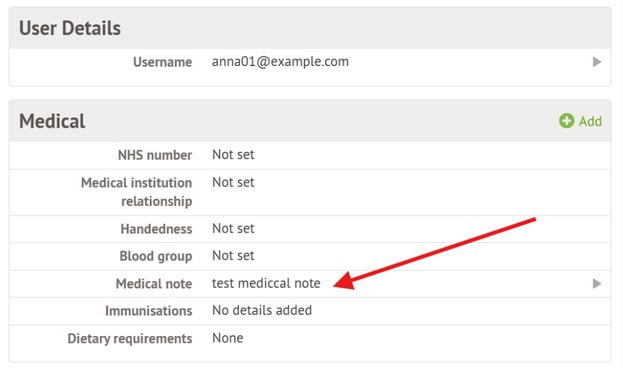
- You will now see 'Please add any further details of any other medical need you have' next to Medical Conditions question as shown in the example below.
- These notes will appear in Arbor under the Medical section.
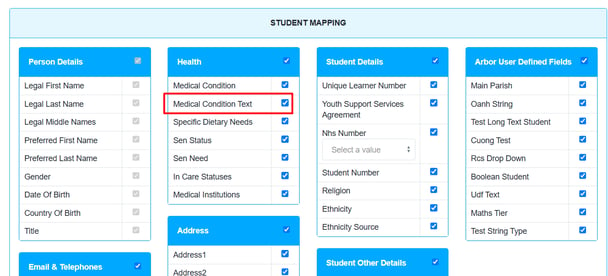
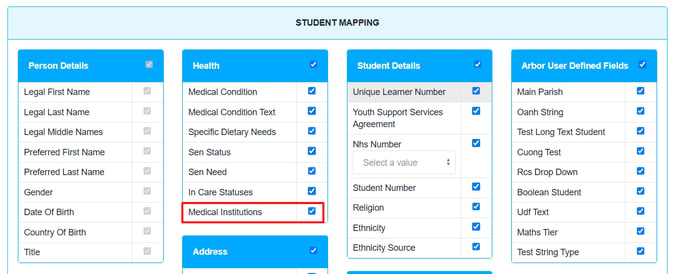
- Ensure that the 'Medical Condition Text' checkbox is ticked in Student Mapping during the Export step.
Young Carer Status
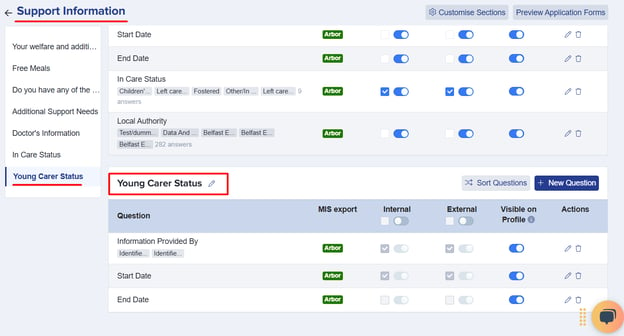
You can now export Young Carer data and view a new section in the Child’s Welfare/Support Information step titled 'Young Carer Status.'
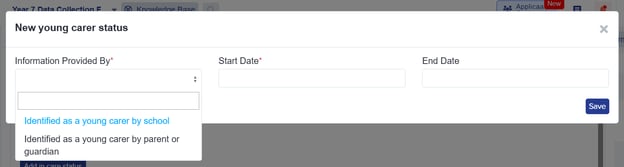
Default Answer Options (Configured by Arbor):
- Identified as young carer by parent/carer
- Identified as a young carer by school
The information will be stored in the 'Background' section.
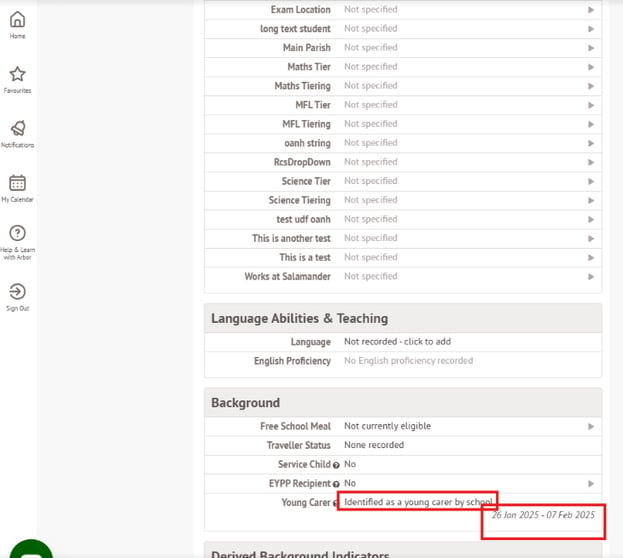
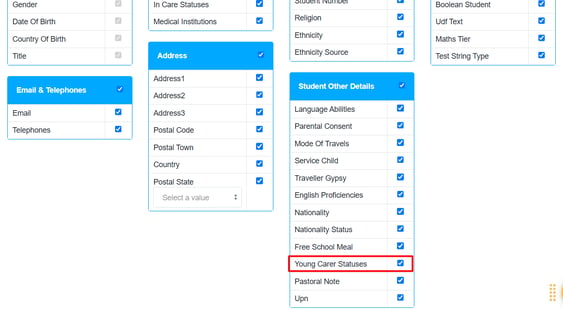
To ensure this data transfers to Arbor, tick the 'Young Carer Statuses' checkbox in Student Mapping during the Export step. The information will be stored in Arbor under the Background section.
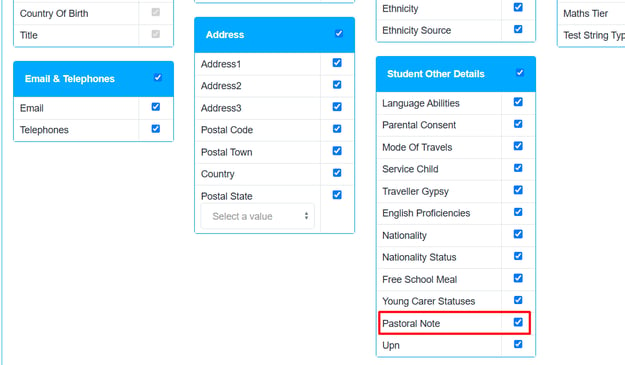
Student Pastoral Notes
Any pastoral information recorded in the 'Notes' section of a student’s record in Admissions+ can now be transferred to Arbor.
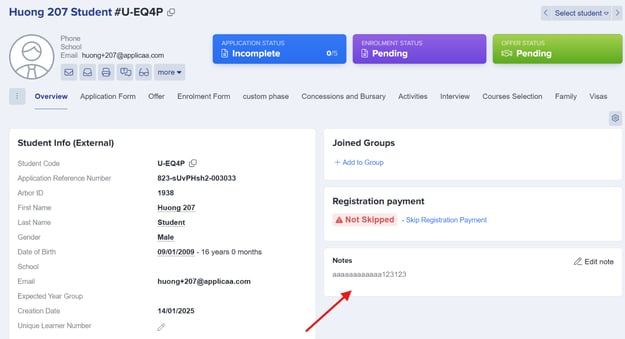
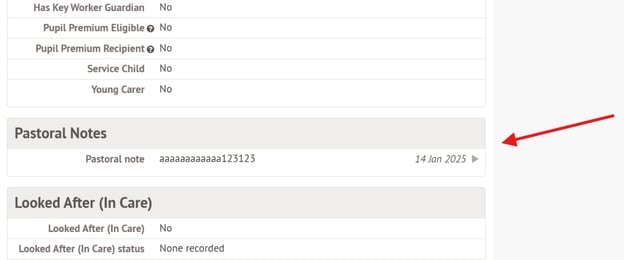
To ensure this data transfers to Arbor, you must have the 'Pastoral Note' checkbox ticked in Student Mapping during the Export step.
Parent National Insurance Number
If you collect National Insurance numbers for parents, this field is now exportable.
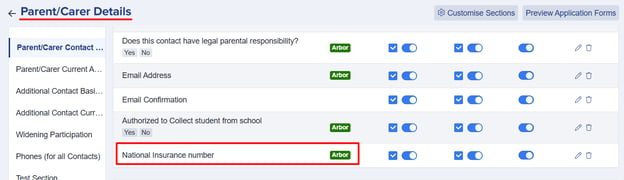
To enable this:
- Go to Parent/Carer step.
- Locate 'National Insurance Number' just under Authorized to Collect Student from School question.
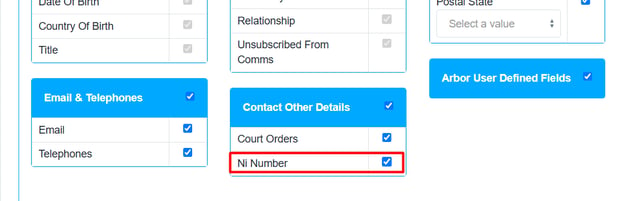
- Ensure the 'NI Number' checkbox is ticked in Contact Mapping on the Export step.
Consents - Date Stamp and Responder
To improve tracking, Arbor will now store the date and name of the person who responded to consent questions.
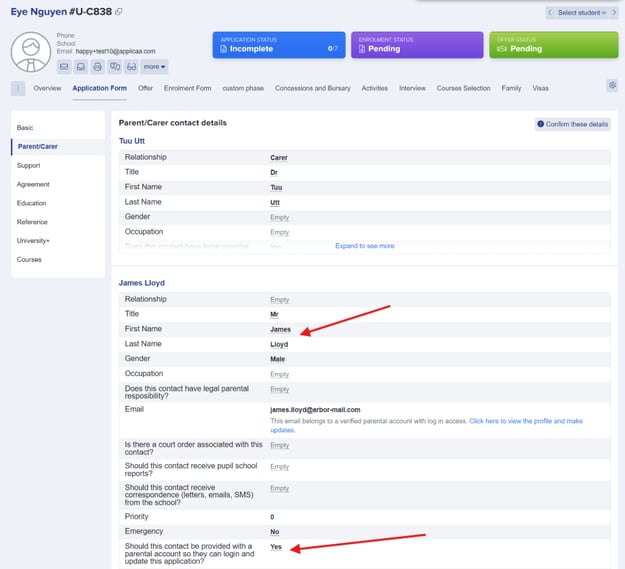
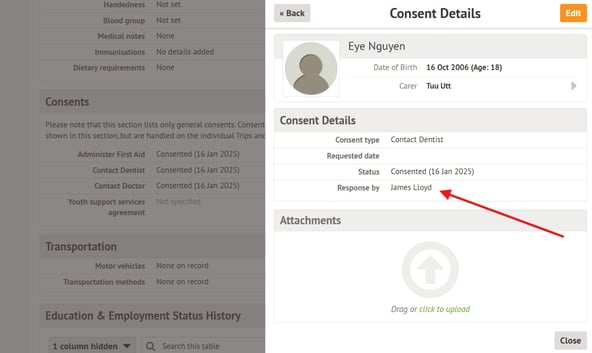
To ensure this feature is enabled:
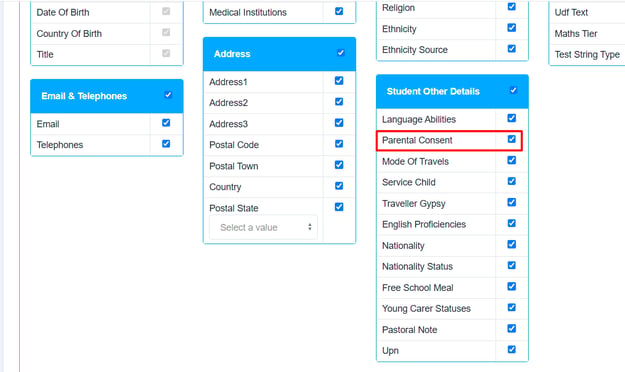
- Tick the 'Parental Consent' checkbox in Contact Mapping on the Export step.
Medical Surgery Selection Improvement
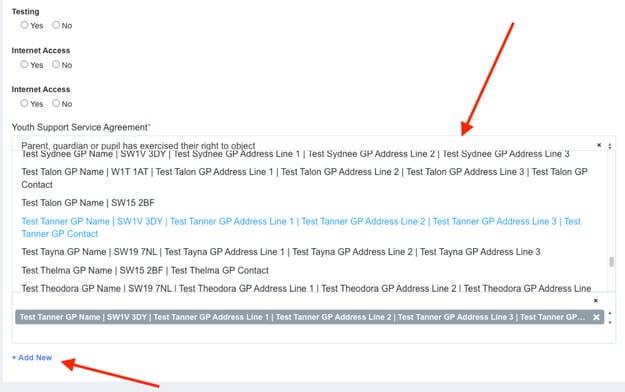
We have replaced the Medical Surgeries question, eliminating the need for parents and students to manually enter practice details. They can now select from a drop-down list that Admissions+ retrieves from Arbor.
How It Works
- Parents/students select their practice from the list.
- If their practice isn’t listed, they can add a new one using the “+Add New” button.
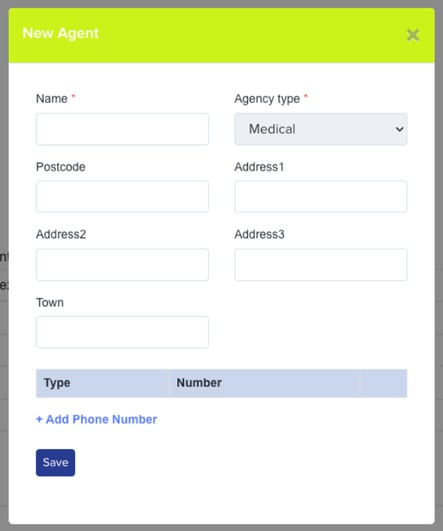
- Any new practice added in Admissions+ will transfer to Arbor under Medical > Medical Institutions.
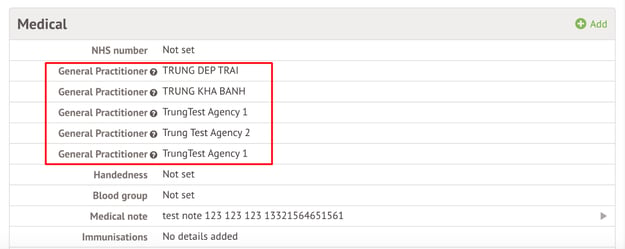
Important: If you edit a practice in Admissions+ after exporting it to Arbor, the update will not transfer. You must make these edits directly in Arbor.
- You will also have the option to edit and add practices in the Student Profile.
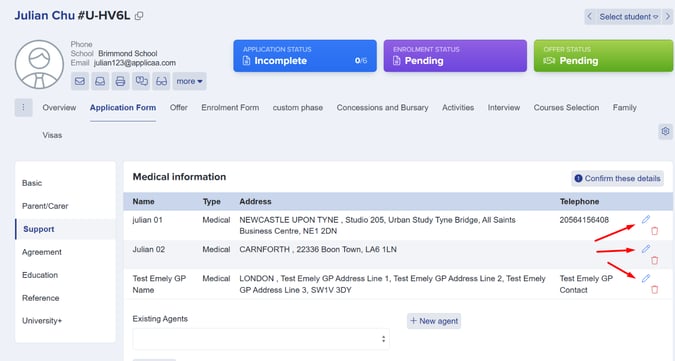
To enable this feature, ensure the 'Medical Institutions' checkbox is ticked in Student Mapping on the Export step.
Duplicate Agencies Management
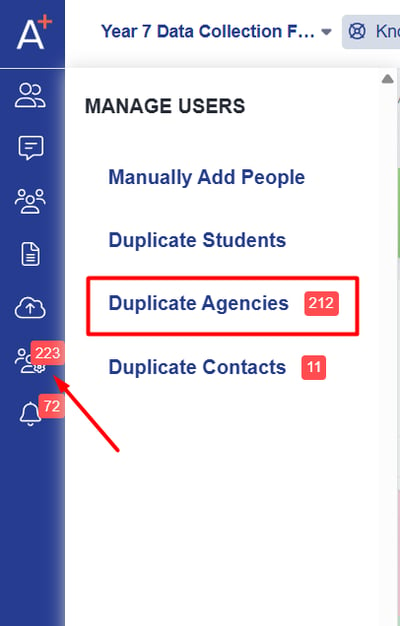
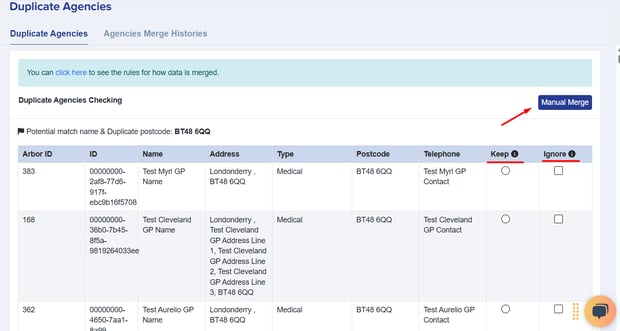
To help you manage duplicate medical practice entries, we have introduced a Duplicate Agencies tool in Manage Users. This tool allows you to identify and merge duplicate entries efficiently.
For more details on using this tool, please refer to the Duplicate Agencies Help Guide.