
Overview
Admissions+ has always included a Templates feature. This update is a significantly enhanced and more flexible version of it, designed to let staff configure the email content, automation, and communication settings all within a single workflow.
The Templates screen now uses the new Admissions+ design. This guide shows the current screens, so the labels and positions below match what you see in Admissions+.
Why this was built
Schools told us the previous Templates feature was useful but limited. Staff wanted automation, but the setup was split across different screens. Marketing communications and admissions-critical messages used the same unsubscribe behaviour, which sometimes caused important emails to be blocked. And there was no quick way to see how a template was actually performing.
This update brings template setup, automation, compliance, and performance into one place.
Opening the Templates area
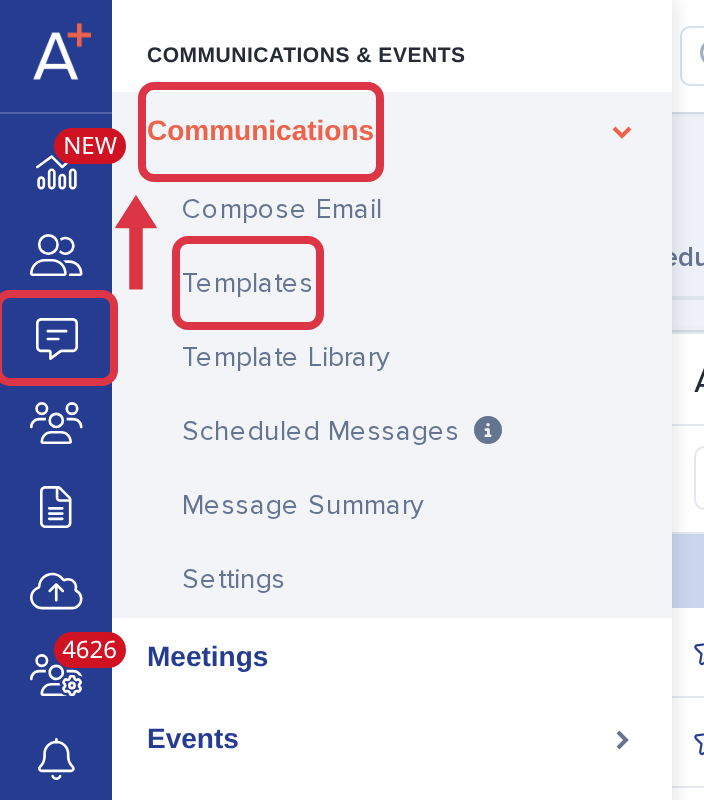
In the left-hand menu, click the "Communications & Events" icon, open "Communications", and select "Templates".
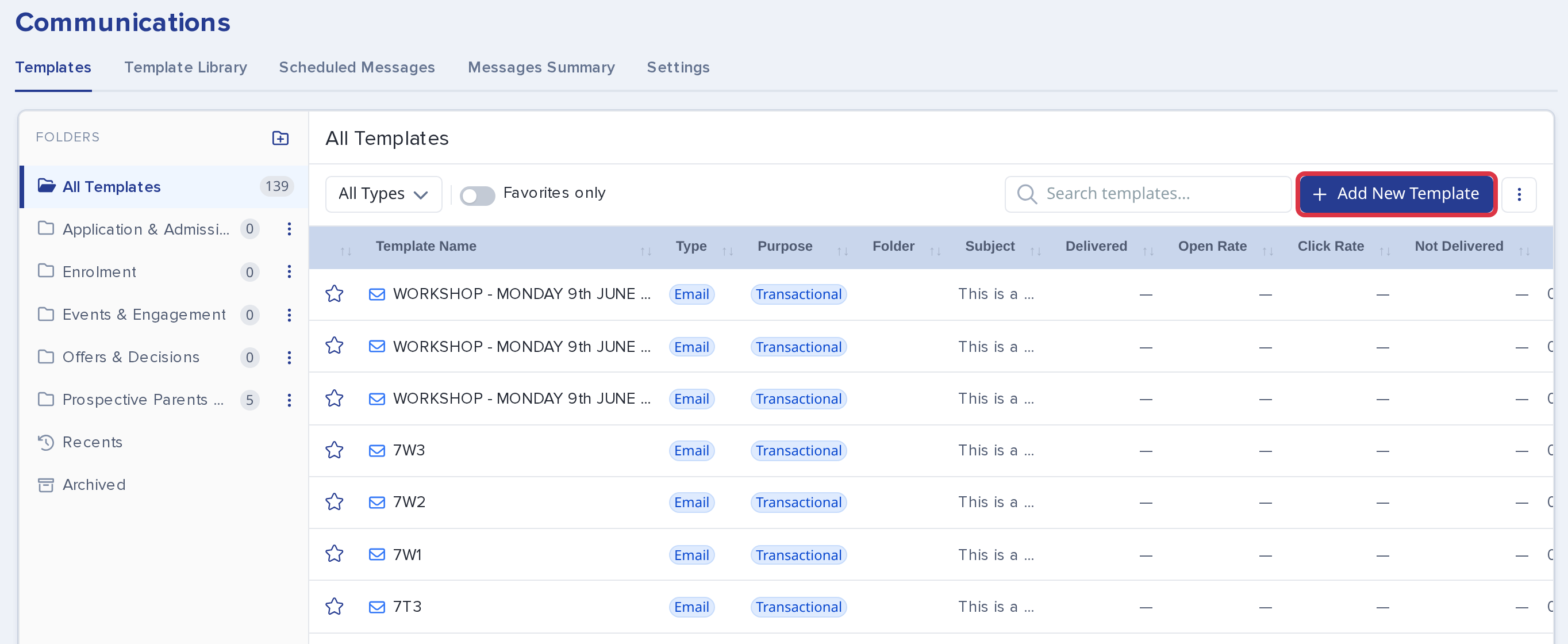
The Templates area opens on "All Templates". Your folders are on the left, with "Recents" and "Archived" below them. Above the table you can filter by type ("All Types"), show only your "Favorites only", and search your templates.
Creating a new template
Click "Add New Template" at the top right of the table.
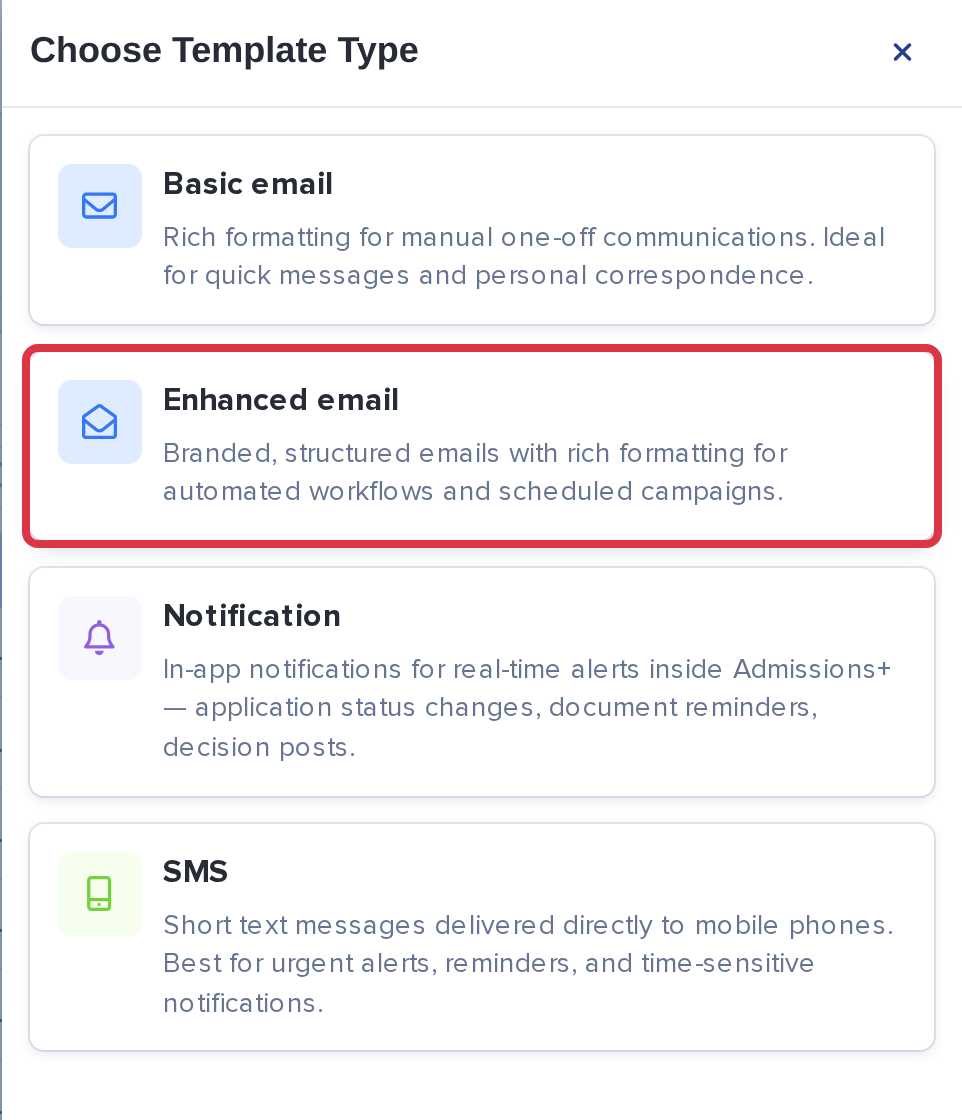
A "Choose Template Type" panel opens on the right. Click the type you want:
|
Type |
Use it for |
|
Basic email |
Manual, one-off communications that you send yourself with "Save & Send Now". |
|
Enhanced email |
Automated or scheduled communications driven by triggers. |
|
Notification |
In-app notifications inside Admissions+. |
|
SMS |
Text-message communications. This card is only available when SMS is switched on for your school. SMS settings (the default sender name and the STOP message text) are managed in Communications > Settings > SMS Settings. |
The template editor has three tabs on the left: "Set Up", "Advanced Settings", and "Content". The example below uses an Enhanced email template, because it shows the full set of options.
Step 1 - Set Up
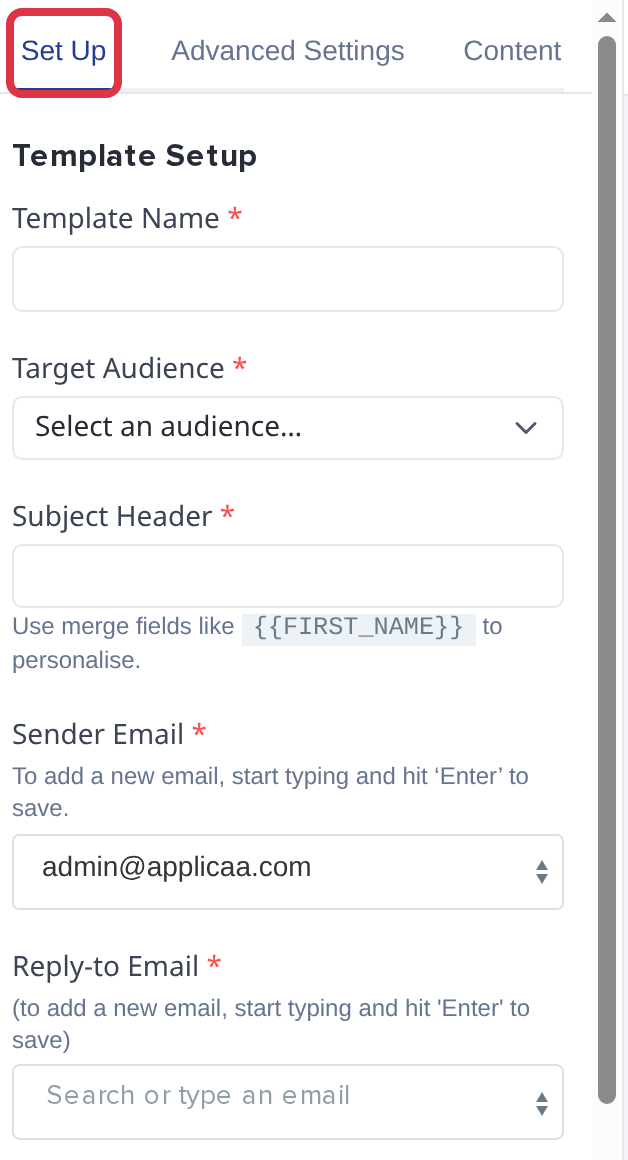
The "Set Up" tab is where you give the template its identity and decide who should receive it.
Template Name
Give the template a clear internal name. This is for staff use only - recipients never see it.
Target Audience
Choose who this communication is for, for example Student, Parent, Referee or Event. Enhanced email templates can also go to Staff.
Subject Header
Enter the email subject. You can use merge fields such as {{FIRST_NAME}} to personalise it.
Sender details
- Sender Email- the address the email is sent from. To add a new address, start typing and press Enter.
- Reply-to Email- where replies should go (this can differ from the sender address).
Description (optional)
Add a note to help your team remember what the template is for.
Communication Purpose
Choose whether the template is Transactional or Marketing. This is one of the most important fields, because it determines how unsubscribe and consent rules behave.
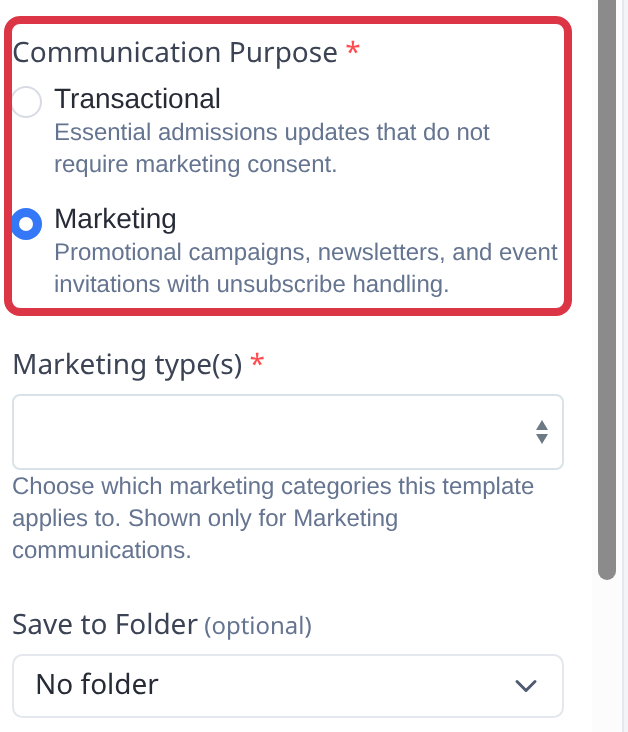
- Marketing- promotional campaigns, newsletters and event invitations. Recipients can unsubscribe from these. Selecting Marketing shows a "Marketing type(s)" field, where you pick the marketing categories that your school has set up.
- Transactional- essential admissions updates, such as offers and application updates. These do not require marketing consent.
Why this matters
Previously, when a recipient unsubscribed, they stopped receiving every email from Admissions+, which sometimes caused important admissions updates to be missed. The Marketing / Transactional split fixes this.
Save to Folder (optional)
Optionally pick a folder so the template is filed automatically when saved. Folders make it easier to organise large libraries of templates.
Mark as Key Email
Switch this on when the email should count towards the engagement score calculation.
Step 2 - Advanced Settings
Click the "Advanced Settings" tab to choose what triggers the template, when it sends, and what is tracked.
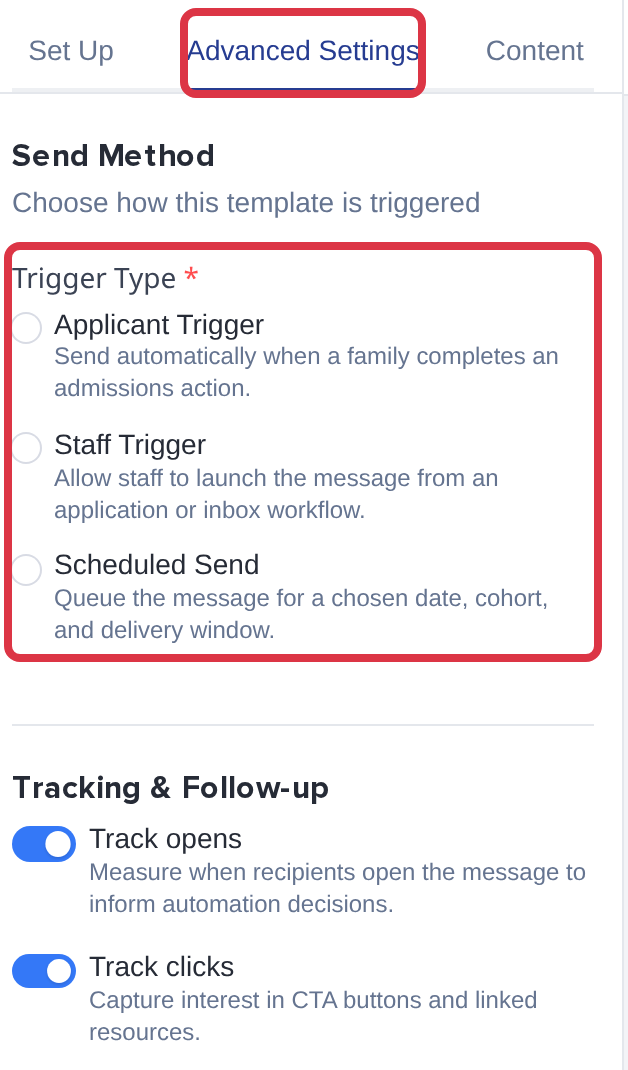
Send Method
Under "Trigger Type", choose one of three options:
- Applicant Trigger- fires when an applicant does something. Previously known as "Automatically when an applicant does something". Examples: submitting a form, declining an offer, completing a task.
- Staff Trigger- fires when a staff user does something. Previously known as "Automatically when a staff user does something". Examples: adding an applicant to a meeting or group, updating an application status, making an offer.
- Scheduled Send- sends at a specific date and time to the applicants, groups or filters you choose.
After you choose "Applicant Trigger" or "Staff Trigger", select the "Trigger Event" and, if you need one, a "Send Delay". Choosing "Scheduled Send" instead shows its own fields: "Date", "Time" and "Time zone", plus the recipients to send to.
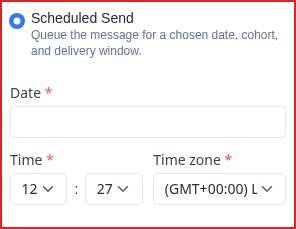
Saving a Scheduled Send template queues it and takes you to "Scheduled Messages", where you can review or cancel it before it goes out.
|
Basic email templates For Basic email templates, "How is this email sent?" is locked to "Manually", because those templates are intended for one-off communications that you send yourself. |
Tracking & Follow-up
You can switch on or off:
- Track opens- records when a recipient opens the email.
- Track clicks- records when a recipient clicks a link or button.
Step 3 - Content
Click the "Content" tab to build the email. Click or drag a building block (Heading, Rich text, Image, Button, Divider, Spacer, Columns, Social or Video) onto the email, then customise it using the settings panel on the right.
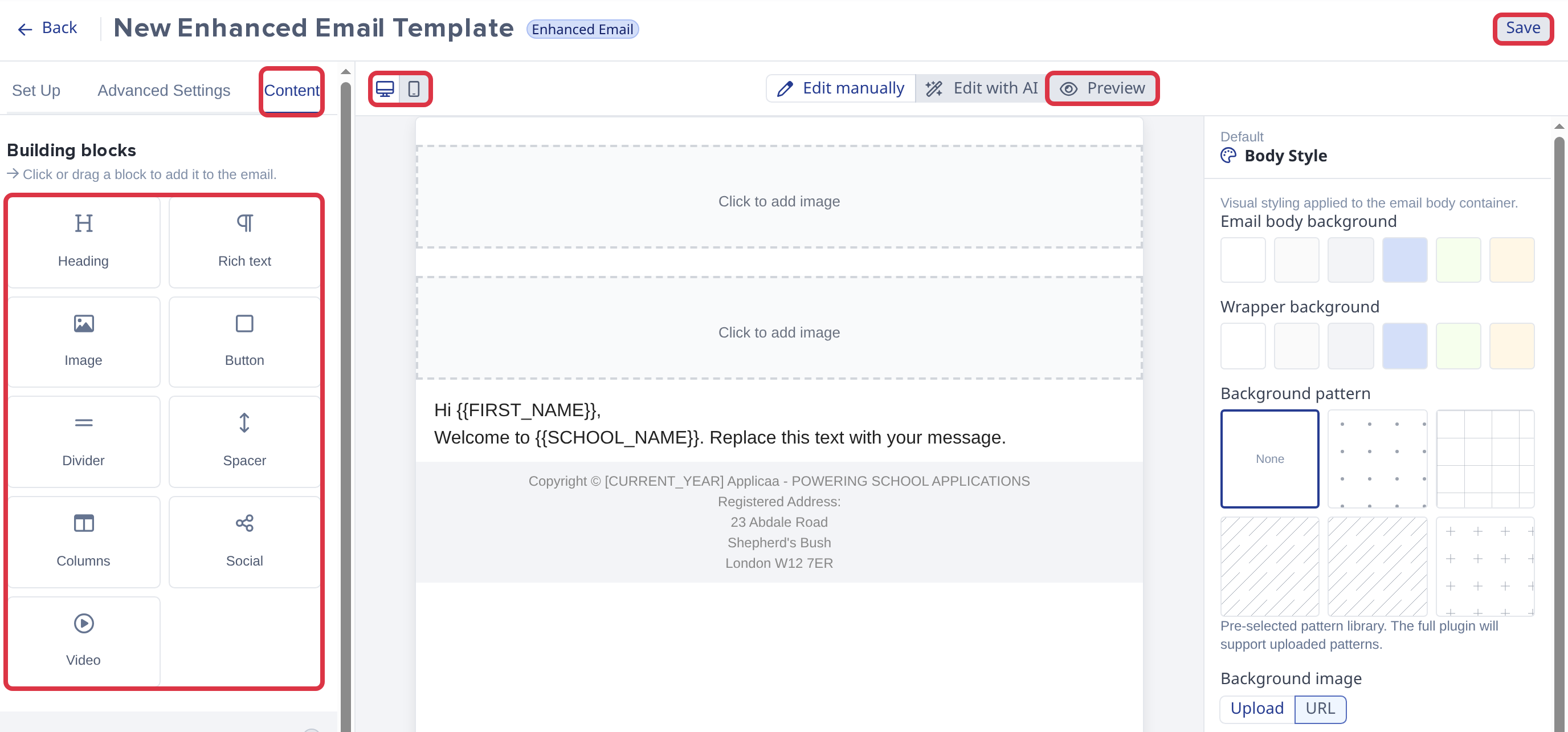
- Use the desktop and mobile icons above the email to switch between Desktop view and Mobile view.
- Click "Preview" to see the email without the editing controls. Merge fields show sample values (for example, "Sam" for the student first name) so that you can check the layout.
- Click "Edit with AI" to describe the content you want. AI writes or changes the email, and you check the result before you save.
Building blocks and block actions
The nine building blocks are Heading, Rich text, Image, Button, Divider, Spacer, Columns, Social and Video (pictured above). Click any block already on the canvas to select it and open its settings in the right-hand panel. Every block's panel ends with the same row of actions:
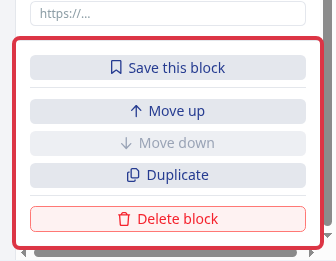
- Save this block- adds the block to "Saved blocks" so you can reuse it in other templates.
- Move up and Move down- reorder the block within the email.
- Duplicate- adds a copy of the block directly below it.
- Delete block- removes the block from the email.
Columns
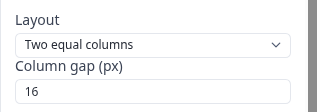
The "Columns" block splits a section of the email into side-by-side cells. Select it and choose a "Layout" from six presets: two equal columns, three equal columns, 60/40, 40/60, 70/30 or 30/70. You can also set the "Column gap" in pixels.
Merge tokens
Inside a text block, use "Usable tokens" to personalise the content. Search for a token or open the dropdown to browse "Popular tokens", then click one to insert it at the cursor.
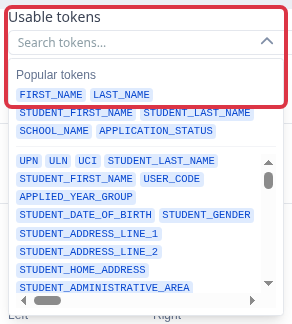
Image and Video blocks
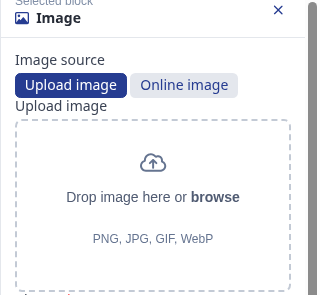
Select an "Image" or "Video" block to choose where the media comes from: "Upload image" (or video) lets you drop a file or browse for one, and "Online image" lets you paste a URL instead.
Saved blocks
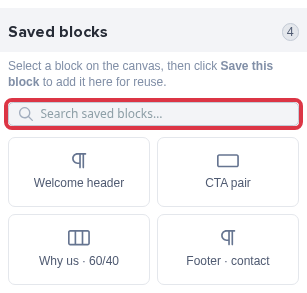
The "Saved blocks" panel lists blocks your school has saved for reuse, such as a standard header or footer. Searching saved blocks is coming soon, so the search box is disabled for now.
Saving and sending
In the top-right corner of the editor you’ll see:
- Save- available for all template types.
- Save & Send Now- available only for Basic email templates. Enhanced email templates send via their configured trigger.
Click "Back" to leave the editor. If you have unsaved changes, a confirmation appears: "Discard unsaved changes? Any edits made since your last save will be lost."
Sending a Basic email template
When you click "Save & Send Now", the "Send email using this template" pop-up appears.
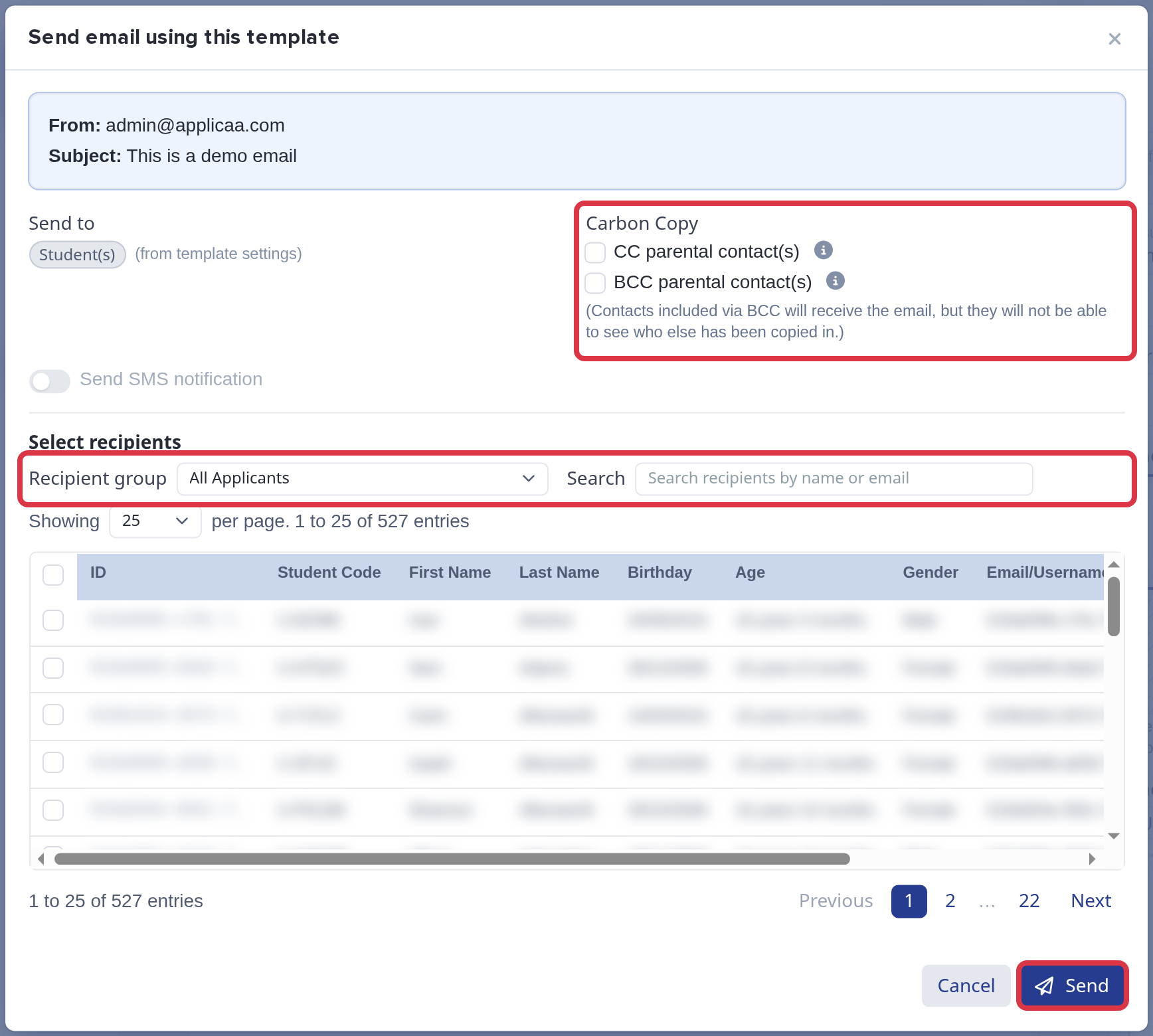
- Check "Send to". It follows the Target Audience of the template.
- Optionally tick "CC parental contact(s)" or "BCC parental contact(s)". Contacts included via BCC receive the email, but cannot see who else was copied in.
- Under "Select recipients", show "All Applicants" or pick a "Recipient group", and use "Search" to find people.
- Tick exactly who should receive the communication.
- Click "Send". To confirm, type the total number of recipients (the ticked people plus any copied parental contacts) and click "Update".
Other template types
Notification and SMS templates use a simpler, plain-text editor instead of the drag-and-drop content builder.
Notification
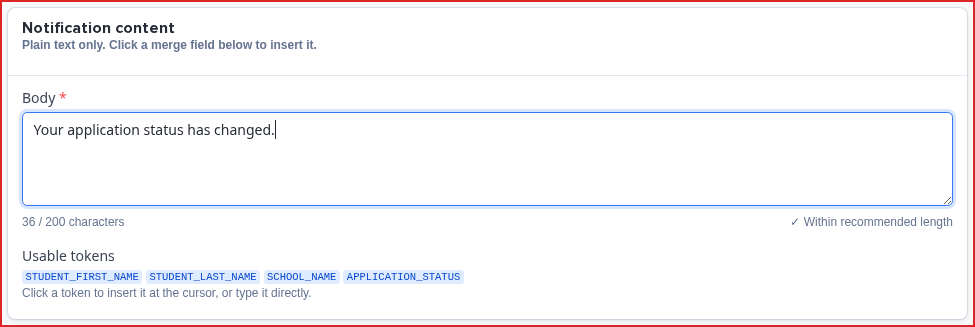
Notification templates show an in-app message inside Admissions+. The "Body" field is limited to 200 characters, with a live counter underneath it.
SMS
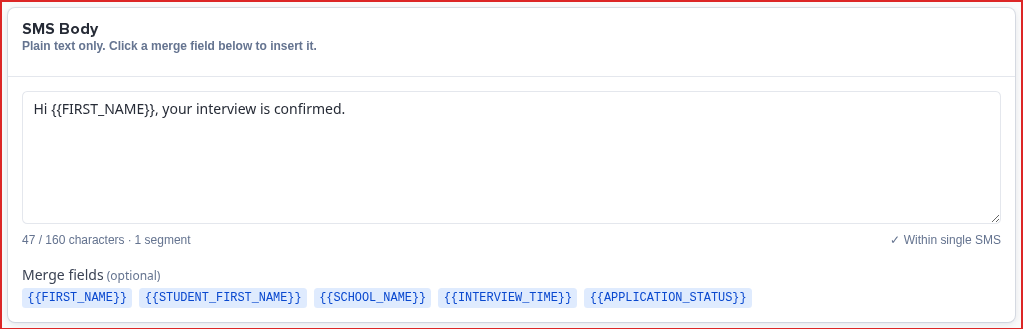
SMS templates show a live "characters · segment" counter under the "SMS Body" field, so you can see when your message will be split across more than one text message.
The "SMS" card on "Choose Template Type" only appears once SMS is switched on for your school (Communications > Settings > SMS Settings). Otherwise it shows as "Coming soon".
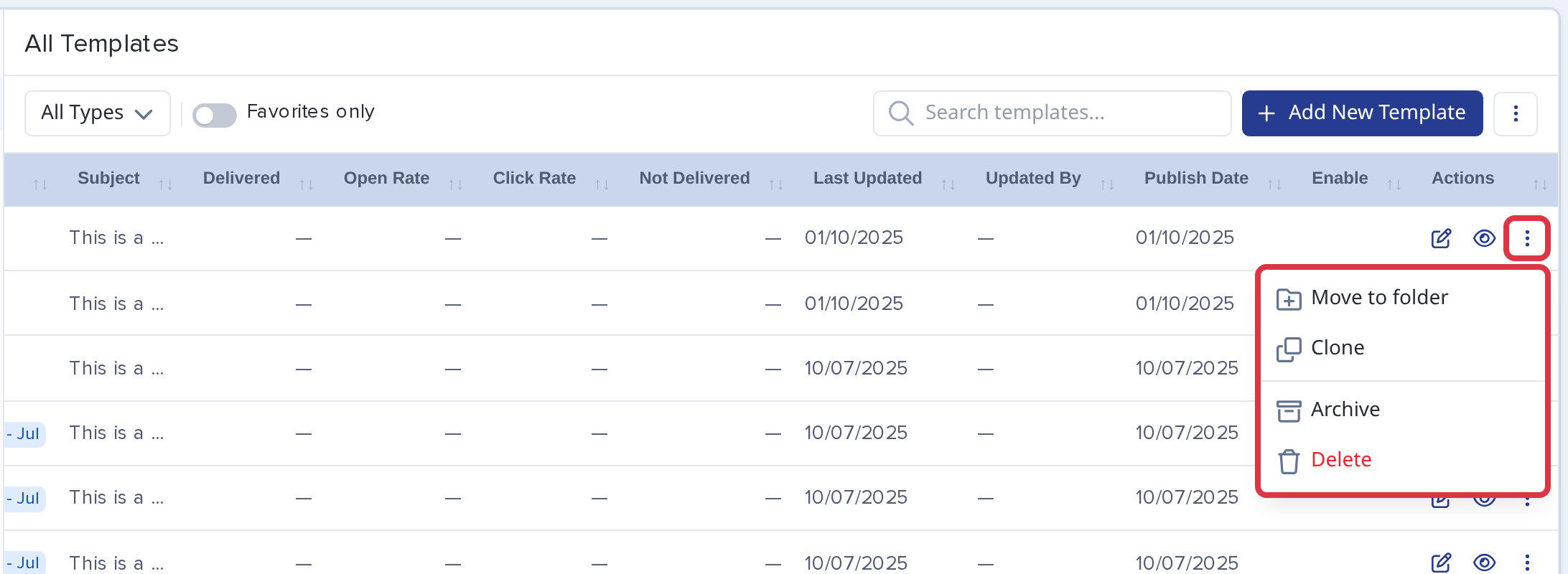
The main Templates table
Back in the main Templates area, the table gives a richer overview, including in-line performance data:
- Type, Purpose and Folder
- Delivered count
- Open Rate
- Click Rate
- Not Delivered count
- Last Updated, Updated By and Publish Date
- Enable - a switch to turn automated (Enhanced) templates on or off
This means staff can see how communications are performing at a glance, without opening each template individually. For the recipient-level detail of each message, use "Messages Summary".
Template Library
The "Template Library" tab holds templates that other application forms have shared. Filter by "All Types", "All Purposes" or "All Audiences", or search by name. Click "Preview" to see a template before you use it, or "Use template" to copy it into the current application form.

Folders and template actions
On the left of the Templates area, folders let you organise templates into categories and navigate the library more easily. Click the folder icon next to "Folders" to add a new folder. Click the star at the start of a row to add a template to your favourites.
At the end of each row, use the pencil icon to edit the template and the eye icon to preview it. Click the three-dot (⋮) icon for more actions: "Move to folder", "Clone" (copy the template to another application form), "Archive" and "Delete". Automated templates that belong to a phase also have "Show schedulers".
The three-dot (⋮) icon next to "Add New Template" gives you "Send Test", "Find and Replace", "Set default email" and "Export".
There is no "Rename"
Templates have no "Rename" action. To rename a template, open it and change "Template Name" on the "Set Up" tab. When you clone a template, you can give the copy a new name at that point instead.
Clone
"Clone" copies the template to another application form. Choose the destination form and click "Save".
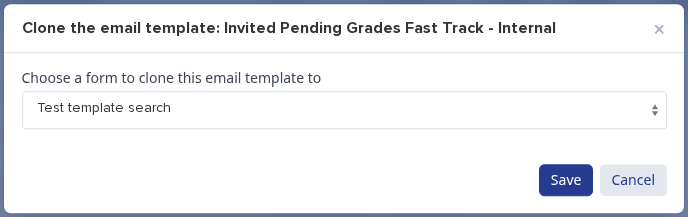
If the destination already has a template with that name, a second pop-up asks you to name the copy.
Archive and Delete
"Archive" also turns the template off, and asks you to confirm: "This template will be Deactivate. Are you sure?"
"Delete" removes the template permanently, and asks you to confirm: "Are you sure? You won't be able to revert this!"
Moving from the old editor
Opening an older template that was not built with the new content builder shows it already converted into the block-based format described above. Saving the template keeps that converted version.
If the new Communications area is switched off for your school, the Templates editor still uses its previous layout, not the screens shown in this guide.
Frequently asked questions
What’s the difference between Basic and Enhanced email templates?
Basic email templates are for one-off, manual sends with "Save & Send Now". Enhanced email templates support triggers, automation, and are designed for repeatable journeys.
Will my existing templates still work?
Yes. The Templates feature has been enhanced rather than replaced - existing templates remain available, and you can adopt the new capabilities (Communication Purpose, triggers, etc.) as you edit them.
Do I have to set a Communication Purpose?
Yes. Communication Purpose is a required field, and it powers the Marketing vs Transactional unsubscribe split. New templates start as Transactional. Marketing templates also let you choose one or more marketing types.
Can I send from a custom display name?
No. The template controls the Sender Email and Reply-to Email addresses, but it has no separate display-name field.
Where do I configure the SMS sender name and STOP message?
Go to Communications > Settings and open the "SMS Settings" tab.
Can I Bcc recipients?
Yes. When you send a Basic email template, tick "BCC parental contact(s)" in the send pop-up.
I can’t see "Templates" in the Communications menu. Why?
Your school sees "Templates" when the updated communications area is switched on. Otherwise the menu shows "Manual Messages" instead. You also need permission to view email templates. Ask Emma in Admissions+ or raise a request through "Support & Requests" if you need access.
A note from us
We hope you find this guide useful as you explore the updated Templates feature. There’s a lot of new functionality here - triggers, the Communication Purpose field, in-table performance metrics - and we’ve designed it to give your team much more control over how and when communications go out.
If anything’s unclear, ask Emma in Admissions+ or raise a request through "Support & Requests" at the top of the page. If you have ideas for what would make Templates even better, please tell your Applicaa contact.