
To start, navigate to Settings --> Form Settings --> Form Groups.
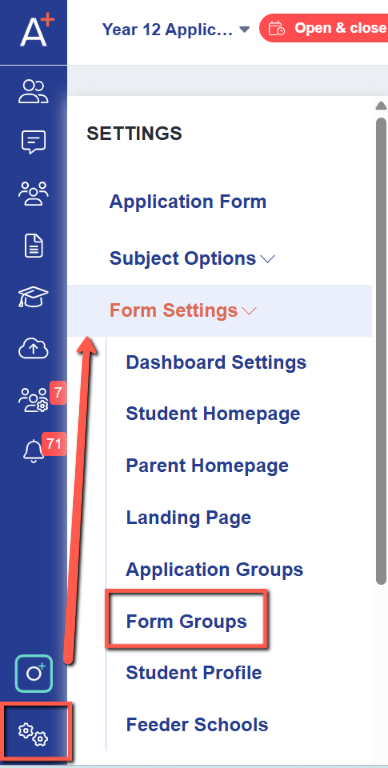
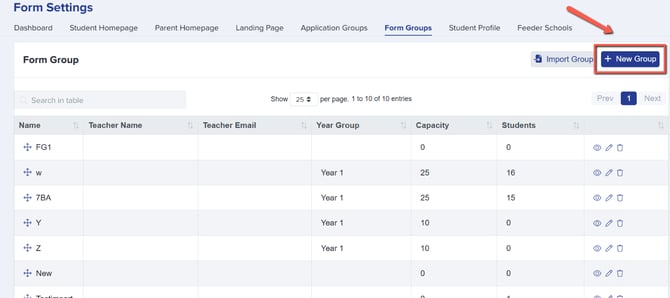
In the Form Groups Settings page, you should see the list of your current form groups if you have already created them. If you don't have any form groups created yet, click on the "New Group" button to create them.
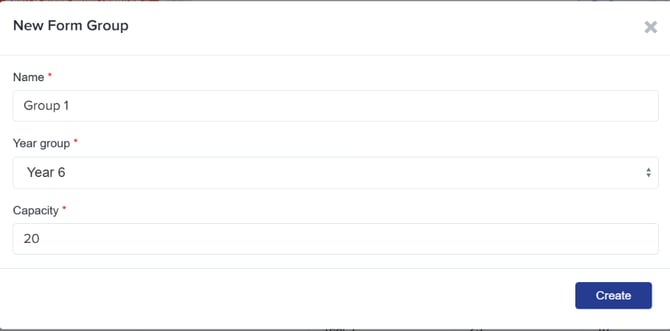
In the pop up window, fill in the Name, Year Group, and Capacity, then click on the "Create" button.
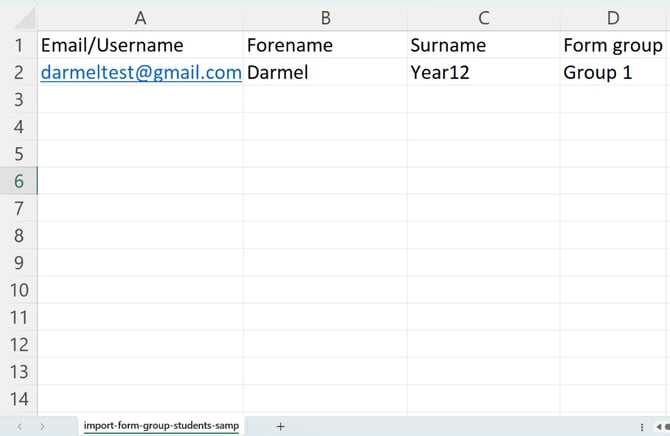
Once you have created your Form Groups, you should see all of them on the list. You would then need to prepare a CSV file, containing the student's Email Address, Forename, Surname, and Form Group (the system will use their email address as a unique identifier to ensure each student is assigned to the correct group).
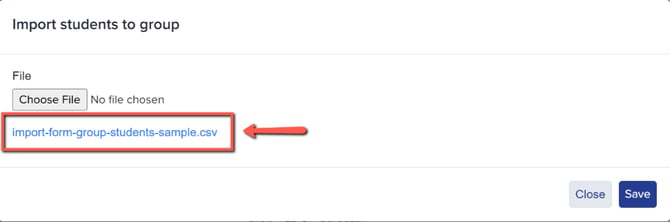
To download a copy of a CSV file format, click on the "Import Group" button.
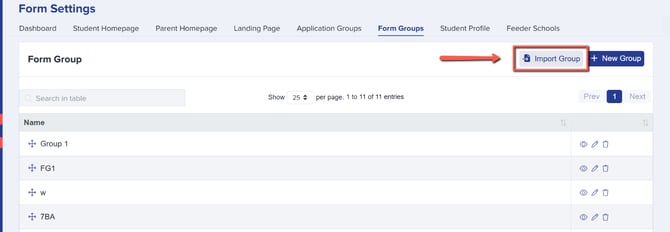
Click on the link to download the sample CSV format.
In the CSV file, provide the students registered Email Address, Forename, Surname and Form Group. Please note that the information should be exactly the same as what is in your system. We recommend that you use the sample file as the import is also format sensitive.
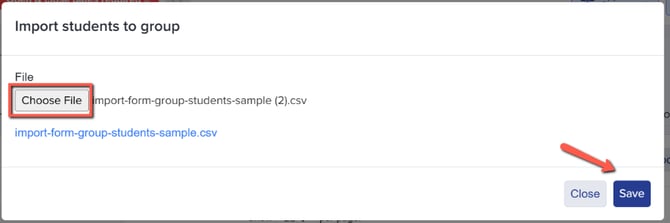
When your CSV file is ready, please upload it by clicking on the "Choose File" button, then click on "Save" to start the import process.
You will be notified whether or not your import is successful. If failed, you will receive a prompt on what needs to be corrected.
If your import is successful, you will notice that the number of students belonging to each group will be reflected in the table. You can also preview which students are in which groups by clicking on the view button.
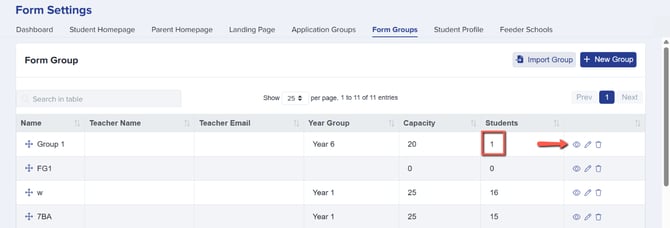
Checking how many students are in a form group
You don't need to import anything to check group sizes. Go to Settings > Form Settings > Form Groups, and the "Students" column on the right of the table shows the current number of students assigned to each group, next to its name, teacher, year group and capacity.
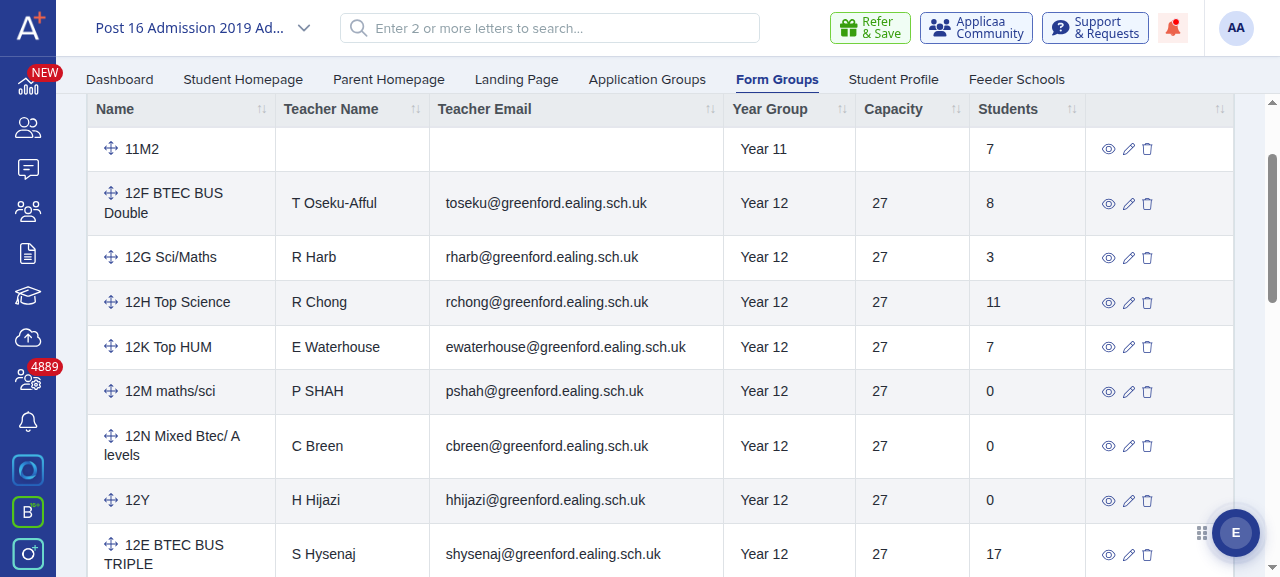
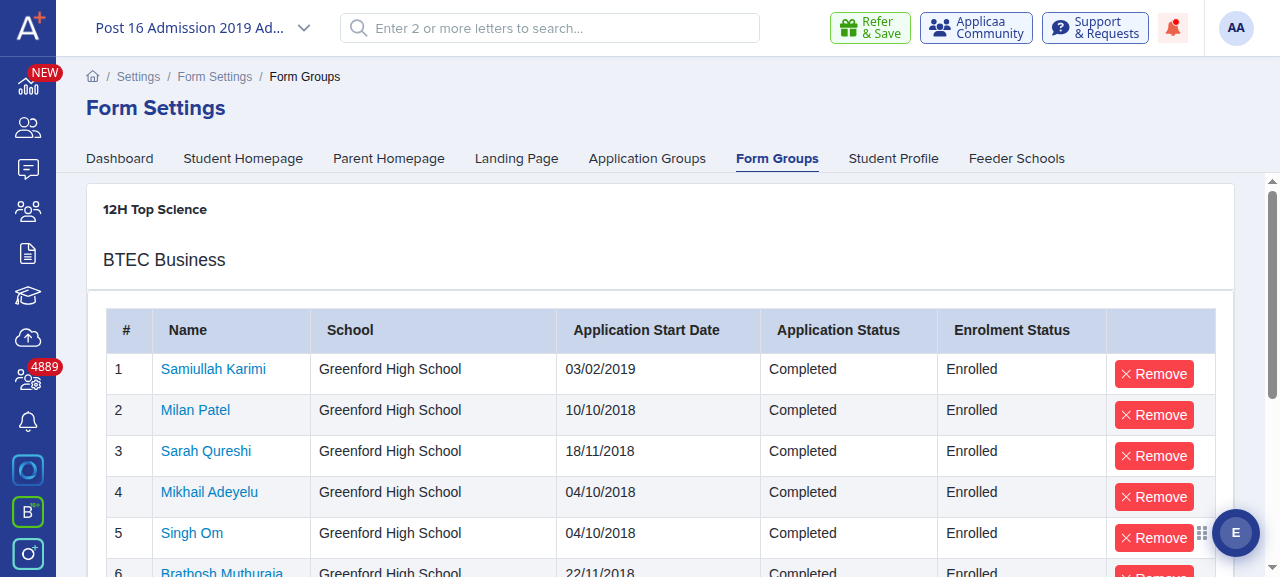
To see exactly who is in a group, click the view (eye) icon on that group's row. The group opens with every student listed and numbered in order, so you can confirm both the total and the individual members.
You can alternatively import your CSV file via Data > Import > Existing Users > Students.
In each instance, the Form Groups import matches on Email/Username, not student code.
Students' House information is not currently supported as a dedicated import but whilst there is not a direct route to import this data in the same way as you can for Form Groups, you can create custom fields and import additional data for existing applicants. Read more about how to achieve that in this guide.
Change the form group of one student
You do not need an import for one student. You can change the capacity of a group, set the group for one student, or remove one student from a group.
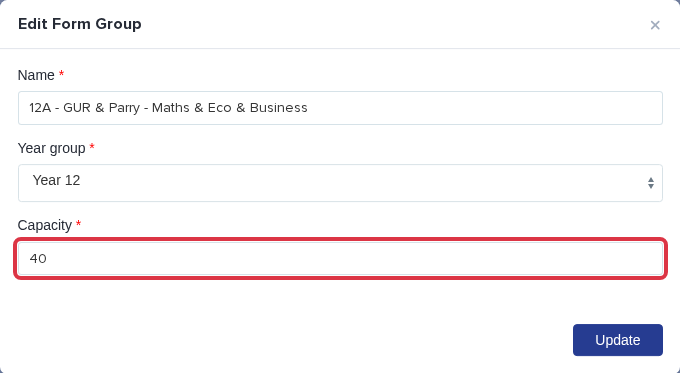
To change the capacity, select the edit icon on the row of the form group. Change Capacity, then select Update.
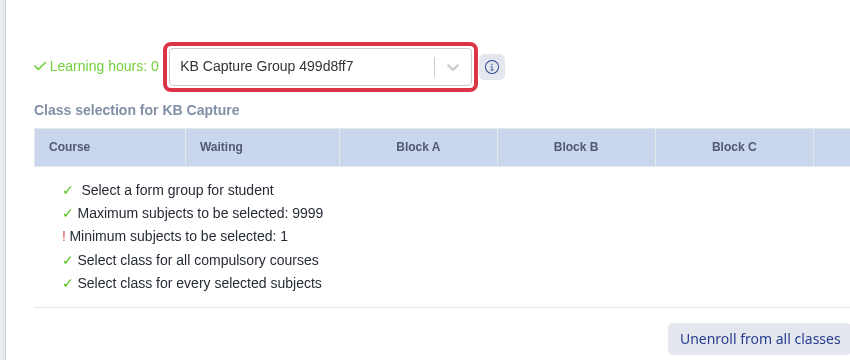
To add or change the group of one student, open the Course Selection tab of that student during Course Confirmation/Selection. Select the form group in the list. Complete Course Confirmation/Selection to store the selection.
To remove a student from a group, go to Settings > Form Settings > Form Groups. Open the group that contains the student. Select Remove on the row of the student, then confirm the message.

- The course-confirmation workflow sets the group of the student when it saves the enrolment.
- This workflow changes the group in Admissions+ only. It does not update SIMS and it does not override SIMS.