
Managing Concessions in Admissions+
This tutorial will guide you through the process of setting up and managing concessions in Admission+, ensuring they are properly integrated and visible and manage the concessions on the applications.
Note:
Other MIS’: This can be used to manage the concessions, and the values and comments can be added to the offer email templates automatically using mail merge tokens.
iSAMS: This can be used to manage the concessions, and the values and comments can be added to the Offer Letters automatically using mail merge tokens.
SIMS: The concessions set up in SIMS will automatically appear in Admissions+. Make sure the concessions are active and visible in SIMS. If they aren’t, adjust the settings in SIMS; updates will reflect overnight in Admission+. The values and comments can be added to the Offer Letters automatically using mail merge tokens. Once the application syncs to SIMS it will update in SIMS automatically.
Application Form Process
On the application form, applicants will apply for a scholarship and select options like "Music Scholarship"
Parent Home Page: Once the scholarship has been selected in the application form, an additional phase for selected scholarships will appear beneath the main application process, allowing parents to complete scholarship application and upload necessary information.


Student Profile: An automated concession will appear in the concessions tab once the application is submitted where you can manage the percentage of scholarship a student can receive and add comments within the scholarship that can be pulled into the offer letters.
This concession will be reflected in SIMS.
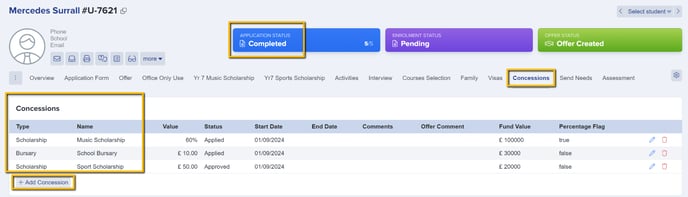
You can add additional concessions to the application also by clicking "+ Add Concession".
Configuring Concessions
To add your concessions and include them in offer letters as email tokens:
-
Go to the "Settings" menu.
-
Select "School Settings."
-
Go to "Payments and Fees."
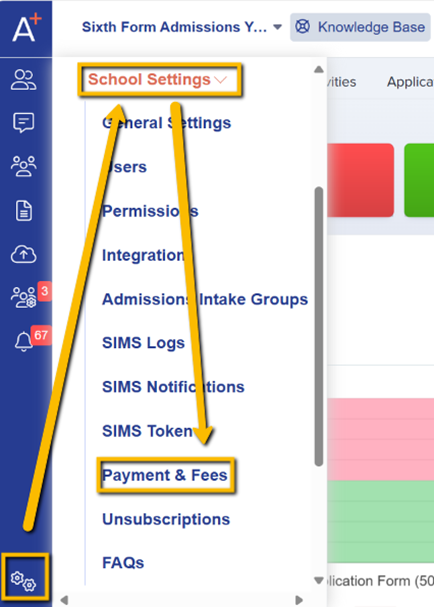
Linking Concessions to Questions from Application Form
Setting an Email Token to a Scholarship:
- Go to ‘Concession Types’. Edit the email token type by clicking the pencil icon.

-
Set the email token (e.g., "Scholarship One").
-
Add the total fund value for the scholarship (this is the overall fund, not the individual amount), if known (not a mandatory requirement).
-
Link the scholarship to a specific question on the application form, such as: "Please state which scholarship you would like to apply for," and select the relevant scholarship.
-
Click "Save" to apply changes.
-
Repeat this process for each scholarship and ensure they are all set up correctly.

Review and Edit Scholarship Options in the Application Form
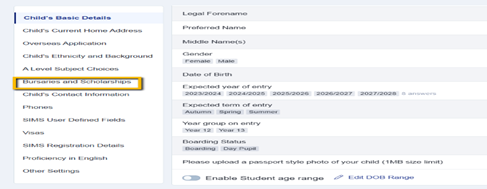
Navigate to Setting > Application Form > Step 1: Child’s Basic Details.
Find the "Bursary and Scholarship" section in the submenu.


Switch on questions related to scholarship ‘Would you like to apply for a scholarship?’ and ‘Please state which scholarship you would like to apply for’
To edit options for scholarship, click the pencil icon on ‘Please state which scholarship you would like to apply for’
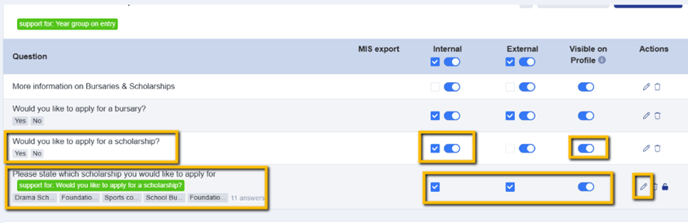
An EDIT FIELD will show where you can adjust the options as needed. If you want to remove any, delete them from SIMS/iSAMS or make them active/inactive in Admissions+.
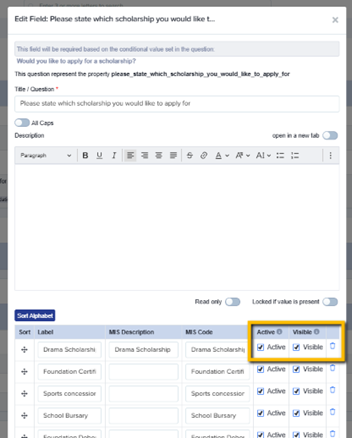
Click Save.
How to Review Concessions from a student profile
Go to the Student Profile (who applied for a scholarship) > Concession Tab
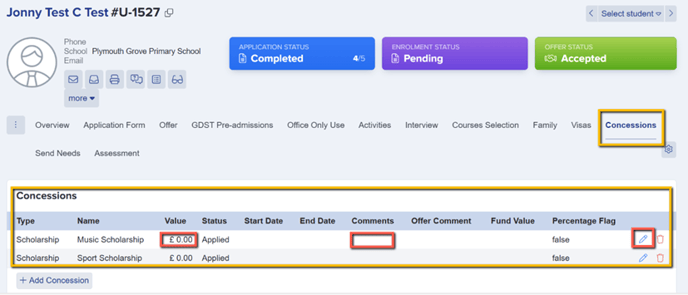
Review the scholarships the student has applied for. To edit and specify the value or percentage for each scholarship click the pencil icon. For percentages, enter the value and check the "Percentage" flag. Add comments for the offer if necessary. Click ‘Save’ to apply changes.

To add Concession Manually: Click the ‘+Add Concession’. Name it appropriately, set the value, and update the status. Click ‘Save’ to apply changes.


Was this article helpful?