
How to upload a file in Admissions+ to share information with Applicaa in line with GDPR policy
This guide is to show how you can share sensitive data with our support staff without sending it by email.
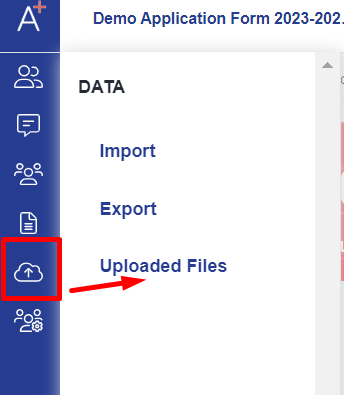
First, go to Data > Uploaded files.
Then click the 'upload file' button.

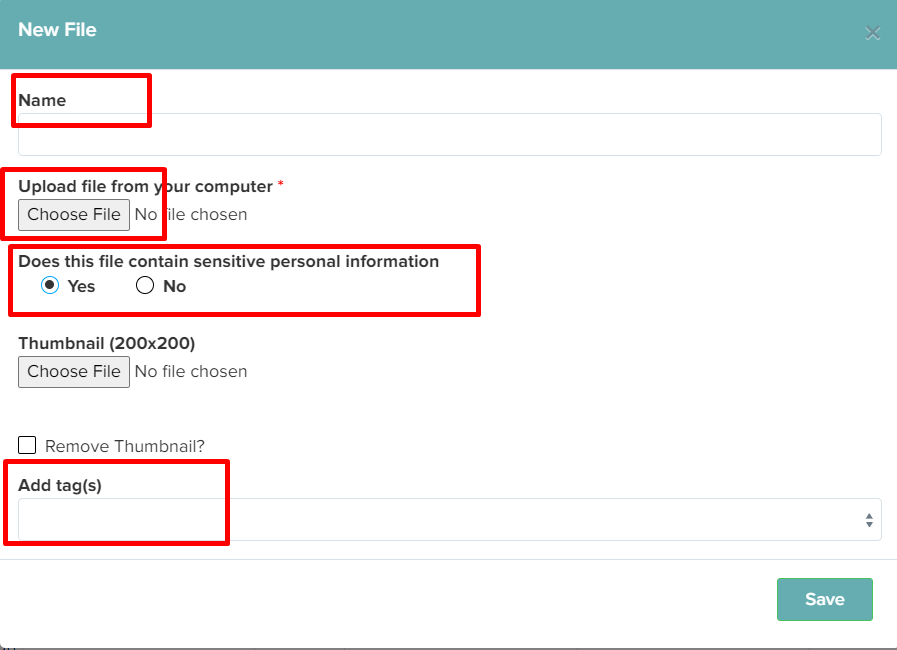
From there, you can add the file name & choose file from your computer then indicate if the file contains sensitive information.
Optional: You can choose a thumbnail & add tags for you to be able to search it easily if you already uploaded multiple files in the system.
Once saved, you are able to click on the file name to download; Click the 'copy this url' to copy the link to the document just in case you want to share it with other members of the school; Pen icon to edit the file description

Green button represents history of the file;

Trash icon to delete the file and this will go through to the 'deleted' folder on the left hand side of the screen & 'X' (Red icon) if you want to delete the file permanently.

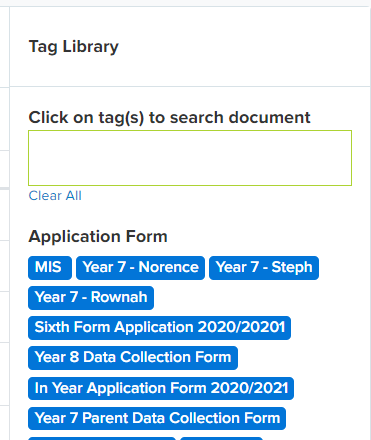
This area below is where you can search your file via tags.
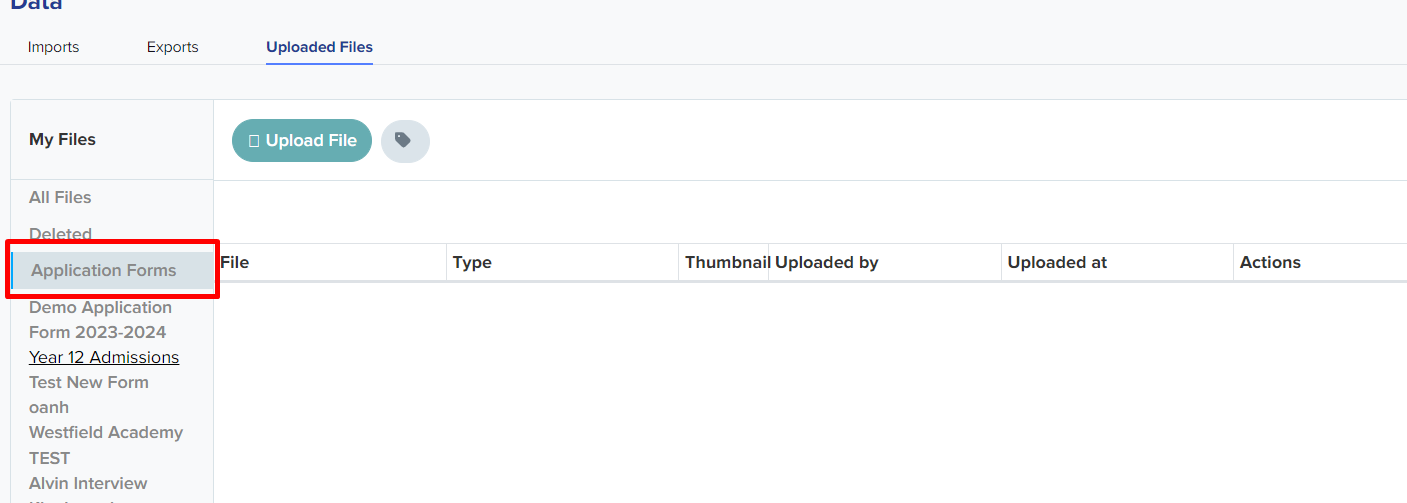
And on this Application form tab, you are able to filter the documents depending which form you have uploaded a specific file to.
Note: You may also upload other type of files in this area even if it doesn't contain any sensitive information!
Was this article helpful?