
How to Use Digital Signatures in B+
This guide will show you how to add digital signatures to your bursary form, allowing parents or students to sign electronically.
Steps to Add a Digital Signature
-
Go to Settings > Application Form.
-
On the Customise Application Journey page, select the step where you want to add the signature and click on it.

-
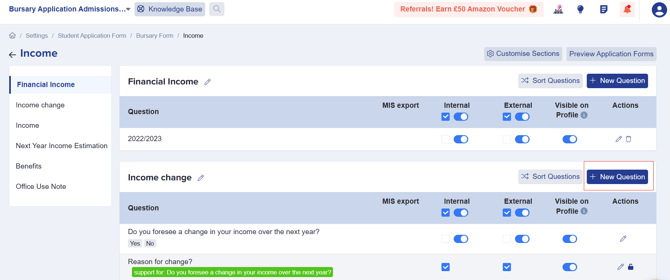
Click New Question to add a field.
-
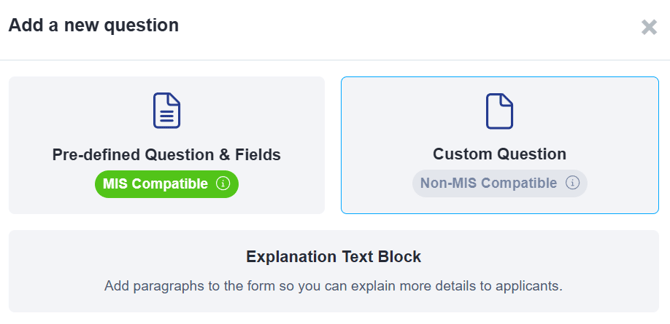
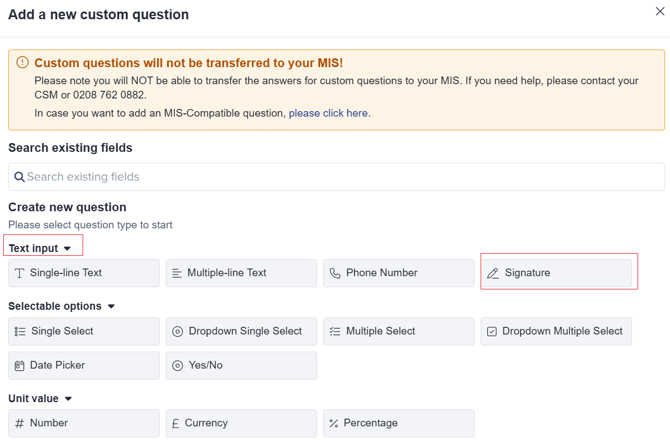
In the pop-up, select Custom Question> Text Input > Signature (Note: Custom questions like signatures will not transfer to your MIS).
-
Fill in the required details:
-
Property Group: Use Additional Questions as the default.
-
Title: Enter instructions for signing (e.g., Please sign below to confirm you have read the policies), or simply Parent's Signature.
-
-
-
The Unique Code will be generated automatically.

-
-
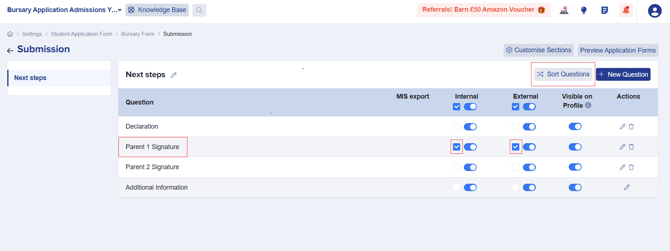
Click Add question to add the signature field to the form. You can rearrange it using Sort Questions and make it required by ticking the checkbox.

-
Preview the form to see how users can sign using the draw, type, or upload options.


This feature ensures easy and secure digital signing for parents and students.
Was this article helpful?