
Offer phase - Offer letters
This article will guide you on how to add your Offer letter templates
To add or create your offer letter templates, navigate to Settings > Application form > Offer Phase

On the Offer phase, Go to step 1: Offer letter by clicking on the step or the cog button on the right side.

In this step, this is where you will add your offer letter templates that will be used when making offers.
You can also configure the decline options here.
- Decline Instruction - Message/instruction that the parent sees when they decline
- Decline reason Required? - Toggle setting if you want a reason to be required when a parent declines
- Decline options - options the parent can select when declining
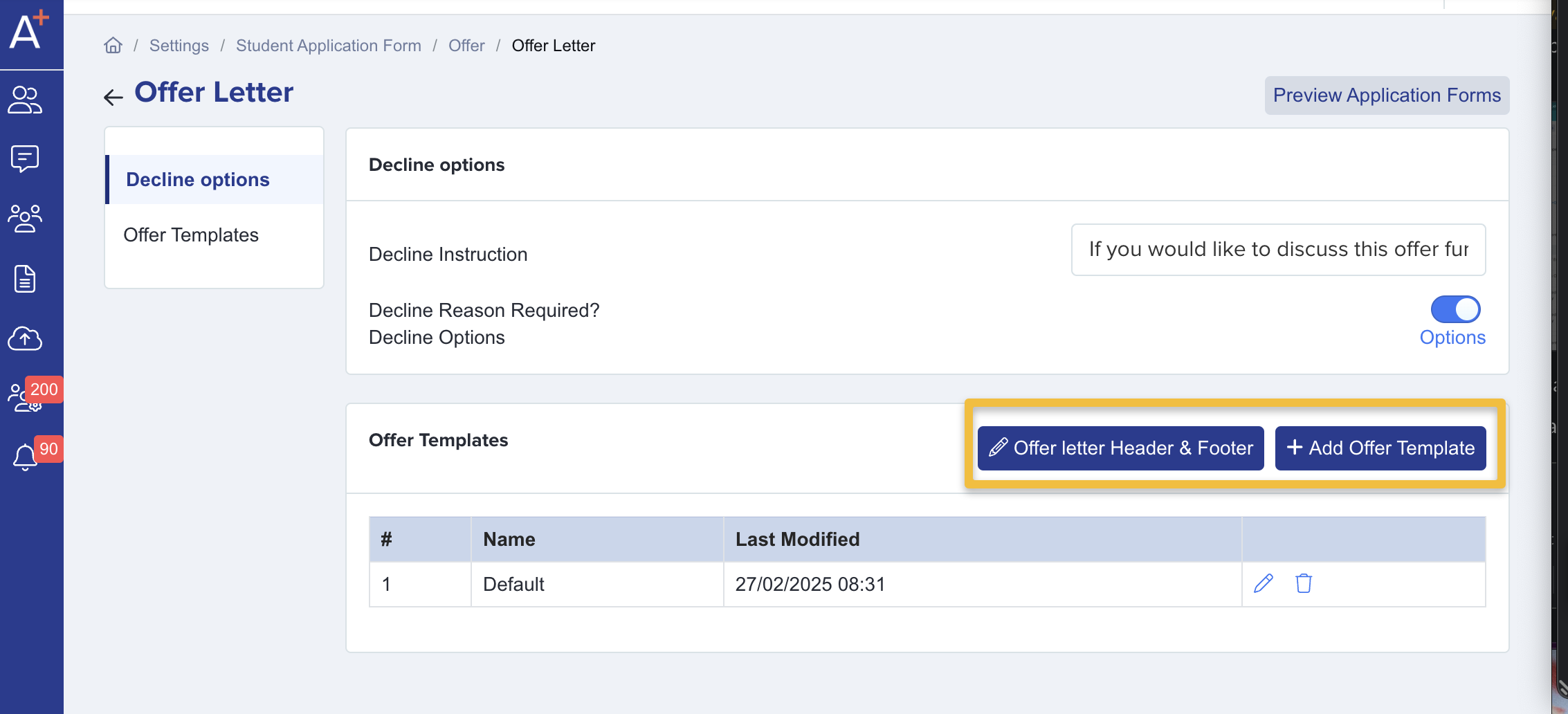
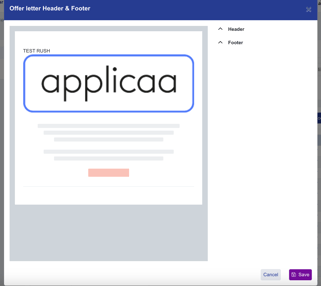
You can add a Header & Footer to your offer letters
Adding an Offer letter Template
Click on the "Add offer template" button to start creating your offer letter
- Name you template
- Make use of the Email tokens to make your letter more personalised
- Write content in the space provided and click on Save
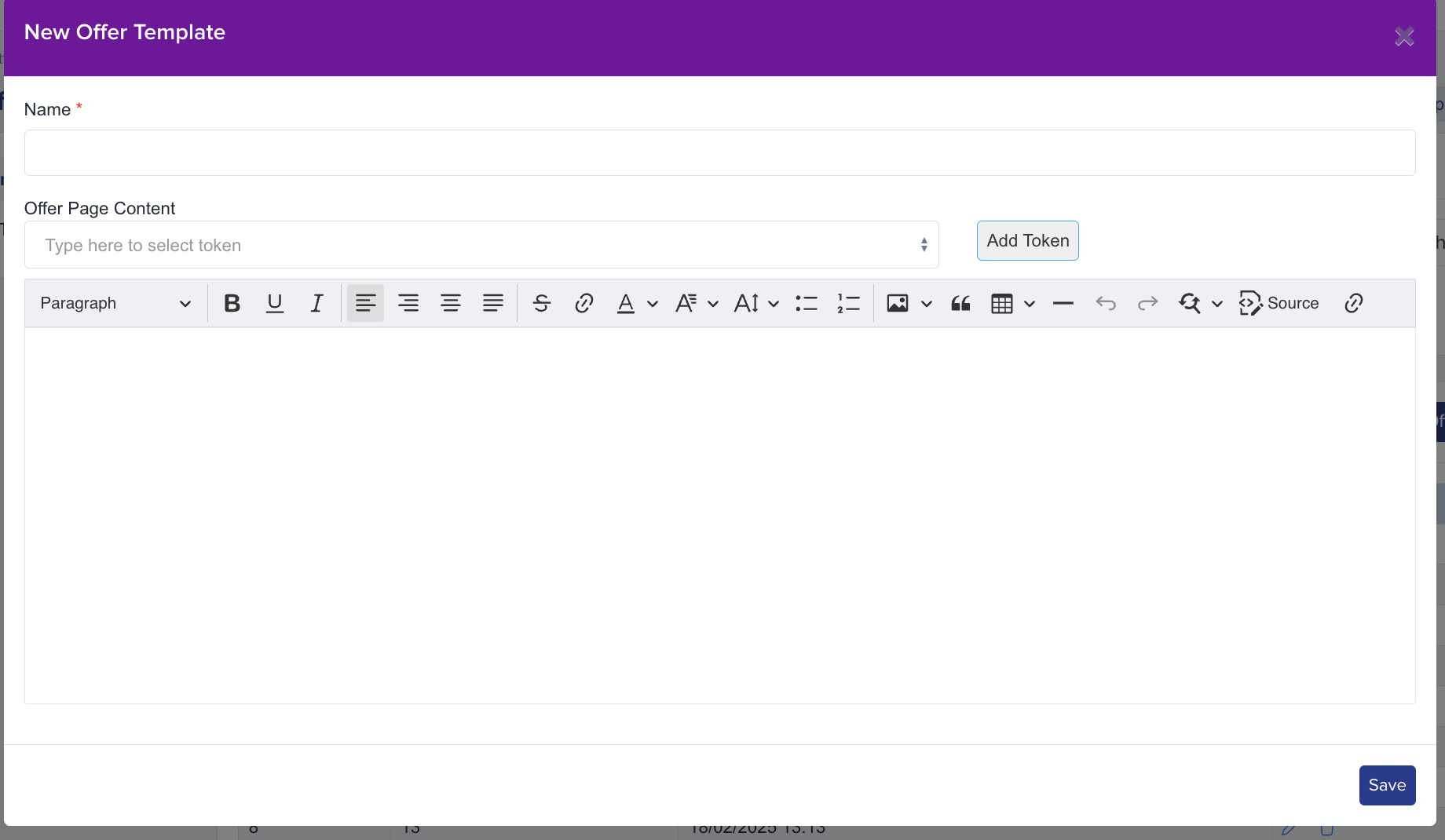
Note: The offer letter templates are form-specific. This means the template you created will only be available on the form that you are on.
There is a default template example that you can preview
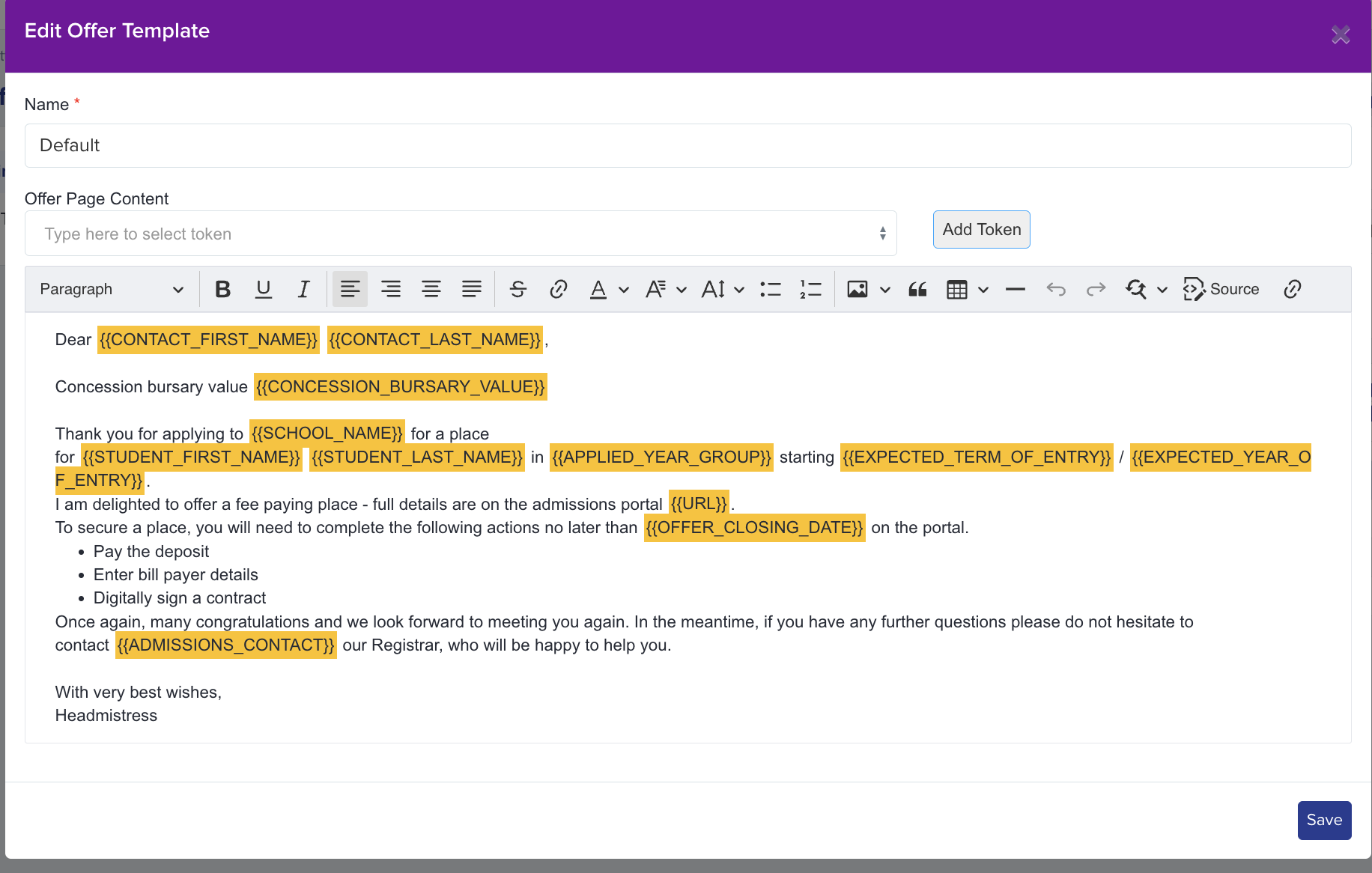
Once the offer letters are set, you can now select them when making offers.
When creating an offer, this will prompt you to select the offer letter template you set up

When a parent accepts the offer and proceeds to the offer phase, they will see the offer letter for their child

For more information about sending offers, refer to this guide.
Was this article helpful?