
How to Generate a QR Code for School Form URLs
This guide will help you create a QR code for your school’s form URLs.
Step 1: Obtain the Form URL
First, you need to retrieve the URL or application form link from Admissions+.
Please note that each form has a unique URL. If you have multiple forms, ensure you copy the correct URL for the specific form you intend to use.
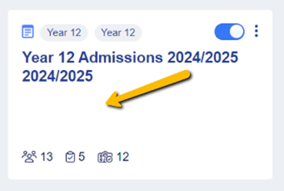
To access the forms, navigate to the Forms Area (or Multiple Forms if you have a multiple forms subscription).

If you don’t see a link/URL displayed in the Forms Area, you can update it by clicking the Kebab menu (three vertical dots) next to the toggle bar for each form, then select Edit.
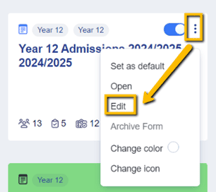
In the pop-up view, scroll down to find the field labeled ‘Customize the ending of the URL for this form (e.g., demo.applicaa.com/Year12)’. To add a new URL, start typing and hit enter. If you’re satisfied with the new URL, click the Save Application Form button.

Step 2: Copy the Form Link
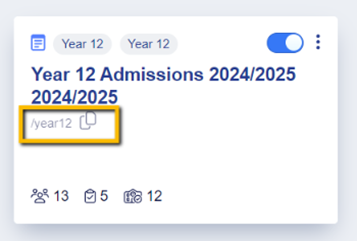
Click the overlapping paper icon to copy the link.
Step 3: Open the Link in a New Browser Window
For Google Chrome:
- You can either open a new incognito window or log out of the A+ platform and use a new browser window. Then, paste the copied link into the address bar.


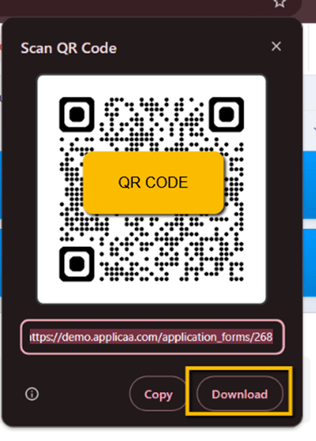
2. Click the Kebab menu on the right side of the screen, select ‘Cast, save, and share’, then click Create QR Code. Finally, click Download.

For Microsoft Edge:
- If you're logged into your school platform, log out first, then open a new browser and paste the link. Alternatively, you can open a new InPrivate window and paste the copied link into the address bar.

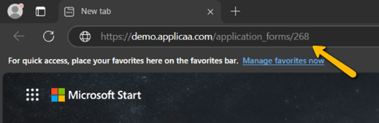
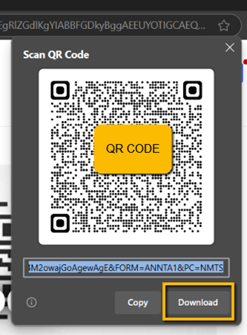
2. Right-click on a blank area of the webpage, and from the menu that appears, select ‘Create QR Code for this page’. A QR code will generate, which you can then download.

Was this article helpful?