
How to use the student bursary profile
An overview of key functions within the student profile area of your bursary platform
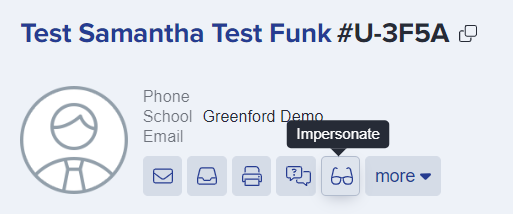
On a student's profile, you will see their name and key contact information in the top left hand corner, alongside the action buttons. These enable you to send emails, print their application form, check the communication log, add them to a meeting or impersonate them.
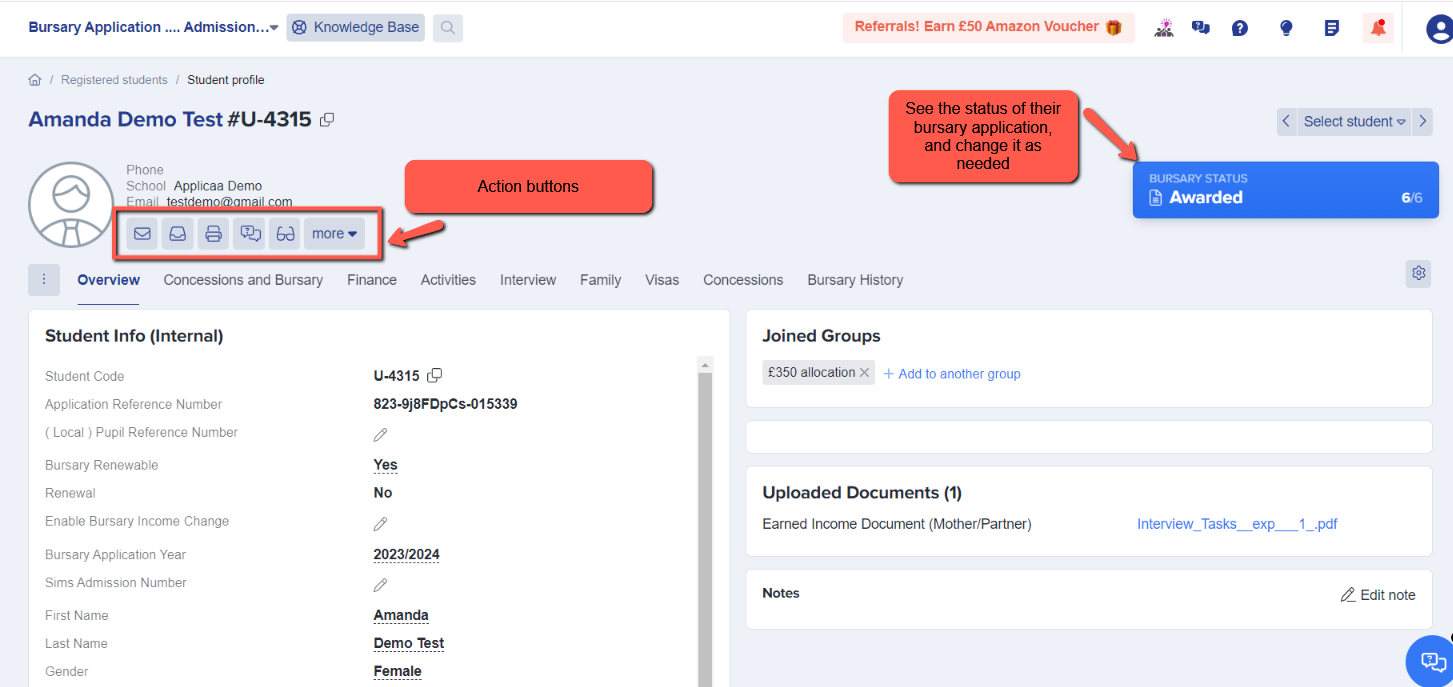
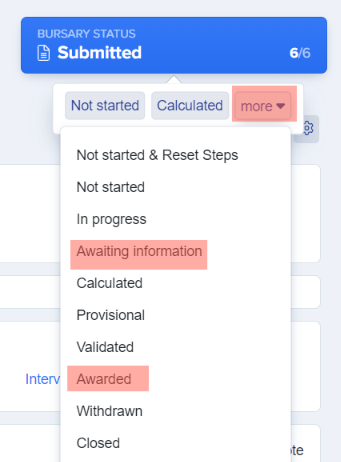
You can also update the status of their application by clicking the coloured button to the right of the page. You may wish to do this if you have assessed their application and decided more information is required, or they have been successful and you want to award them the bursary, for example.
You can check which phases of your process have been completed by the student and can also add notes about their application (these notes are not visible at any time to the student), and see any documents they have uploaded in support of their application.

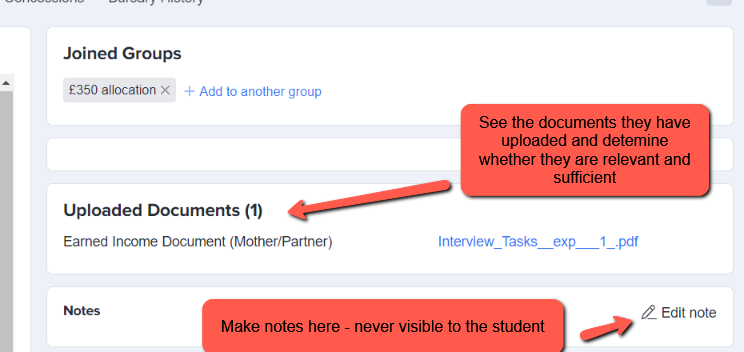
Any uploaded documents will be date and time stamped for your reference.

Navigate amongst each area of your system, from Concessions and Bursary, to an overview of their Finance to view their responses and make any edits as needed:

If students applied for the bursary last year and have reapplied this time, you can view last year's responses, uploaded documents, requests and band allocation via the "Bursary History" tab:


Navigate from student to student using the selector or arrows in the right hand corner of the student profile:

Impersonate a student if you need to see things from their perspective, or complete something on their behalf, such as an amendment to information in their application form, or to submit a request for them if needed.
Was this article helpful?