
Importing Tutor Group Allocations from the Sorting Hat into SIMS
This article will show you how to use integration to transfer the registration/tutor groups from A+ into SIMS
First of all, in SIMS, you'll need to have created your tutor groups or registration groups.
Navigate to Focus > School > Pastoral Structure and then the Next Academic Year Structure.

You'll then be able to go ahead and expand the Pastoral Structure then the corresponding year group. After that, expand the section for Registration Group. Here, you'll be able to create the new ones if they're not already there or you may already have them from your promotion routines.

You can right-click to create a New Registration Group as well. Once you have these groups created, you will need to also mirror them on Admissions +.

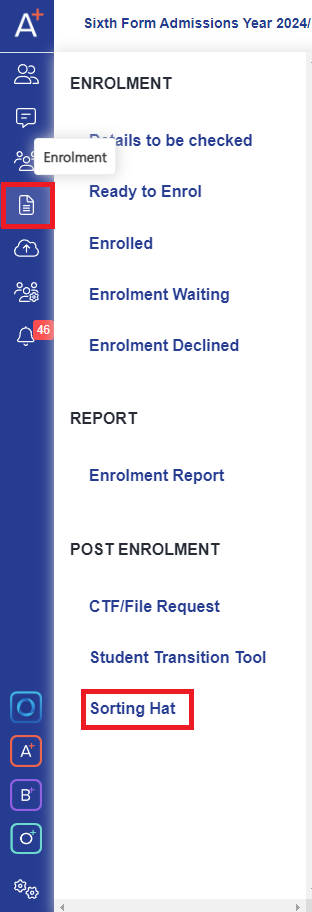
On Admissions+, access Enrolment > Sorting Hat. Here, you'll need to go through the process of recreating them so that they exist in the system.
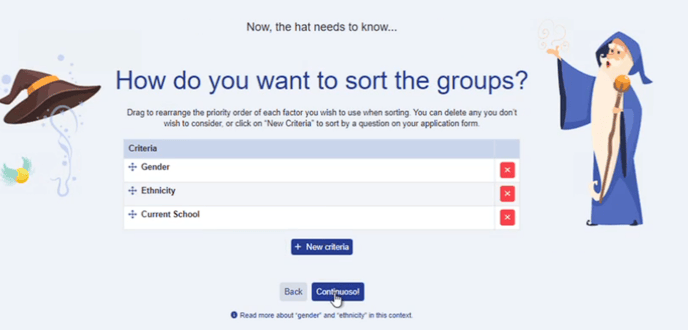
When Sorting Hat launches, you'll see that you have a section where you can pick your option and you'll be able to create the name of your registration groups.


NOTE: We want the tutor groups to have the same name. You can create this in Admissions+ first and then create it later in SIMS and they just need to match.

Once you've got your students into the registration group based on your criteria, you can go ahead and export this back.
To do this, you will need to Launch the SIMS app and click on Add Students To Tutor Groups.

Pick a form before adding students to groups. It is going to load the students from your system who are part of this form.
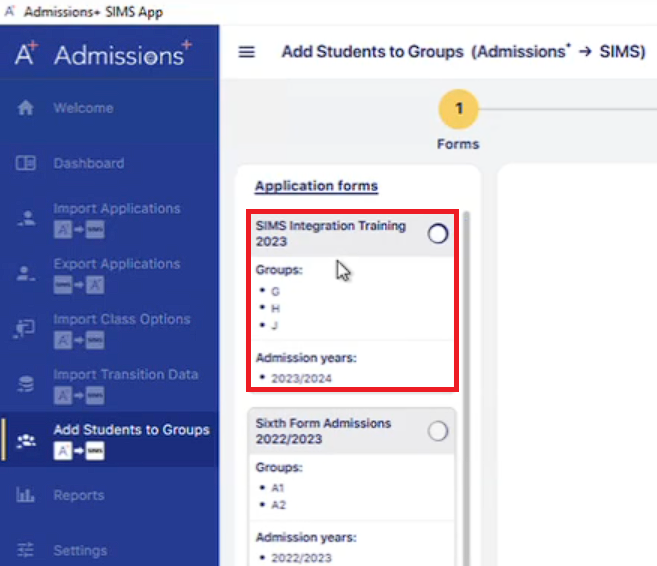
Select the students and any of the ones who have been allocated to forms and click Next.

NOTE: It's important to make sure that you have already imported these applicants into SIMS to begin with before you can do the registration groups import.
Select students who have already been imported to SIMS by clicking on Send The Data Just For The Students Already In SIMS.

You'll then see a page where you can start to filter and match your Admissions+ form groups with your SIMS form groups. Make sure to select the correct Admissions Year and also the Year Group that you're looking at. After that, you can go ahead and click on Automatically match groups and then Next.
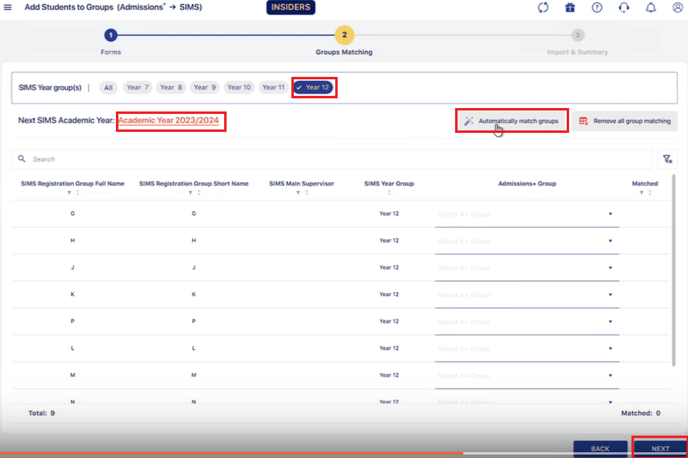
If you have given your tutor groups the same name in Admissions+, the system matches them automatically but you can also do it manually in case you've given them slightly different names.

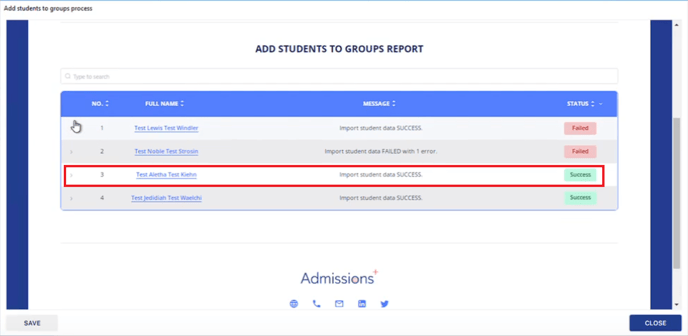
Click on Import and then it will show that the report has finished.


When the import is successful, you go into SIMS and will now see that the applicant is added to the registration group via the integration. This is how you can use the integration to import the tutor groups once you have allocated them with the Sorting Hat.

Was this article helpful?