On a student's profile, you will see their name and key contact information in the top left hand corner, alongside the action buttons. These enable you to send emails, print their application form, check the communication log, send a notification or impersonate them.
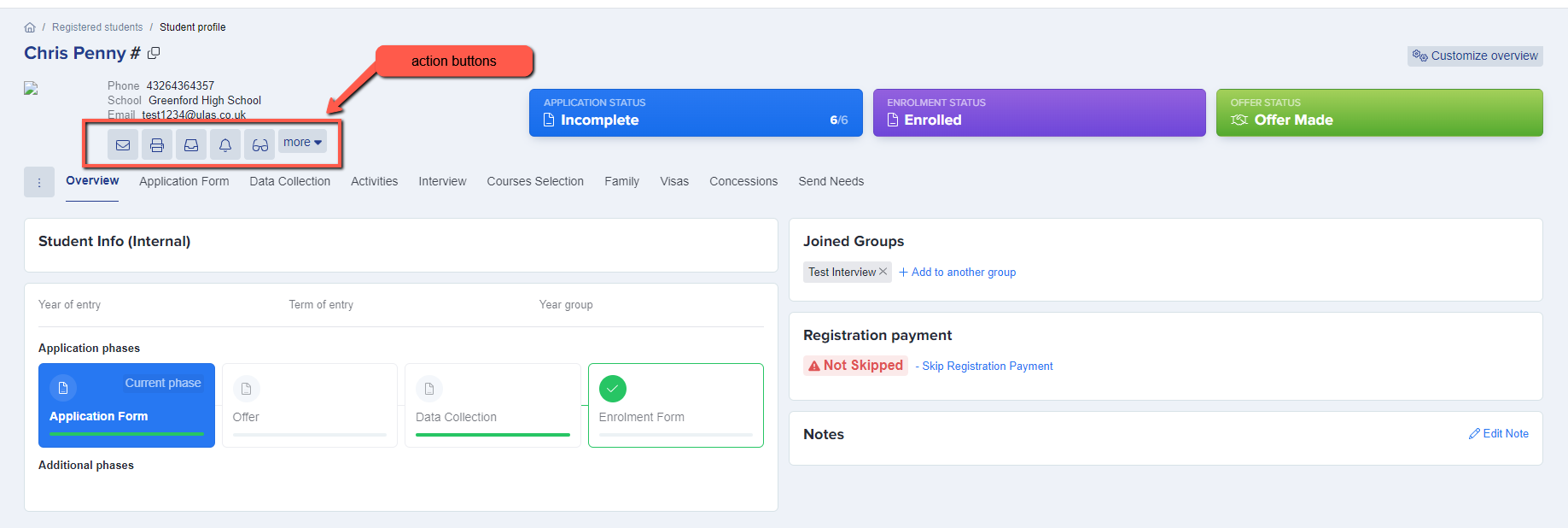
You can also update the status of their application, adjust their enrolment status or click to make/withdraw offers by clicking the coloured buttons to the right of the page.

You can check which phases of your process have been completed by the student and can also add notes about their application (these notes are not visible at any time to the student or their parents).

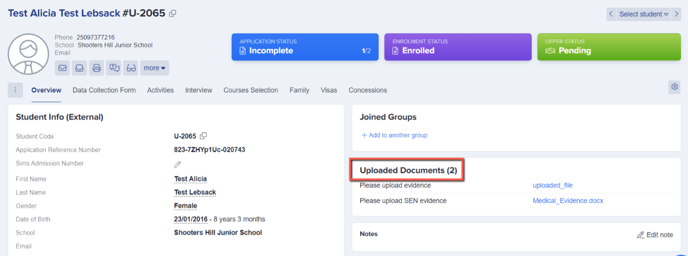
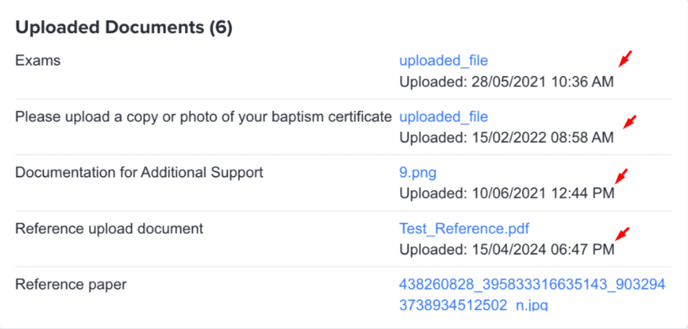
For any questions which require the applicant to upload a file, you will see the Uploaded Documents area and be able to click the links to view each file they have uploaded. These uploads will be date and time stamped for your reference.
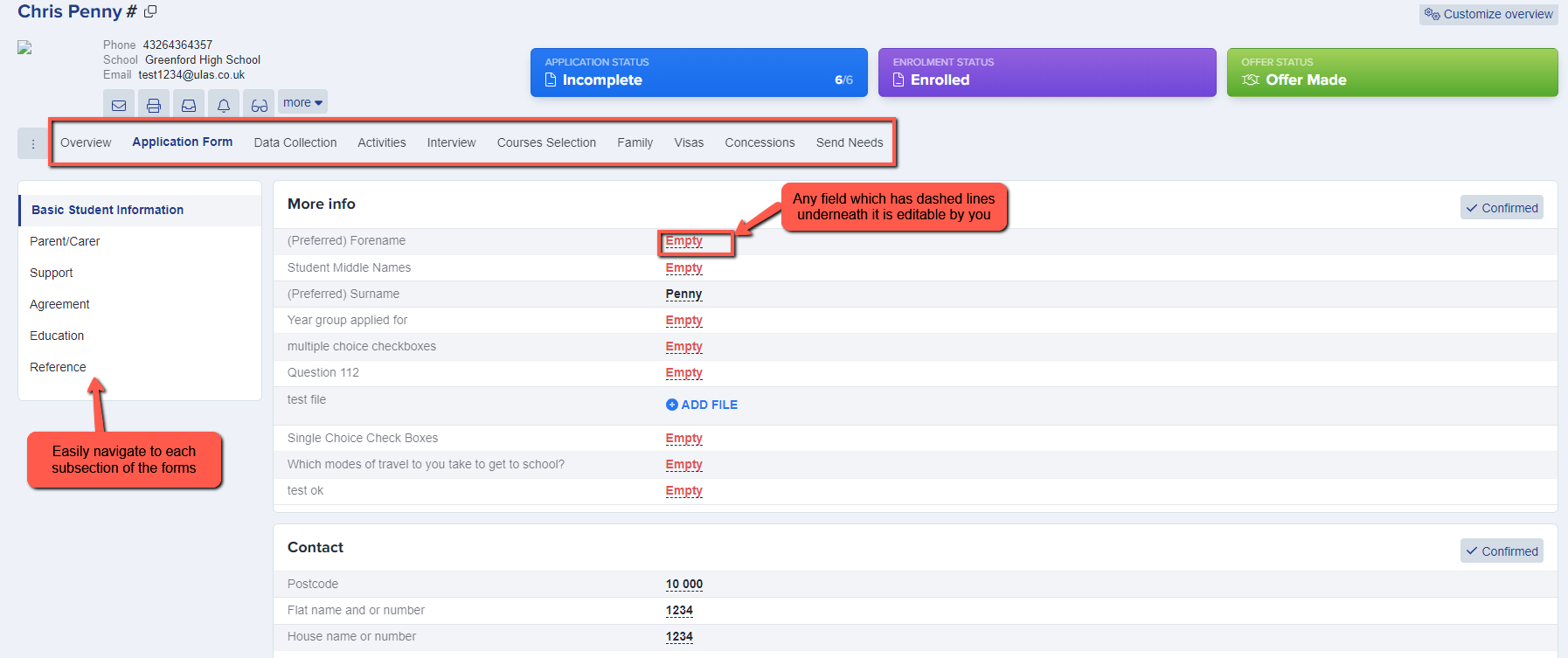
Navigate amongst each area of your system, from application form to interviews and courses selection to view their responses and make any edits as needed: