
A school rename does not change a staff member's sign-in details. Use this guide when a display-name update or an email-domain change happens at the same time as a sign-in problem.
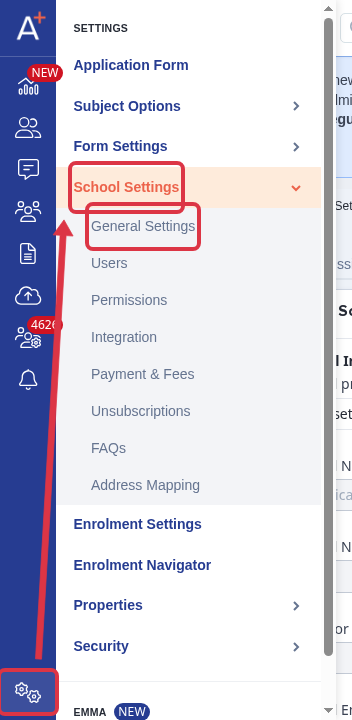
Go to "Settings" > "School Settings" > "General Settings".
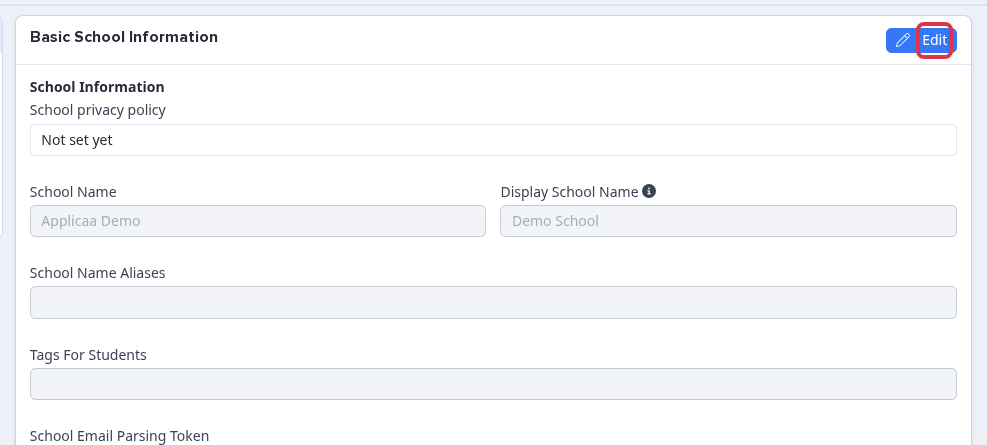
In "Basic School Information", select "Edit".
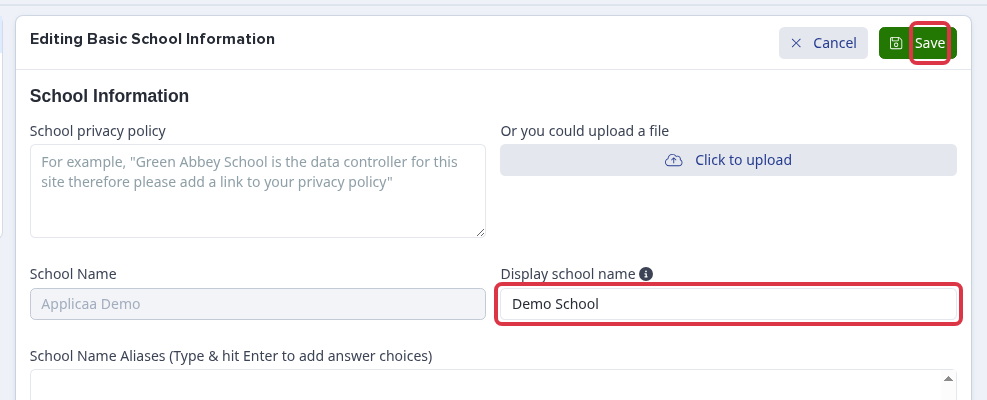
Change "Display school name" and select "Save". This changes the name that staff, parents, and students see. It does not change their sign-in details. "School Name" stays locked on this page.
After an email-domain change
If your school uses staff single sign-on, use the configured provider button, such as "Sign in with Google" or "Sign in with Microsoft". The password-reset control is not available while staff single sign-on is active. The staff email must match an Admissions+ staff account before the system sends it to single sign-on.
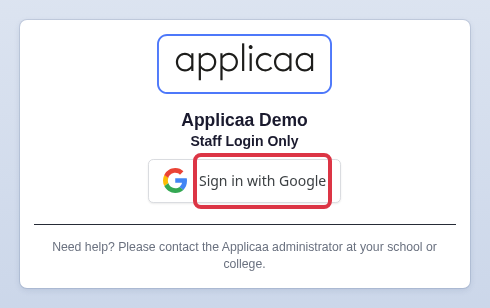
- "SSO Login Required" means that staff must use the Google or Microsoft sign-in button.
- "Account Not Found" means that a school administrator must check the staff account email.
- Staff who use passwords can use the password-reset and locked-account guidance below.
What it does not do
- Changing "Display school name" does not change staff, parent, or student credentials.
- You cannot change "School Name" from Basic School Information.
- This guide does not resolve a demo-mode restriction on parent email. Ask Emma or send the exact message to the helpdesk.