
The Message Summary area shows every email your school has sent, lets you check delivery status and open/click activity, and lets you search and export that data.
Go to Communications & Events > Communications > Message Summary.
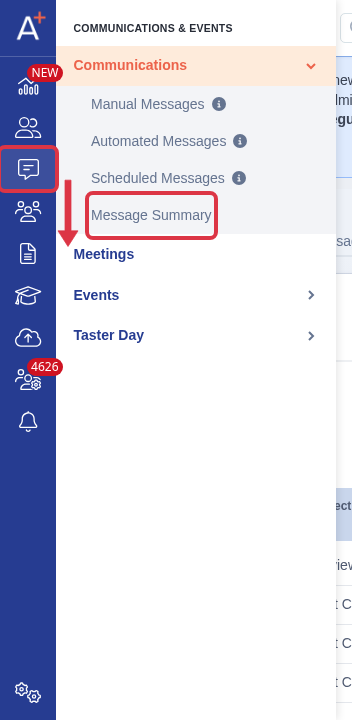
You land on two tabs: Group Emails and All Activity. All Activity shows email activity from all forms, while Group Emails lists only the group emails sent from the form you opened it from.

The All Activity table lists every email with these columns:

- Email- the recipient's address. Where the recipient is a student or parent on your system, the address links to their profile.
- Subject- the email's subject line.
- Sending Method- how the email was sent: Manual Message (a staff member sent it by hand), User Automated (an automated, non-system template), or System Message (a built-in system notification). When the sending method is not recorded, the column shows "N/A".
- Sent at- when the email was sent.
- Last Event Received at- when SendGrid last reported a status update for this email.
- Status- the current delivery event for the email.
- Dropped- SendGrid drops an email when the recipient is in one of your suppression groups, the address previously bounced, or the recipient marked your email as spam.
- Delivered- the accepted response from the recipient's mail server.
- Bounce- SendGrid could not or would not deliver the message, usually because of an outdated or incorrectly entered address. Removing a bounced address from your lists helps it not bounce again.
- Open- the recipient opened the email.
- Click- the recipient clicked a click-tracked link in the email. The history shows the date, time and the URL clicked.
- Blocked- an ISP or messaging organisation blocked your IP address. A block is less severe than a bounce and does not suppress future sends to that address automatically.
Read more about what each status means in What do the email statuses mean?
Click the arrows in a column header to sort the table by that column.
When the Sending Method is "User Automated", a small icon next to it opens the Automation Detail popup.
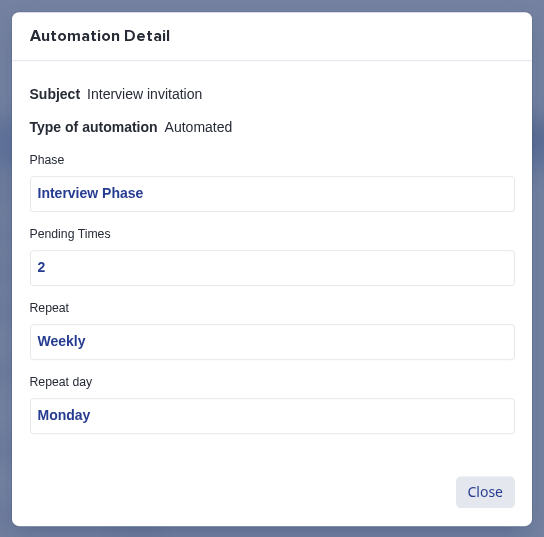
The popup always shows the email's subject and the type of automation, then further detail depending on how the automation was triggered:
- Sent on a schedule - the date, time and time zone it's set to send at.
- Sent when an applicant reaches a step - the phase, the pending times, and if it repeats, the repeat frequency and repeat day.
- Sent by a staff trigger - the group or meeting it's tied to, where one applies.
Use Search in table to filter the list, for example by an email address or a subject.

Use the Export button to download the current list as an Excel or a CSV file.

On the Group Emails tab, click any message name to see its delivered rate and other statuses for that specific group email.

If you can't find what you're looking for, ask Emma from within the platform, or reach out through the helpdesk.