
You can set Bromcom as your school's integration platform and verify its connection from School Settings. You need an Admin, Super Admin, or MAT Admin role to see the "Edit" control.
Go to Settings > School Settings > Integration.
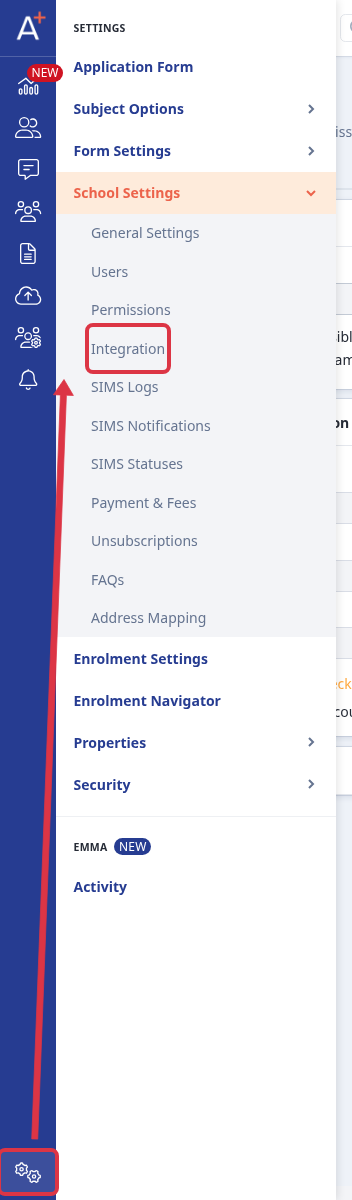
In MIS Setting, select "Edit".

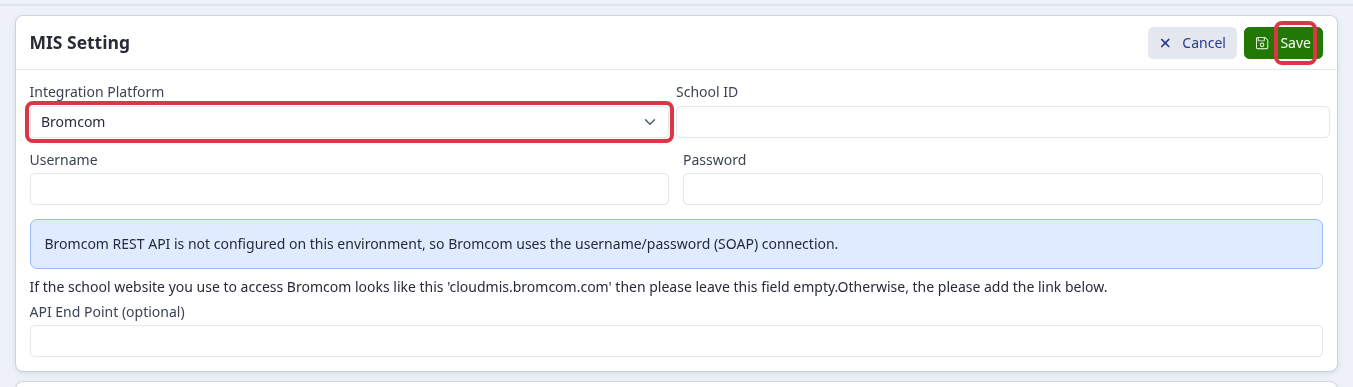
Select "Bromcom" from "Integration Platform". Enter the Bromcom "School ID", "Username", and "Password". Enter "API End Point (optional)" when your Bromcom address is not cloudmis.bromcom.com. Select "Save".
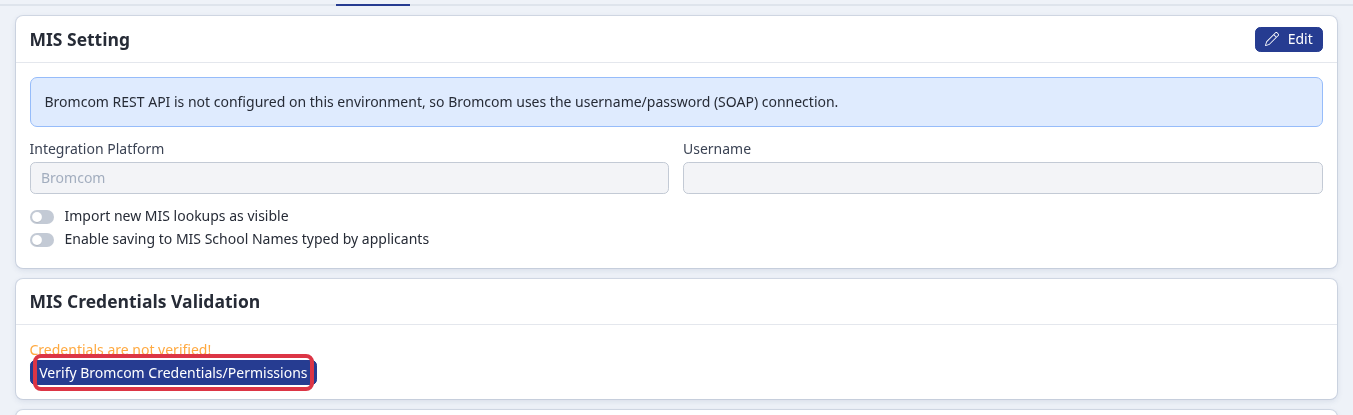
After you save, select "Verify Bromcom Credentials/Permissions". The page shows whether the credentials and required permissions are valid.
Why Bromcom is not available
- If you cannot see "Edit", ask an Admin, Super Admin, or MAT Admin to set the integration platform.
- If the page shows "Credentials are not verified!", select the verification control after you save the Bromcom details.
- If verification reports "Bromcom has not granted Applicaa access for this school yet - please grant access in Bromcom, then click Verify again.", a Bromcom administrator must grant Applicaa access before you retry.
- If the password contains
+or&, save fails with a message that asks you to use a password without that character.
If verification still fails after you check the Bromcom details and permissions, ask Emma in Admissions+ and include the message shown on the verification card.