
Use the Options Model to decide which existing course subjects can appear in each timetable band. A course list and a timetable model are separate. A subject does not move automatically from the course list to a timetable.
Go to Settings > Subject Options.
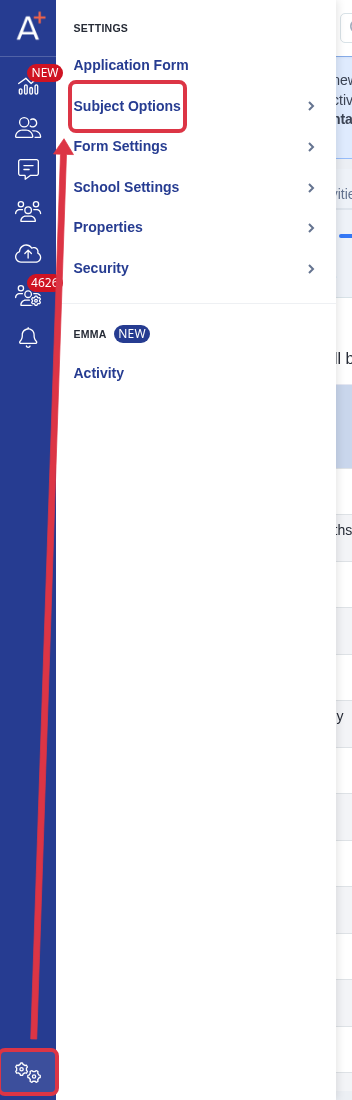
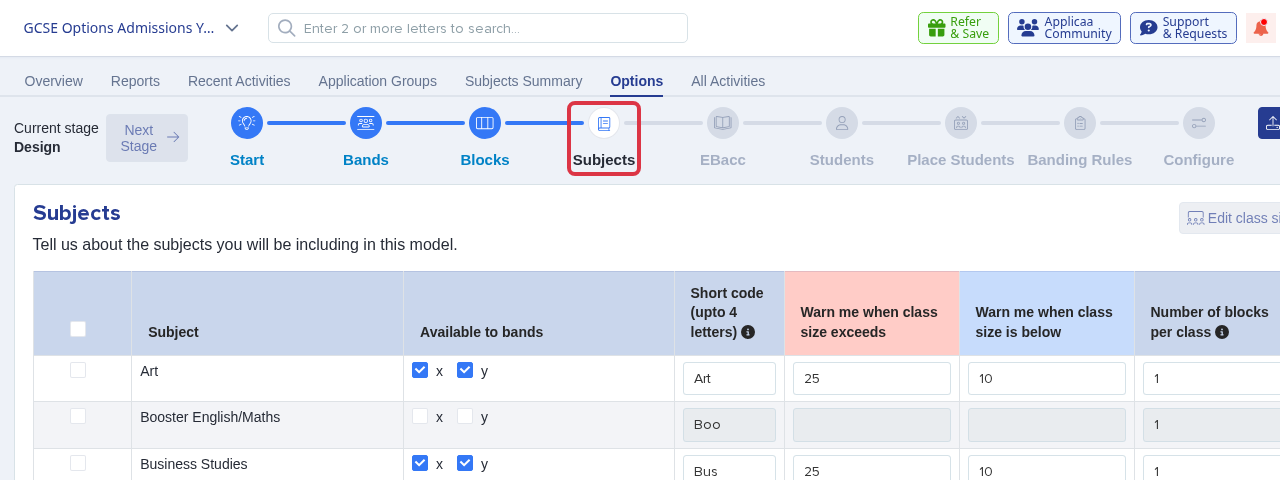
Open the application form, select Options, open the saved model, then select the Subjects stage.
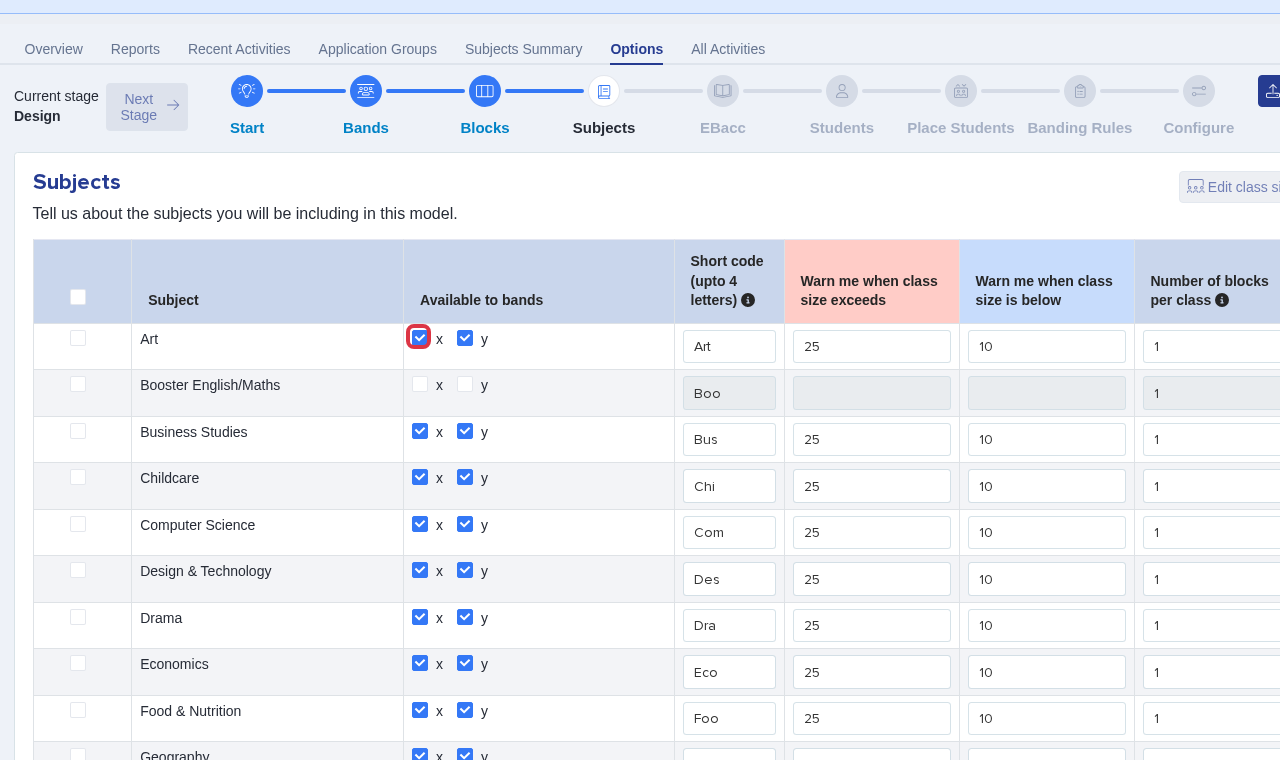
For each required subject, select one or more boxes in Available to bands. A subject with no selected band is not available in that model. Select the bands that must offer the subject.
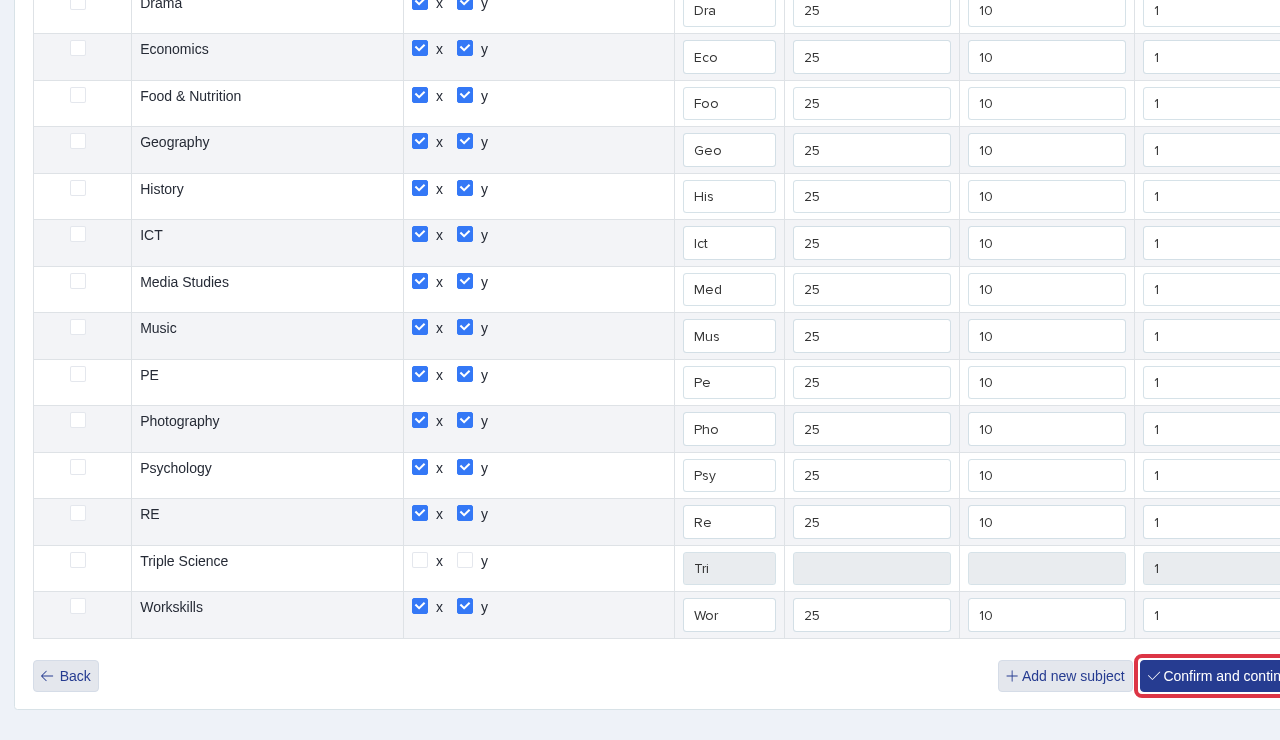
Select Confirm and continue to save the subjects in the model.
At the Classes stage, set Teaching groups to 1 or more for each subject that you want to include in modelling. A value of 0 causes the warning: "You have entered 0 teaching groups for the following subjects below. This means that they will not be included in the modelling."
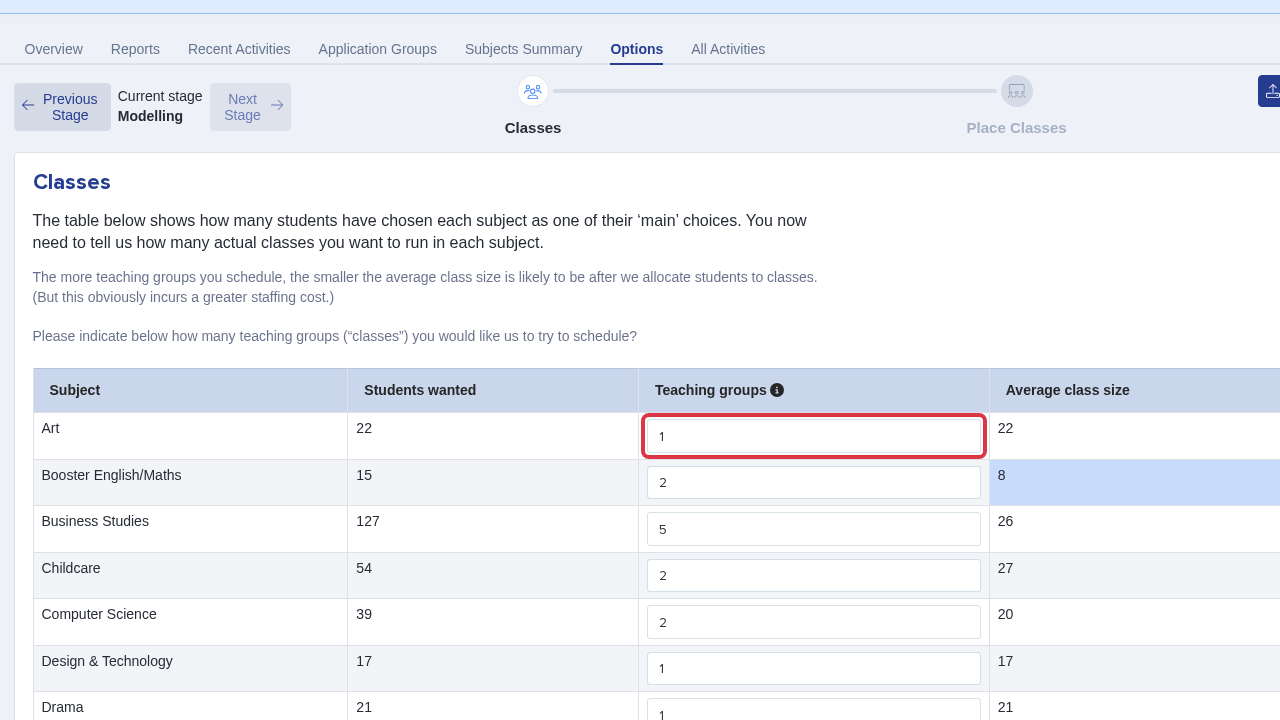
Select Confirm and continue to save the class groups.
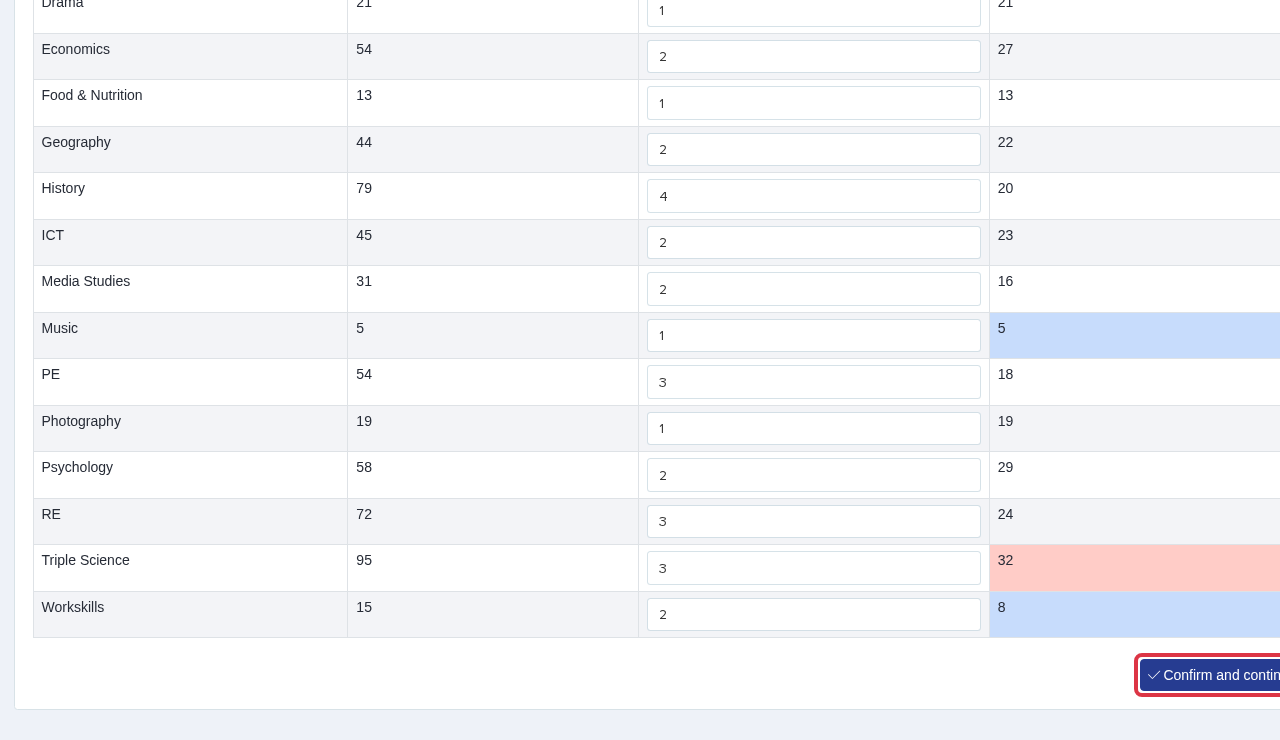
To download the blocks and classes, select Export. You can select Blocks & Classes (PDF), Blocks & Classes (Excel), or Blocks & Classes (CSV). CSV is not the only download format.
Missing subjects and validation messages
If a subject is absent from the model, first check that it exists in the course list. Add, remove, hide, or unhide courses in the course settings. Then return to the model and select its available bands.
A red Minimum learning hours check means that the selected, non-excluded courses total fewer hours than the form minimum. The message is: "You are under the minimum number of learning hours, please select more courses". This is a course-selection rule. It does not show that a subject failed to move into the timetable model.
Timetable counts
Interested is the number of students with an interested registration for that class. Reserved is the number with a temporary enrolled registration. A value of 1 Reserved means one student has that temporary class registration. It is not a timetable error.
What it does not do
The Options Model does not add or remove a course from the form course list. It also does not identify which staff member completed an enrolment action. Use the relevant student activity or audit record for that question.