
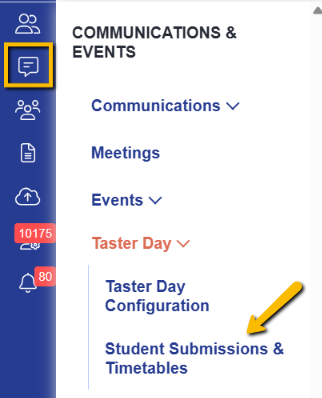
You can manage your applicants' Taster Day sessions in the Student Submissions & Timetables area of your platform: Timetables > Student Submissions & Timetables or Communications & Events > Taster Day > Student Submissions & Timetables

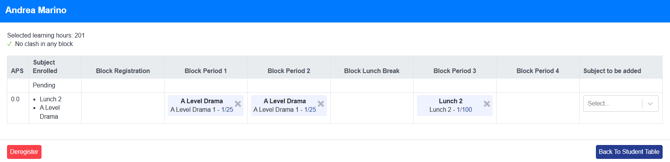
Click on the name of the student whose choices you wish to change, and their options will appear in a pop-up.
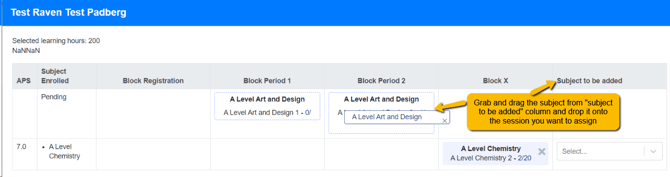
Click the X on any class you wish to change, and you will be presented with all other available sessions for that class. In this example, I want to move them to a different Art and Design group, so I have clicked the X for that subject and can see there is another group in period 2.


I am then able to grab and drag the name of the subject and drop it onto the Period 2 session.
This updates that student's choices and I can click "back to table".
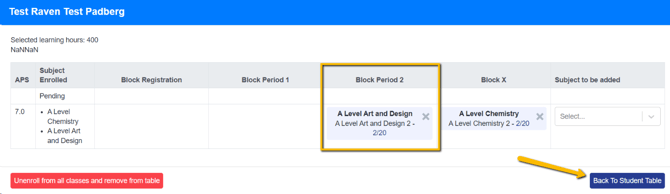
As a result, there is now an extra space available for another applicant to take in Period 1 Art and Design.
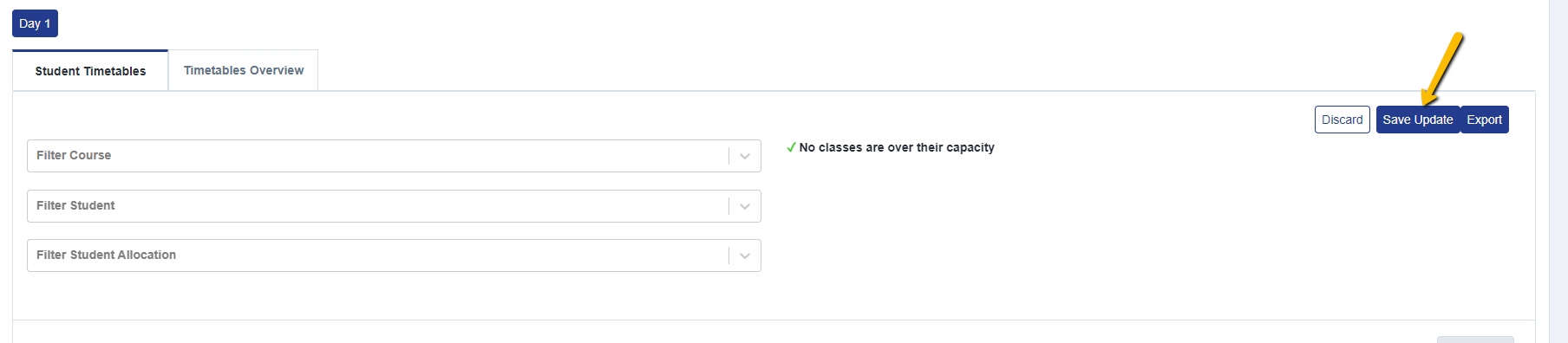
After making changes, remember to click Save Update at the top of the table, so the changes are retained.
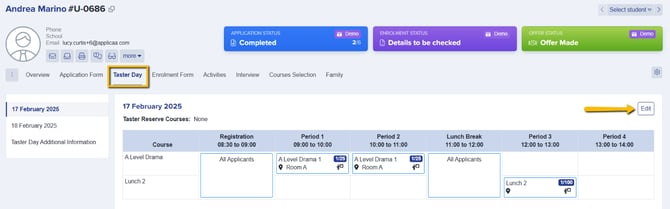
Alternatively, you can update a student's Taster Day choices directly from their profile.
Why a session can go over its "Maximum number of students"
Every class has a Maximum number of students, which you set when you create or edit the class on the Timetable. This is the cap for that single group.
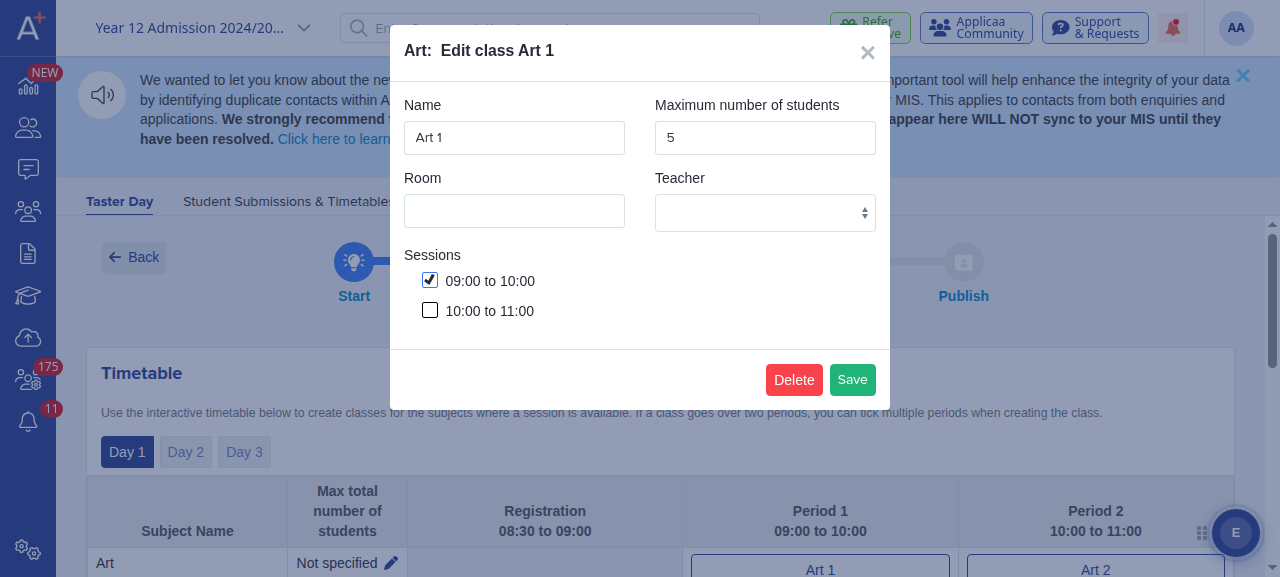
On its own, this number does not stop a group from filling past it. It is only enforced once you switch the cap on for the Taster Day. Go to the Settings step of your Taster Day timetable.
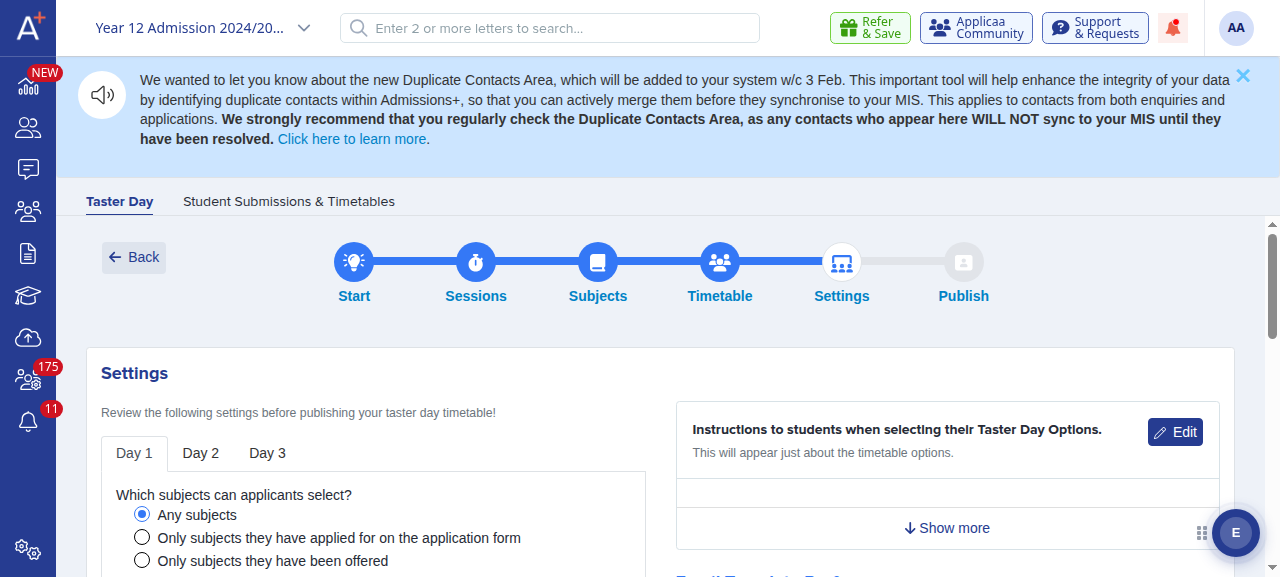
Tick "Activate the caps on the number of students that can select subjects" for that day. While this setting is off, applicants and staff can be placed into a class beyond its Maximum number of students.
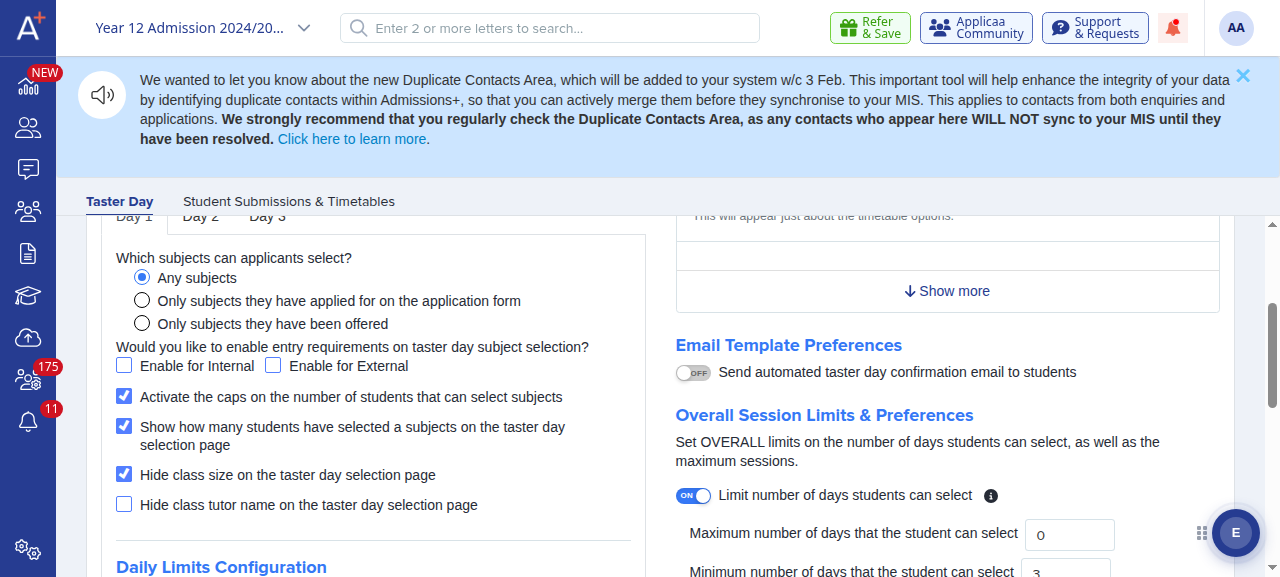
Even with the cap switched on, a class can still show more students than its maximum in these situations:
- Students who were already in the group keep their place. Switching the cap on later does not remove anyone who is already over the limit – move them out manually using the steps above.
- When applicants pick a subject and the platform allocates them to a group for you, if every group for that subject is already full it still places them in the least full group rather than leaving them without a session.
- A subject can also have a Max total number of students across all of its groups. That is a separate limit from a single group's Maximum number of students, so check both if the numbers look higher than you expect.
To bring a group back within its limit, use the steps above to move students into another group that has space, then click Save Update.