
This guide shows you how to add different times and days within an event, how to keep every ticket's date inside the event's own date range, and how a guest who already booked can switch to a different session.
When creating an event, make sure to tick both "Event has multiple tickets" and "Tickets have their own date & time" to allow you to add different times & days.
From the Dashboard, you may go to Communications and Events > Events and Events Calendar. Scroll down and look for "Tickets"

Click on "Add ticket" and fill out the required fields. Once done, hit Save.

Keep ticket dates inside the event's own date range
Every ticket's own Start date/time and End date/time must sit inside the event's own Start date and End date - the overall range you set at the top of the event, not on the ticket itself.

If a ticket's date falls outside that range, saving the ticket fails with one of these messages:
- "date can't be before the event start date" - the ticket's start is earlier than the event's own Start date.
- "date can't be after the event end date" - the ticket's end is later than the event's own End date.
To fix it, widen the event's own Start date and/or End date to cover every ticket's date, then save the ticket again.
Let an already-booked guest switch to a different session
When you add new slot tickets to an event after guests have already registered, those guests do not move automatically - each guest keeps the ticket (session) they originally booked. To collect numbers for a different talk or slot, tell the guest to reopen the event from their portal; a guest who already has a ticket sees "View tickets", "Edit" and "Registered for" buttons instead of "Register".
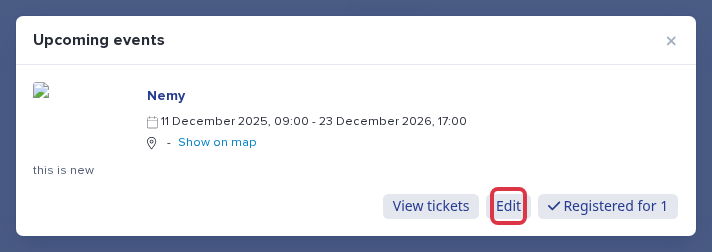
Clicking "Edit" lets the guest pick a different ticket (session) and save the new choice - there is no automatic email that tells a guest their session changed, so let them know to go back and click "Edit" once the new slot tickets are added.