
Sometimes an applicant needs to go back into their application after they have already submitted it - to finish a step they missed, or to make a change after your stated deadline has passed. Application forms lock automatically once the applicant submits, so by default nothing more can be added or edited. To let a student complete or edit their form after submission, you reopen it.
There is no permanent cut-off that blocks a student for good. Reopening a submitted form restores the applicant's access straight away, and everything they have already entered is kept. You can reopen one form, reopen several at once, or turn off the automatic lock so forms stay open after submission.
Reopening a single application form
Open the profile of the student whose form you want to reopen - find them in a list, or search their name in the search bar at the top of the page. Hover over the blue "Application Status" tile to show the status controls.

Click "more" and choose "Incomplete & Reset Step". This sets the application back to "Incomplete" and reopens the form, so the applicant can log back into their profile and finish it. All of the answers they entered before are preserved. The same option restores access if the student was previously marked "Deadline Missed".
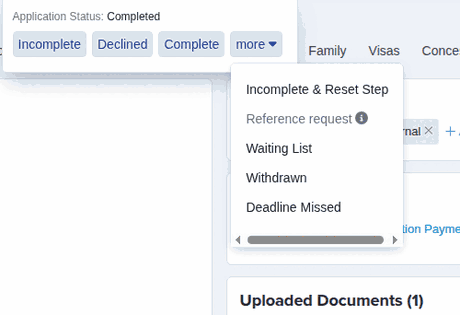
Once they save and submit again, the form is marked "Completed" and locks once more.
Reopening forms in bulk
To reopen forms for many applicants at once, load a list of applicants from your main dashboard, select the students you want, and click "Change Application Status" at the top of the table.
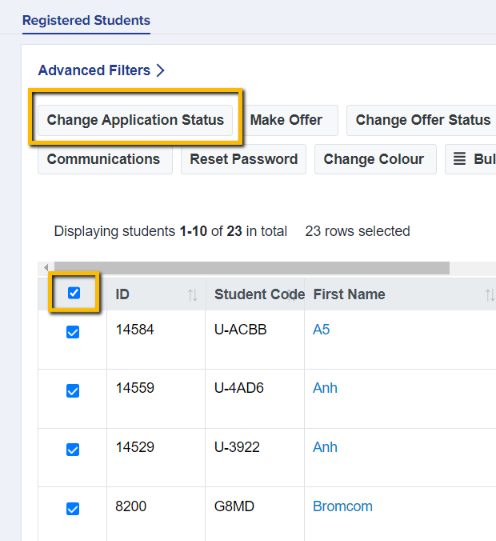
Choose "Incomplete & Reset Step", then type the number shown underneath to confirm and apply the change.
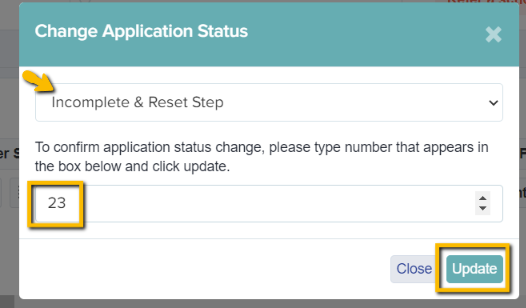
Once each applicant saves and resubmits their form, it is marked "Completed" and locks again.
Reopening a phase on an archived form
Archiving a form - for example, to close off a previous year's cycle - does not stop you from changing a student's application status or resetting one of their phases from their profile. Both actions still work on an archived form. But the applicant cannot use it: while their form stays archived, they see "This application form has been archived." if they try to log back in to finish it.
To let them back in first, open the "..." menu on the form in your Archived Forms list and choose "Unarchive Form".
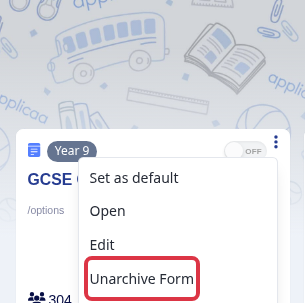
Once the form shows as live again, reopen the student's application status or phase as described above, and the applicant can get back into it.
Reopening just one phase
"Incomplete & Reset Step" always resets the "Application Form" phase specifically, together with the student's overall application status. If the applicant missed a step on a different phase in their journey instead - for example an Offer phase, an Account Creation phase, or a custom phase you have added - reset just that phase, leaving the rest of their application exactly as it is.
From the student's profile, open the "more" menu and choose "Set to Incomplete & Reset Steps", then pick the phase from the list underneath.
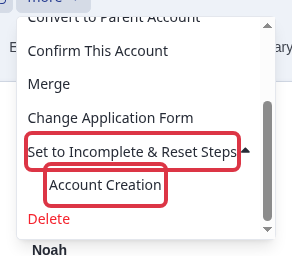
Only that phase's progress is reset. The student's overall application status, and their progress on every other phase, is left untouched.
This option is not available for Bursary+ or Bursary16+ schools. On those schools, use "Incomplete & Reset Step" to put the whole application back to "Incomplete" instead.
Keeping forms unlocked by default
If you would rather forms did not lock automatically after submission, you can change the phase setting so applicants can keep editing. Go to Settings > Application Form. Click the pencil icon for the application or admission form phase and turn off the "lock form after submission" switches.
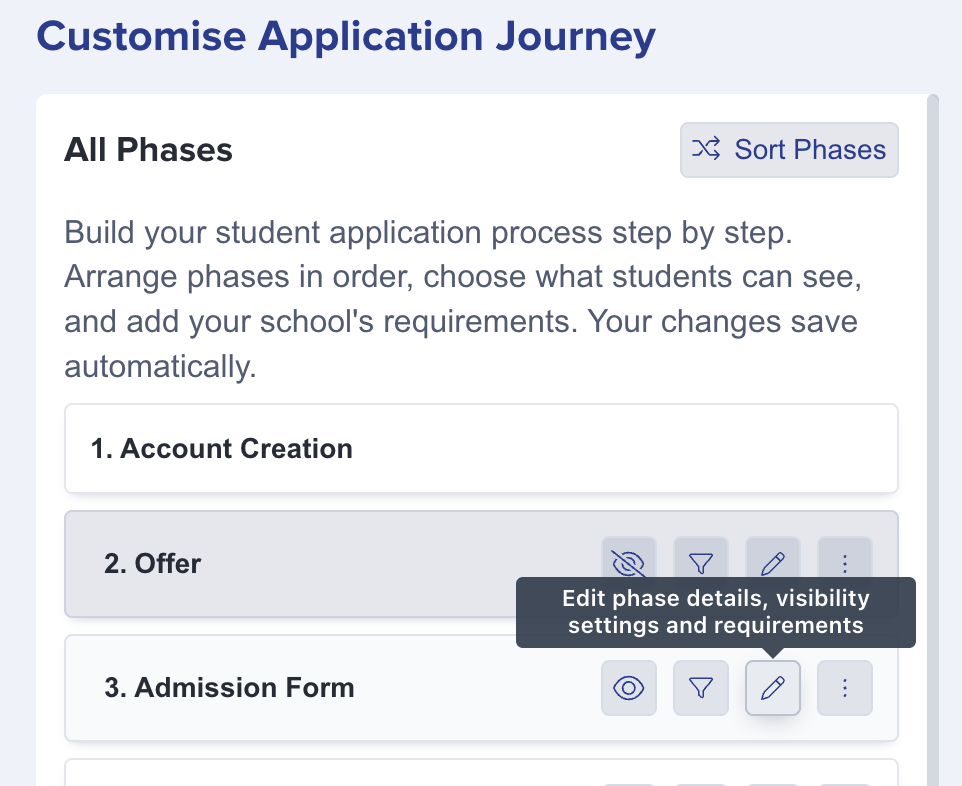

With the lock turned off, applicants can revisit their forms and keep making changes even after they have submitted them.