
From the dashboard, click on Communications & Events, select Events, and then Event Guests.

Note: The list includes registrants for all events you have in the form.
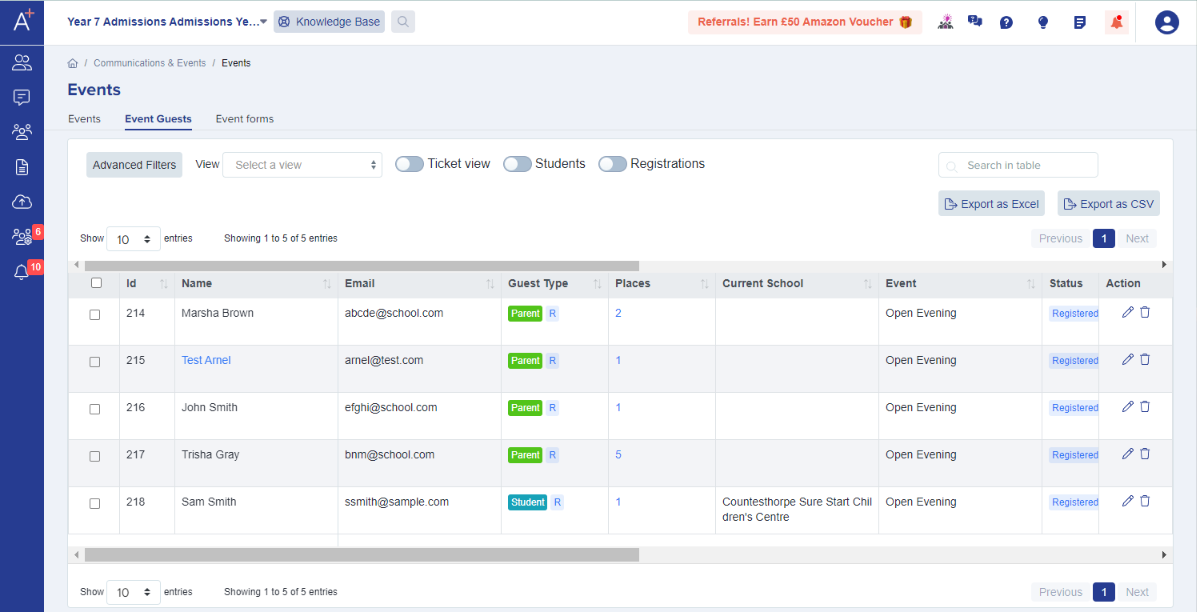
Click on Advanced Filters and set your preferred filter. You may also enable the toggle button for the Ticket view, Students, and Registrations properties to view guests who meet the criteria.

Event(s) - the event guests registered for that you would like to view
Status - whether the guests registered, attended, did not attend, or cancelled
Guest Type - if the guest is a student or a parent
Guest Role - if the guest is the lead contact (the one who registered) or an additional attendee
Location - where the event is held / will be held (this is based on the location you set when you created the event/s)
Booking date - date range guests registered
Current School - current school of the student
Addition to the filters mentioned above would be the Event and Ticket options. This will allow you to find and show details more easily.

Once you’re happy with the filter you have set, click on Apply and it will show you the list of guests who fit the criteria.

Send a reminder email to the filtered guests
You can email the guests in the filtered list. Set Status to Registered to find the guests who registered for one event.
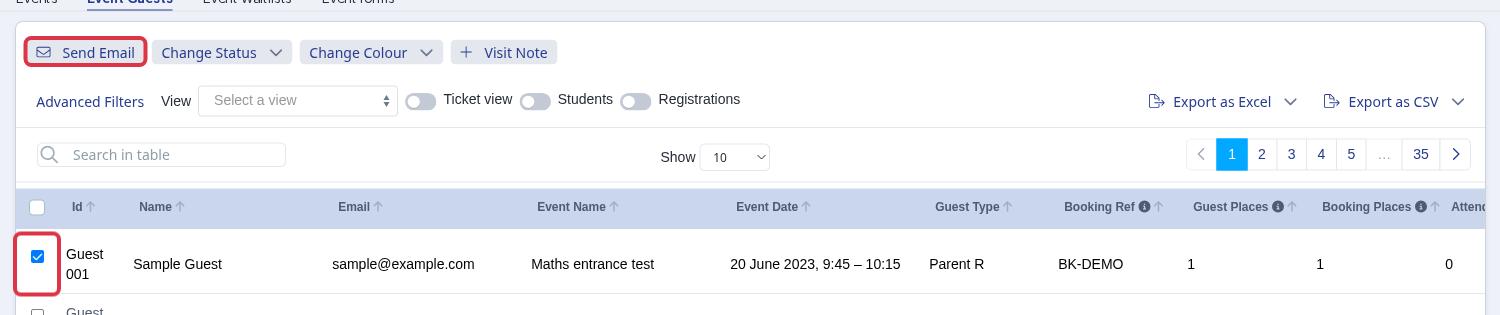
Select the filtered guest rows, then select Send Email.
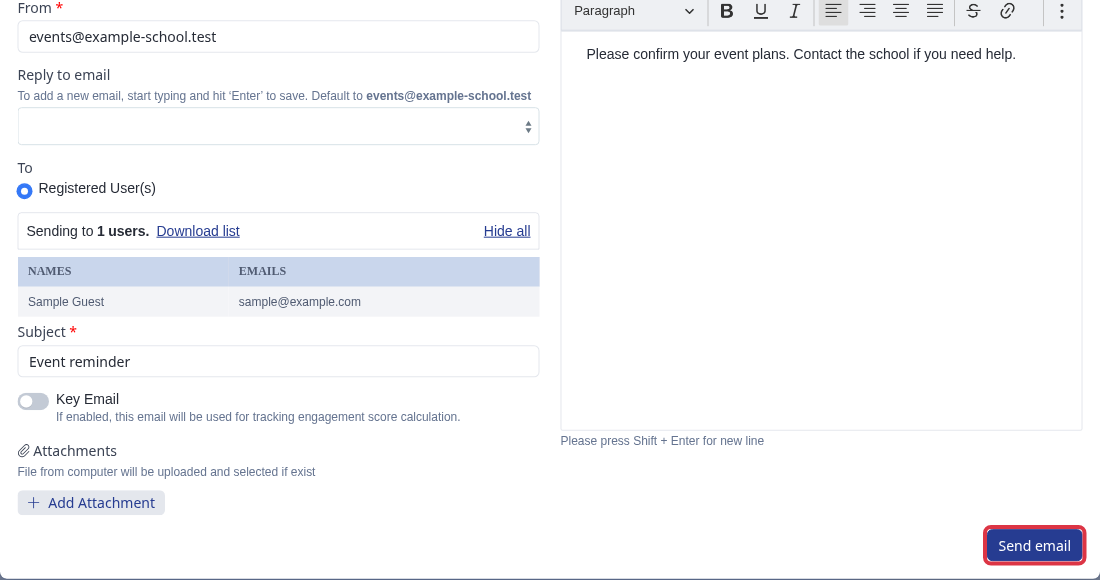
Complete From, Reply to email, Subject, and the message. Select Send email when ready.
- "Registered" means the guest completed registration and has no later event status.
- After the event, a "Registered" status indicates that the guest did not attend.
- The email goes only to the event guests that you select.