
This guide will walk you through creating your Taster Days and launching these to applicants.
PDF guide to set up Taster Days
Setting up a Taster Day
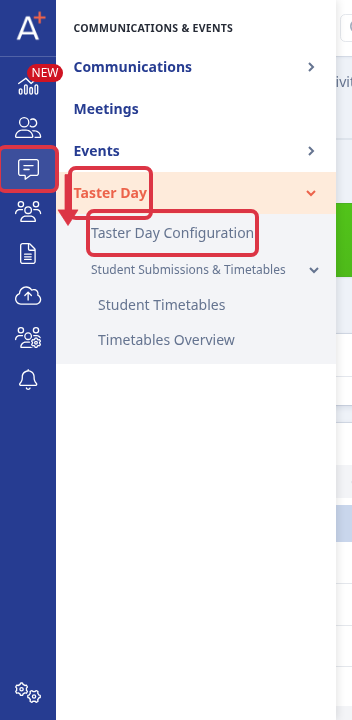
Open the application form the Taster Day belongs to, then go to the "Taster Day" menu in the sidebar and select "Taster Day Configuration".
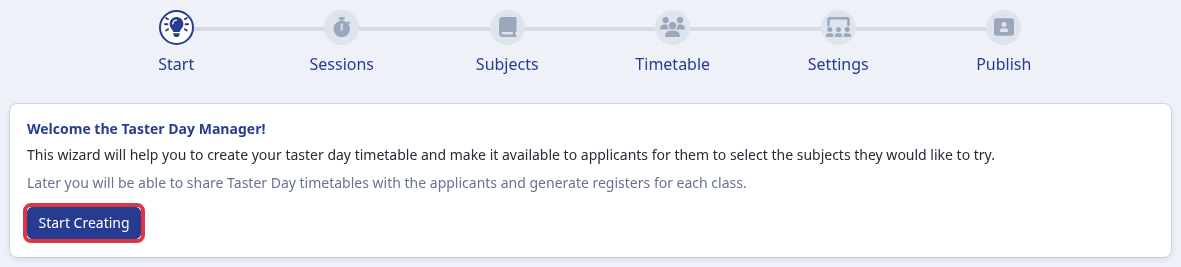
The Taster Day Manager opens on the "Start" step. Select "Start Creating" to add your first Taster Day, or move on to the next step if a Taster Day already exists on this application form.
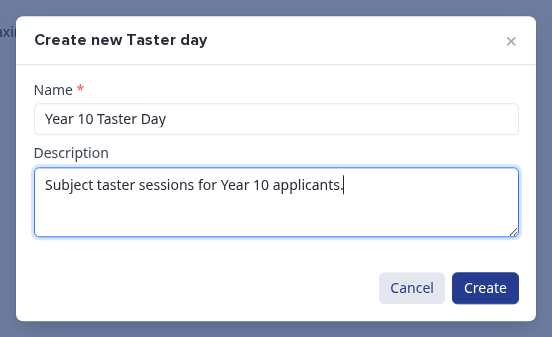
Enter a "Name" and a "Description" for the Taster Day and select "Create". An application form can hold up to 10 Taster Days.
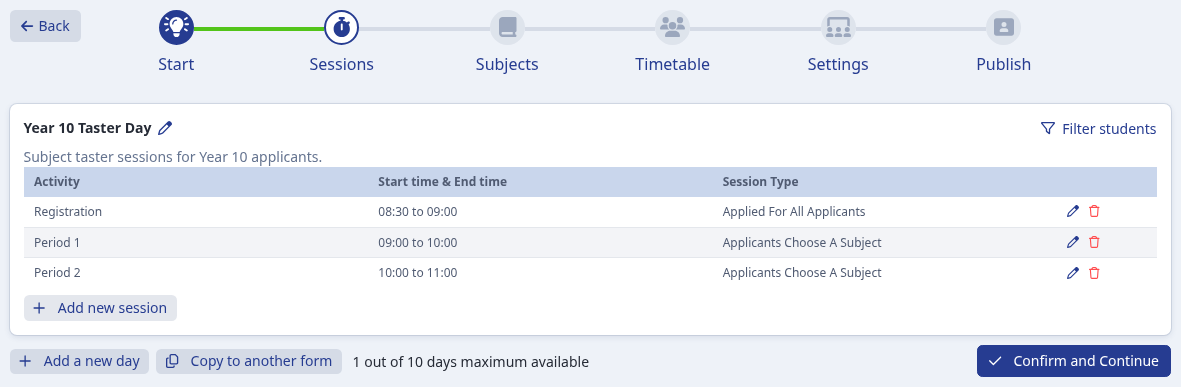
On the "Sessions" step, review the activities for the day. A "Registration" session and two subject sessions are created for you by default, each with its own start and end time and a "Session Type" of either "Applied For All Applicants" or "Applicants Choose A Subject". Edit a session's times with the pencil icon, remove one with the bin icon, or select "Add new session" for more, then select "Confirm and Continue".
Choosing which subjects applicants can select
On the "Subjects" step, every subject on the application form is listed. Turn on "Available for Taster day" for each subject you want applicants to be able to choose on this Taster Day.
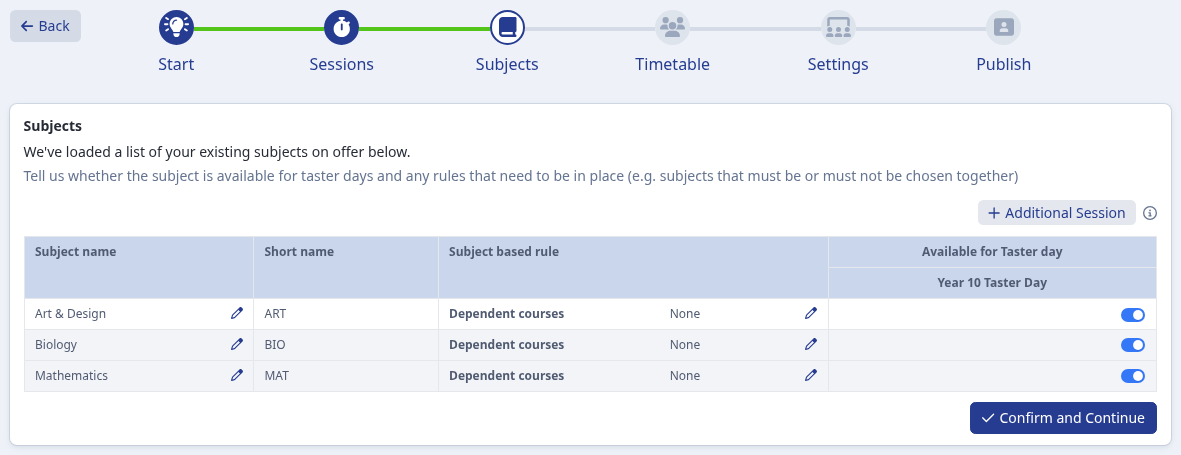
- Set a subject-based rule from the pencil icon next to a subject: subjects that must be chosen together with it, subjects that cannot be chosen together with it, minimum point score requirements, or general entry requirements.
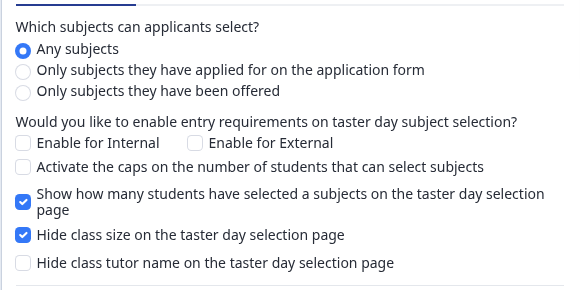
Go to the "Settings" step to control how applicants pick from the subjects you turned on. Choose whether applicants can select "Any subjects", "Only subjects they have applied for on the application form", or "Only subjects they have been offered". Turn on entry requirements, a cap on the number of students who can select a subject, or capacity and class-size visibility on the applicant-facing selection page from the checkboxes underneath.
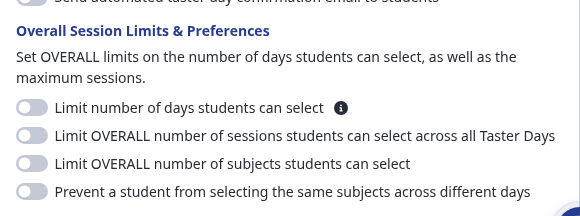
Further down the "Settings" step, set OVERALL and daily limits on how many subjects and sessions an applicant can select across all of their Taster Days, and turn on reserve subjects if you want applicants to submit a backup choice.
Building the timetable
On the "Timetable" step, select the "+" under a session for a subject to create a class for that session, and set "Max total number of students" for a subject from the pencil icon in that column to cap how many applicants can select it overall, independently of any single class's own cap.
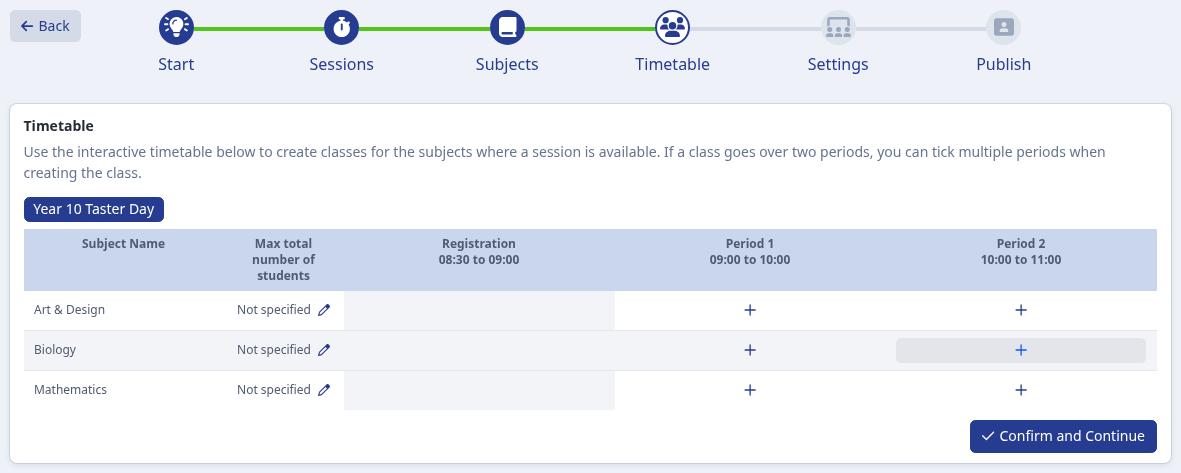
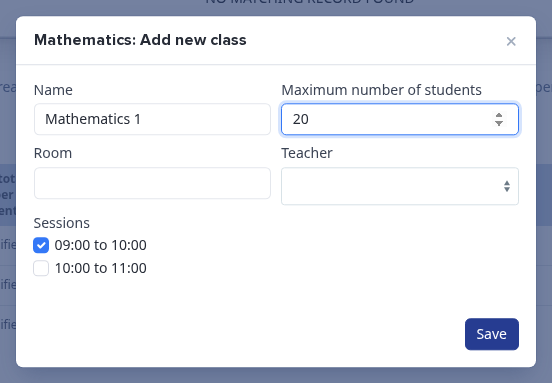
Give the class a "Name", set the "Maximum number of students" for that class, tick every session it runs across if it spans more than one period, then select "Save". Select "Confirm and Continue" once the timetable is built.
Publishing a Taster Day to applicants
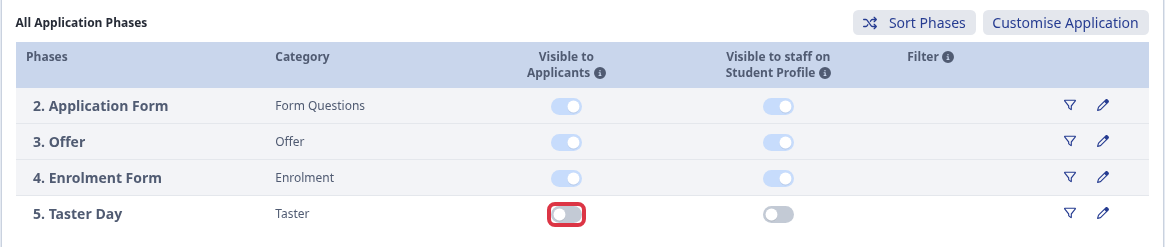
The final step, "Publish", is where you make the Taster Day live. The "All Application Phases" table lists every phase on the application form, including the Taster Day's own "Taster" phase.
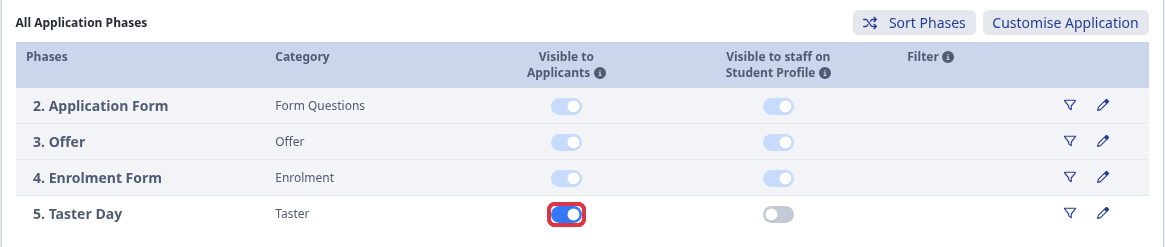
Turn on "Visible to Applicants" for the Taster phase row to make the Taster Day live on the applicant's journey. Turn on "Visible to staff on Student Profile" to let staff see an applicant's Taster Day selections from their profile.
Once turned on, applicants can open the Taster Day from their application journey and select their subjects and sessions within the limits you set on the "Settings" step.
A Taster Day is a separate feature from Events (Open Days, Open Evenings and similar), which runs from its own "Events" menu. The two are not linked to each other.
Seeing how many applicants have registered for a Taster Day
Once applicants start choosing their Taster Day subjects, you can see how many have registered at any time - you do not need to export anything first. Open the relevant application form, go to the "Timetables" menu and select "Student Submissions & Timetables".
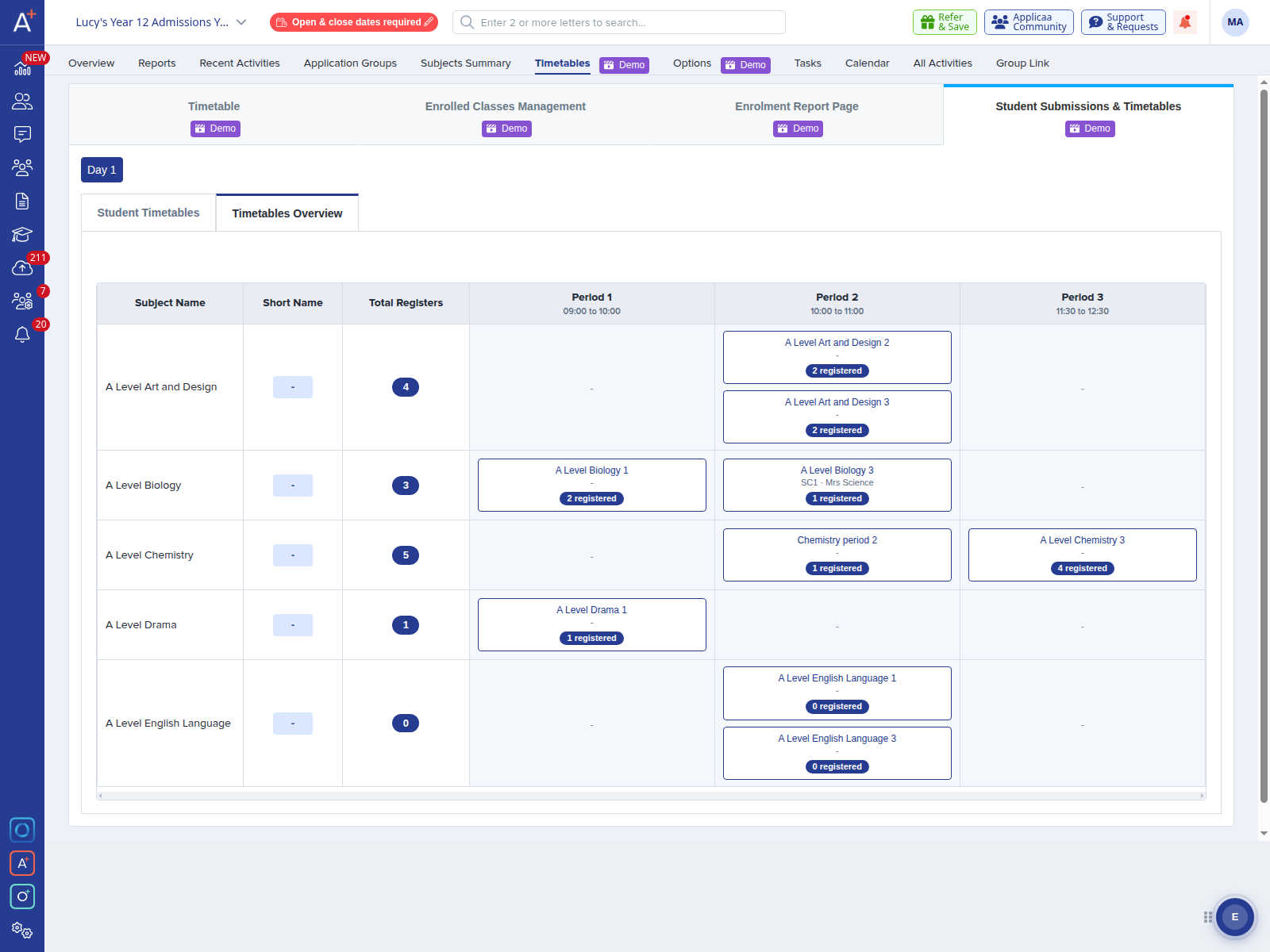
Pick the Taster Day you want to look at using the day buttons at the top, then open the "Timetables Overview" tab. The "Total Registers" column shows how many applicants have registered for each subject, and every class card shows its own "registered" count for that period.
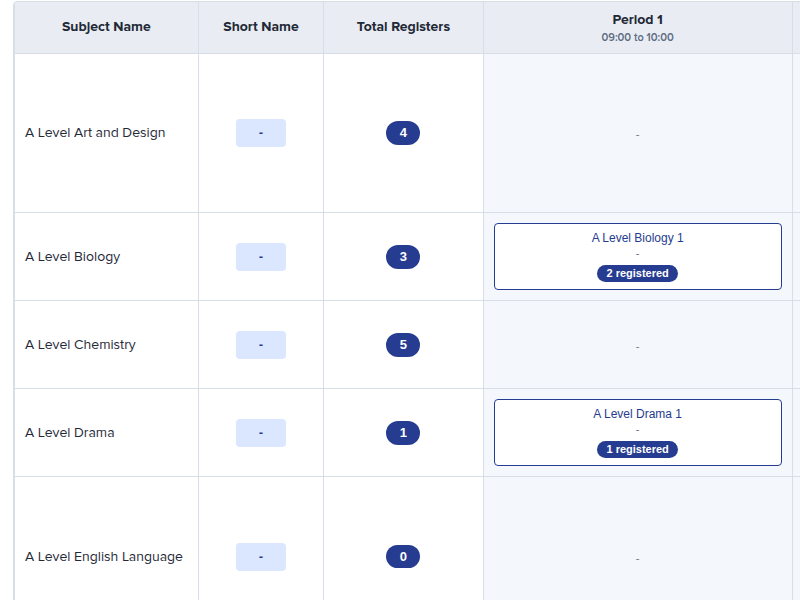
A few things worth knowing about these figures:
- The "Total Registers" number is the count of individual applicants registered for that subject on the Taster Day you are viewing.
- Each class card shows the number registered for that specific class and period, so a subject's total can be spread across more than one class.
- Click any "Total Registers" number to open the full list of the applicants included in it.
- Use the day buttons at the top to switch between the Taster Days you have created and see the registrations for each one.
When you need this information as a file to share - for example with subject leads - the same area also lets you export the Taster Day timetables and class registers.
Related articles
- How to export your Taster Day register
- How to manually change an applicant's Taster Day sessions
- Things to consider ahead of your transition events and taster days
Need more help?
If you are not sure where your registration numbers are showing, ask Emma from the button in the bottom-right of your dashboard, or contact our team through the "Support & Requests" menu at the top of the page.