
The Parent Confirmation email is automatically triggered when a parent completes their registration on the landing page.
Here’s how it works:
- The parent clicks "Parent Register" on the landing page.
- They proceed to fill out the required details.
- Once they submit their registration form, the Parent Confirmation email is instantly triggered and sent to them.

Resend the confirmation email to a parent
A parent who did not receive the confirmation email can get it again. Go to Parents & Enquiries > Parents and open the profile of that parent.

In the profile Actions panel, select Resend Confirmation. Admissions+ sends the parent confirmation email again.
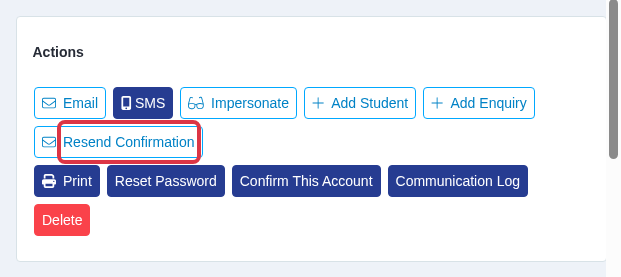
- "Resend Confirmation" is available only before the parent confirms their account.
- This action sends the parent confirmation email again. It does not create a new general form URL.
You can view this template by navigating to Communications & Events > Communications under Automated Messages.

For parents to confirm their email addresses, it's essential that they receive a URL in the email directing them to the confirmation page. Be sure to use the correct token in the template to provide each parent with their unique confirmation link. This ensures they can complete the verification process successfully. (This token will already be included within the template by default).

Send a general email to parents
Beyond the automatic confirmation email above, you can send a one-off, custom email to one or more parents at any time - for example a reminder or an update.
Go to Parents & Enquiries > Parents.
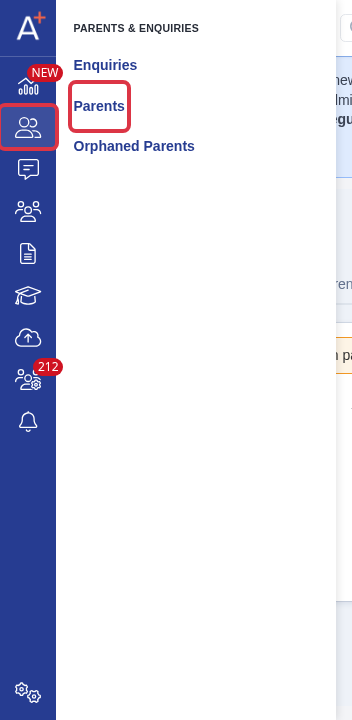
Tick the checkbox next to one or more parents in the list, then select Send Email.
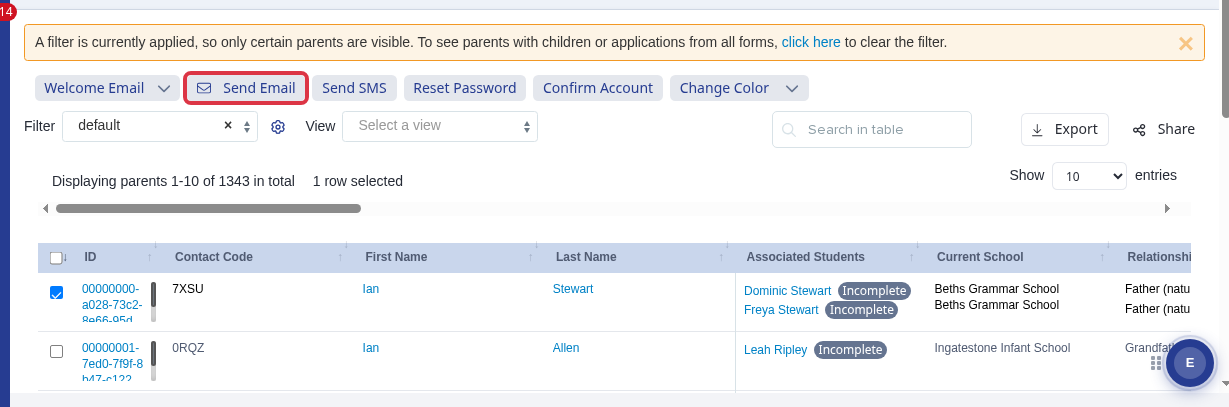
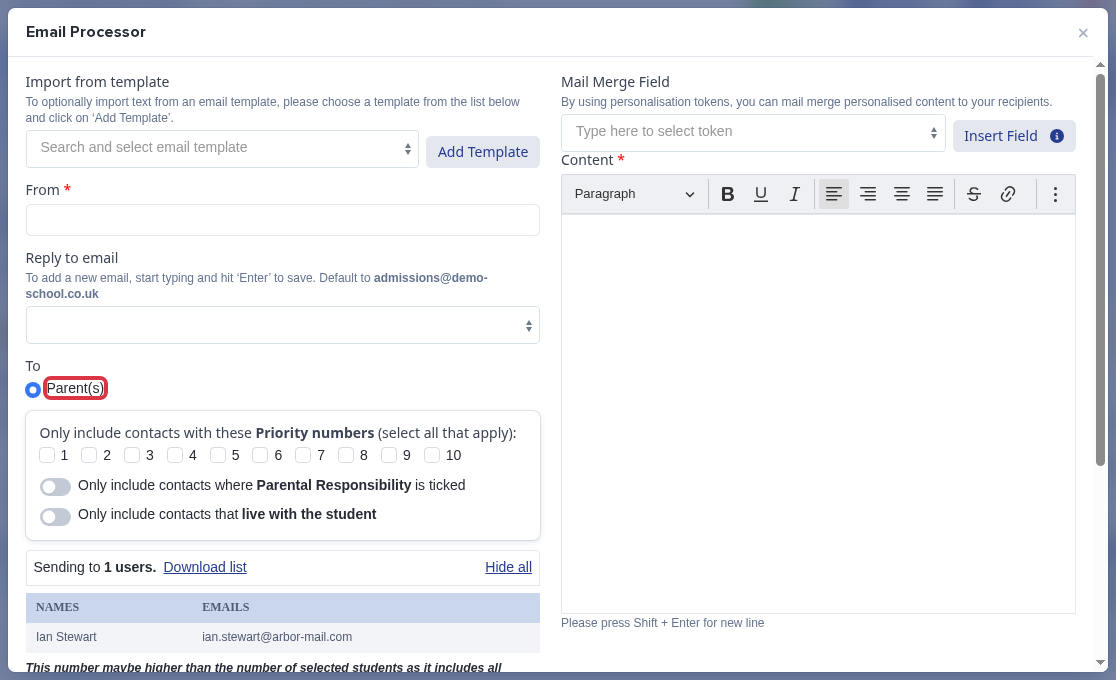
The compose window opens with To already set to Parent(s) and shows who you are sending to. Fill in Subject and your message.
To attach PDFs, select Add Attachment. Select an uploaded file or select Choose File to upload from your computer.
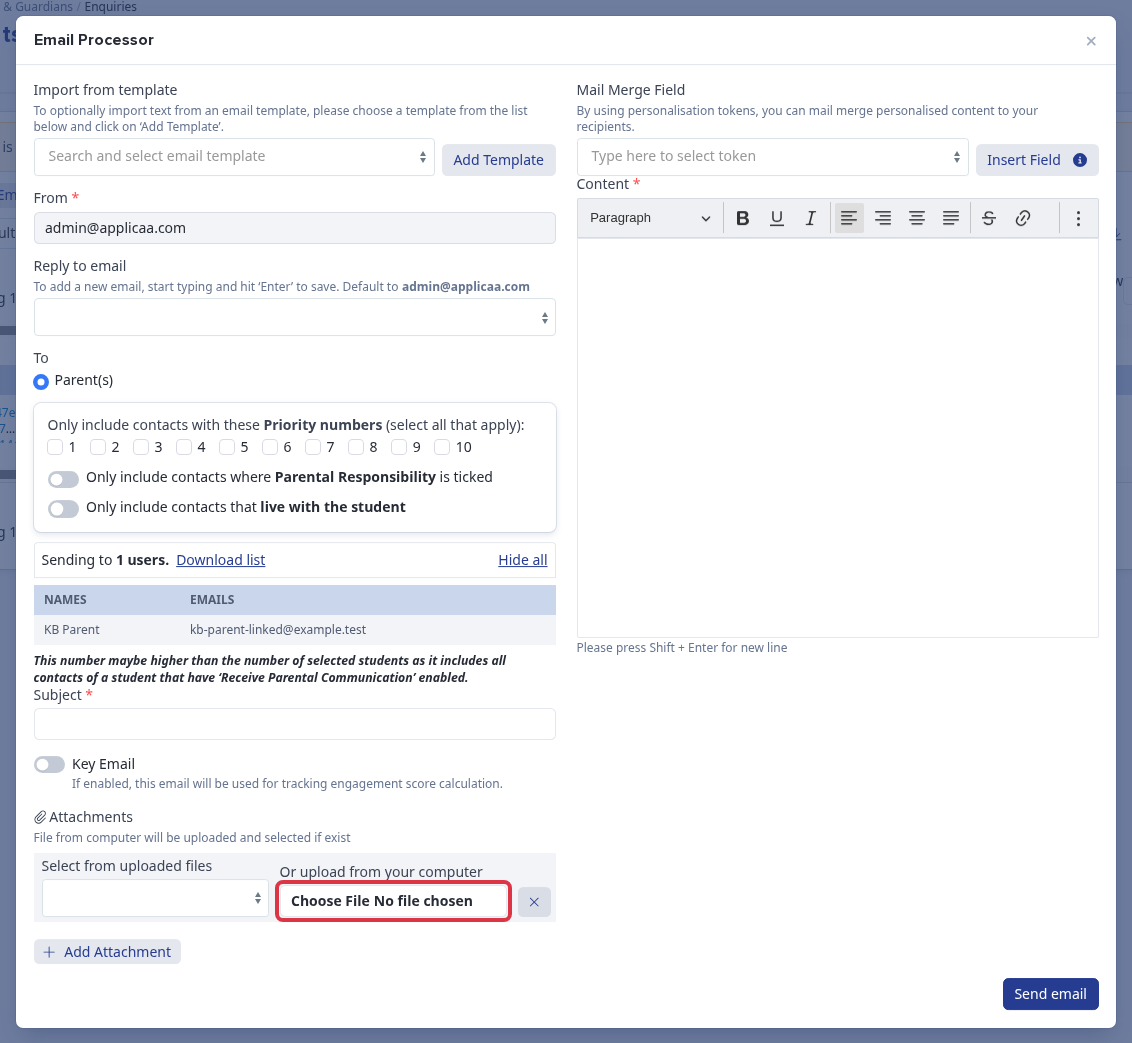
Each attachment must be 20 MB or smaller. You can attach more than one file, but their total size must not exceed 30 MB. If the total exceeds this limit, Admissions+ shows Total size of attachments cannot be more than 30MB.
When you are ready, select Send email.
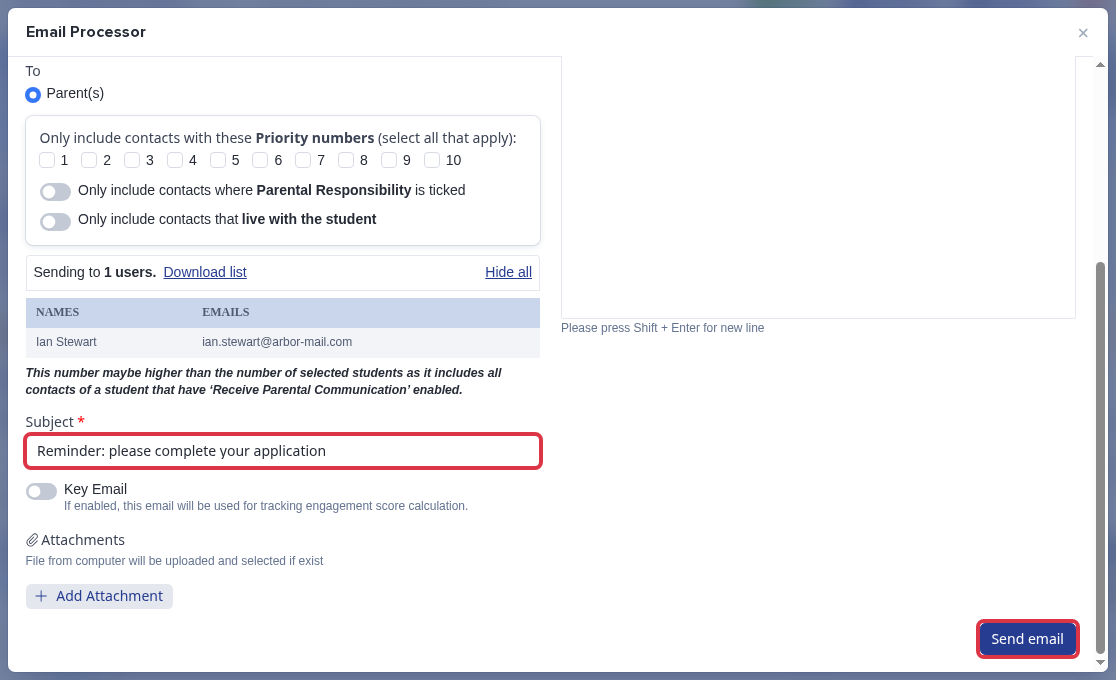
- You can select as many parents as you like before selecting Send Email; the compose window shows how many parents you are sending to.
- You can also open a single parent's profile and select Send Email there to email just that parent.
Automatic reminders for an incomplete application
Admissions+ can also email a parent automatically when their child's application has been sitting incomplete for a set amount of time, but a school must set this reminder up first - it is not sent by default. If no such reminder is configured for a phase, no automatic incomplete-application email goes to that phase's parents, separately from the Parent Confirmation email above, which only relates to registration, not application completeness.
Go to Communications & Events > Communications under Automated Messages and open or create a template with Target Audience set to Parent.
On the next step, set How would you like to send the message? to Automatically when an applicant does something, then set the next field to Has been incomplete for certain amount of time. Pick the phase under Select phase applied to, then set Send after to the number of day(s), hour(s) and minute(s) to wait.
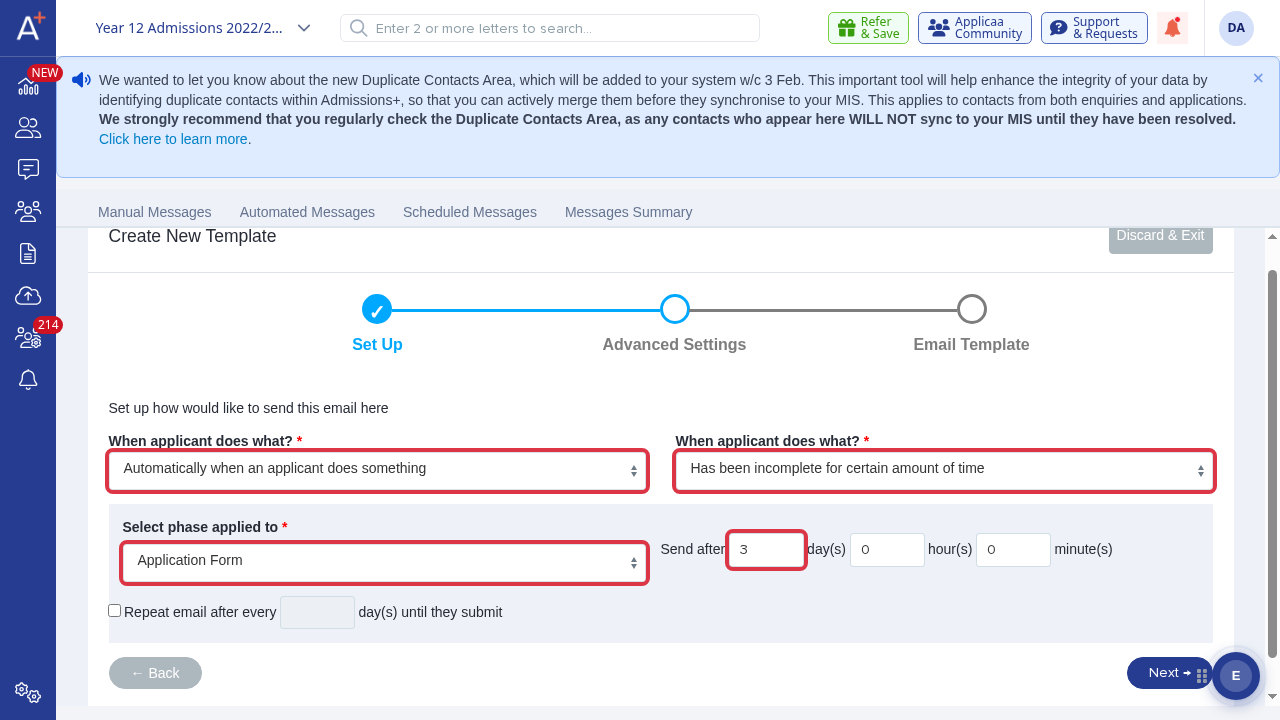
- The reminder only fires for the phase you pick under Select phase applied to- set up a separate template for each phase that needs one.
- You can also tick Repeat email after every to keep reminding the parent at a repeating interval until the application is submitted.