
When a student tells you their enrolment form is locked, greyed out or won't let them submit, the cause is almost always one of four settings - plus the embargo, which looks similar but is a different problem entirely. Work through the checks below in order; the first three are form-wide, the fourth fixes a single student.
1. Check the enrolment phase is switched on
Go to Settings > Application Form to open "Customise Application Journey", and check the "Visible to Student" toggle on the "Enrolment Form" row. When it is off the row is greyed out and no applicant can open the form at all.
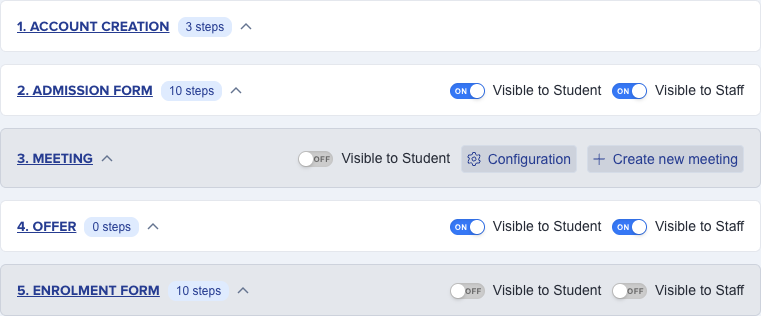
If your "Offer" phase is switched on, it sits in front of enrolment in the journey. Applicants only reach the enrolment form once they have responded to their offer and moved on to the enrolment phase, so students still sitting on the offer step will report the form as unavailable.
2. Check the enrolment phase activation time
The enrolment form stays closed to every applicant until its activation date and time passes - even when the phase is switched on and no lock toggles are set. The "Enrolment Form" card in the left-hand phase list shows the current value under "Enrolment phase activation".
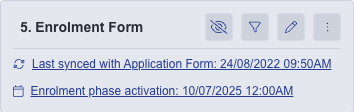
To change it, click the pencil icon on that card and set "Phase Start Time" near the bottom of the phase settings window. Clear it, or set it to a time that has already passed, to open the form immediately.

Checks 1 and 2 are both independent gates - an applicant needs the phase "Visible to Student" AND past its activation time before they can open the form. Turning on only one of the two still leaves the form closed.
3. Check the two lock toggles
In the same phase settings window you will find "Lock form after submission" and "Disable submissions", set separately for "Internal Applicants" and "External Applicants".

- "Disable submissions" is on- applicants who have not yet submitted cannot start the form or submit it. This is the setting behind "students can see the enrolment form but it says it is locked for editing".
- "Lock form after submission" is on- applicants who have already submitted cannot go back in and change anything. This is the setting behind "we enrolled them through the Enrolment App and now their form is locked".
Switch off whichever toggle applies, remembering to do it for internal and external applicants separately, then click "Update Phase" to save.

These two toggles cover different applicants, and switching one off does not switch the other off. "Disable submissions" only blocks an applicant who has not yet submitted the form. An applicant who submitted before you changed this setting is not affected by it at all - they are governed by "Lock form after submission" instead, which you must switch off separately. If a student says they still got into the form after you turned off "Disable submissions", check whether they had already submitted once; if so, "Lock form after submission" is the toggle you need.
Why "Visible to Student" does not always stop a stand-alone enrolment form
The "Stand alone" checkbox sits below the two toggles in the same phase settings window. When it is on, the enrolment form no longer follows the school's normal application journey order, so an applicant can open it directly at any time instead of only after reaching it as their current step.
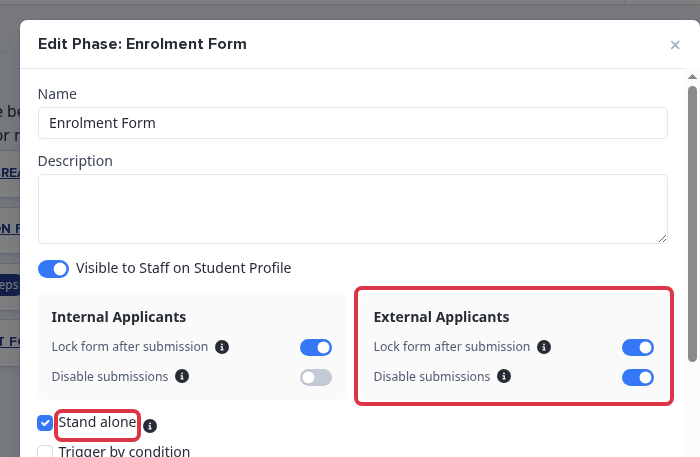
This means the "Visible to Student" toggle from check 1 does not fully apply to a stand-alone enrolment form - it still hides the phase from the applicant's journey list, but it does not stop a student who has the direct link from opening and submitting the form. For a stand-alone enrolment form, "Disable submissions" and "Lock form after submission" are the only two controls that actually block access.
What an applicant sees once their enrolment form is blocked
What the applicant sees depends on whether the enrolment form sits in the normal journey or is set to stand alone. On a normal journey phase, a blocked form shows a lock icon with the tooltip "Form is locked and cannot be edited". On a stand-alone enrolment form, there is no lock icon or tooltip - the "Enrolment Form" entry under "Additional phases" on the applicant's profile simply stops being a clickable link and shows as plain text instead.
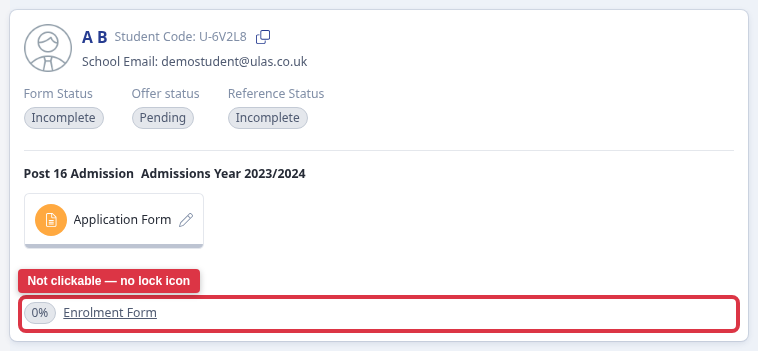
This is worth knowing before you tell an applicant to "look for the lock icon" - on a stand-alone enrolment form there is not one, and the form just quietly stops responding to clicks.
4. Reopen the enrolment form for a single student
The checks above open the form for everyone. To let one student back into their enrolment form, open their profile and click the "ENROLMENT STATUS" tile at the top.

Click "Change Enrolment Status".
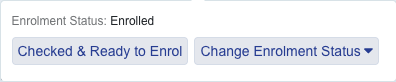
Choose "Pending & Reset Steps". This sets the student's enrolment status back to "Pending" and clears their progress through the Enrolment Form phase, so they can log in and work through it again.
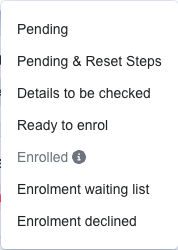
- The option only appears when the student's application status is "Completed", and only for staff whose role allows them to edit students.
- Do not confuse this with "Set to Incomplete & Reset Steps" in the profile's actions menu. That control never covers the Enrolment Form phase, so it will not reopen an enrolment form.
- Resetting clears the student's answers to the enrolment steps, so use it when you want them to redo the form rather than to make one small correction.
5. Rule out the embargo
If the student cannot log in at all - rather than logging in and finding the form greyed out - that is the embargo, not a form lock. The embargo blocks sign-in to the whole system for a set period, usually the day before results day, and it is not a per-form setting. You will find it at Settings > Enrolment Navigator, on the "Embargo" step.
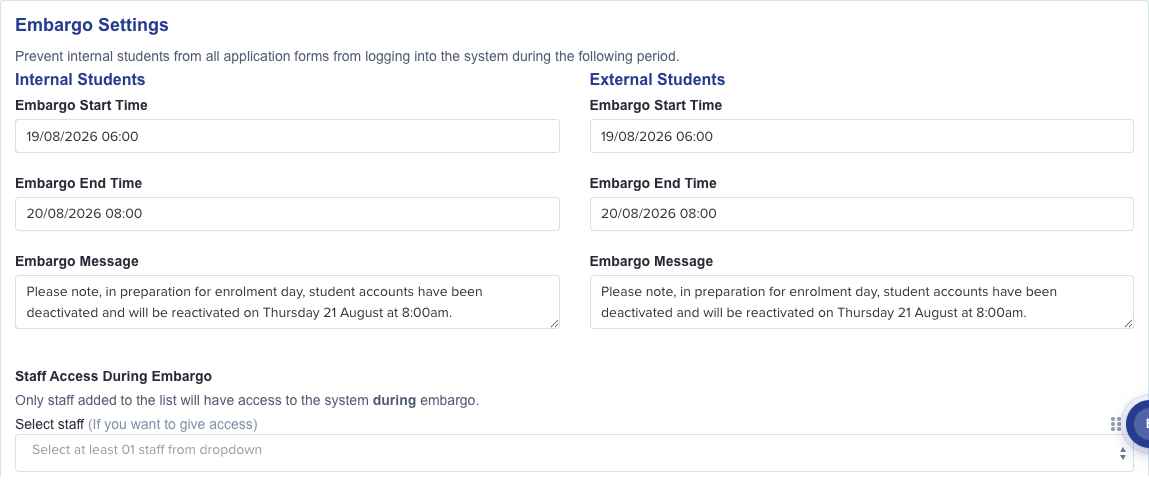
A quick way to tell the two apart: if the student cannot reach their profile at all, check the embargo start and end times. If they log in fine but the enrolment form is greyed out or refuses their submission, work back through checks 1 to 3.
What the phase controls cannot do
The two toggles act on the whole phase. Know these limits before you change them.
- A completed phase uses the "Lock form after submission" control. An unfinished form must be the applicant's current journey phase, unless the phase is set to stand alone.
- If a Freshers Day phase or a dietary requirement phase is before the form, the applicant must complete that journey phase first.
- The controls apply to the whole phase. They cannot open only a new policy form and prevent edits to completed answers in the same phase.
- If the form reports a required field, a country of birth error, or "School can't be blank" after you restore access, ask Emma. Give the exact message and the name of the affected applicant.
Still locked?
If you have worked through all five checks and the form is still closed, ask Emma using the button at the bottom right of your system - she can look at your form settings with you - or raise it with the Applicaa helpdesk.