Closing your old form - Sixth Form only
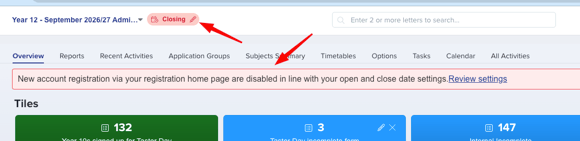
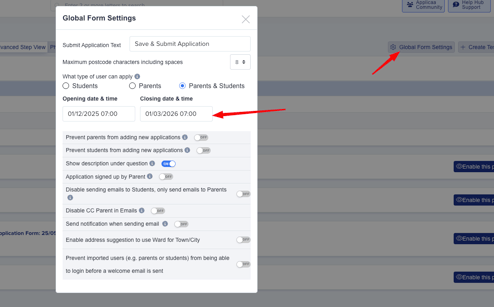
From your main dashboard, click the "Closing" button on the upper left-hand side and update the closing date and time.
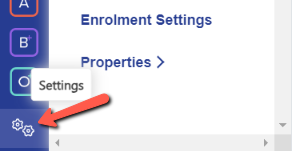
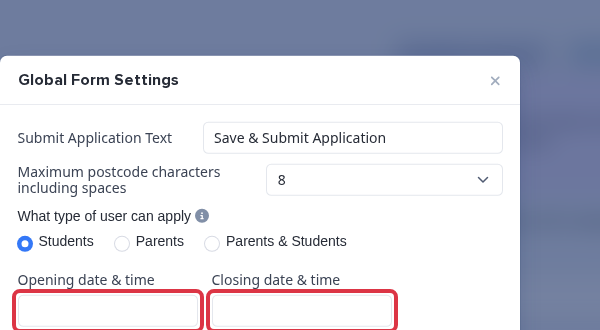
Another way is to navigate to settings > application form > global form settings and update the closing date and time
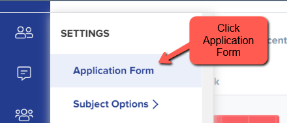
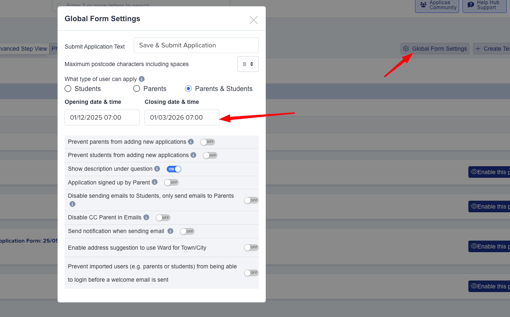
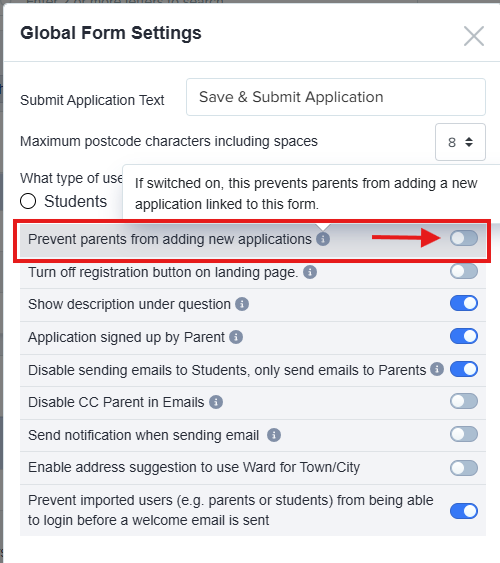
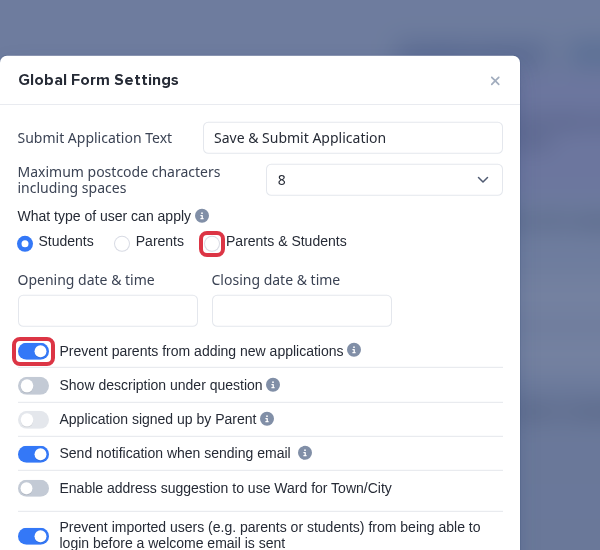
There is also a setting to "prevent parents from adding new applications", which you can use if parents are the ones with access to your platform. This will disable the "Add New Application" button on the parents homepage for that specific form/intake.
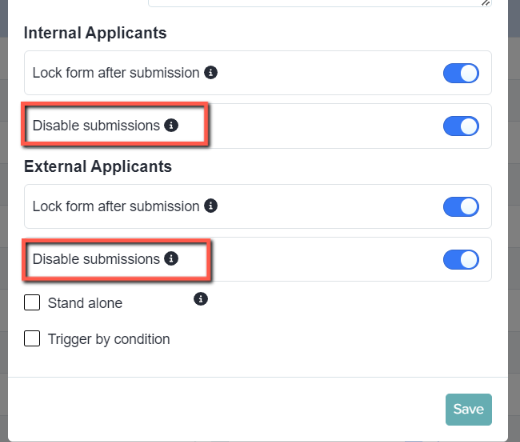
You can also prevent anyone who already has an account on your old form from proceeding any further with it, or making any changes.
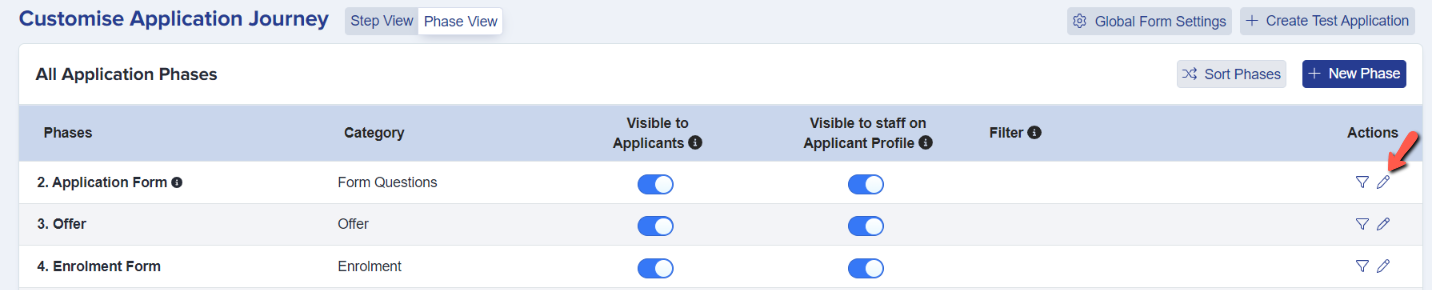
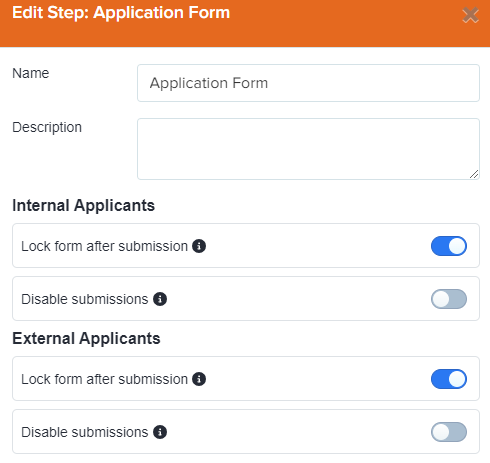
Navigate to settings > application form > phase view and click the pencil icons to "lock form after submission" and "disable submissions".

Archiving your old form
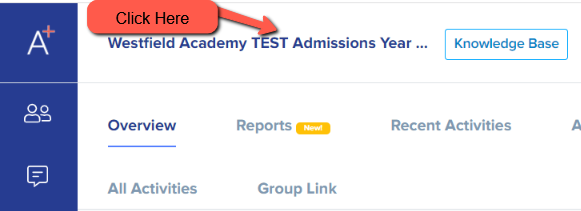
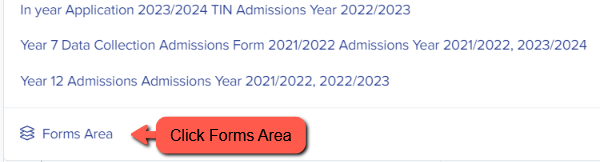
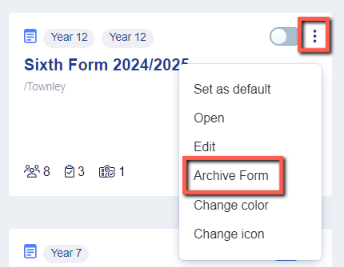
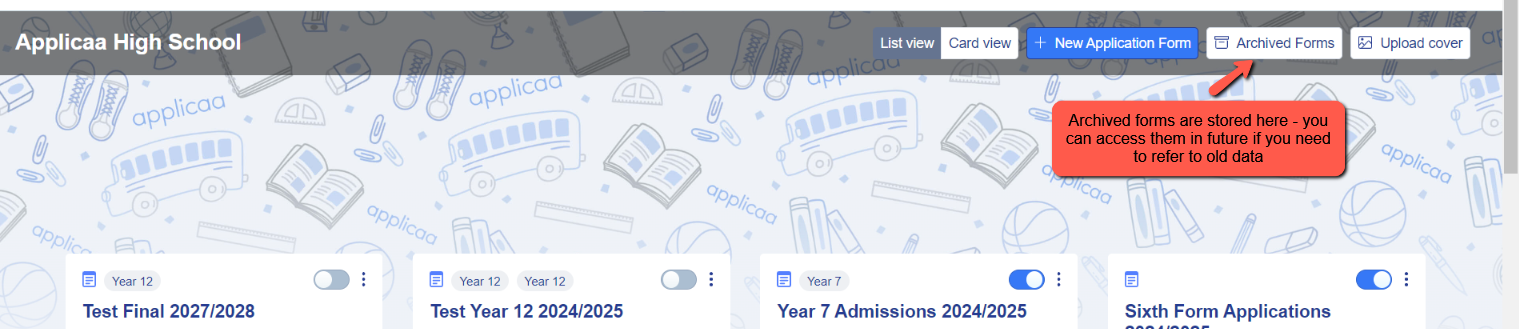
You can archive old forms to keep your system tidy. Archived data can still be accessed if needed, by visiting the archive within your forms area.
Opening your new form
When you are ready to launch your new cycle, you need to ensure applicants are able to access your system and apply.
Visit the Global Forms Area and Phase View areas as outlined above, to ensure new students and/or parents can apply, that submissions are not disabled, and that the application form is visible to students.

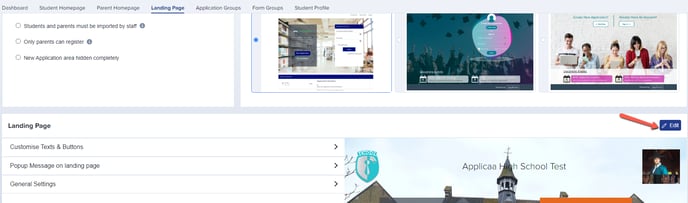
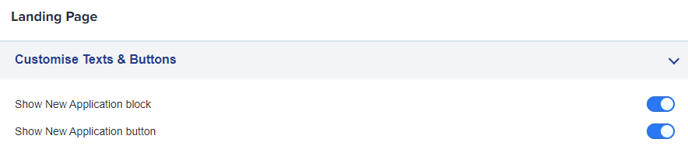
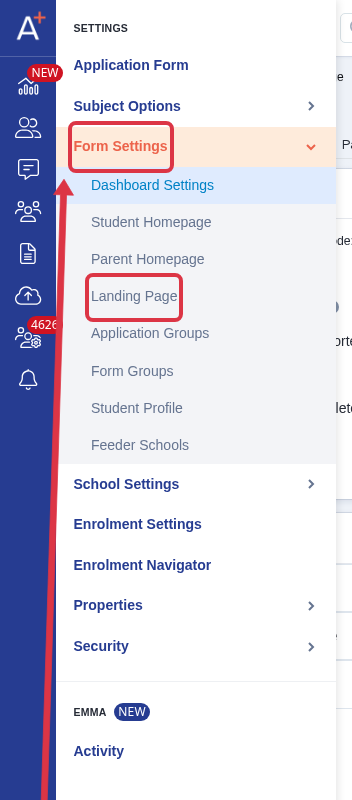
Visit settings > form settings > landing page and click to edit, to ensure your new application block and new application button are both visible.
Set your new-cycle form as the default
Applicaa creates most new-cycle forms in advance. Open the form selector and select Multiple Form. Choose the form for the admissions year that you need.
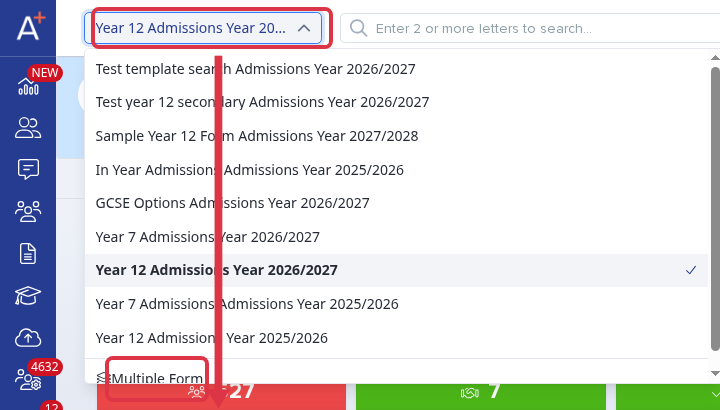
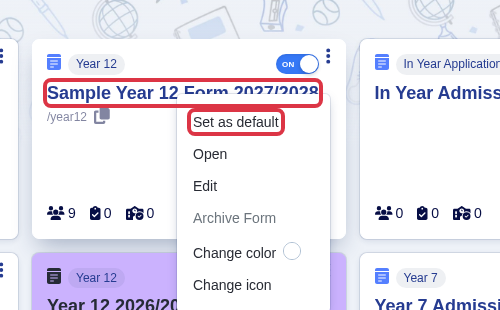
In Multiple Form, find the new-cycle form, open its three-dot menu, and select Set as default. This changes the default form. It does not create or copy a form.
If the form for your next cycle is not in the list, select Support & Requests and ask Support to create or copy it. Give the admissions year, the intake, and the form that Support must use as the template.

- Check the new form before you open it to applicants. Review its dates, journey, policies, banding and event links.
- Keep the earlier form selected while you still work in that cycle. A new default does not archive the earlier form.
- A change of the default form does not add or activate a bursary academic year or term in Bursary16+. Use the Bursary16+ academic year guide for that task.
Testing your new form
We recommend carefully reviewing your form and possibly creating a test account for yourself and/or previewing the application form to walk through your process and ensure you are capturing all necessary data.


Why applicants see a "deactivated" message
Applicants see the "deactivated" message for three reasons. The form does not allow new registrations. The new application area is hidden. An ApplicaaOne Sixth Form is outside its open period.
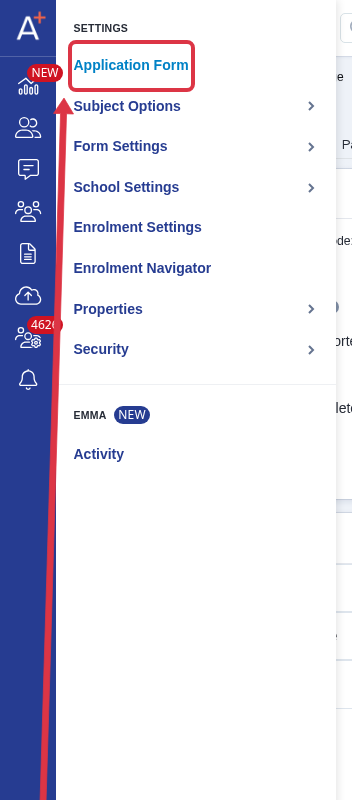
Go to Settings > Application Form and open the form that applicants cannot use.
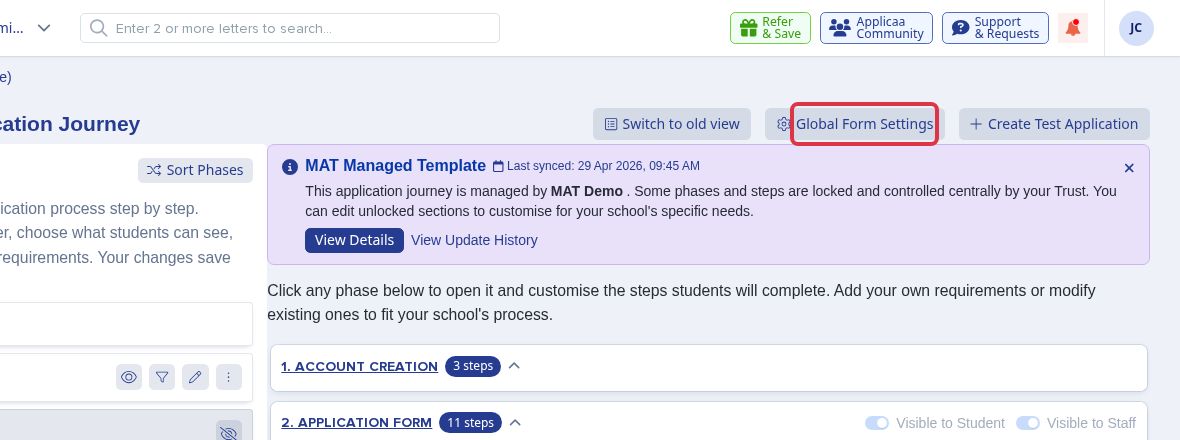
Select Global Form Settings.
Under What type of user can apply, select "Parents", "Students", or "Parents & Students" for the users who must apply. Turn off Prevent parents from adding new applications when a parent must start another application. An example is a Year 12 application after a Year 9 application.
For an ApplicaaOne Sixth Form, set an Opening date & time and a future Closing date & time. The form opens again when the current time is inside this period. Ask your MAT if it locks these dates.
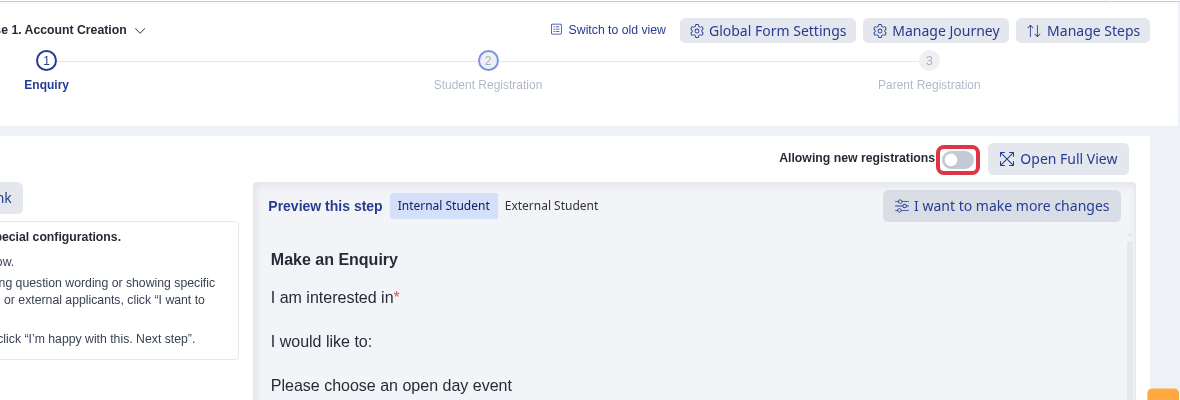
For another form type, turn on Allowing new registrations in the form view. Use this control for the named form, and also for a Bursary Application form.
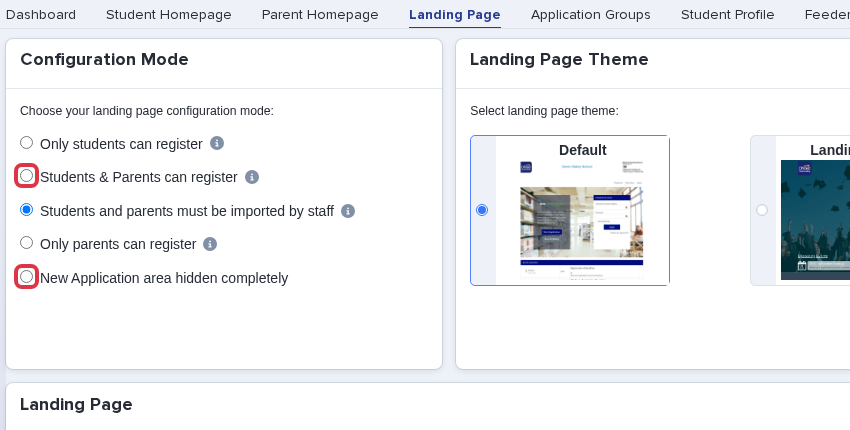
Go to Settings > Form Settings > Landing Page when the landing page is blank.
Select a configuration mode that lets the necessary users register. Do not select New Application area hidden completely when applicants must start a form.
- A direct form link does not bypass closed registration. Open the form again before you send the link.
- These controls apply to one form. Set them again for each new Year 6 or Year 7 form.
- Closed access stops new registrations. It does not set enrolment phase access. It does not set incomplete-application messages.
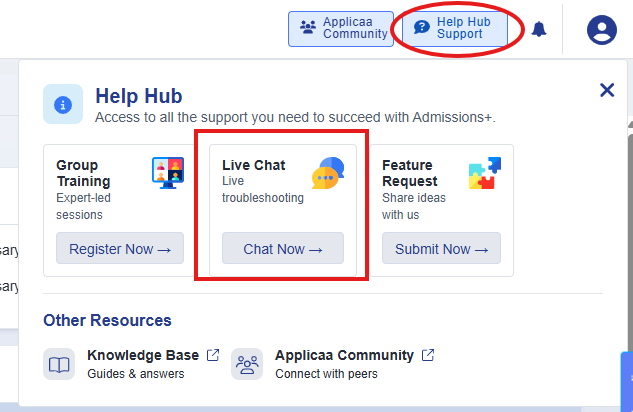
How to contact us if you need any support
Our Live Chat and Support Line is open Monday to Friday, 8am - 4.30pm: 0203 667 0764