
Overview
Campaigns groups the emails, events, meetings, SMS and enquiry forms behind one push - an open evening, an enrolment drive, a consent collection - into a single record, so you can see the whole thing as one story instead of a pile of separate sends.
Rather than looking at communication activity in isolation (emails sent, opens, clicks), Campaigns tracks the full journey from a message or event through to whatever you define as success: an application started, an offer accepted, an enrolment completed.
A campaign is not just for email. It ties messages, events, meetings, SMS and enquiry forms together, tracks conversions against a goal, and reports who was reached and what they did next.
Where to find it
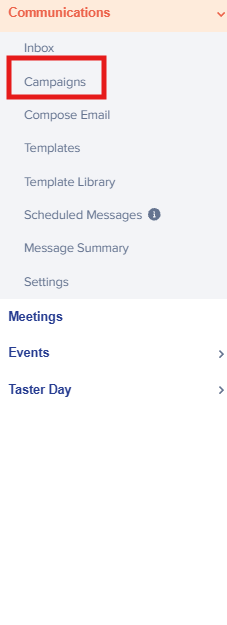
Go to "Communications", then "Campaigns" in the left-hand navigation.
The campaigns list
The campaigns list shows a stats row, a folder rail on the left, and a table of every campaign in the selected folder.
- "Active Campaigns" - how many campaigns currently have status Active.
- "Draft Campaigns" - how many campaigns currently have status Draft.
- "Total Messages Sent" - the total number of sends recorded across every campaign's linked messages.
- "Avg Open Rate" - the average open rate across campaigns that have sent at least one message; it shows a dash when nothing has sent yet.
Use the "All Status" filter to show only Draft, Active, Completed or Scheduled campaigns, and the search box to filter by campaign name. Each row shows the campaign's status, type, audience, message count, and how many recipients it has sent to and how many opened.
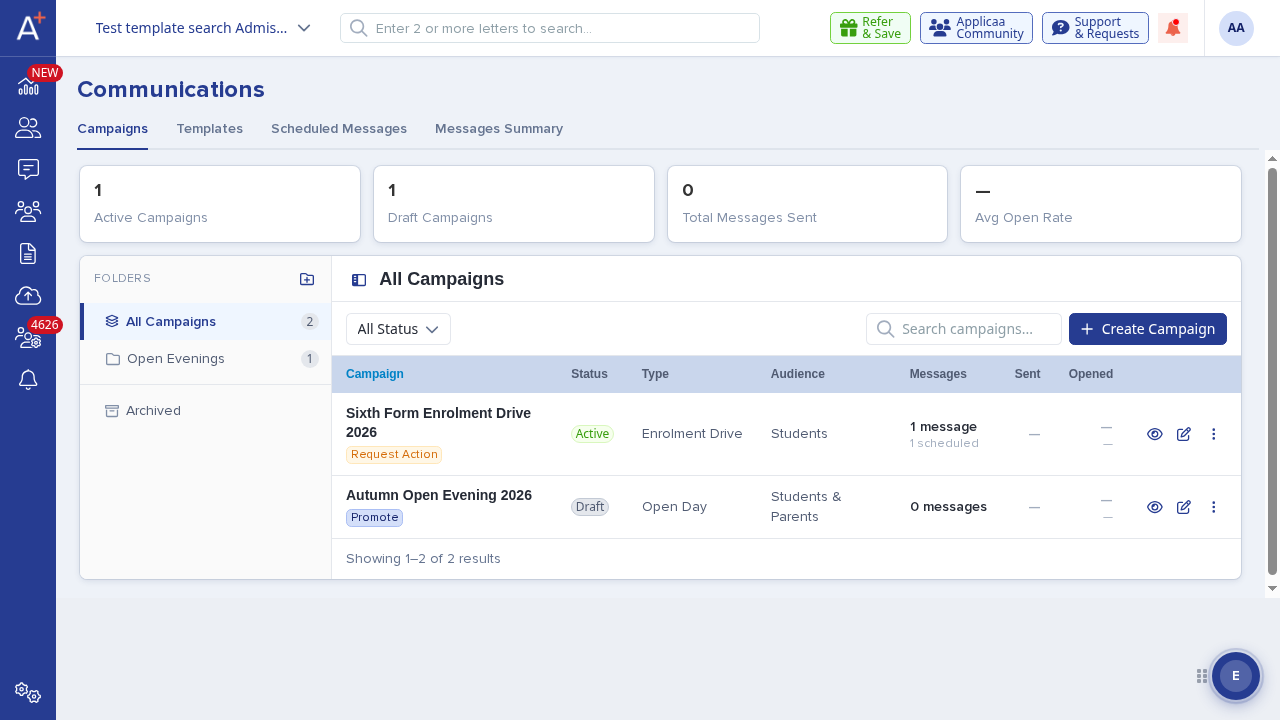
"Scheduled" is not a status you set - it is what an Active campaign shows automatically when its start date is still in the future. Once the start date arrives, the same campaign shows as "Active".
Organising campaigns into folders
Use the folder rail to group campaigns - for example, by term or by event type. Select "All Campaigns" to see every campaign regardless of folder, or select "Archived" to see archived campaigns.
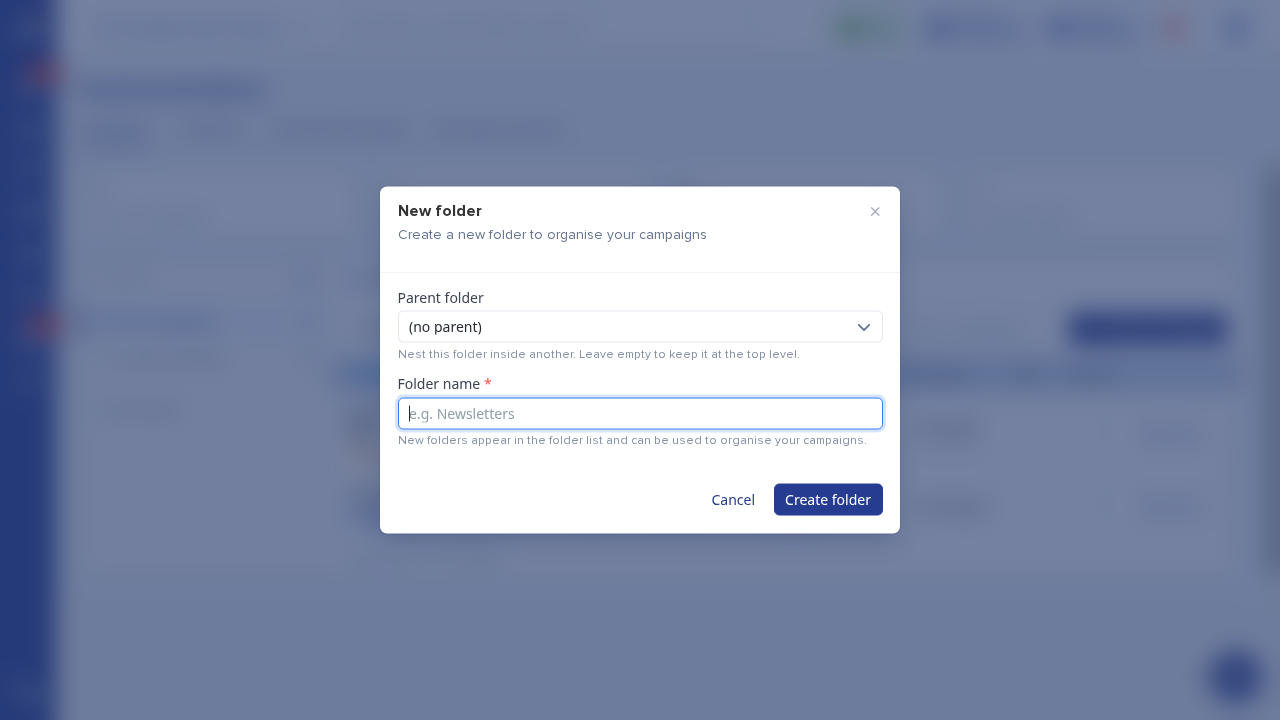
To add a folder, select the folder icon at the top of the rail, choose an optional parent folder to nest it inside, and give it a name.
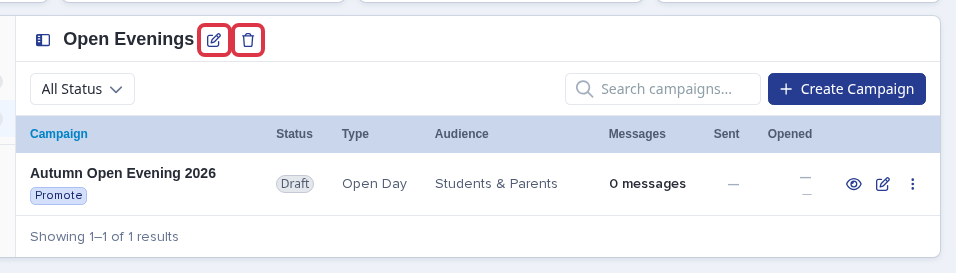
Open a folder and use the pencil icon next to its name to rename it, or the trash icon to delete it. Deleting a folder does not delete the campaigns or sub-folders inside it - they move up to sit under the deleted folder's own parent (or to the top level, if it had none).
To move a campaign into a folder, drag its row from the table and drop it on the folder in the rail. A folder can be nested up to 4 levels deep.
Creating a campaign
Select "Create Campaign" on the campaigns list to open the "New Campaign" popup.
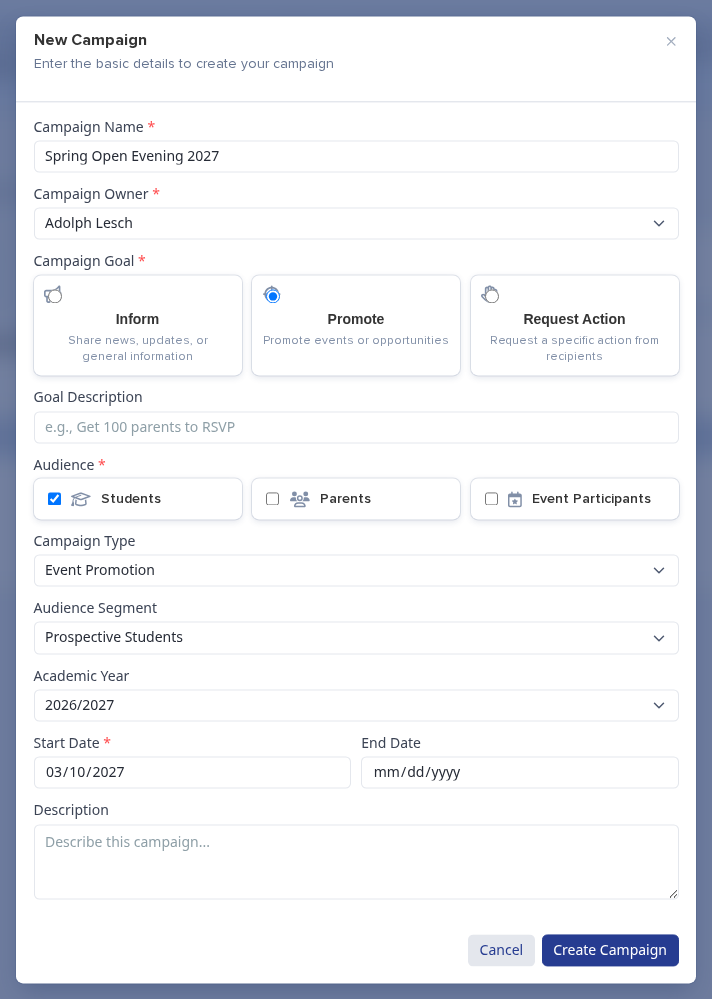
- "Campaign Name" (required) - the name shown in the campaigns list and on the campaign page.
- "Campaign Owner" (required) - the staff member responsible for the campaign.
- "Campaign Goal" (required) - one of "Inform" (share news or updates), "Promote" (promote events or opportunities), or "Request Action" (ask recipients to do something specific).
- "Goal Description" (optional) - a short free-text note on what success looks like, for example "Get 100 parents to RSVP".
- "Audience" (required, choose at least one) - "Students", "Parents" and/or "Event Participants".
- "Campaign Type" (optional) - Email Campaign, Event Promotion, Consent Collection, Open Day, Newsletter, Enrolment Drive, or Survey/Feedback.
- "Audience Segment" (optional) - Prospective Students, Current Students, Parents/Guardians, Alumni, Staff, Enquiries, or Event Registrants.
- "Academic Year" (optional).
- "Start Date" (required) and "End Date" (optional, but once both are set the end date must be on or after the start date).
- "Description" (optional) - internal notes about the campaign, shown under its title.
Leaving a required field blank and selecting "Create Campaign" shows the matching error, for example "Owner can't be blank", "Goal can't be blank", "Start date can't be blank" or "Audiences must include at least one audience" - the campaign is not created until every required field is filled in. Saving succeeds with only the required fields; a new campaign always starts as Draft.
Editing a campaign and its status
Open a campaign to see its "Overview" tab: the status badge, its goal, type and audience next to the title, and the "Get Campaign URL" and "Edit Campaign" buttons.
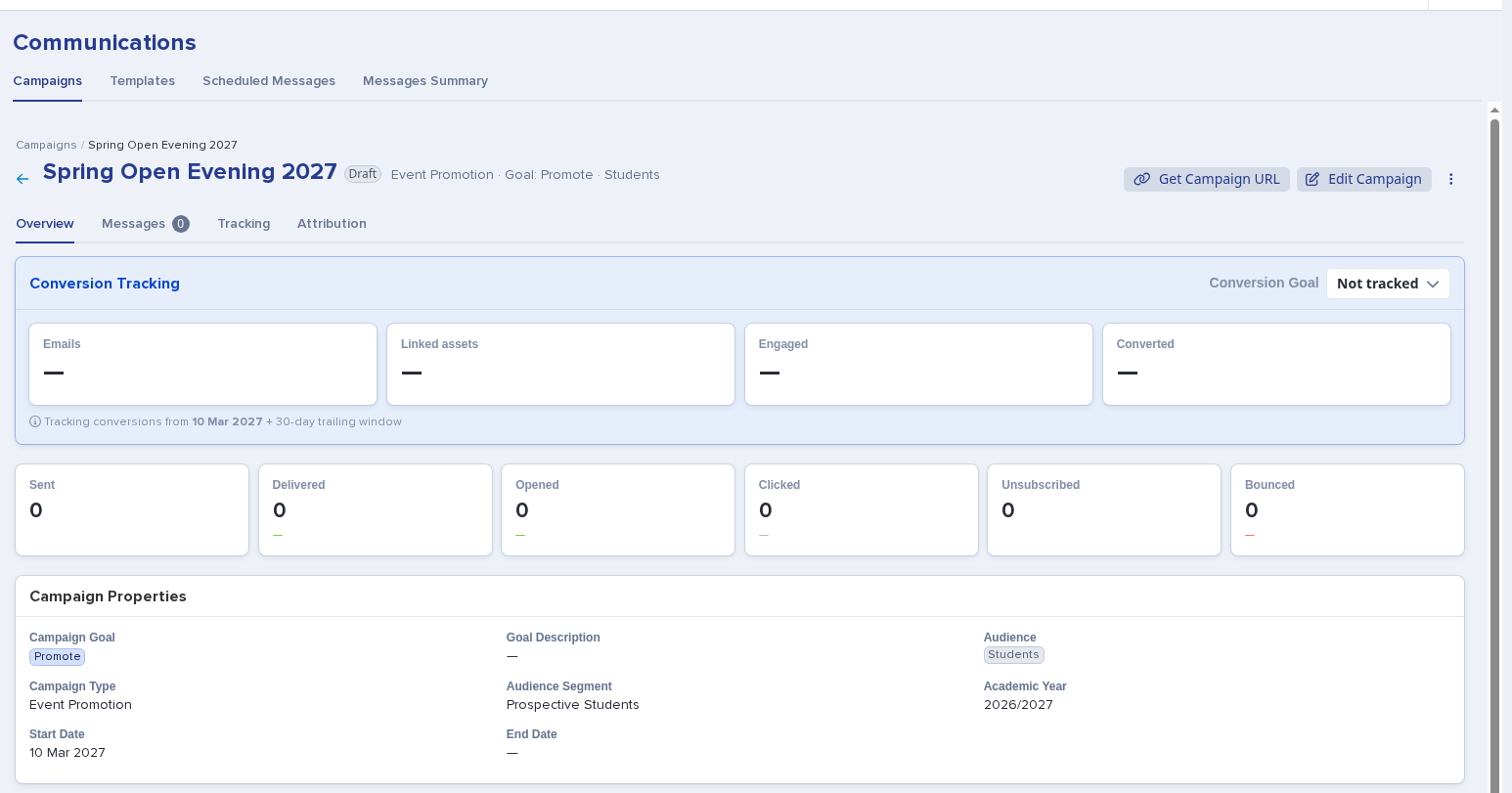
Select "Edit Campaign" to reach the editable "Details", "Properties", "Notes" and "Audit Information" cards, alongside "Linked Assets", "Contact Metrics" and "Budget & Revenue".
- "Details" - "Campaign Unique ID" (the slug used in the campaign's shareable URL) with a "Regenerate" link that rebuilds it from the current title, and "Owner".
- "Properties" - the same Goal, Audience, Campaign Type, Audience Segment, Academic Year, Start Date and End Date fields as the creation popup.
- "Notes" - a free-text box for internal notes.
- "Audit Information" - when the campaign was created, who created it, and when it was last modified.
Because the Unique ID is part of the campaign's public URL, changing it on a campaign that already has recorded visits breaks any link you have already shared - the editor warns you and asks you to confirm before it lets the change through.
Saving any change on this page - even without activating - still requires "Owner", "Goal", "Start Date" and at least one "Audience" to be filled in; clearing one of them and saving shows the same validation errors as creation.
Use the "Status" control next to the campaign title to move it between "Draft", "Active" and "Completed" at any time.

At the bottom of the edit form, "Save" saves your changes without changing the status, and "Save & Activate Campaign" saves and switches a Draft campaign straight to Active in one step.

- "Draft" - the campaign is still being set up; nothing is tracked yet.
- "Active" - the campaign is running and its stats, message deliveries and conversions are being tracked.
- "Completed" - the campaign has finished. A campaign also completes on its own once its end date has passed, without anyone needing to change the status manually.
Reopening a completed campaign (choosing "Active" again) is allowed, and puts it back into the same validated state a fresh activation goes through.
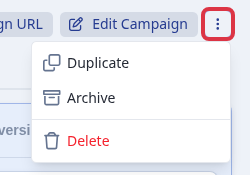
Use the kebab menu (⋮) on the campaign page, or on a row in the campaigns list, to "Duplicate" the campaign (the copy is named "Copy of …" and starts as a new Draft), "Archive" or "Restore" it, or "Delete" it.
Adding messages to a campaign
The "Message Sequence" card on the Overview tab lists every send already attached to the campaign, in order, with its type, status and send date.

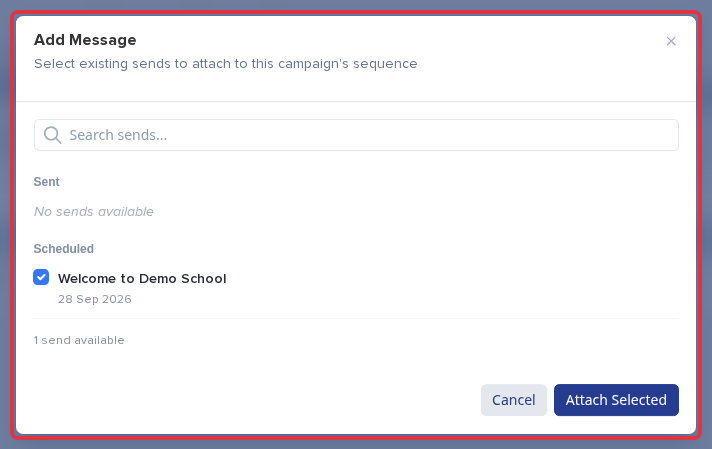
To attach one, open the "Messages" tab and select "Add Message". This lists your school's sent and scheduled sends - search to filter them, tick the ones you want, and select "Attach Selected" to add them to the campaign's sequence.
The "Messages" tab also shows the full table of attached messages with their type, status, send date, delivery count and open rate.

Campaigns never pulls existing sends in automatically - a message only counts toward a campaign once you attach it with "Add Message", or the same template is linked through "Linked Assets" below. This keeps a campaign's figures limited to what you deliberately put in it, and the same template or send can be attached to more than one campaign.
Linking other assets to a campaign
The "Linked Assets" card lets you connect other engagement activity to the campaign, beyond its message sequence: "Emails", "Events", "Meetings", and - where your school has the relevant feature switched on - "SMS" and "Enquiry Forms".
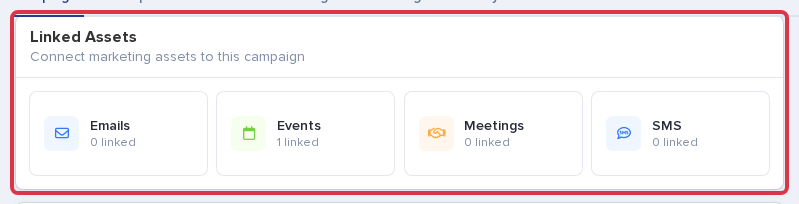
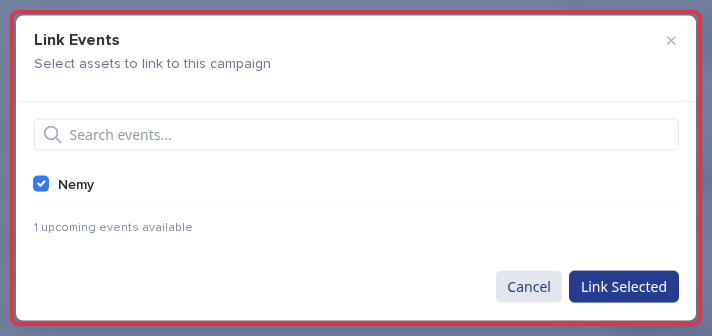
Select a tile to search and link items of that type - for example, selecting "Events" opens a popup to search your school's upcoming events and pick which ones belong to this campaign.
Tracking conversions
The "Conversion Tracking" card on the Overview tab shows Emails, Linked assets, Engaged and Converted counts, tracked from the campaign's start date through to its end date plus a 30-day trailing window.
Use the "Conversion Goal" control to choose what counts as a conversion for this campaign: "Not tracked", "Event Registered", "Offer Accepted", "Application Created", "Application Completed", "Enrolled", or, once your school turns on the matching module, "Form Submitted" and "Consent Given".
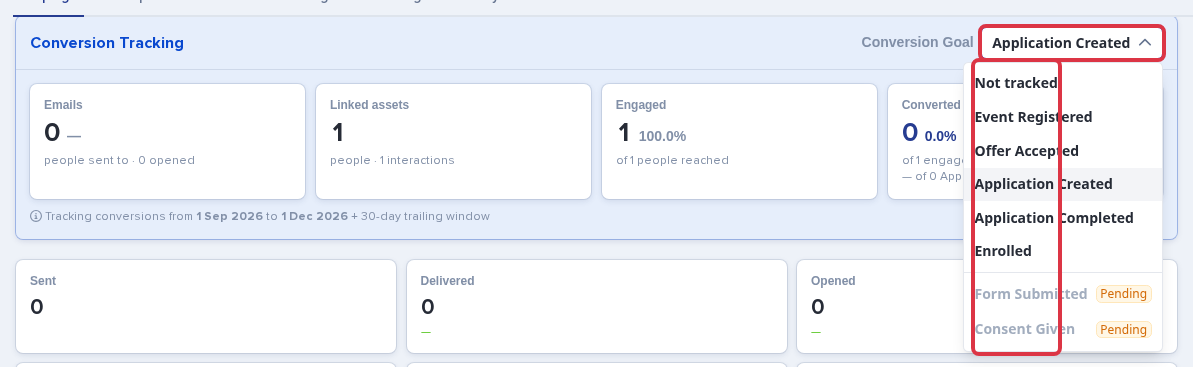
The same card also shows the raw delivery figures for the campaign's messages: "Sent", "Delivered", "Opened", "Clicked", "Unsubscribed" and "Bounced". "Unsubscribed" only counts a recipient whose message was skipped specifically because that person had already opted out - not a delivery failure for any other reason.
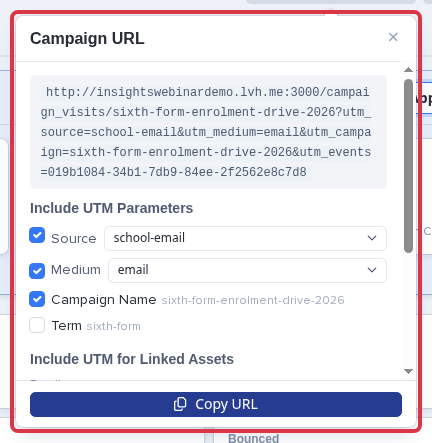
Select "Get Campaign URL" on the campaign page to get a trackable link for the campaign, with UTM parameters you can toggle on or off: Source, Medium, Campaign Name, and Term. You can also switch on UTM tagging for each linked asset group, so links you share for that event, template or meeting carry their own source tag. Select "Copy URL" to copy the finished link.
Delivery Tracking
The "Tracking" tab breaks delivery figures down per attached message: sent, delivered, opened, clicked and bounced counts for each one, plus a totals row for the whole campaign.

Attribution
The "Attribution" tab shows which channel - Email, Social Media, Direct, Referral, Organic Search or Paid Ads - the people who converted came through, based on their campaign visits. Switch between "First-touch" (the channel that first brought them to the campaign) and "Last-touch" (the channel right before they converted) to see it either way.
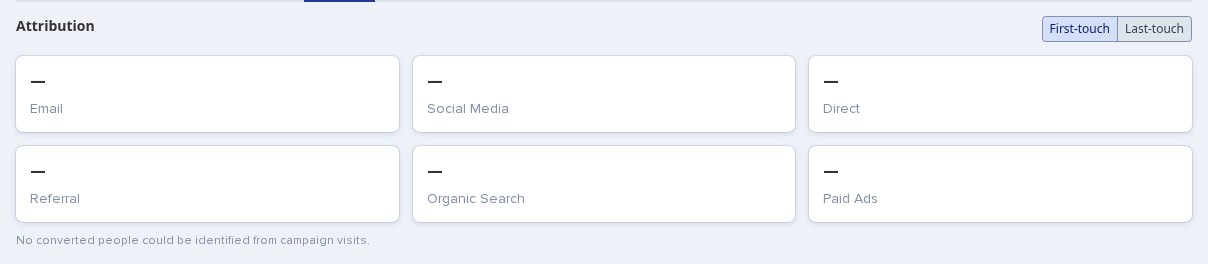
Where an event is linked to the campaign, attribution also counts the event's guests towards the campaign's reach - but only a guest linked to a parent/student account, or a guest who was never linked to an enquiry form submission. This avoids counting the same person twice when they are later matched through an enquiry form conversion instead.
Contact Metrics and Budget & Revenue
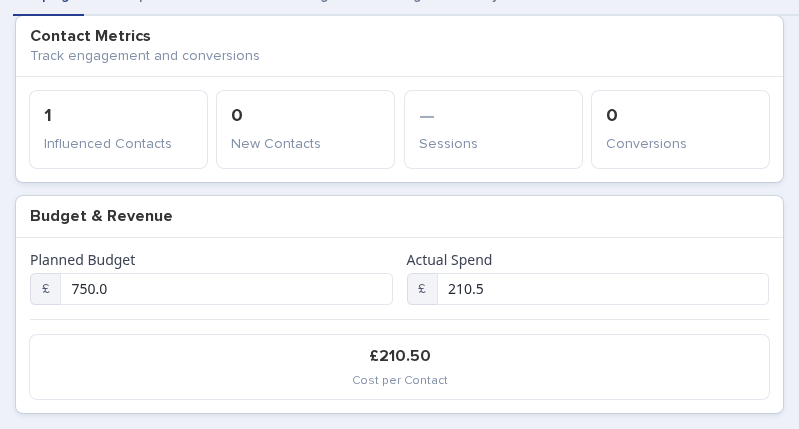
The "Contact Metrics" card on the edit page shows "Influenced Contacts" (everyone the campaign reached), "New Contacts", "Sessions" and "Conversions" against the chosen conversion goal.
The "Budget & Revenue" card records "Planned Budget" and "Actual Spend" for the campaign, and works out "Cost per Contact" automatically from actual spend divided by influenced contacts.
How to think about Campaigns
Use Campaigns to stop thinking about communications as isolated emails, and start thinking about them as joined-up journeys with a measurable outcome. A useful way to scope one:
- Define the outcome you want, and set it as the campaign's Goal and Conversion Goal.
- Pick the Audience the outcome depends on.
- Attach the messages, and link the events, meetings or other assets that should reach that audience over the campaign window.
- Activate the campaign, and use the Campaign URL (with UTM parameters) on anything you share for it, so visits attribute back correctly.
- Use Conversion Tracking, Delivery Tracking and Attribution to see what worked, and to plan the next campaign.
Frequently asked questions
How is a Campaign different from an Automation?
An automated message focuses on the mechanics of sending - when a communication fires and what happens next. A campaign focuses on outcomes - grouping messages and engagement activities together so you can measure their combined effect on real admissions results.
Can a single template be used in more than one campaign?
Yes - the same template or send can be attached to more than one campaign where relevant.
Do existing sends get pulled into a campaign automatically?
No - a send only becomes part of a campaign once you attach it with "Add Message" or link its template through "Linked Assets". This keeps each campaign's figures limited to what you put in it deliberately.