
From your Dashboard, navigate to Communication and Events, select Events, and then Events Calendar.

Click “Add New” on the right-hand side to create an event.

Please fill in the Event Details fields, including Event Name, Type, Start & End Date, Start & End Time, and a necessary Description. Location is optional and you may add an image of an event.

After completing the necessary fields, navigate to the "Visibility" section.

Which forms does this event relate to - Select the particular form where you wish to implement the event.
Message to show when the event is fully booked - Add a customised message that will be displayed when the event reaches full capacity.
Display number of tickets remaining – You may tick the box to display the remaining number of tickets.
"Show the event form" refers to making the event registration or details form visible and accessible to parents or students.
Select "Login Page for related forms" to display the event specifically on the login page of a designated form.

"Parents Homepage" or Student Homepage" display an event on either the student or parent homepage.
*Note: This section also allows you to select any or both of these options.*

Parent Homepage Event View:

Student Homepage Event View:


Parent’s homepage based on application form - display the event exclusively on the homepage of parents whose child has an application associated with the specified form.
Parent’s homepage based on the child’s application form - This option displays the event on a parent's homepage only if their child has an application for any of the tagged forms.
Parents Homepage based on the child's suggested form from the enquiry - display the event on the parent homepage if the child has a suggested form from any of the tagged forms.
Show popup for the event on allows you to create a popup window and choose where it will be displayed, whether on a login page, the student homepage, or the parent homepage.
*Note: This section also allows you to select any or all of these three options.*

Landing/Login Page Popup Event:

Student Homepage Popup Event:

Parent Homepage Popup Event:

Set a capacity, the fully-booked message, and the waitlist
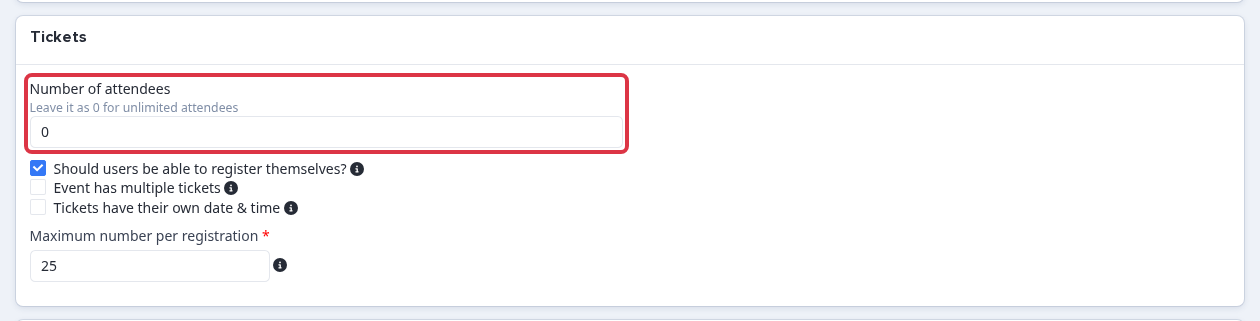
Open the "Tickets" tab and enter a number in "Number of attendees" to set a capacity. Leave it as 0 for unlimited attendees.
Enter text in "Message to show when the event is fully booked" in the "Visibility" section. The system shows this message on the registration screen at the moment a parent or student tries to register for a full event. It does not send the message by email.
Tick "Enable waitlist" in the "Waitlist Activation" card to change this behaviour. Once the event reaches capacity, a new registrant joins the waitlist instead of seeing the fully-booked message. Read "Event Waitlists Feature" for the full waitlist setup, including promotion methods and registrant emails.

Where to find the link to share with parents and students
Every event in the Events Calendar has its own public link. Go to "Communication and Events", select "Events", then "Events Calendar", and find the event's row. The "URL" column shows a "Public URL" link next to a copy icon.
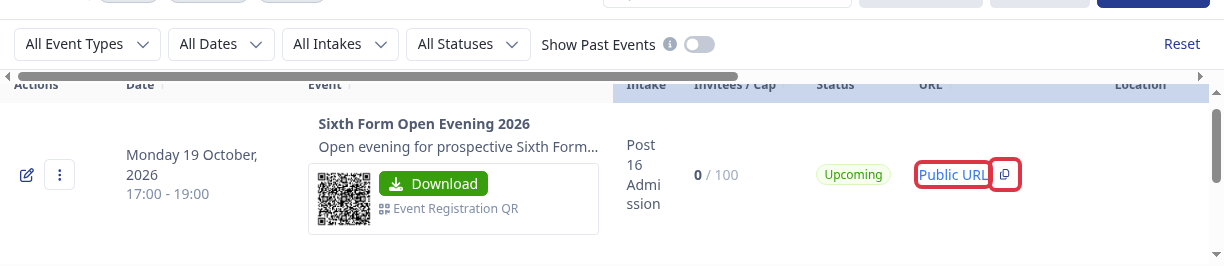
Select the copy icon to copy the link to your clipboard, or select "Public URL" to open the registration page in a new tab. Anyone who opens this link can register for the event without signing in, so you can share it by email, on your website, or on a poster.
When your school has enquiries switched on, the same row also shows an "Enquiry URL". Share that link instead when you want the registrant to go through the enquiry form before they register.
Which forms appear in "Which forms does this event relate to?"
The list shows active application forms only. Check the "Application Forms" area first if an expected form does not appear.
Without "Multiple Forms" switched on for your school, activating one form deactivates every other active form. Activating a new admission year's form deactivates the previous year's form at the same time. Read "Getting your application form ready for a new admissions year" for the full form-activation steps. Ask Applicaa to switch "Multiple Forms" on to keep more than one form active at a time.
Make the event visible on ApplicaaOne
In an Admissions+ State system you can also list the event on ApplicaaOne, where local students look for open days and open evenings. The option shows only on an event that is linked to a "Sixth Form Application" form, so set "Which forms does this event relate to?" first. Then tick "This is a public event, publish this event to ApplicaaOne" in the "Visibility" section.
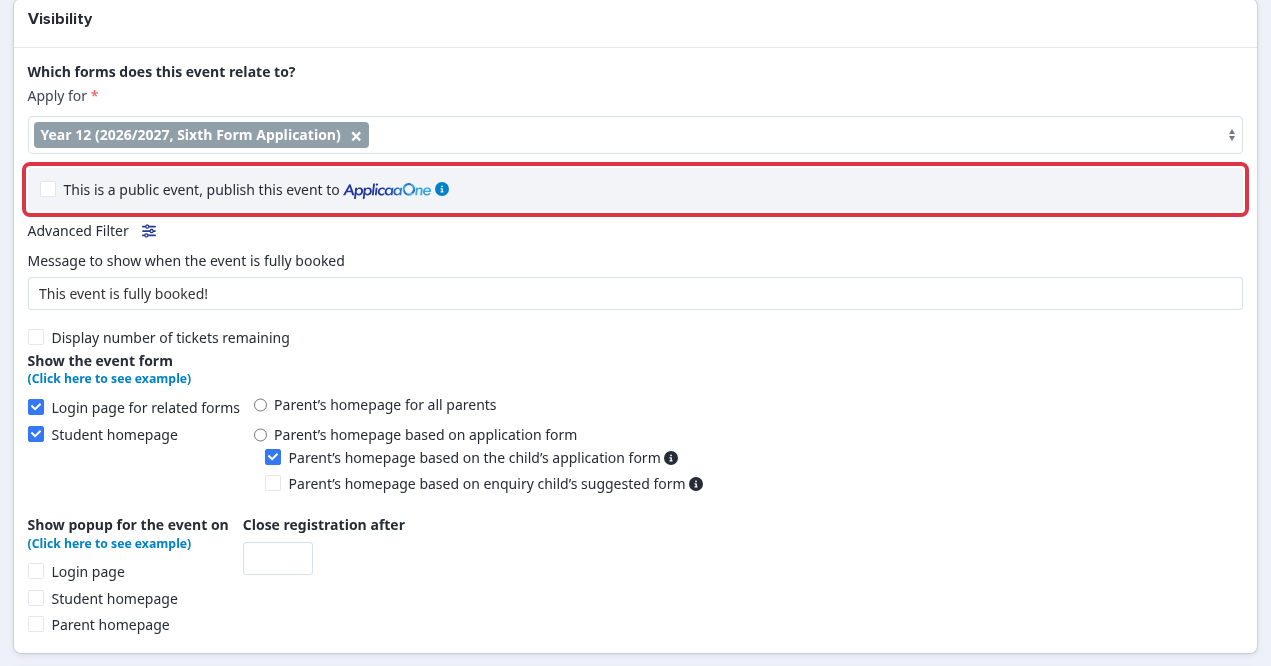
Click "Save", and then click "Publish" at the top of the event. ApplicaaOne lists published events only.

A "Published to ApplicaaOne" marker shows at the top of the event when the box is ticked. Use it to confirm the setting before you leave the page.

If the event is still absent from ApplicaaOne, check each of these:
- The event is linked to a Year 12 "Sixth Form Application" form. The ApplicaaOne option stays hidden for every other form type.
- The linked form is for the current sixth-form admission year. An event on a previous year's form does not go across.
- The event status is "Published" and the event date is today or later. A past event drops off the ApplicaaOne list.
- ApplicaaOne is switched on for your school. Ask Emma in the app if you are not sure.
Why the event is absent from the MAT dashboard
Staff always see their own school's events in the Events Calendar, whatever the event's Publish status. "Publish" and "Unpublish" control visibility to parents, students and ApplicaaOne only, never the staff list.
A MAT dashboard has its own "Events" area in the left menu. "List View" shows the events that the trust created itself, with a "Pushed To" count, a "Published" state and a "Push to Schools" button on each card.
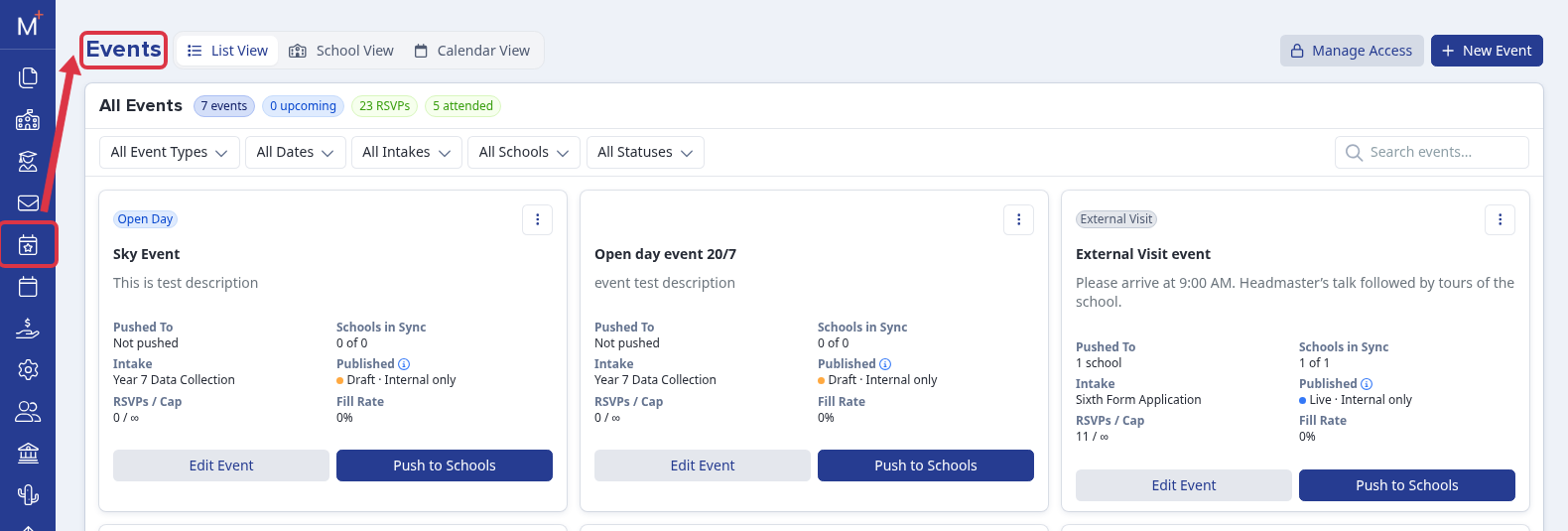
"School View" shows the events that the trust pushed down to each member school. An event that a school creates in its own "Events Calendar" belongs to that school alone, so it shows in neither trust view.
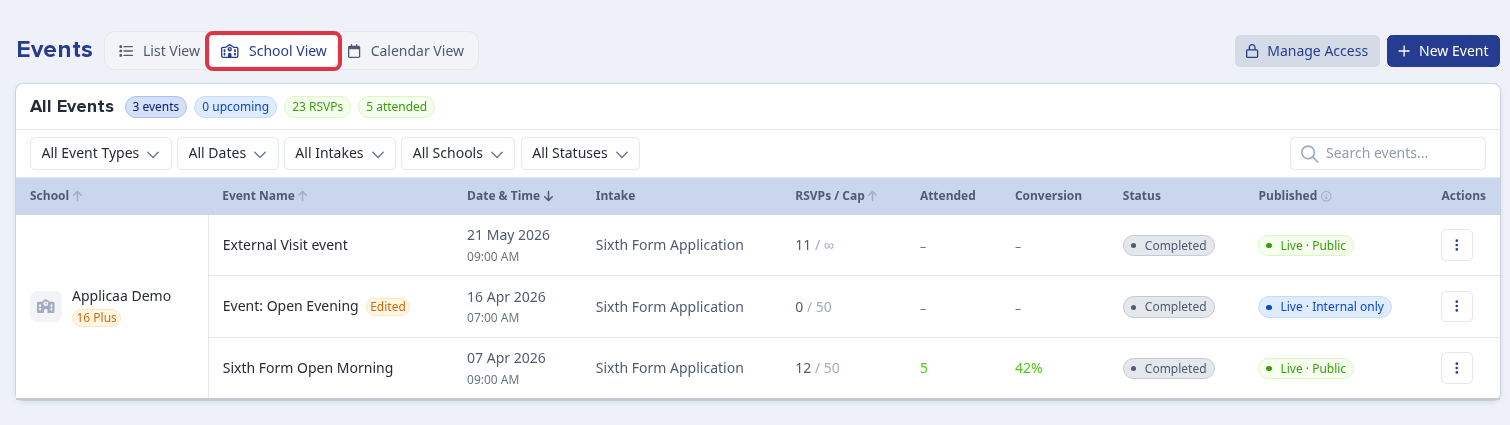
- To see an event in the trust dashboard, create it in the trust "Events" area and use "Push to Schools".
- A pushed event arrives at the school unpublished. It shows "Live · Internal only" until a user publishes it at the school. Before that it reaches no student, no parent and no ApplicaaOne page.
- The ApplicaaOne setting copies with the event when the trust pushes it, so the school still has to publish the event.
Related articles
- How to publish and unpublish an event
- What is ApplicaaOne?
- MAT Dashboard Overview
- Event Waitlists Feature
- Getting your application form ready for a new admissions year
- Events Area Overview
Emma in the app answers a follow-up question on this topic at any time.