
This guide will help you to troubleshoot why your Taster Day confirmation email isn't being sent
If a Taster Day confirmation email isn't sending, check:
1. The recipient has an email address on record - a student/guest with no email is silently skipped. This is the most common cause of an email not being sent.

2. The setting "send automated taster day confirmation email to students" option is enabled within the Settings step of your Taster Day setup.

Emailing students who haven't signed up for a Taster Day yet
You can also contact a specific group of students - for example everyone who has accepted their offer but hasn't yet signed up for a Taster Day - by filtering your student list and emailing the matching students directly.
Open your Students list, click the Filter dropdown and add a new filter. Set "Finish Taster Day" to No, then apply the filter. The "Finish Taster Day" option appears once you have a Taster Day set up on your application form.
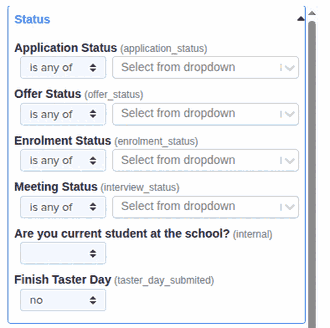
The "Finish Taster Day" option looks at whether a student has been registered onto a Taster Day, so setting it to No returns exactly the students who have not signed up yet. Tick the checkbox at the top of the table to select all the matching students, then open the Communications menu and choose Send Email to write and send your message to the whole group.
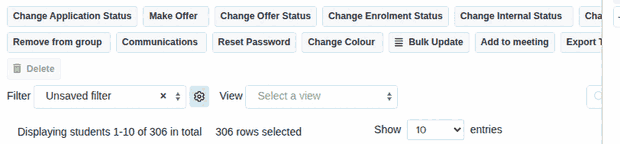
- "Finish Taster Day" = No - the student has no Taster Day registration on record, so they haven't signed up yet.
- "Finish Taster Day" = Yes - the student has already been registered for a Taster Day.
- Students with no email address on record are skipped, just like the automated confirmation email covered above.