
This article shows you what to do when a member of staff cannot sign in to your system: how they reset their own password, how you reset it for them, how to unlock an account that has locked after failed sign-in attempts, and what to check when a welcome or reset email does not arrive.
Ask them to reset their own password first
Staff sign in from your school's staff login page, using the "Username or Email address" and "Password" fields under "Existing Users".
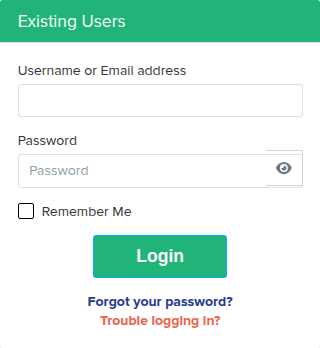
If they have forgotten their password, ask them to click "Forgot your password?", enter the email address held on their account and click "Reset Password".
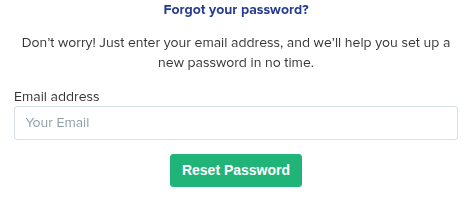
- The reset link is valid for 6 hours. After that it stops working and they need to request a new one.
- The address must match the one on their staff record. The system will match their account email, school email or personal email.
- The same confirmation message appears whether or not the address is recognised, so if nothing arrives, check the address on their record first.
- If their account has been deactivated they are told the account has not been activated yet, and no reset email is sent.
Reset a password for them
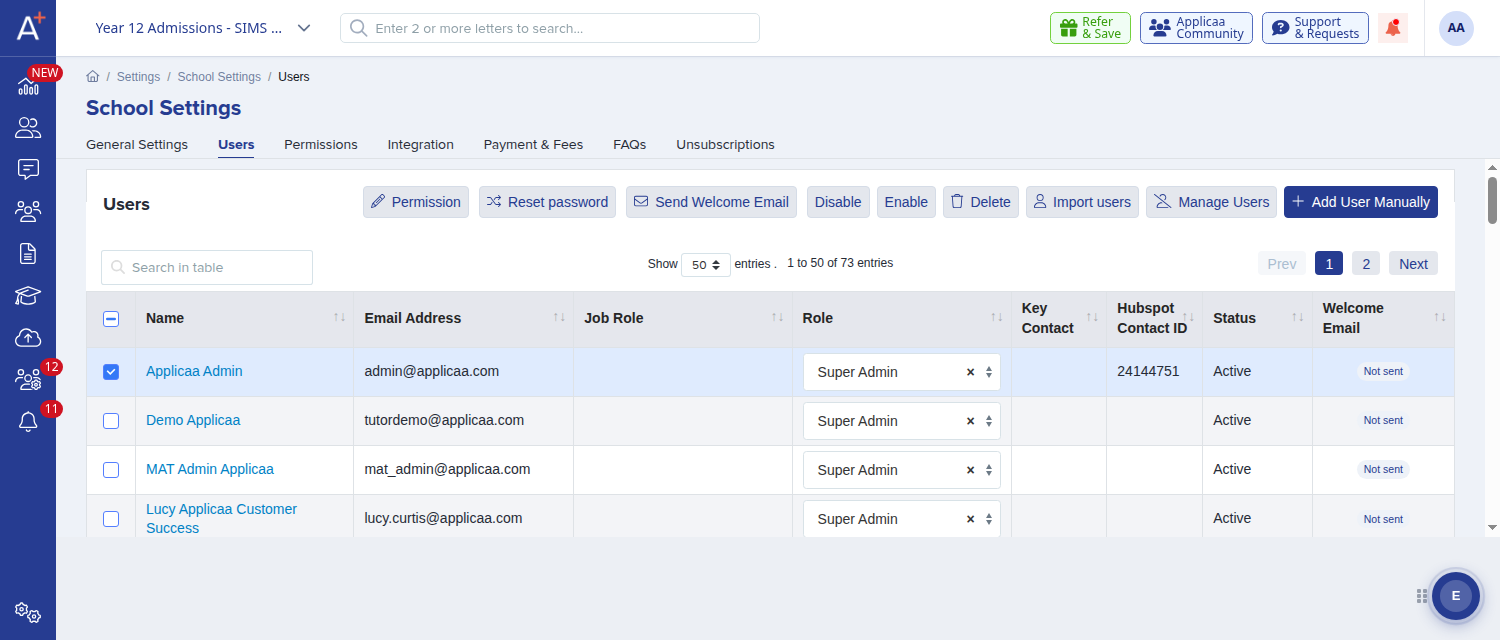
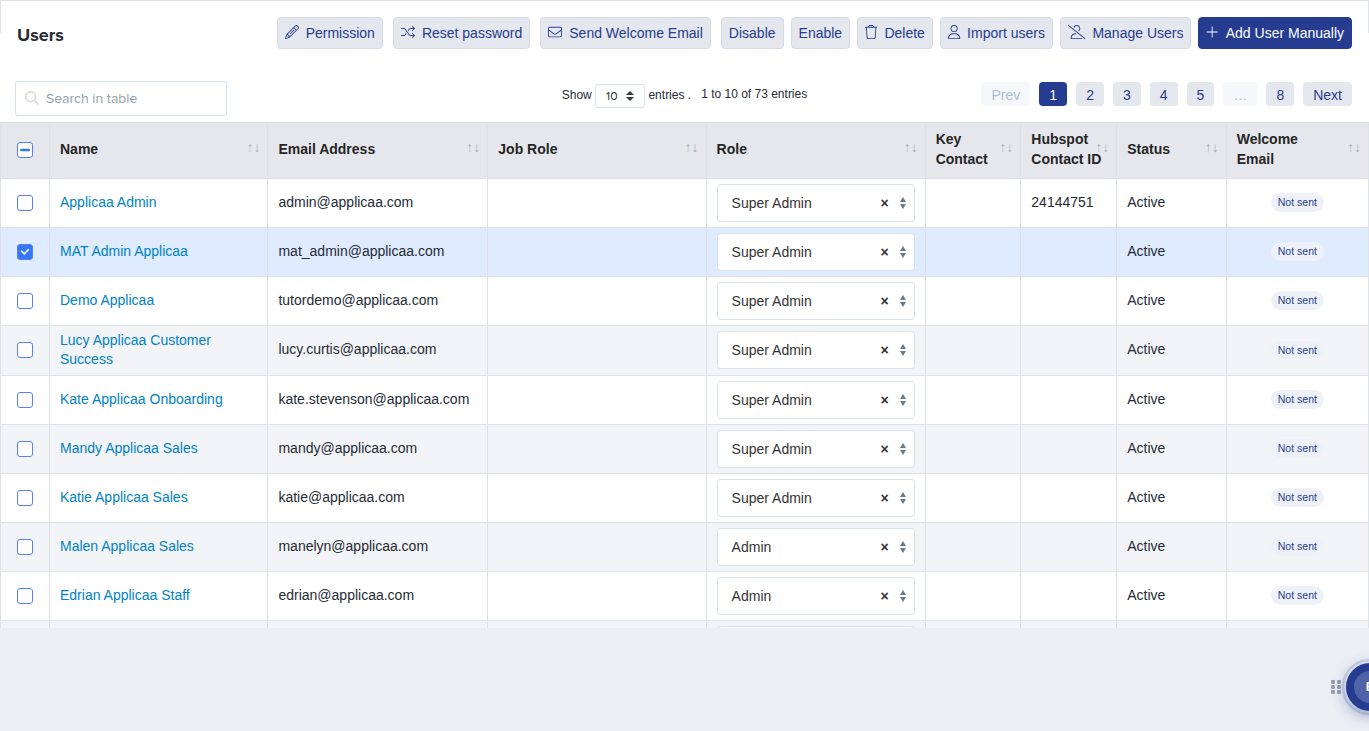
Go to "Settings" > "School Settings" > "Users", tick the member of staff in the table, and click "Reset password" in the row of buttons that appears at the top.
Enter the new password twice, choose whether to email it to them under "Send email to notify staffs", then click "Reset Password".
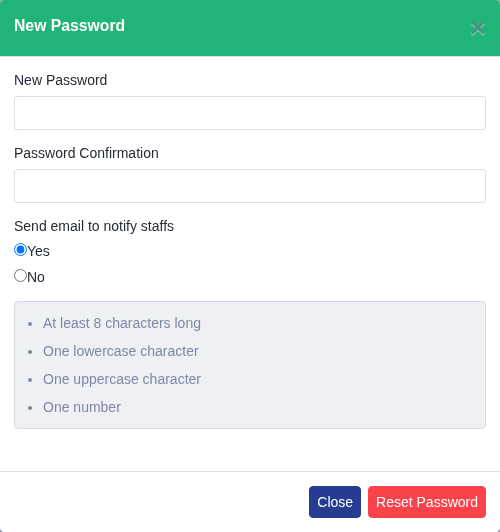
- The password must be at least 8 characters and contain one uppercase letter, one lowercase letter and one number.
- "Reset password" only appears if your staff sign in with a password. If your school uses Google or Microsoft single sign-on for staff, the button is hidden and passwords are managed by that provider instead.
- You need permission to edit users to see these buttons.
Check the account status and the last welcome email
On the same "Users" page, the "Status" column shows whether the account is active and the "Welcome Email" column shows the delivery status of their last welcome email, such as "Not sent", "Sent" or "Opened". If the status shows "Deactivated", tick the member of staff and click "Enable" - a deactivated account cannot sign in and cannot reset its password.
The account is locked after failed sign-in attempts
An account locks automatically after 5 failed sign-in attempts. The person is told the account is locked and how many minutes are left, and the lock clears by itself 15 minutes after it was applied. No unlock link is sent by email. This applies to staff, parent and student accounts.
To unlock someone straight away, go to "Settings" > "Security" > "Failed Login Attempts", find them under "Currently Locked Users" and click "Unlock User".
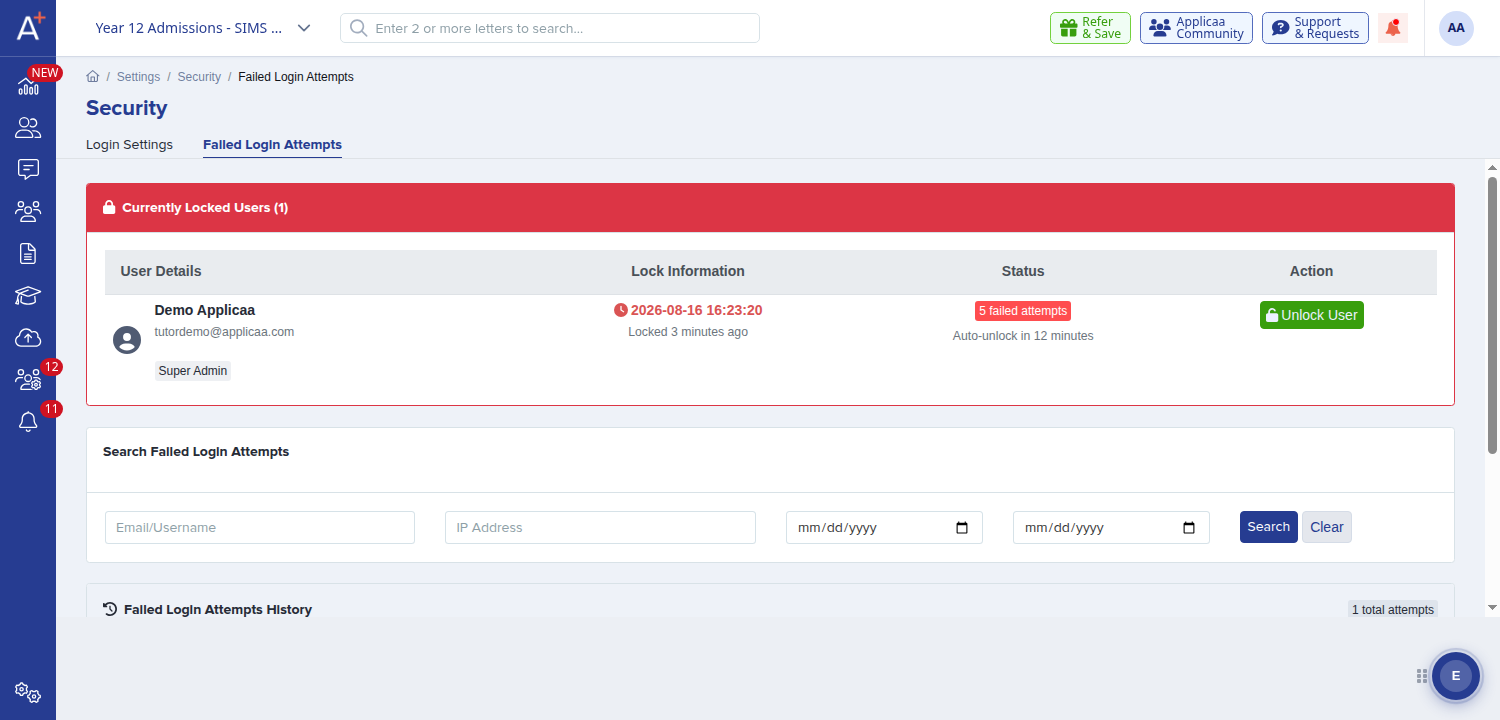
- "Currently Locked Users" shows when the account locked, how many failed attempts were recorded and the auto-unlock countdown.
- A successful sign-in clears the failed attempt count.
- "Failed Login Attempts History" below lists every failed attempt and can be filtered by email or username, IP address and date range, which helps you confirm whether someone is signing in with the wrong address.
Send login details to an internal student or parent
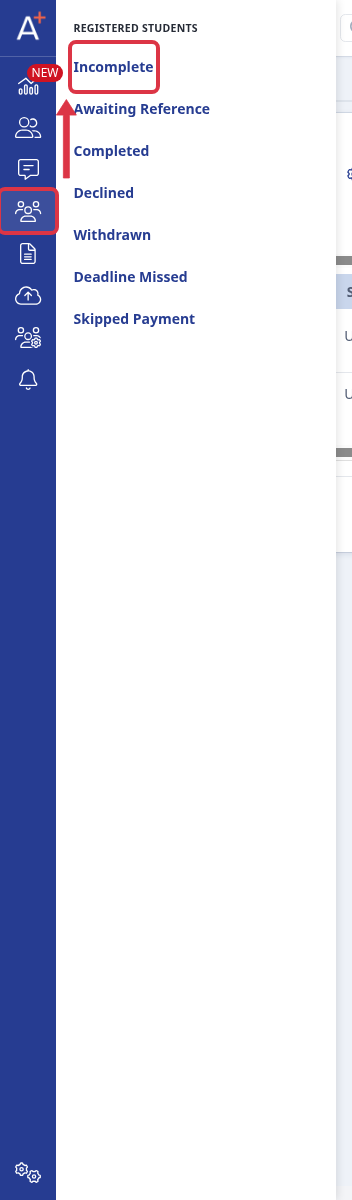
Go to "Registered Students" and select the relevant list, such as "Incomplete", to find the internal student.
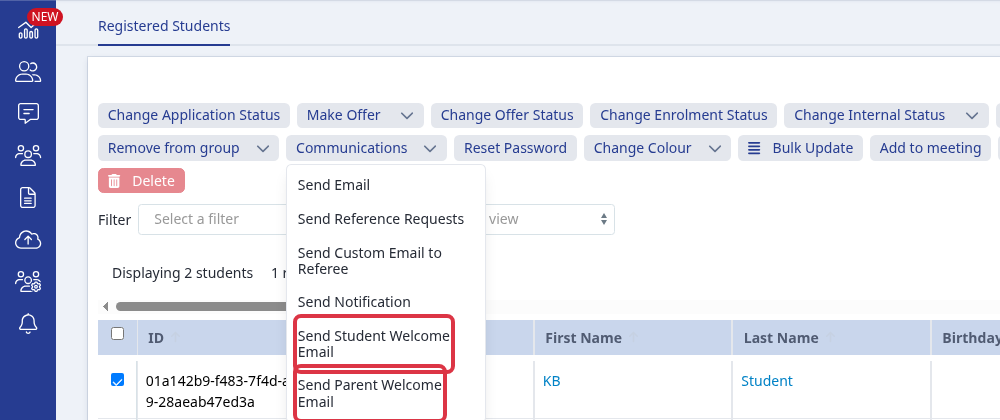
Tick the student, select "Communications", then choose "Send Student Welcome Email" for the student or "Send Parent Welcome Email" for their parent.
- The welcome email contains that account's temporary password. There is no shared or generic password for all students or parents.
- Sending a welcome email can reset the selected account's current password. Tell the person to use the newest welcome email, then use "Forgot your password?" if they no longer have it.
- If the parent email cannot send, the system shows: "No active Parent Welcome email template was found for this application form, so no welcome emails were queued. Add or restore the Parent Welcome email template, then try again." Add or restore that template before you send again.
The welcome or reset email has not arrived
To send the welcome email again, go to "Settings" > "School Settings" > "Users", tick the member of staff and click "Send Welcome Email".

- Sending the welcome email again creates a new password for that member of staff and includes it in the email. Any password they were already using stops working, so only resend it when they need new credentials.
- You cannot send a welcome email to your own account. If you are included in the selection, your account is skipped.
- Ask them to check their junk and spam folders, and confirm the address on their record is one they actually monitor.
- If the "Welcome Email" column still shows "Not sent" after you have sent it, your system may not have a staff welcome email template set up. Contact support so it can be added.
- Password reset links expire after 6 hours, so a link from an older email will not work.
If a member of staff still cannot sign in after these checks, ask Emma in the platform or send us the details through "Support & Requests" in the top bar, including the email address they are using and the exact message they see.