
PDF Guide
Please note: before you can transfer enrolled classes to your MIS (Year 12), you must first ensure you have transferred the students' data into your MIS - they have to exist in your MIS first, before their class allocations can then be transferred.
Prepare an application form before the transfer
Check the application form and get the SIMS App before you transfer applicants from Admissions+ to SIMS.
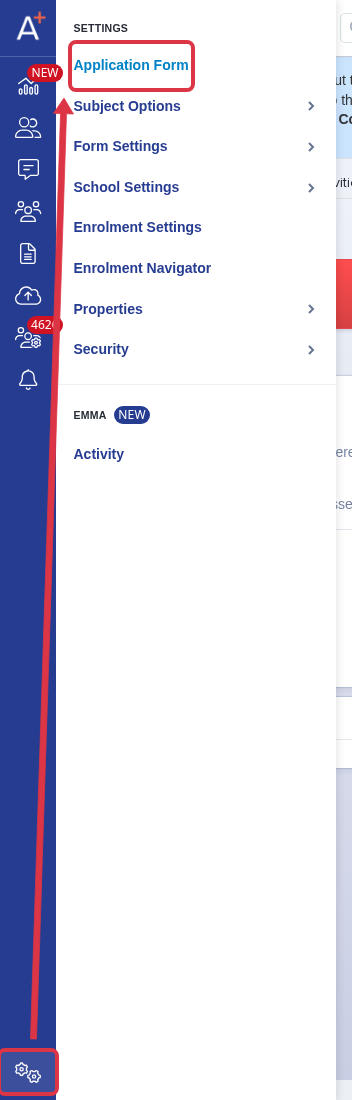
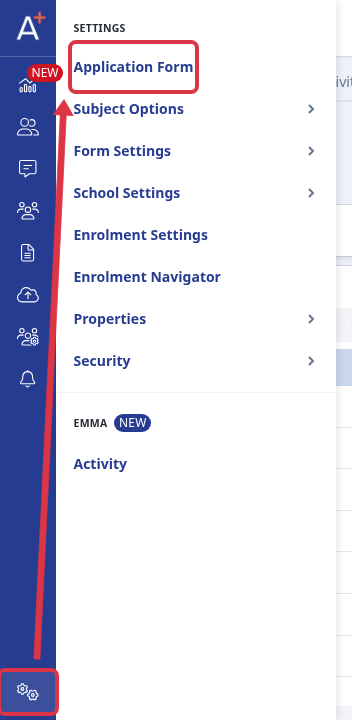
From an application form, select Settings > Application Form to review the form for the transfer.
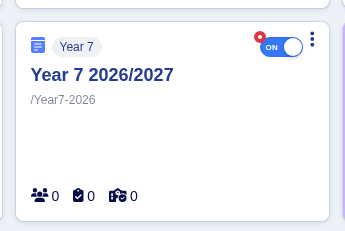
On the Year 7 or sixth-form form card that you need, confirm that the active switch is on. The SIMS App uses the default form when a default form is set. If no default form is set, the SIMS App uses an active form.
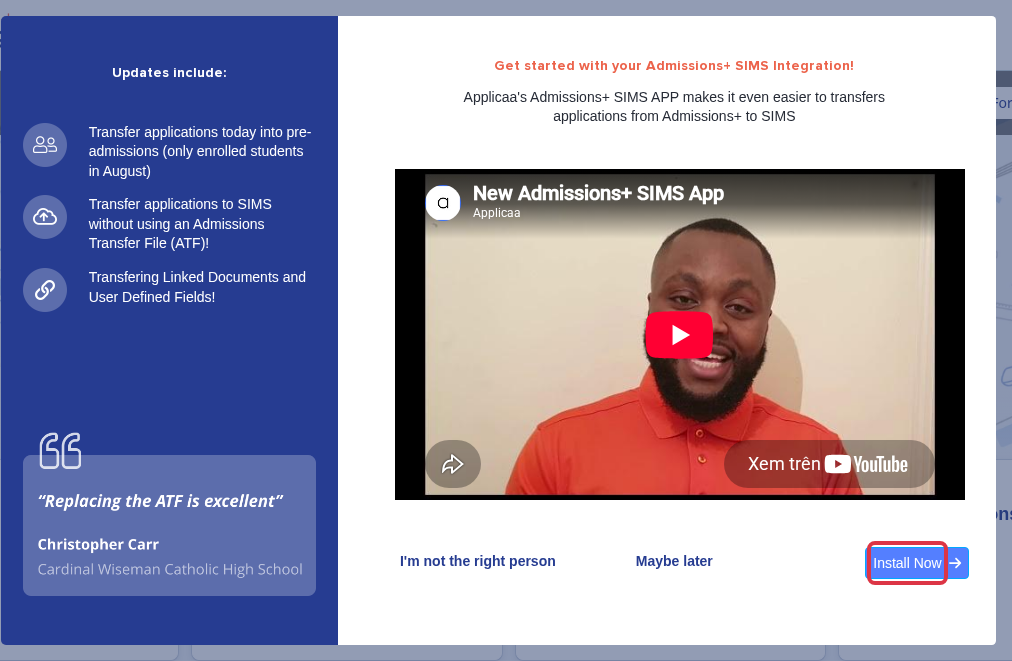
When the SIMS App prompt opens, select Install Now.
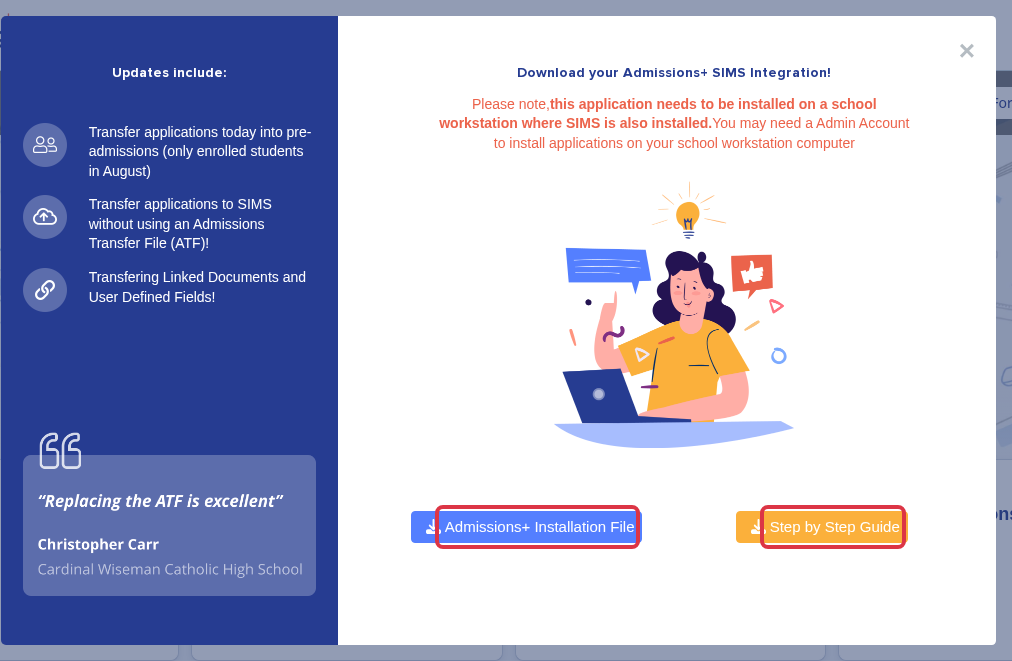
Install the app on a workstation that has SIMS. Select Admissions+ Installation File for the installer. Select Step by Step Guide for the desktop transfer steps.
- If the form that you need does not show, check its active switch and the default application form.
- The Step by Step Guide gives the applicant selection, the completed-status check, the re-transfer, and the Year 12 class transfer steps.
- For a desktop app error, ask Emma in Admissions+ and include the exact error text.
Record a student's EHCP or SEN status so it transfers to SIMS
The application form carries a standard question, "Do you have a Special Educational Need (SEN)?". Selecting the right option on this question is how an Education, Health and Care Plan (EHCP) or another SEN status reaches SIMS.
From an application form, select Settings > Application Form.
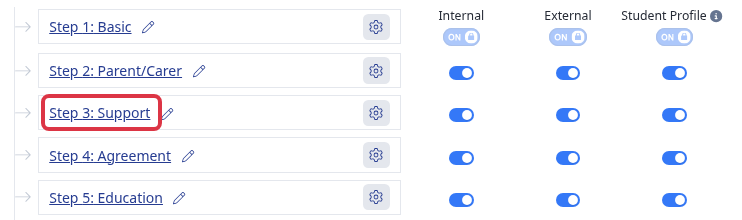
Open the phase that contains the question (for example, Application Form), then select the step that collects it. By default this is the step named Support.
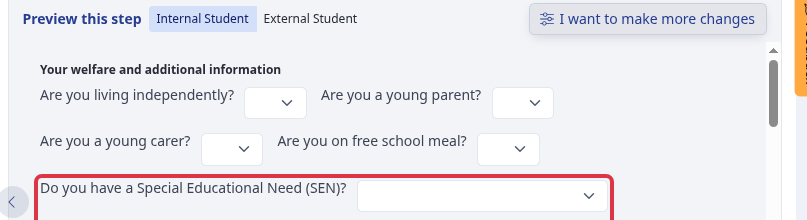
Scroll to "Do you have a Special Educational Need (SEN)?", under "Your welfare and additional information".
Select Education, Health and Care Plan to record that the applicant has an EHCP.
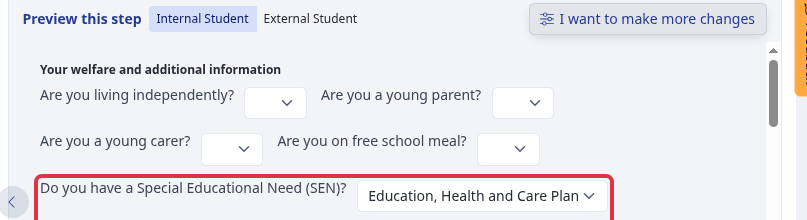
This is the only question that transfers SEN or EHCP information into SIMS. When "Education, Health and Care Plan" is selected, Admissions+ sends that status as part of the student's SIMS data transfer. A custom question that your school adds under a different name does not transfer: only this standard question is mapped to the student's SIMS SEN status.
Selecting No Special Educational Need sends the SIMS SEN status code N, which records that the student has no SEN. If your school needs to confirm how that value interacts with an existing SEN status already held in SIMS, ask Emma in Admissions+ or contact our support team with the student and the SIMS record affected.