
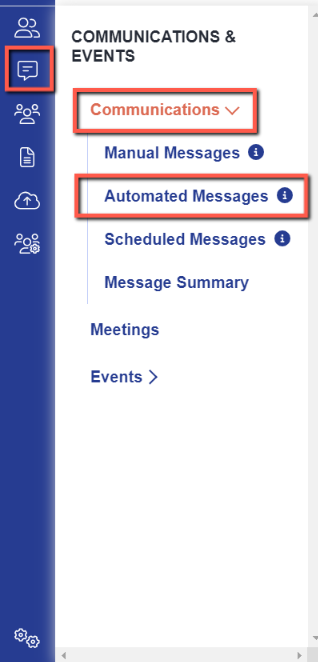
Navigate to Communications and Events > Communications > Automated Messages.
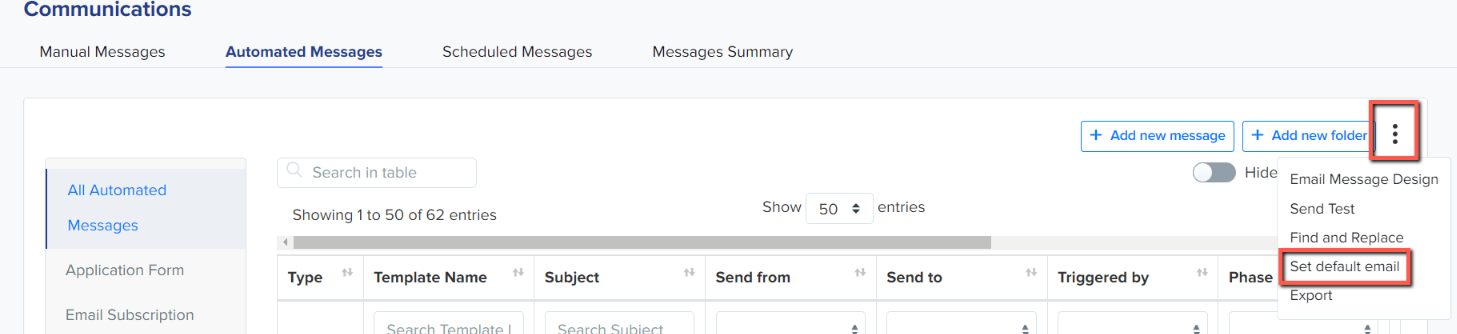
Click the kebab menu on the right of the page, followed by "Set default email".
You will see this window:
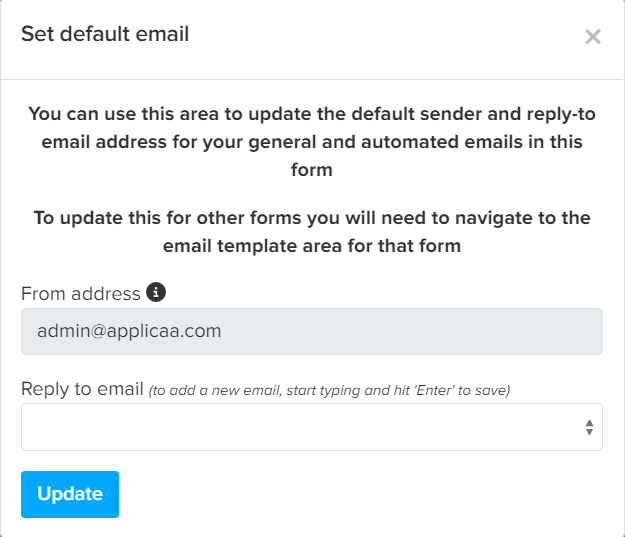
You can already set your "reply to" address at this point, so you can direct any responses received to the correct inbox, but by default you can't change your "from" address without intervention from your IT Manager.
Click the black icon next to the "from address" field and read the instructions.
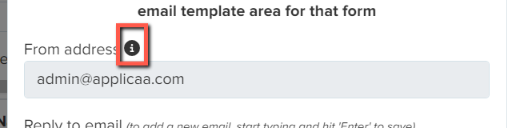
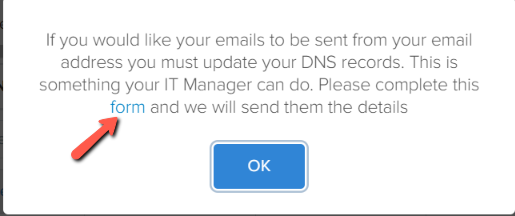
Click the word "form" and then complete the information for your school, like so:
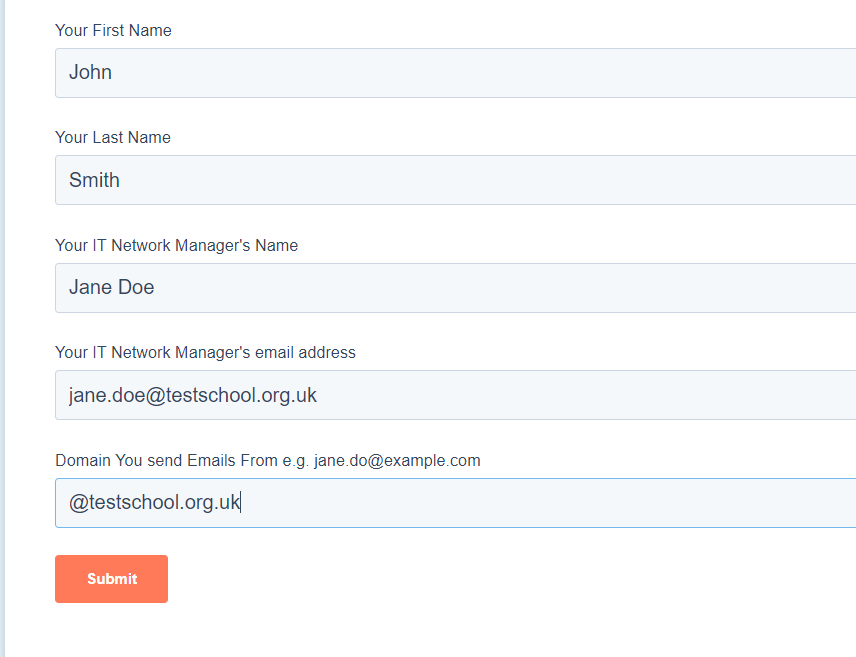
Your IT Manager will then receive instructions from Sendgrid to inform them of what changes are needed; this will only take them a few minutes.
Once those changes have been actioned, your IT Manager should contact us (this is outlined in the instructions they receive) to let us know the changes are in place. Our technicians then verify and activate your settings on our end and you will then be able to set your own email address, like so.
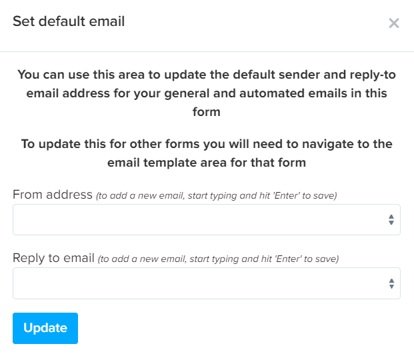
Once your DNS records have been updated, you can set the email address(es) of your choosing - if you have multiple forms, you can set different default emails for each intake (for example, your Admissions Lead in Year 7 and your Head of Sixth Form in Year 12) by going into the email templates area on each of your forms and clicking to "set default email".
Note: Sendgrid does not support the following email domains Hotmail, Outlook and Live.
This means that any email addresses using these domains will continue to receive correspondence from admin@applicaa.com, even if your DNS has been updated.
Automated Emails to Staff
You can specify a default email recipient for any templates which have "staff" as the audience, to specify to which staff member those templates will be sent. Only staff users can be selected:
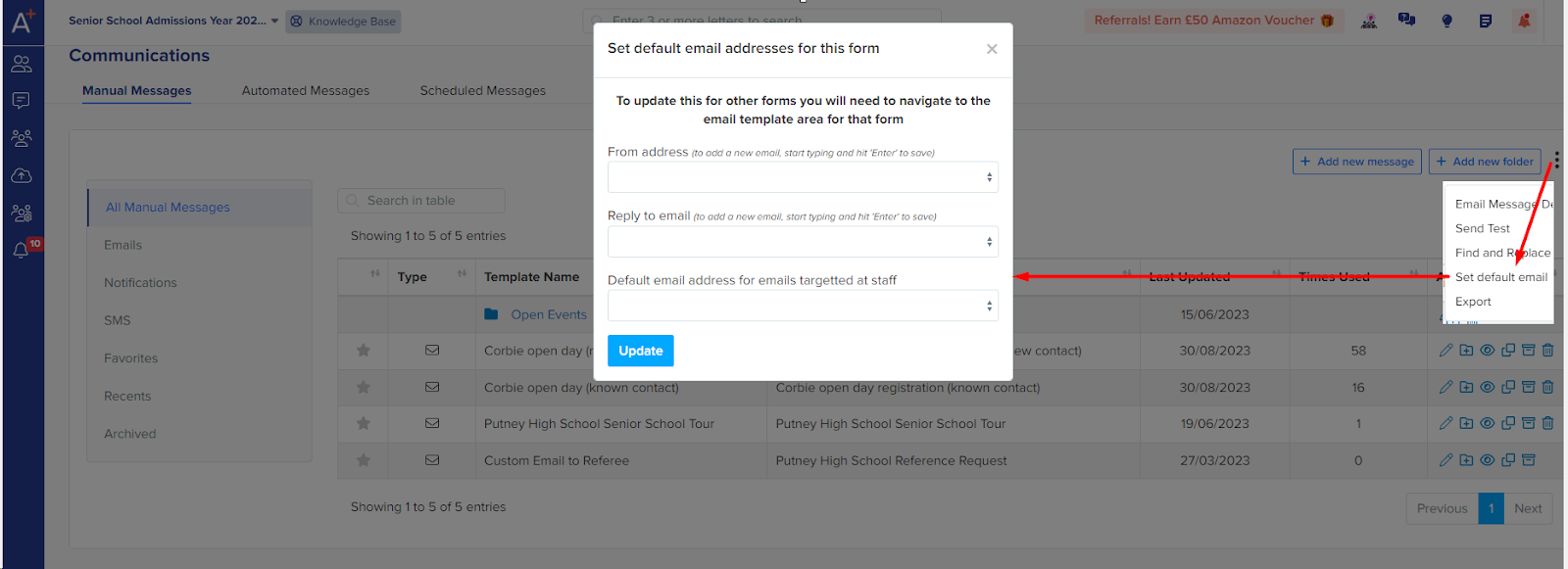
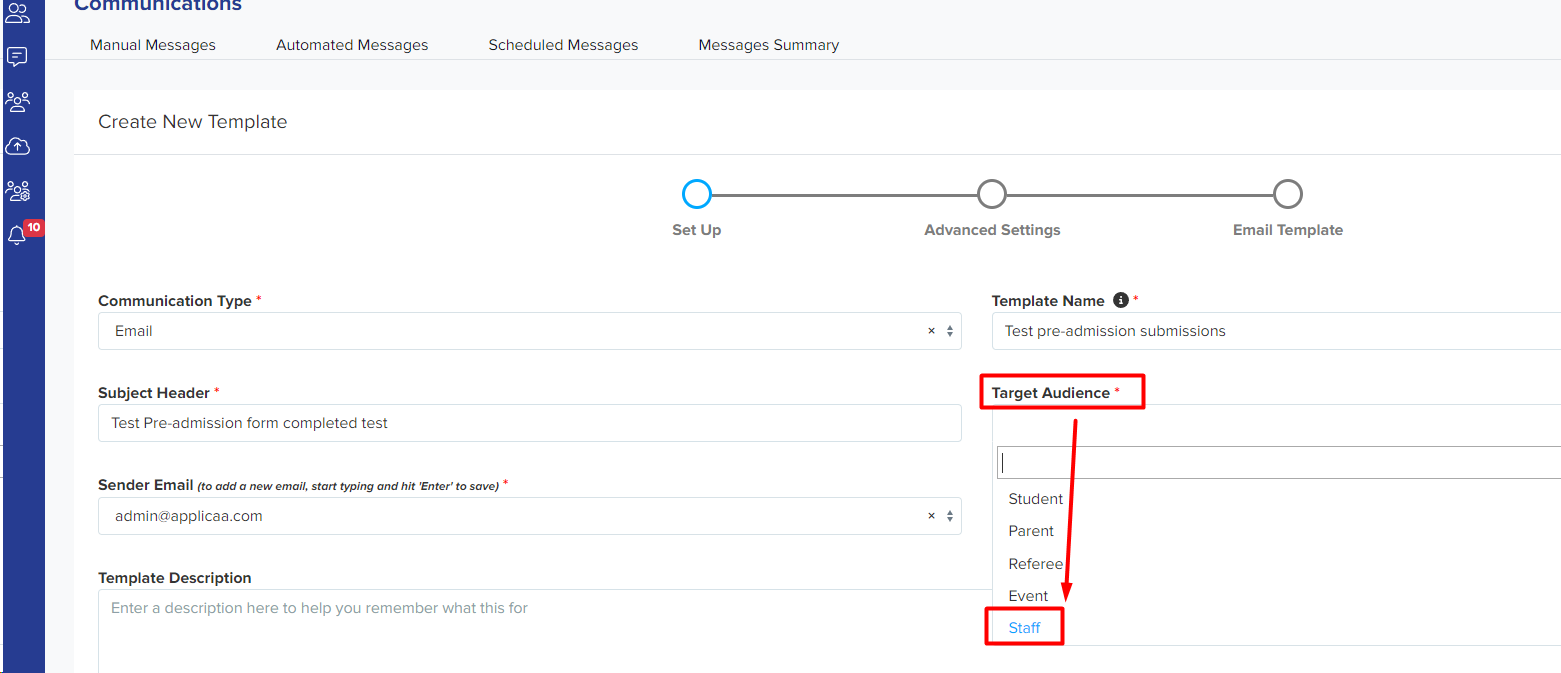
When creating a new automated message e.g. to inform staff when a Pre-admission form is submitted, select Staff from the dropdown for the Target Audience.
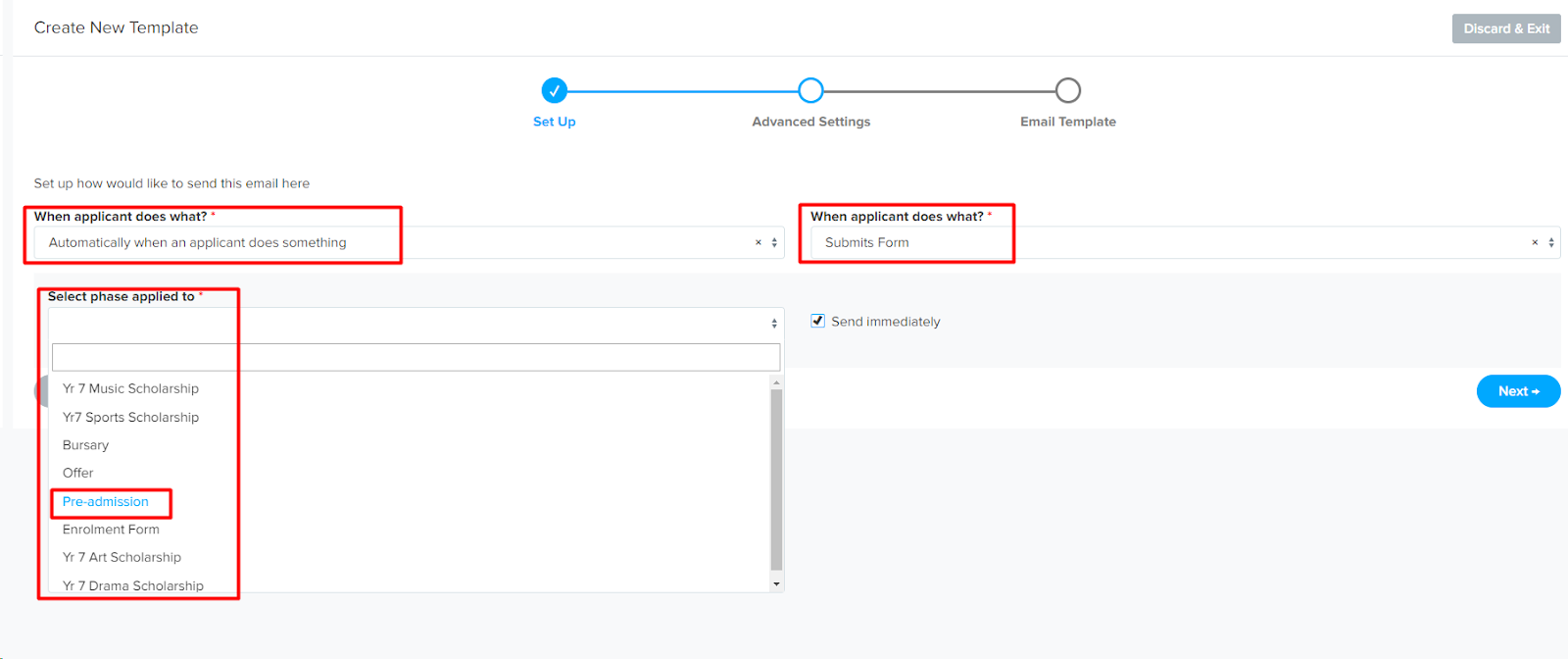
On the following page you can select the phase that this applies to, along with the option for the email to be sent when the phase is submitted or when it has been incomplete for an amount of time that you can specify.
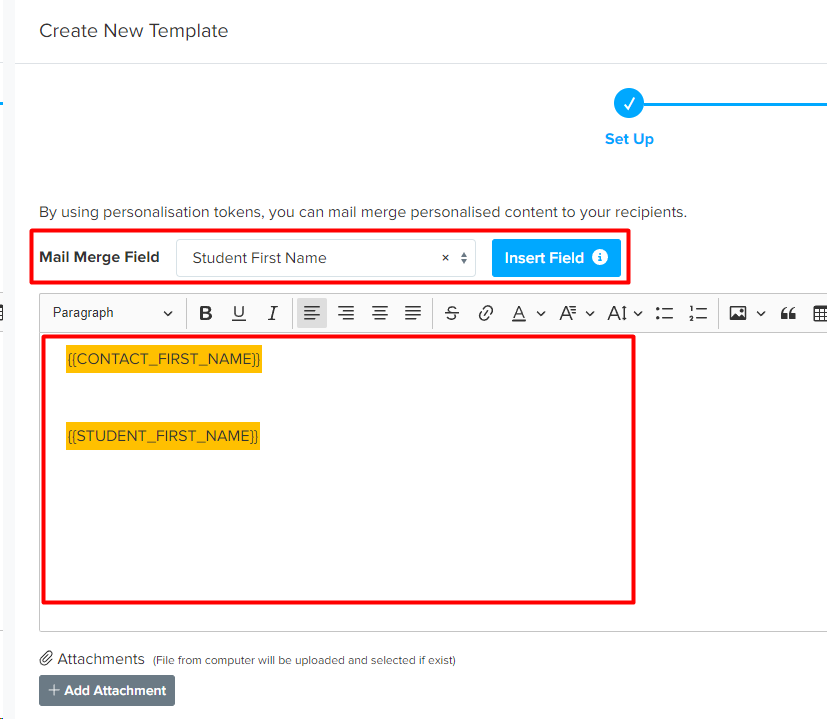
You can then setup the template text along with a wide range of mail merge tokens.
This will allow you to setup automated email notifications to staff triggered by applicants completing any phase or when any phase has been incomplete for a certain amount of time.
Stop the Daily Email Digest for a Member of Staff
The daily digest is the summary email that goes out to a member of staff every morning. It is separate from your automated messages and from your default email settings, and each member of staff controls it for themselves, form by form. Deactivating an account only stops that person from signing in, so the digest keeps arriving after you deactivate it.
The member of staff signs in, clicks their own name in the top right-hand corner, and selects "Email Preferences".

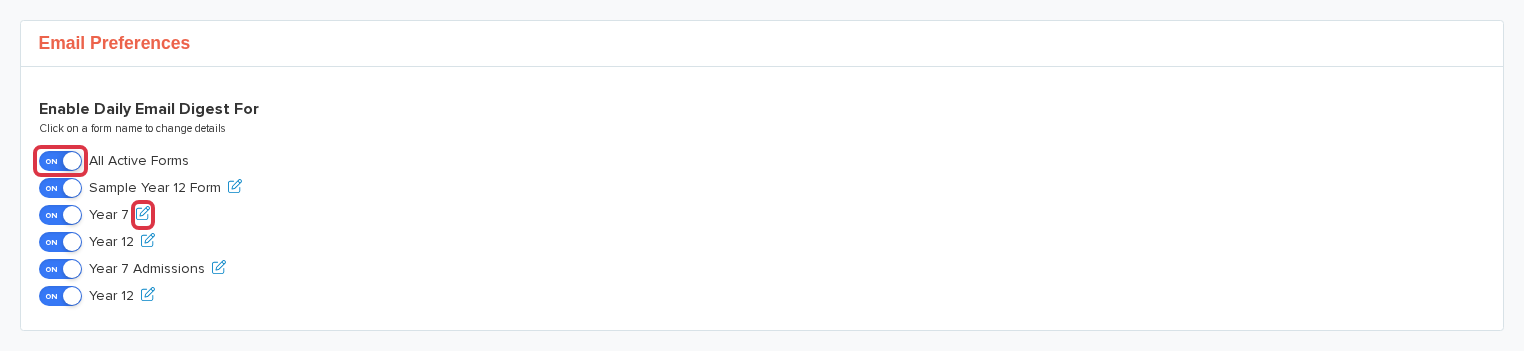
On the "Email Preferences" page they switch off "All Active Forms" to stop the digest for every form at once, or switch off one form at a time. The pencil icon beside a form name opens that single form's digest settings.
Every digest email also carries an "Update email preferences" link at the bottom, which opens the same page.
A single form's page holds a second section, "Share with people that don't have an account". An address in that list receives the digest even when the person holds no account in your system, so check it when someone still receives the digest after you deactivate their account. Switch the toggle off or remove the address, then click "Save changes".
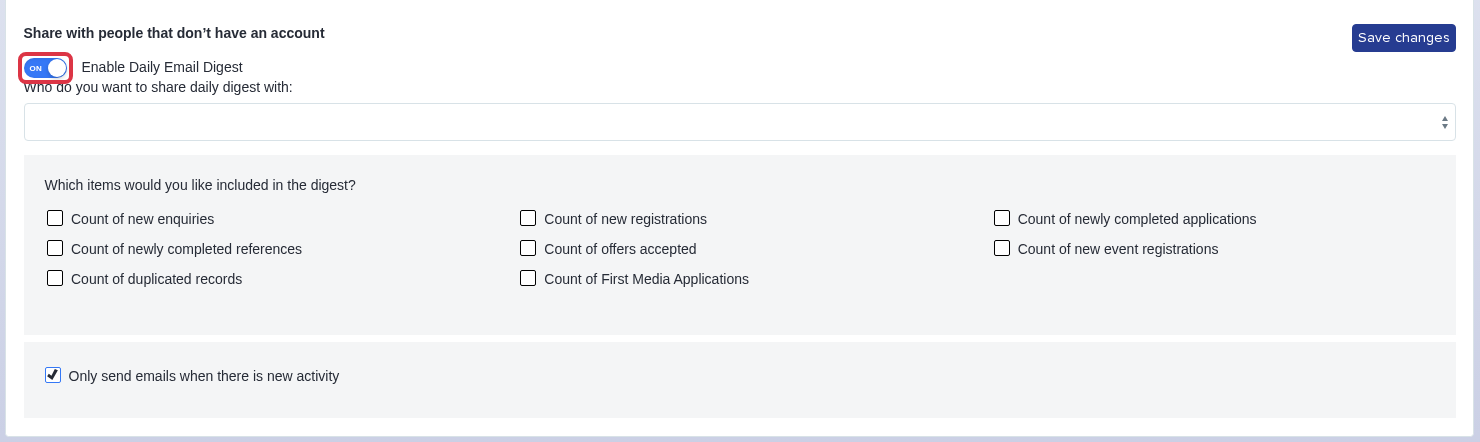
Points to know about the digest:
- No one can change another person's digest settings for them. The page always shows the settings of the person who is signed in.
- Remove the account from your user list when the person has left your school. That stops their digest for good. See "Updating Key Contacts, Super Admins, and Removing Departing Staff" below.
- The digest only goes out for active forms, and it only goes out to an address that has at least one item selected.
Change the Header on a Notification Email
The block at the top of an email - your logo, the header image and the header text - belongs to the application form that sends that email, not to your whole system. A notification from your Year 12 form therefore carries the Year 12 header. Open the form that sends the email before you change anything.
Go to Communications & Events > Communications, click the kebab menu at the top right of the page, and select "Email Message Design". Set your logo, the header image, the header text and the header colour there, then save.

Points to know about the header:
- The header applies to the emails of one form. Repeat the change on each form that sends the wrong header.
- If your Communications area shows a "Settings" tab, the same fields sit under "Template Defaults" on that page.
- The daily digest never carries your header, so a header change does not alter it.
Ask Emma in your system, or contact the helpdesk, if an email still carries the wrong header or the digest still arrives after these changes.