
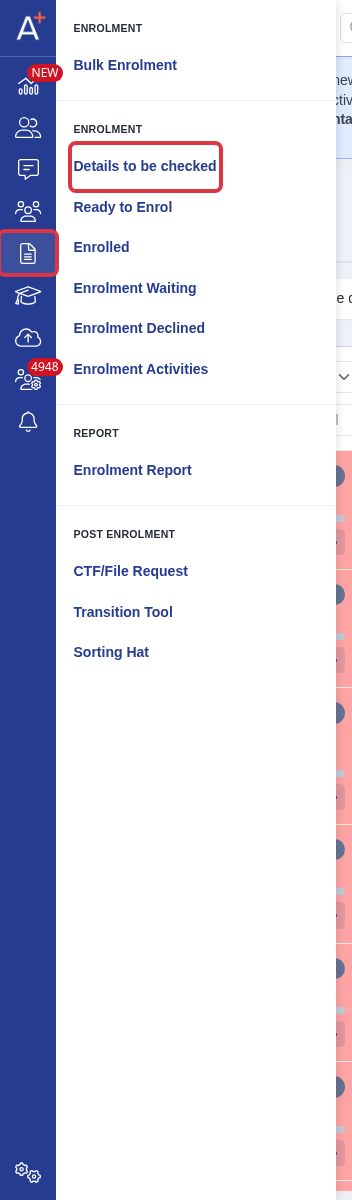
Use "Details to be checked" to review applicants after they submit an Enrolment Form. The applicant card shows their review status before you move them to course selection.
Go to Enrolment > Details to be checked.
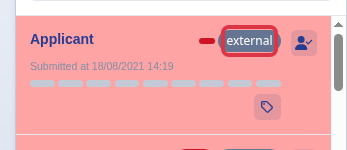
Each applicant card shows the applicant name, an Internal or External label, the submission time, and section progress.
What it does not do
- The card does not show the applicant's current school or application overview notes.
- You cannot add either item to the cards in "Details to be checked" or "Ready to Enrol".
- Confirmed or imported achieved grades do not move an applicant into this list. Bromcom sync does not move an applicant into this list.
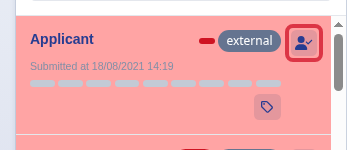
Select the action at the right of a card to move an applicant to Ready to Enrol. Use the same action in Ready to Enrol to return an applicant to Details to be checked.
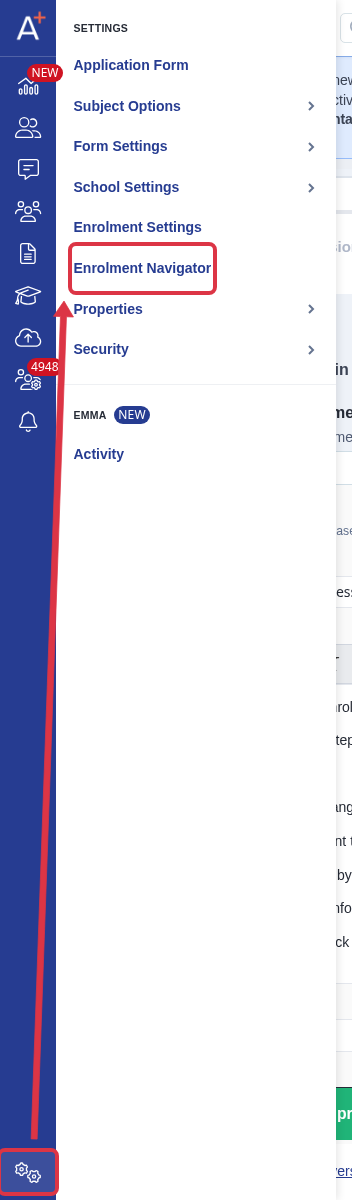
Go to Settings > Enrolment Navigator to set whether applicants must submit an Enrolment Form.
Under Student Process, set "Would you like applicants to log in and reconfirm their details by submitting their enrolment form?" to Yes when applicants must log in and submit the form. Set it to No when they do not need to do this.

When an applicant submits the Enrolment Form, Admissions+ marks the application as completed and puts the applicant in Details to be checked. This also happens when they submit before results day. Grade confirmation changes the grade information that staff check. It does not change the enrolment list or add a new field to the card.
Ask Emma in the application when you need help with a specific applicant.