
The embargo stops applicants, parents and most staff from logging in for a set period, so nobody sees results or enrolment information before you are ready to release it. You set one embargo for internal students and a separate one for external applicants, and each one has a start time, an end time and a message.
This article covers where to set the embargo, exactly when it lifts, who can still log in while it is running, and what to check first when someone tells you they cannot log in on results day.
Where the embargo is set
Open the left-hand menu, choose "Settings" and then "Enrolment Navigator".
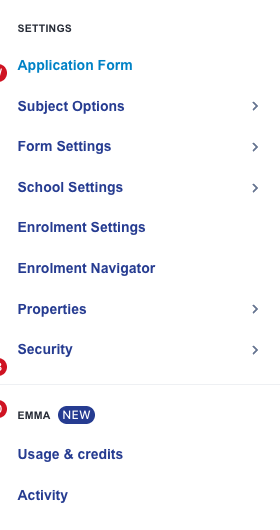
Move through the navigator to step 7, "Embargo".
Setting the embargo times and message
Set an "Embargo Start Time" and an "Embargo End Time" under "Internal Students", and again under "External Students". The "Embargo Message" is what the blocked user reads on the login page, so use it to tell them exactly when they can come back.

Things to know about these fields:
- Times are in your school's own time zone, which is the UK by default. Type the local time you want, for example 08:00 on results day. British Summer Time is applied for you, so never add or subtract an hour yourself.
- An embargo only runs if both the start and the end time are filled in for that pair. If you fill in one and leave the other blank, the page shows "End time is required when start time is set" (or the reverse) and nothing is saved.
- The start time must be earlier than the end time.
- Internal and external are independent. Setting the internal pair does nothing to external applicants, and the other way round.
- If you leave the message blank, the system shows a default message naming the time the embargo ends.
Choosing which staff keep access
Under "Staff Access During Embargo", use "Select staff" to name the staff who must keep working during the embargo. Only the staff on this list stay in.

There is no Save button on this step. Each field saves on its own as soon as you change it, and a green "Saved" message confirms it. Tick "I'm happy with all settings above" and use "Next Step" when you are finished.

Who the embargo blocks, and who it does not
- Internal students are blocked by the internal embargo only.
- External applicants are blocked by the external embargo only.
- Parents and other contacts follow their children. A parent is blocked while the embargo covering their child is running, and a parent with no linked applicant is treated as external.
- Staff are treated as internal, so it is the internal embargo that affects them, never the external one.
- Super Admin, MAT Admin and MAT User accounts are never blocked. They can always log in.
- Every other staff member is blocked during the internal embargo unless they appear in "Staff Access During Embargo".
Staff sign in on your school's staff login page rather than the applicant one. That page is a different sign-in screen, not a way around the embargo. A member of staff who is not on the access list is blocked there as well.
What the embargo covers, and what Applicaa controls
- The school embargo applies across every application form on your school site. This includes Sixth Form, in-year and Year 6 applicants.
- The four date fields on step 7 are school controls. An old date stays until a staff user replaces it.
- Applicaa controls any separate enrolment restriction field. Ask Emma or Applicaa support to change a shaded restriction field.
- The Enrolment Test System uses a separate Applicaa lock. The school embargo does not control this lock.
- Applicaa can lock the test system during enrolment week. Use your live system for real enrolment work in that period.
What a blocked person sees
On the login page, your embargo message appears in red above the "Existing Users" box.
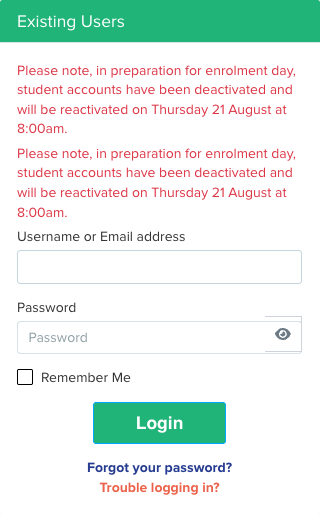
If they try to log in anyway, they get a message headed "Access Temporarily Unavailable" that names the date and time they can log in again, shown separately for internal and external users.
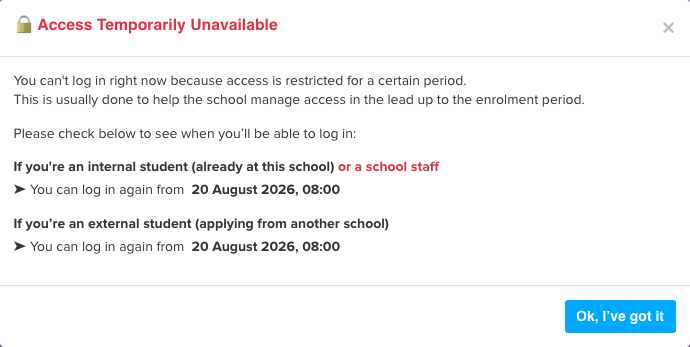
This is the quickest way to tell a genuine embargo block apart from a password or account problem. If a caller describes this exact message, the embargo is still running. If they describe anything else, such as an account not activated or an incorrect password, the embargo is not the cause.
Checking that the embargo has lifted
The embargo ends by itself the moment the end time passes. There is nothing to press and no job to wait for, and nobody needs to be released by hand.
To confirm it has lifted, either open step 7 of the Enrolment Navigator and read the end time back, or open your school's login page in a private browsing window. If the red embargo message above "Existing Users" has gone, the embargo is over. If the message is still showing, the end time has not yet passed - check the date as well as the time, and check both the internal and the external pair, because only one of them may have ended.
Clearing the embargo immediately
If you need people back in straight away, go to step 7 and empty both the "Embargo Start Time" and the "Embargo End Time" for the pair you want to stop. Clearing both saves automatically and ends that embargo at once.
Clearing only one of the two does not work: the page reports that the other time is still required and saves nothing, so the embargo keeps running. Clear the internal pair, the external pair, or both, depending on who you need to let back in. Setting the end time to a moment that has already passed has the same effect as clearing the pair.
If the problem is the go-live time, not the embargo
Applicants who can log in but cannot reach the enrolment form are usually looking at a different setting. On step 3, "Student Process", the "Enrolment Phase Start Date & Time" controls when the enrolment phase opens.

Applicants only reach the enrolment form once that phase is switched on and that date and time have passed. This is separate from the embargo, and it is set per application form, so check it on the form the applicant is actually on. The recommendation is to set it after the embargo ends, so nobody arrives early.
Results-day checklist when someone cannot log in
- Ask what they see. "Access Temporarily Unavailable" means the embargo; anything else does not.
- Check whether they are internal or external, then read that pair's end time on step 7.
- Check the date on the times, not just the hour - an embargo set for the wrong day is the most common cause.
- For staff, check whether they are on the "Staff Access During Embargo" list.
- If they are through the login but stuck before the enrolment form, check the "Enrolment Phase Start Date & Time" on step 3.
If you have worked through these checks and people still cannot get in, ask Emma in your system - she can read your current embargo settings back to you - or raise it with the Applicaa support team from the "Support & Requests" menu.