
How to Export Student Information as a PDF in B+
You may need to save a copy of their bursary application form or print a paper copy for a physical file—here's how!
From a student's profile, you can export their application to a PDF by clicking the printer icon. This allows you to save the PDF to your computer and/or print it as needed.
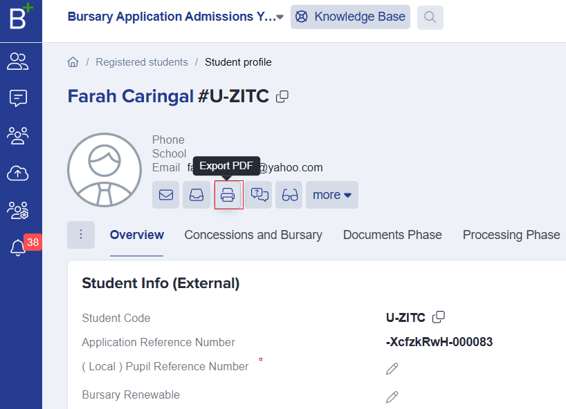
Before printing, you can click on the preview icon to view the default template or create a new one.
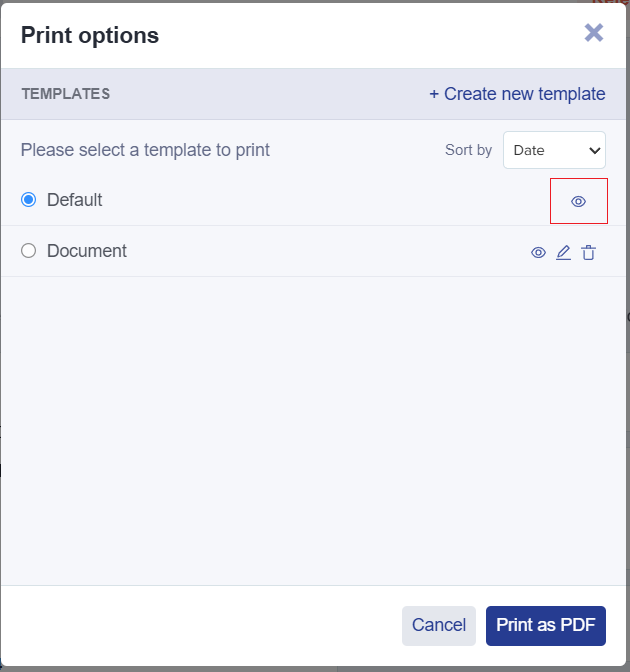
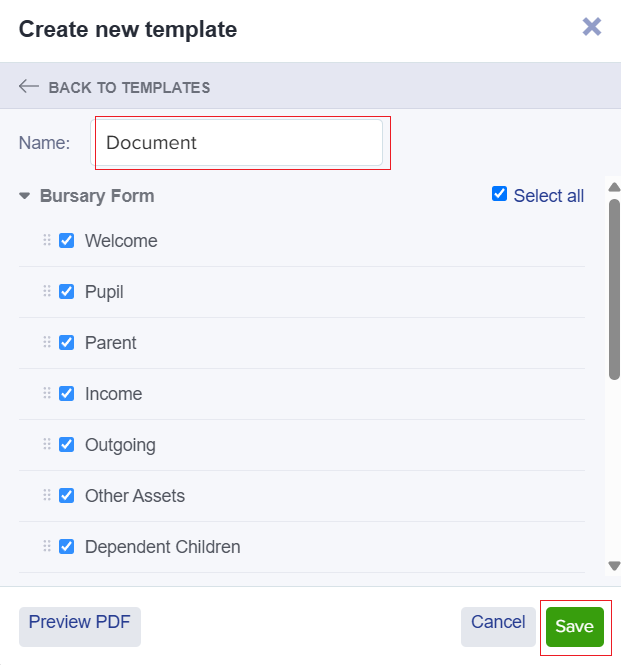
When creating a new template, you must assign a name and tick the boxes to include the information you want in your template. Then, click Save.

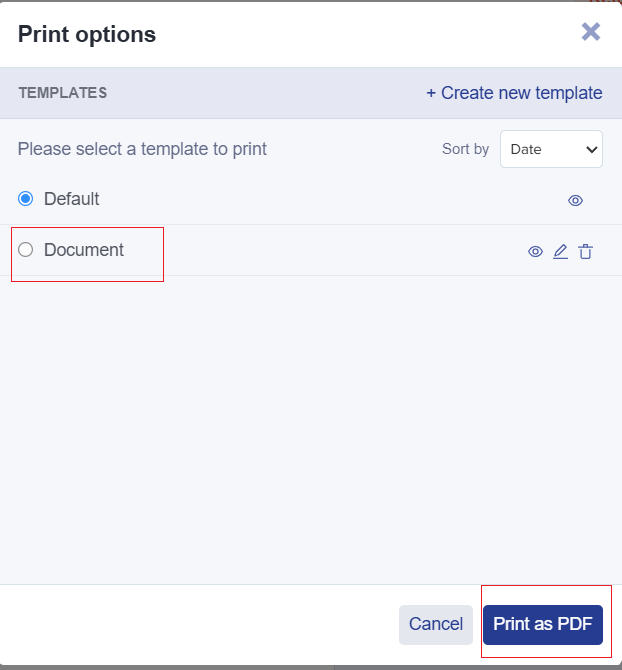
Select your chosen template and click Print as PDF.
Click on 'Click here' to save your PDF.

Bulk Export Student Information as a PDF
You can also export applications in bulk from your main dashboard by loading a list of students and selecting them using the checkboxes on the left of the table. Then, click "export to PDF" and choose whether to generate one file containing all data or separate files (one per applicant) in a zipped folder.

Please note that you can only export up to 100 students at a time

Was this article helpful?