
How to Configure Your Bursary+ Landing Page
This guide will show you how to customise your landing page.
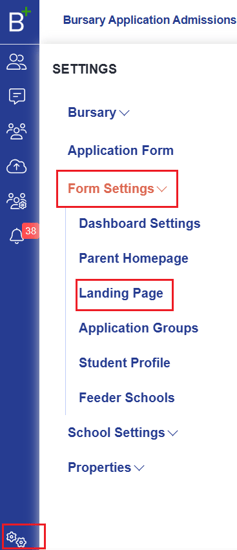
Click on Settings > Form Settings > Landing Page
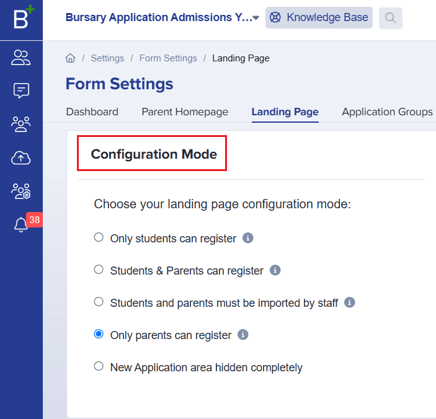
Configuration Mode
This section allows you to select how applications are accepted:
- Only students can register – Typically used for Year 12 admissions, not really used for bursary applications.
- Students & Parents can register – Some schools use this for Year 12 and In- Year Admissions
- Students and parents must be imported by staff – Used when you have a list of parents to import, when you would like to create the accounts in bulk & then send them an email to log in.
- Only parents can register – Most typically used for bursary applications
- New Application area hidden completely – The New Application block will not be visible on the landing page (selected by schools when applications are no longer being accepted).
Landing Page Customisation
This section has three sub-sections, which you can customise by clicking on the Edit button.
Note: A preview of your landing page is displayed beside this section.

Customise Texts & Buttons
-
Show New Application block – Controls the visibility of the New Application block on the landing page.

-
Show New Application button – Controls the visibility of the New Application button within the New Application block.
- Note: Schools usually disable this after the application deadline.

-
New Application title – Allows you to change the title of the Application Block.

-
Description – Allows you to add a short message or instructions to the New Application block.

-
Button text for new application button (For only Students) – Customises the text on the New Application button. (Only applicable if applications are set to be accepted from students only.)
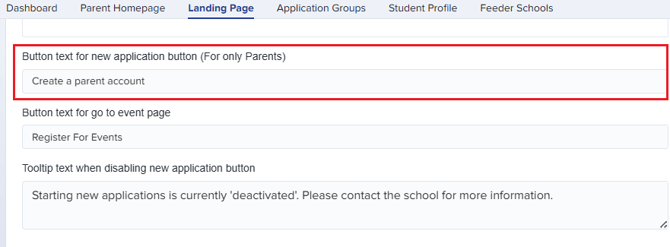
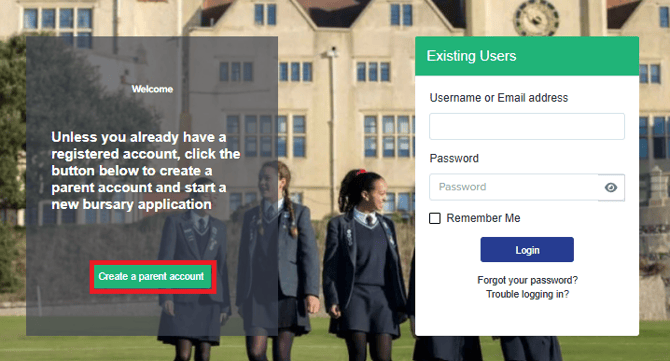
- Button text for 'Go to Event Page' – If events are created and made visible on the landing page, a register button will appear (if parents/students are allowed to register). This setting customises the text on the register button.

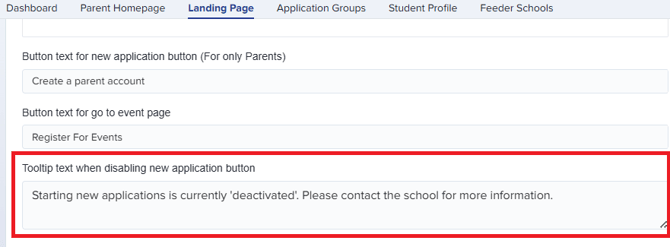
- Tooltip text when disabling New Application button – When the New Application button is disabled (e.g., after the deadline), the button will be grayed out, and this tooltip message will be displayed to parents/students.
Popup Message on Landing Page
-
You may enable this feature and enter a message to be displayed as a popup.
-
Schools typically use this for important announcements to ensure parents/students do not miss them.

General Settings
-
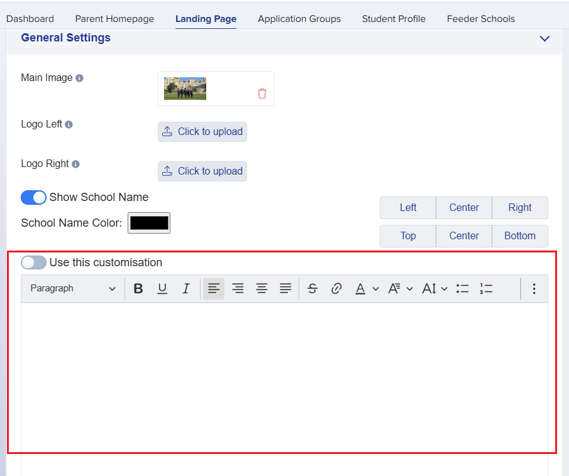
Main Image – Upload a background image for the landing page.
-
Logo Left – Upload a logo to be positioned on the left side of the landing page.
-
Logo Right – Upload a logo to be positioned on the right side (e.g., MAT logo, if applicable).

-
Show School Name – Enable this option to display the school name on the landing page.
- Note: You can choose where the school name should be positioned.

-
Use this customisation – If you want to customise the school name displayed on the landing page, enable this feature and enter the desired text.
- Note: The Show School Name feature must be disabled for this custom text to be used.
Final Step
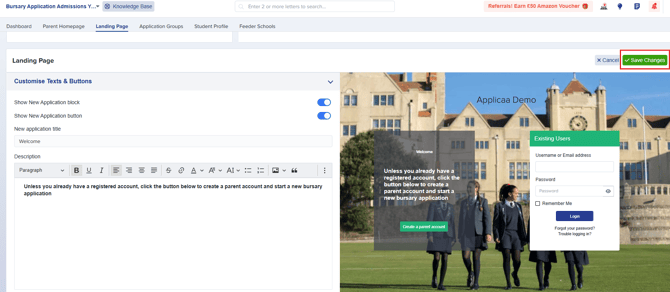
For any changes made, click on the Save Changes button.
Was this article helpful?