
How to Update the School's Menu Colour in Your Bursary+ Platform
This guide will show you how to update the color branding of your bursary system
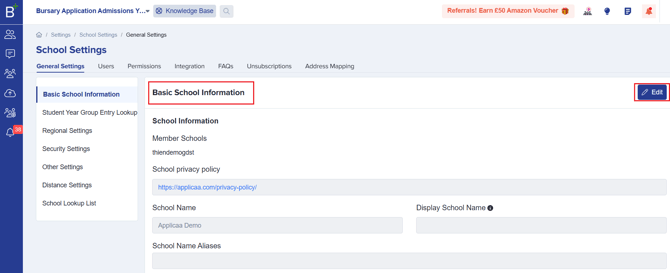
First, please go to Settings (this will be the gear icon in the bottom left corner of your screen) > School Settings > then click on General Settings.

Under General Settings, you'll see the Basic School Information area, where you need to click Edit.
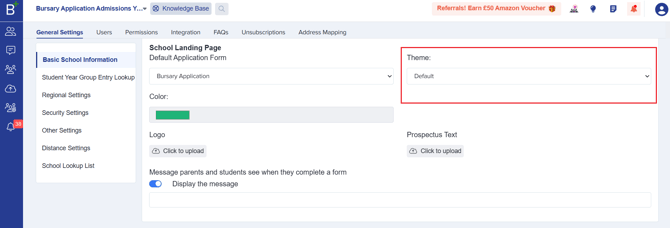
Scroll down to find the Color tab, where you can pick a colour for the menu tabs in your system. This will also serve as your colour branding.

You can also choose a theme if you wish by clicking on Theme.
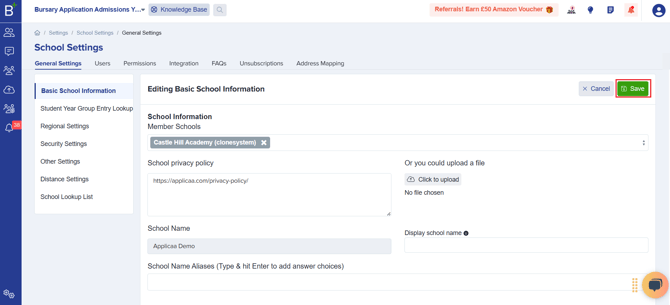
Once you've selected your desired colour for the system, please don't forget to click Save so the changes will be applied.
Was this article helpful?