
How to Create, Update & Monitor Tasks
This guide will show how you can set tasks for staff users.
First, you need to choose a student. You may do this by either typing the student's name in the search field beside the Knowledge Base button and selecting the student, or by going to the Registered Students tile and clicking on the student's first name or last name.
This will take you to the profile of the student that you need to see, have a call, or whatever it is that you want to do.
Note: You can set a task for a teacher per student.
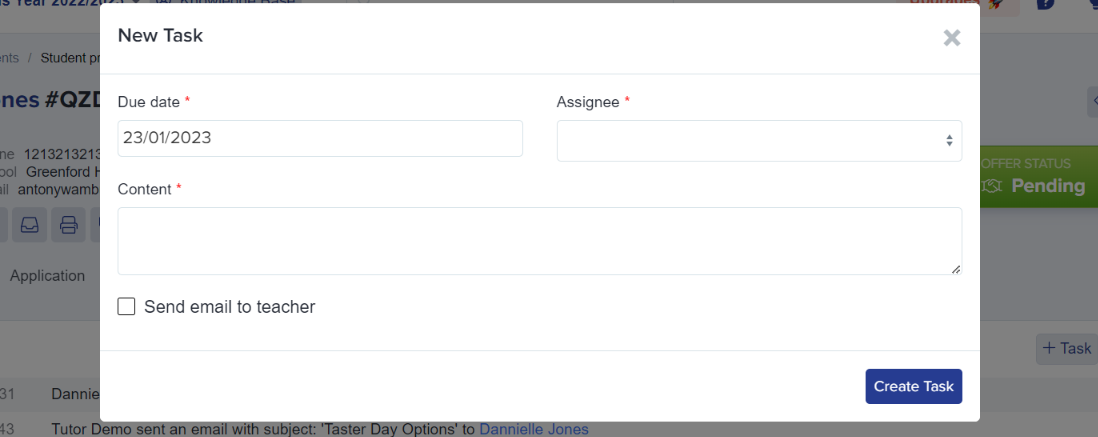
On the student profile, go to the Activities tab and click on the "+ Task" button.

Fill out the required fields:
Due date - when the task needs to be done by
Assignee - the teacher who will do the task
Content - details of the task
Tick the "Send email to teacher" box to notify the teacher the task is assigned to them and click Create Task.
Once done, go back to your homepage by clicking on the A+ button in the upper left corner.

Go to the Tasks tab and you should see all the tasks that were created & assigned.
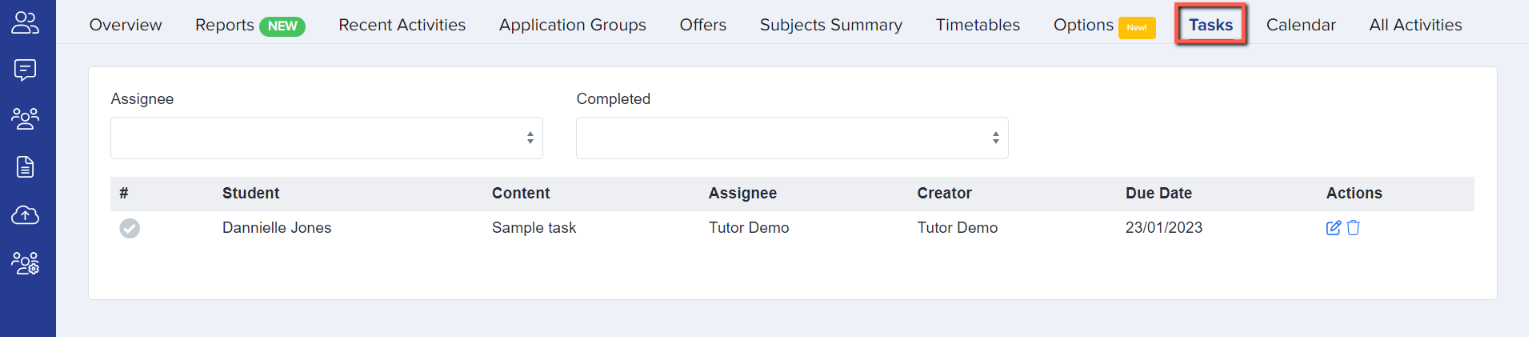
You may filter tasks by their Assignee or status.

To set a task complete, simply click on the check icon (as shown below).
Note: Completed tasks are highlighted green.

You may also update the task by clicking on the edit button (as shown below).

Was this article helpful?