
How to use digital signatures in your bursary application form
This guide will tell you how to use digital signatures to collect agreement.
This feature is helpful when you'd like to ask for signatures from parents or students for them to add to the form.
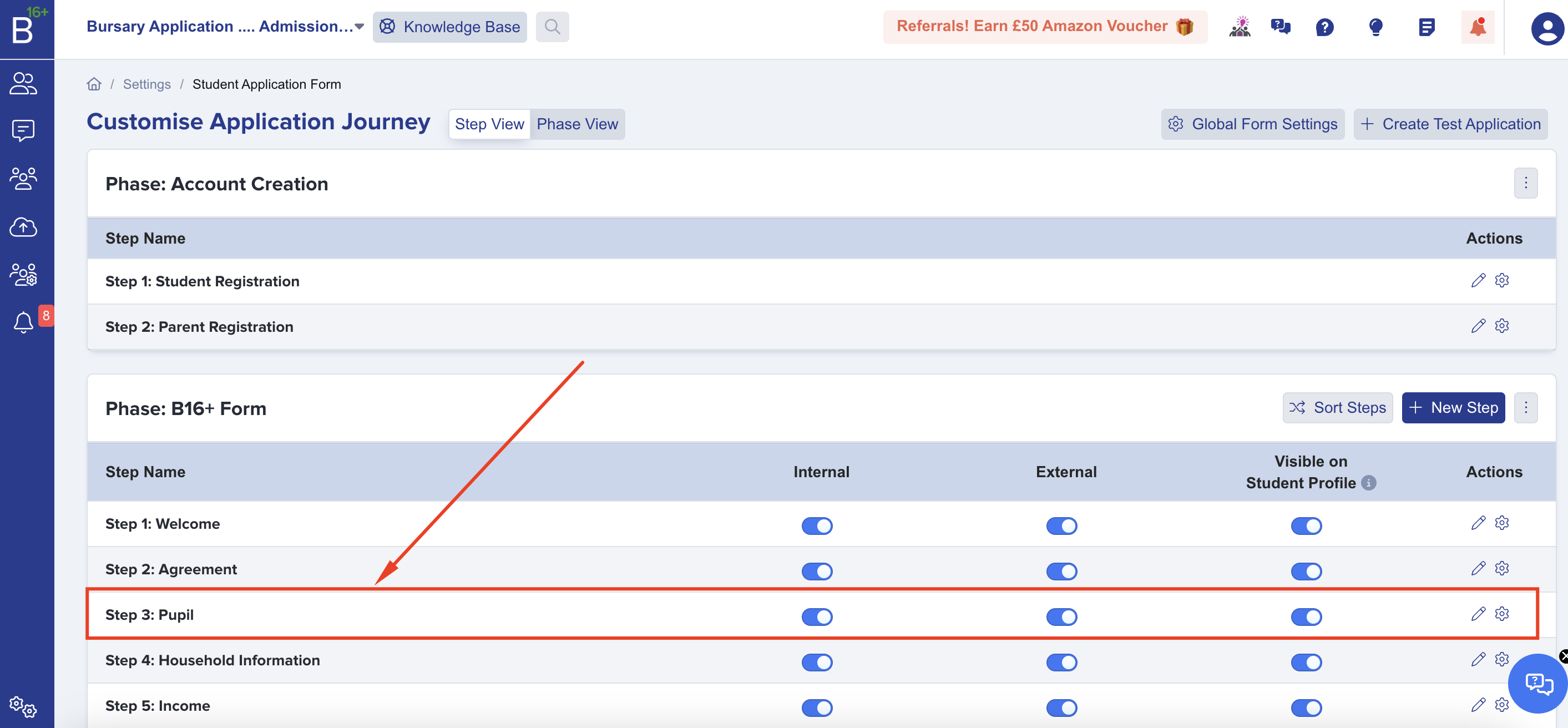
You may do this by going to Settings > Application form

You'll then be on the Customise Application Journey page and from here you may select which step you'd like to add the digital signature. You may click on the step itself to start adding it.
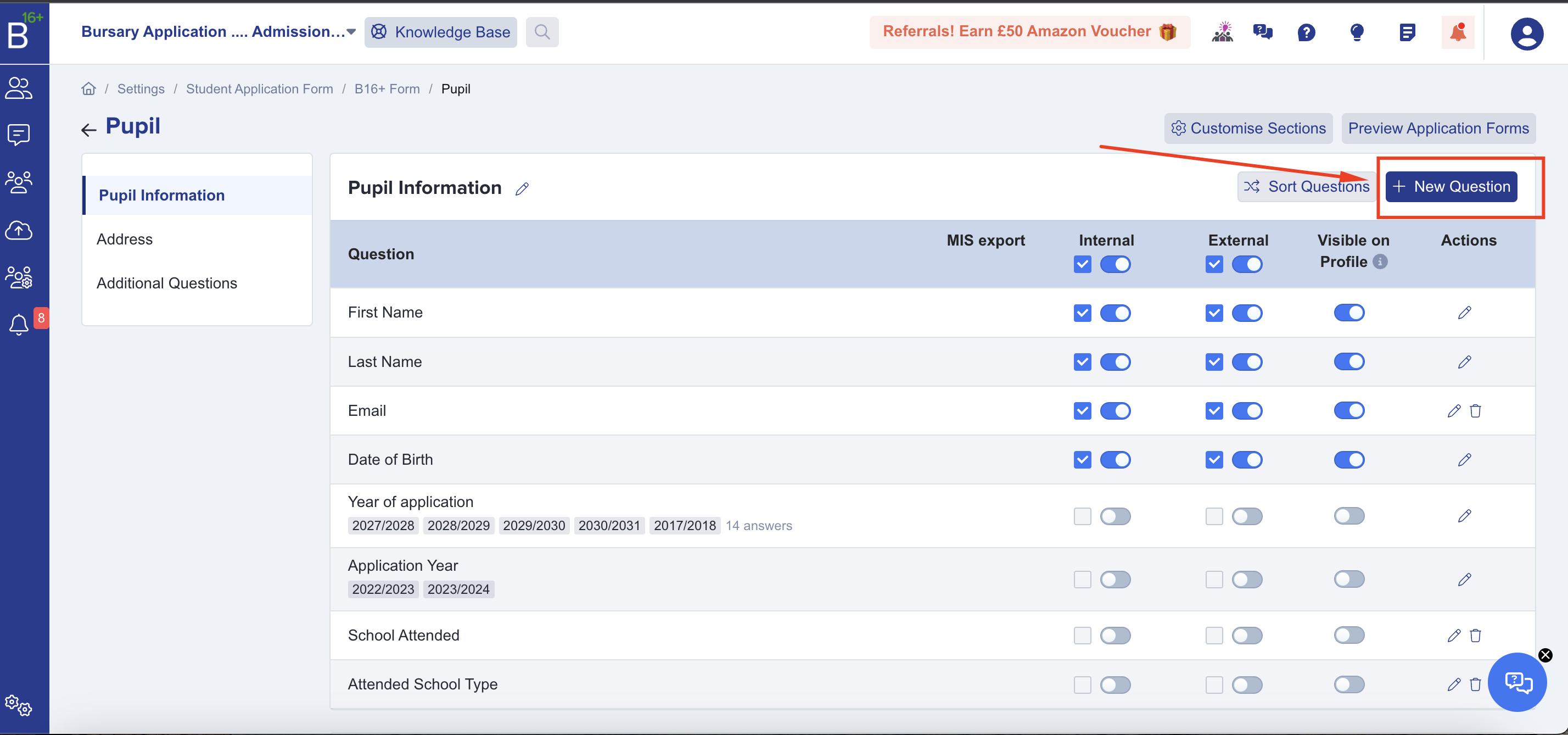
Once you've selected the step that you wish to add signatures to, please click New Question.
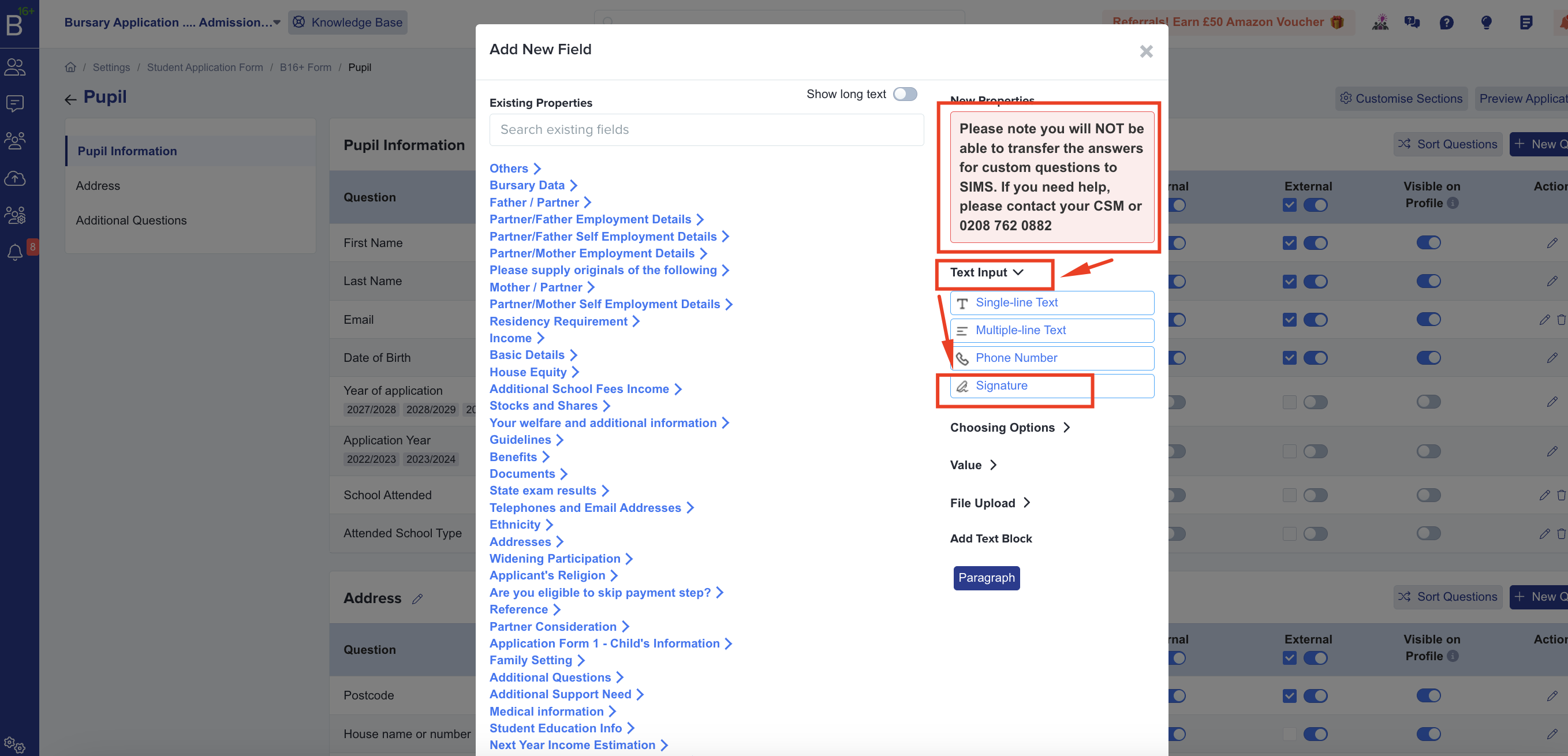
After clicking that, a pop-up will appear and will give you the option of what type of question you'd like to add. There is also a note that will remind you that custom questions like signatures will not be transferred over to your MIS.
On pop up, please click on Text Input > then Signature.
You will then be asked the following to fill out. For the property group, you may use Additional Questions as default. The title would be how you'd want the parents to agree/sign the form (i.e Please sign below to confirm that you have read the policies above). The unique code will be populated for you automatically.

Once done, please hit save and that field should now appear on the form. You may move it around by clicking Sort Questions. You can make it a compulsory field by making sure the tick box next to the toggle button is ticked.

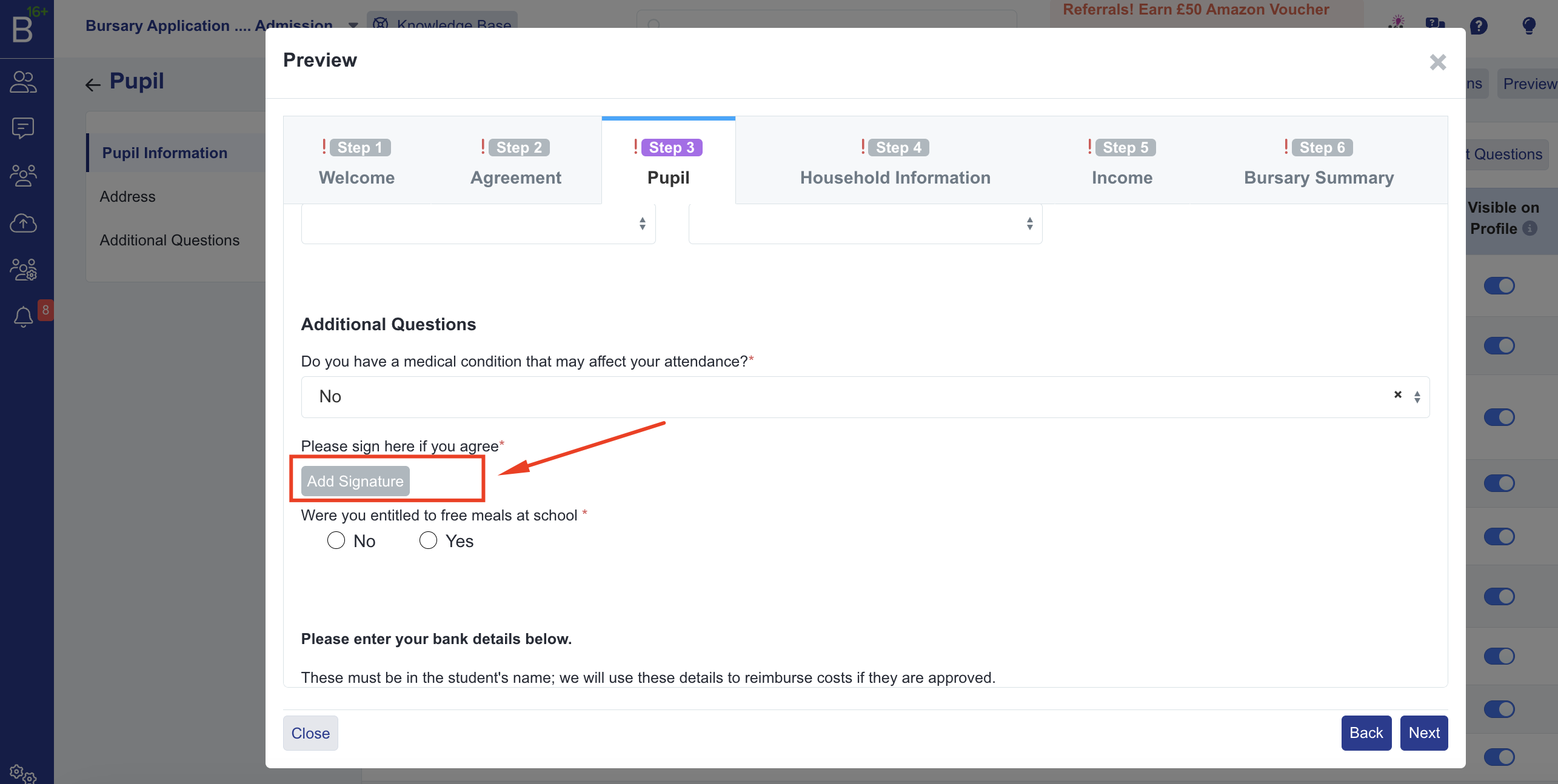
If you preview this then it will show how parents/students may sign on the form. There is an option to draw, type or upload.

Was this article helpful?