
B16+ How to add logo and background photo to Landing Page
This article will show you how you can add/change logos and background photos on your Bursary 16+ Landing Page.
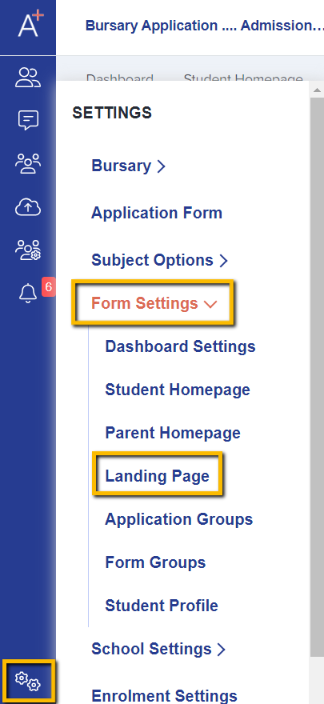
Go to your Settings > Form Settings > Landing page
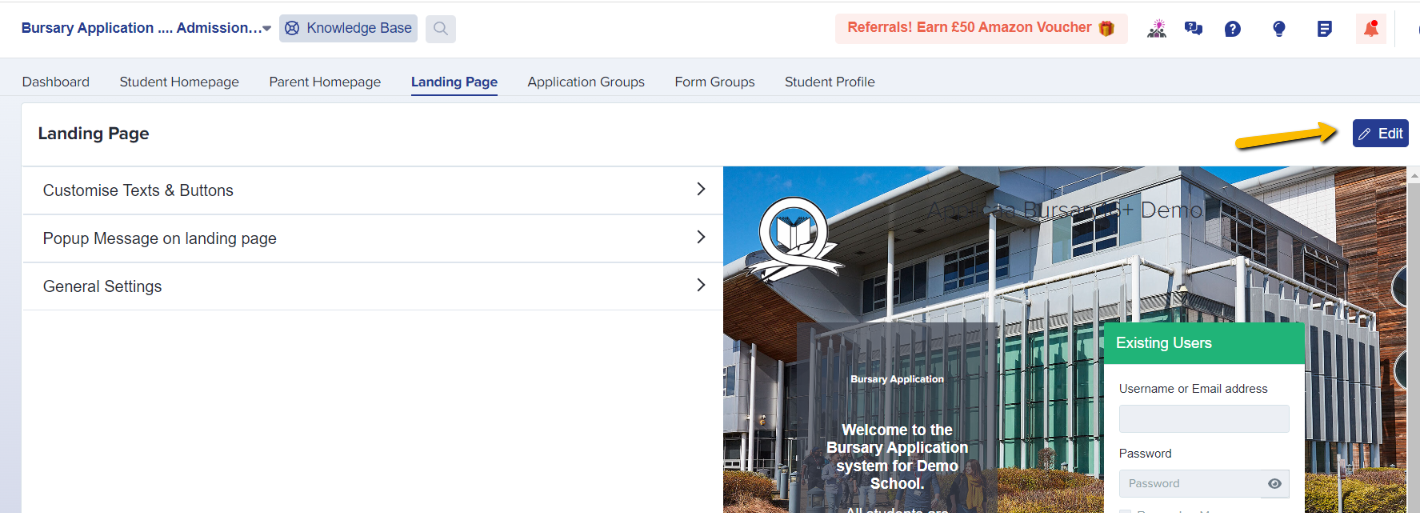
Click "edit" and then scroll down until you reach the last section ' General Settings'
Click to upload new a Background Photo (Main Image):
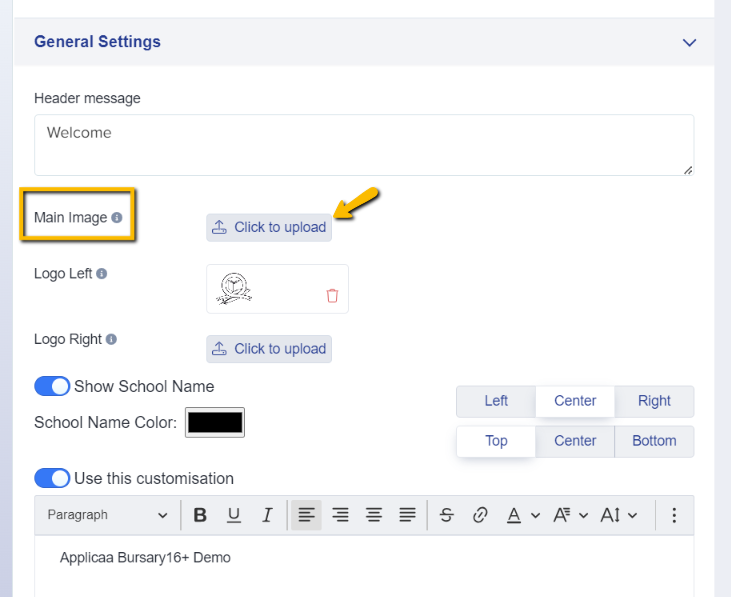
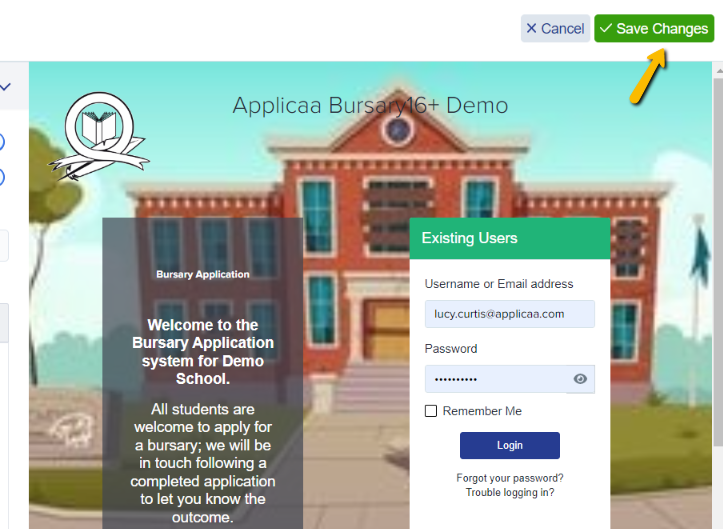
You can also add logos on the top left and right corners of your Landing Page - perhaps a school logo on one side, and a MAT logo or Ofsted rating on the other.
You can also display your 'School Name', and choose to display a custom name if preferred:
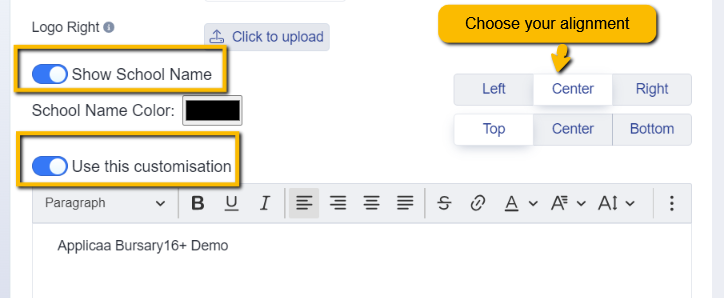
You can see the changes made when you save the changes on the right side of the screen.
Or, you can copy and paste the URL on another browser or Incognito window to check the changes.
Was this article helpful?